
19 KiB
Using a Code Editor: Mastering VSCode.dev
Welcome to the world of web-based code editing! In this lesson, you'll discover how to use VSCode.dev, a powerful browser-based code editor that brings professional development tools directly to your web browser. Think of it as having a complete development environment that follows you everywhere – no downloads, no installations, just pure coding power at your fingertips.
Modern web development requires tools that are flexible, accessible, and powerful. VSCode.dev delivers all three by providing the same editing experience you'd get from a desktop application, but with the convenience of running entirely in your browser. This means you can code on any device, from anywhere, whether you're using a school computer, a friend's laptop, or even a tablet.
By the end of this lesson, you'll be confidently editing code, managing projects, tracking changes with version control, and customizing your development environment with extensions. These skills form the foundation of professional web development and will serve you throughout your coding journey.
Learning Objectives
After completing this lesson, you'll be able to:
- Navigate and efficiently use VSCode.dev's interface for any coding project
- Open and edit GitHub repositories directly in your browser
- Track and commit changes using built-in Git version control
- Install and manage extensions to enhance your development workflow
- Create, edit, and organize files within web-based projects
Prerequisites
Before starting this lesson, you'll need:
- A free GitHub account for managing code repositories and accessing VSCode.dev's full features
- Basic familiarity with web browsers and file management
- Completion of the GitHub Basics lesson (recommended)
💡 Getting Started: If you don't have a GitHub account yet, create one here. It's free and essential for modern web development collaboration!
Understanding Web-Based Code Editors
A code editor serves as your primary workspace for writing, editing, and managing code. Unlike simple text editors, professional code editors provide syntax highlighting, error detection, file organization, and integration with development tools. VSCode.dev brings all these capabilities to your browser with several key advantages.
Key benefits of web-based editing:
| Benefit | Description | Impact |
|---|---|---|
| Device Independence | Works on any computer with a modern browser | Code from school, home, or anywhere |
| Zero Setup | No downloads or installations required | Start coding immediately |
| Automatic Updates | Always runs the latest version | Access newest features without manual updates |
| Cloud Integration | Direct connection to GitHub repositories | Seamless collaboration and backup |
Here's why web-based editors are revolutionary:
- Eliminates the traditional barrier of software installation
- Provides consistent experience across different devices and operating systems
- Enables instant collaboration and sharing with team members
- Reduces storage requirements on your local device
Getting Started with VSCode.dev
Let's dive into VSCode.dev and explore its powerful interface. This web-based editor provides all the tools you need for professional development work, accessible through any modern web browser.
To begin, navigate to vscode.dev in your browser. Notice that there's no download prompt or installation process – the editor loads directly in your browser tab.
Connecting Your GitHub Account
For the best experience, sign in with your GitHub account when prompted. This connection unlocks powerful features including repository access, settings synchronization, and extension management.
Signing in provides these benefits:
- Accesses your GitHub repositories directly in the editor
- Synchronizes your settings and extensions across devices
- Enables direct commits and pull requests from the browser
- Maintains your personalized development environment
Understanding the Interface
Once loaded, VSCode.dev presents a clean, organized workspace designed for efficient coding:
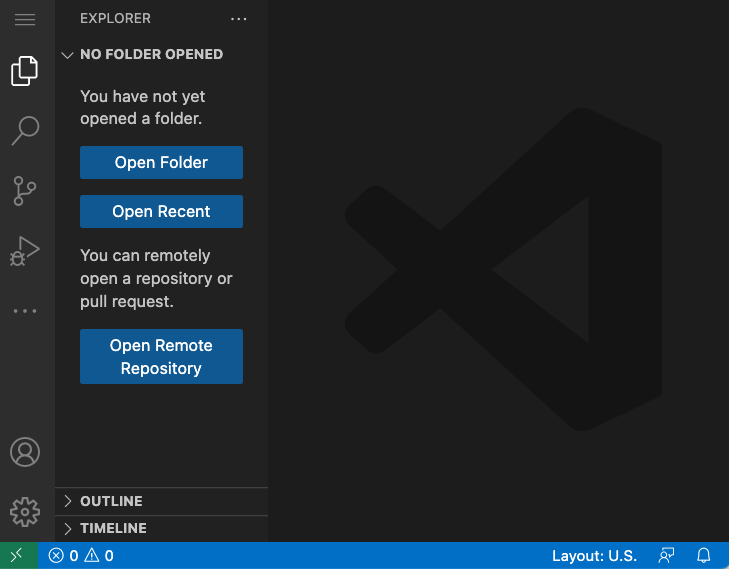
The interface consists of three main areas:
- Activity Bar (left edge): Contains icons for Explorer 📁, Search 🔍, Source Control 🌿, Extensions 🧩, and Settings ⚙️
- Sidebar (left panel): Displays contextual information based on your Activity Bar selection
- Editor Area (main space): Provides the primary workspace for viewing and editing your code files
Getting familiar with the layout:
- Click through different Activity Bar icons to explore available features
- Observe how the sidebar content changes based on your selection
- Return to the Explorer view (📁) to see your project files and folders
Opening GitHub Repositories
One of VSCode.dev's most powerful features is its ability to open and edit GitHub repositories directly in your browser. This means you can contribute to projects, make quick fixes, or explore codebases without cloning anything to your local machine.
There are two efficient methods to open repositories, each suited for different workflows and use cases.
Method 1: Using the Interface
This method works well when you're already in VSCode.dev and want to open a specific repository:
Step-by-step process:
-
Navigate to vscode.dev in your browser
-
Click the "Open Remote Repository" button on the welcome screen
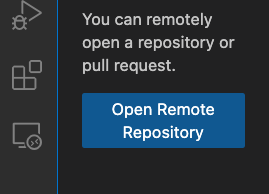
-
Paste your GitHub repository URL (for example:
https://github.com/microsoft/Web-Dev-For-Beginners) -
Press Enter to load the repository
Alternative using Command Palette:
For a faster approach, use the Command Palette (Ctrl+Shift+P on Windows/Linux, or Cmd+Shift+P on Mac):

Here's what happens when you use the Command Palette:
- Opens a search interface for all available VSCode.dev commands
- Provides quick access to "Open Remote Repository" functionality
- Enables keyboard-driven workflow for experienced developers
- Displays recently opened repositories for quick access
Method 2: Direct URL Transformation
This method offers the fastest way to open any GitHub repository directly in VSCode.dev. It's perfect for quick edits or when someone shares a repository link with you.
URL transformation technique:
| Repository Type | Original GitHub URL | VSCode.dev URL |
|---|---|---|
| Public Repository | github.com/microsoft/Web-Dev-For-Beginners |
vscode.dev/github/microsoft/Web-Dev-For-Beginners |
| Your Repository | github.com/your-username/my-project |
vscode.dev/github/your-username/my-project |
| Forked Repository | github.com/your-username/forked-repo |
vscode.dev/github/your-username/forked-repo |
Understanding the transformation:
- Replaces
github.comwithvscode.dev/githubin any repository URL - Maintains the same path structure for user and repository names
- Works with both public repositories and private ones you have access to
- Provides instant access without additional navigation steps
💡 Pro Tip: Bookmark the VSCode.dev version of repositories you frequently edit. This creates instant access to your most important projects!
When to use each method:
- Interface method: Best for browsing and exploring new repositories
- URL transformation: Ideal for quick access to known repositories or when clicking links from documentation
Working with Files and Projects
Once you have a repository open in VSCode.dev, you can perform all the essential file operations needed for web development. The interface provides intuitive tools for creating, editing, organizing, and tracking changes to your code.
Let's explore the core file management capabilities that make VSCode.dev a complete development environment.
Creating New Files
Adding new files to your project is straightforward and supports all common web development file types including HTML, CSS, JavaScript, and configuration files.
To create a new file:
- Navigate to your desired folder location in the Explorer sidebar
- Click the "New File" icon (📄+) that appears when hovering over folder names
- Type your filename including the appropriate extension (e.g.,
style.css,script.js,index.html) - Press Enter to create the file
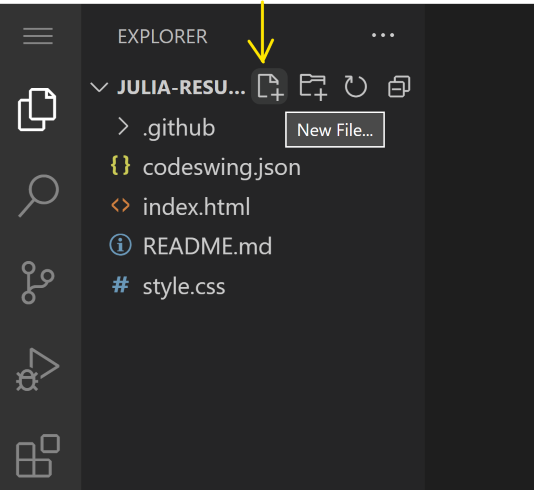
Best practices for file creation:
- Uses descriptive names that clearly indicate the file's purpose
- Includes proper file extensions for syntax highlighting and IntelliSense
- Organizes files into logical folder structures from the start
- Follows common naming conventions (lowercase, hyphens instead of spaces)
Editing and Saving Files
VSCode.dev provides a full-featured editing experience with syntax highlighting, auto-completion, and error detection for web development languages.
Editing workflow:
- Click any file in the Explorer to open it in the main editor area
- Make your changes using the full-featured code editor
- Save your work using Ctrl+S (Windows/Linux) or Cmd+S (Mac)
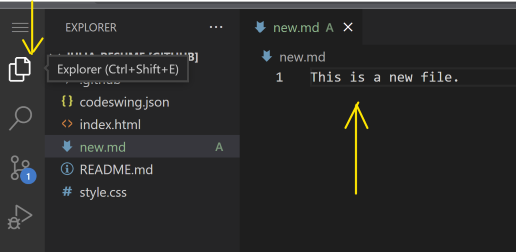
Key editing features:
- Provides syntax highlighting for HTML, CSS, JavaScript, and many other languages
- Offers intelligent code completion and suggestions as you type
- Detects errors and provides helpful error messages
- Supports multiple files open simultaneously in tabs
- Includes automatic saving that preserves your work as you type
⚠️ Auto-Save Note: VSCode.dev automatically saves your changes, but manually saving (Ctrl+S or Cmd+S) ensures your work is immediately preserved and triggers additional features like error checking.
Version Control with Git
One of VSCode.dev's most powerful features is its integrated Git version control system. This allows you to track changes, create commits, and push updates directly to GitHub without leaving your browser.
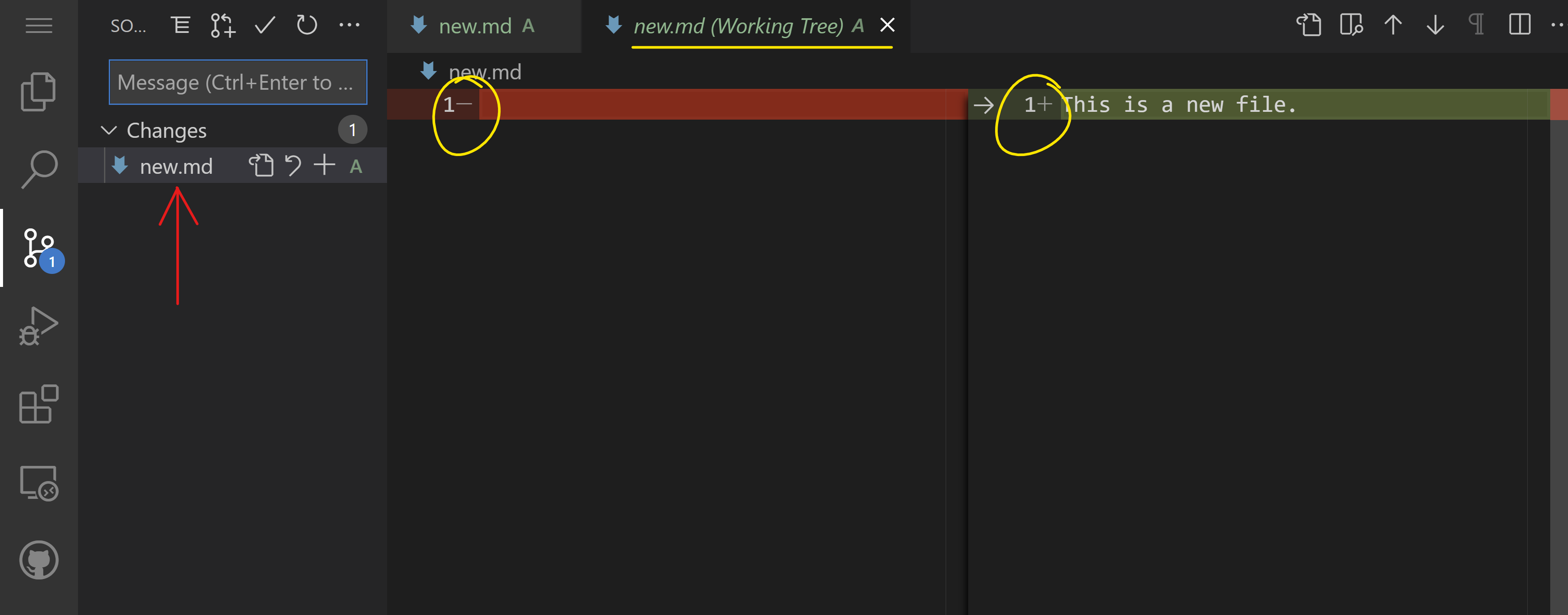
Understanding the Source Control interface:
- Click the Source Control icon (🌿) in the Activity Bar to view all changes
- Review modified files, which appear in the "Changes" section
- See additions highlighted in green and deletions in red
The commit workflow:
flowchart TD
    A[Make changes to files] --> B[View changes in Source Control]
    B --> C[Stage changes by clicking +]
    C --> D[Write descriptive commit message]
    D --> E[Click checkmark to commit]
    E --> F[Changes pushed to GitHub]
Step-by-step commit process:
- Stages individual files by clicking the "+" icon next to each changed file
- Reviews all staged changes before committing
- Writes a clear, descriptive commit message explaining what changed
- Commits and pushes changes by clicking the checkmark button
- Discards unwanted changes using the undo icon if needed
Writing effective commit messages:
- Describes what the commit accomplishes in present tense
- Keeps the first line under 50 characters for readability
- Uses specific action verbs like "Add", "Fix", "Update", or "Remove"
- Examples: "Add responsive navigation menu", "Fix mobile layout issues", "Update color scheme for accessibility"
💡 Navigation Tip: Use the hamburger menu (☰) at the top left to return to your GitHub repository and see your committed changes online.
Enhancing Your Workflow with Extensions
Extensions are one of VSCode.dev's most powerful features, allowing you to customize and enhance your development environment. Think of extensions as specialized tools that add new capabilities, from language support and themes to debugging tools and productivity enhancers.
The VSCode extension marketplace contains thousands of community-created tools designed to make web development more efficient, enjoyable, and powerful. By carefully selecting extensions, you can create a personalized development environment tailored to your specific needs and projects.
Discovering and Managing Extensions
The Extensions marketplace in VSCode.dev provides easy access to tools that can transform your coding experience. The interface is designed to help you find exactly what you need, whether you're looking for specific functionality or browsing for inspiration.
Accessing the Extensions marketplace:
- Click the Extensions icon (🧩) in the Activity Bar
- Browse the different categories or use the search functionality
- Explore extension details, ratings, and user reviews
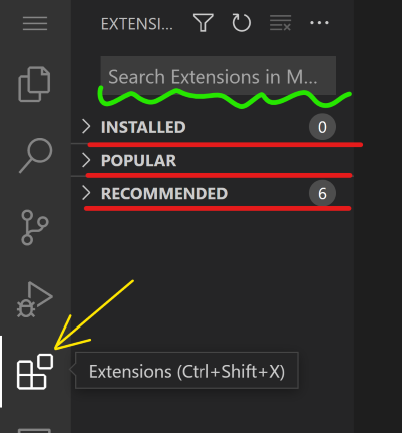
Understanding extension categories:
| Category | Purpose | Examples |
|---|---|---|
| Installed | Extensions you've already added | Your personal toolkit |
| Popular | Most-downloaded extensions | Industry standards and favorites |
| Recommended | Suggestions based on your workspace | Tailored to your current project type |
Key marketplace features:
- Displays detailed information including ratings, download counts, and user reviews
- Provides screenshots and documentation for each extension
- Shows compatibility information and system requirements
- Offers related extensions and alternatives for comparison
Installing Extensions
Adding new functionality to VSCode.dev is straightforward and immediate. Extensions install quickly and become available right away, often without requiring a restart.
Installation process:
- Search for your desired extension using keywords or exact names
- Click on the extension to view its details page
- Review the description, features, and user ratings
- Click the blue "Install" button
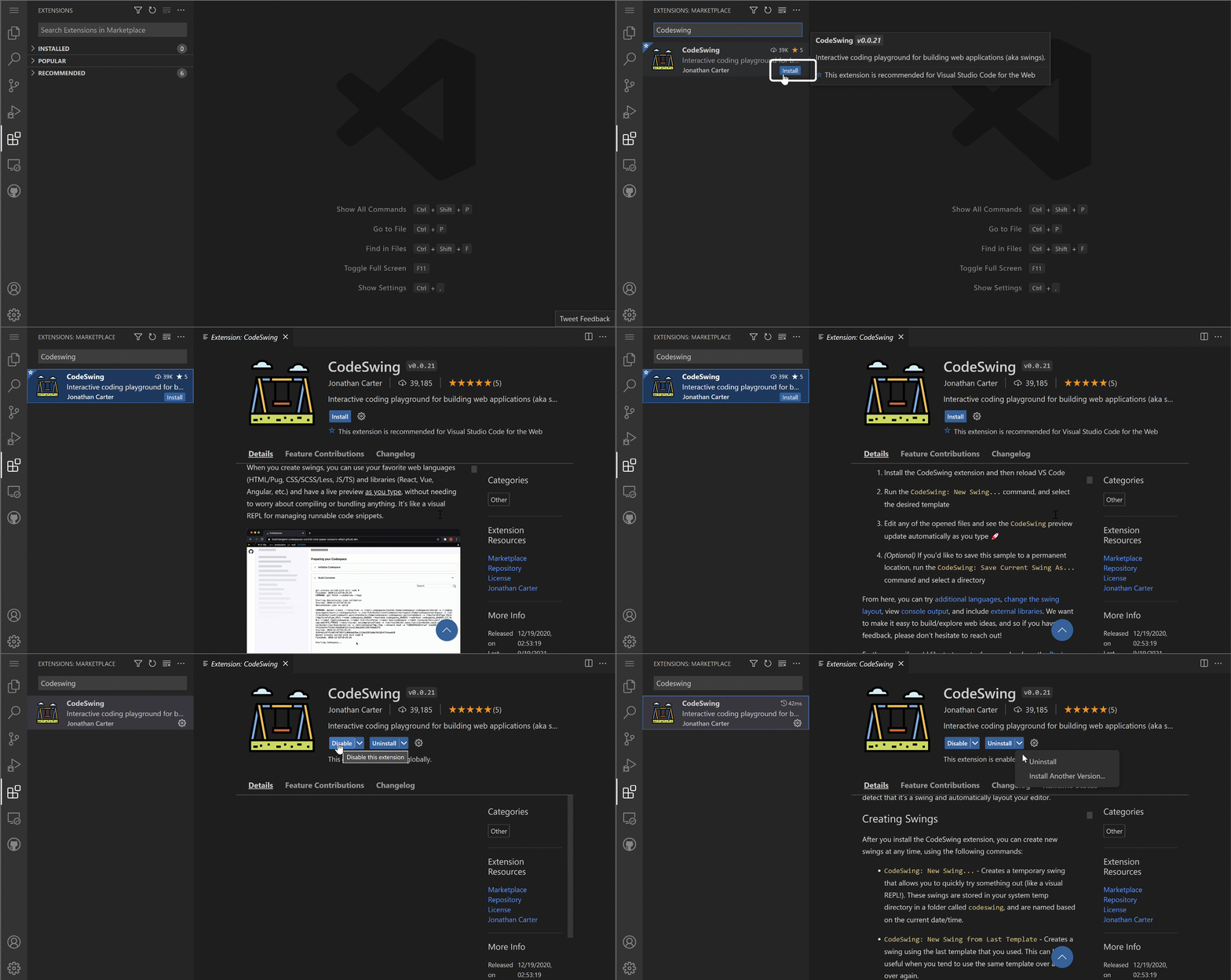
What happens during installation:
- Downloads the extension files to your browser-based environment
- Integrates new features into the VSCode.dev interface
- Activates the extension automatically for immediate use
- Syncs with your GitHub account so the extension appears on other devices
Recommended extensions for web development:
- Live Server: Provides local development server with auto-refresh
- Prettier: Formats your code automatically for consistency
- Auto Rename Tag: Updates matching HTML tags simultaneously
- Bracket Pair Colorizer: Highlights matching brackets with colors
- GitLens: Enhances Git capabilities with advanced history and blame features
Customizing Extension Settings
Most extensions provide customization options that allow you to tailor their behavior to match your workflow preferences. These settings help you optimize each tool for maximum productivity.
Accessing extension settings:
- Locate your installed extension in the Extensions panel
- Click the gear icon (⚙️) next to the extension name
- Select "Extension Settings" from the dropdown menu
- Modify settings according to your preferences
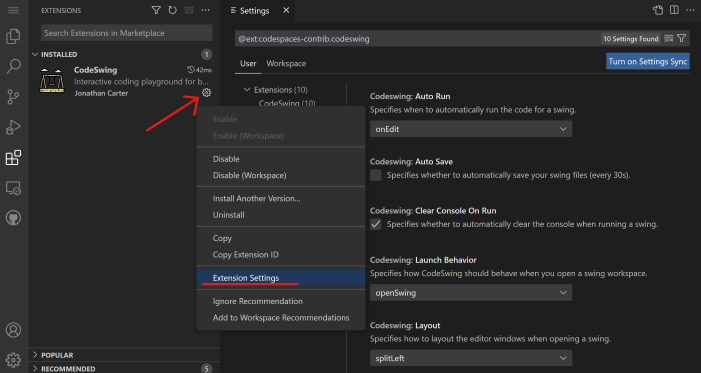
Common customization options:
- Adjusts formatting rules and style preferences
- Configures keyboard shortcuts and trigger behaviors
- Sets file type associations and language preferences
- Enables or disables specific features within the extension
Managing Your Extension Collection
As you discover more extensions, you'll want to organize and manage your collection effectively. VSCode.dev provides tools to help you maintain a clean, efficient development environment.
Extension management options:
| Action | Purpose | When to Use |
|---|---|---|
| Disable | Temporarily turn off without uninstalling | Testing conflicts or reducing clutter |
| Uninstall | Permanently remove from your environment | Extension no longer needed |
| Update | Get the latest version and features | Maintain security and functionality |
Best practices for extension management:
- Reviews your installed extensions periodically to remove unused ones
- Keeps extensions updated for the latest features and security patches
- Disables rather than uninstalls extensions you might use again
- Reads extension changelogs to understand new features and changes
⚠️ Performance Tip: While extensions are powerful, installing too many can impact performance. Focus on extensions that genuinely improve your workflow and disable any you're not actively using.
GitHub Copilot Agent Challenge 🚀
Use the Agent mode to complete the following challenge:
Description: Create a comprehensive development workflow using VSCode.dev that demonstrates professional project management skills, from repository setup to collaborative features.
Prompt: Set up a complete web development project in VSCode.dev that includes:
- Fork an existing repository or create a new one
- Create a proper project structure with HTML, CSS, and JavaScript files
- Install and configure at least 3 relevant extensions for web development
- Make meaningful commits with descriptive messages
- Create a feature branch and make changes
- Document your workflow in a README.md file that explains your development process
Your final project should demonstrate mastery of VSCode.dev's interface, extension ecosystem, and version control integration.
Assignment
Ready to put your new skills to the test? Complete this hands-on project: Create a resume website using VSCode.dev
This assignment will guide you through creating a professional resume website entirely within your browser, demonstrating all the concepts covered in this lesson.
Further Exploration and Self-Study
Continue building your expertise with these resources:
Official Documentation:
- VSCode Web Documentation - Comprehensive guide to web-based editing
- GitHub Codespaces - Advanced cloud development environments
Advanced Features to Explore:
- Keyboard Shortcuts: Learn efficiency-boosting shortcuts for faster development
- Workspace Settings: Customize your environment for different project types
- Multi-root Workspaces: Work with multiple repositories simultaneously
- Terminal Integration: Access command-line tools directly in your browser
Practice Suggestions:
- Contribute to open-source projects using VSCode.dev
- Experiment with different extensions to find your optimal workflow
- Create templates for common project types you work on
- Practice Git workflows including branching, merging, and pull requests
Congratulations! You now have the skills to code professionally from anywhere, on any device, using VSCode.dev. This browser-based development environment opens up new possibilities for flexible, collaborative web development. Whether you're working on personal projects, contributing to open source, or collaborating with a team, you're equipped with a powerful, accessible development workflow.