32 KiB
Build a Banking App Part 3: Methods of Fetching and Using Data
Data is the lifeblood of modern web applications. Every time you check your bank balance, refresh your social media feed, or search for a product online, you're witnessing the power of dynamic data fetching and display. Unlike traditional websites that required full page reloads to show new information, modern web applications can seamlessly update content in real-time, creating smooth and responsive user experiences.
In this lesson, you'll discover how to transform your static banking app into a dynamic, data-driven application. You'll learn to fetch user account information from a server, handle asynchronous operations with modern JavaScript, and dynamically update your HTML to display real bank account data. This represents a crucial shift from hard-coded content to live, server-driven information.
By the end of this lesson, you'll understand the fundamental concepts behind single-page applications and have the skills to create web apps that feel fast, responsive, and professional. Let's dive into the world of asynchronous data fetching and dynamic content updates!
Pre-Lecture Quiz
Prerequisites
Before diving into data fetching, ensure you have these components ready:
- Previous Lesson: Complete the Login and Registration Form - we'll build on this foundation
- Local Server: Install Node.js and run the server API to provide account data
- API Connection: Test your server connection with this command:
curl http://localhost:5000/api
# Expected response: "Bank API v1.0.0"
Testing your setup:
- Verifies that Node.js is properly installed on your system
- Confirms the API server is running and accessible
- Establishes the connection between your app and the data source
Understanding Data Fetching in Modern Web Apps
The way web applications handle data has evolved dramatically over the past two decades. Understanding this evolution will help you appreciate why modern techniques like AJAX and the Fetch API are so powerful and why they've become essential tools for web developers.
Let's explore how traditional websites worked compared to the dynamic, responsive applications we build today.
Traditional Multi-Page Applications (MPA)
In the early days of the web, every user interaction required a complete page reload. When you clicked a link or submitted a form, the browser would request an entirely new HTML page from the server, causing the screen to flash white and interrupting the user's experience.
sequenceDiagram
    participant User
    participant Browser
    participant Server

    User->>Browser: Clicks link or submits form
    Browser->>Server: Requests new HTML page
    Note over Browser: Page goes blank
    Server->>Browser: Returns complete HTML page
    Browser->>User: Displays new page (flash/reload)
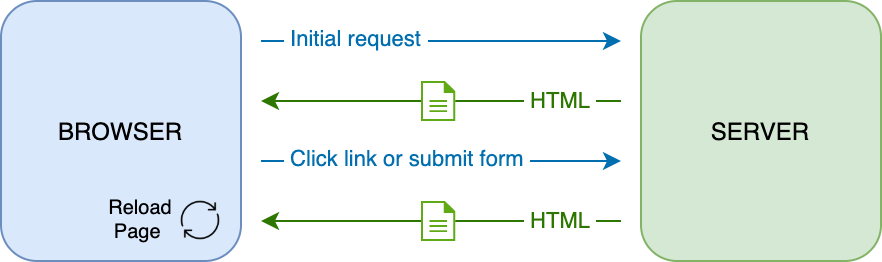
Understanding the MPA approach:
- Reloads the entire page for every data update or navigation
- Interrupts user interaction with visible page refreshes
- Transfers more data since complete HTML pages are sent
- Creates a less smooth, desktop-app-like experience
Modern Single-Page Applications (SPA)
Modern web applications use a technique called AJAX (Asynchronous JavaScript and XML) to fetch only the data they need, without reloading the entire page. This creates much smoother, app-like experiences that users have come to expect.
sequenceDiagram
    participant User
    participant Browser
    participant JavaScript
    participant Server

    User->>Browser: Interacts with page
    Browser->>JavaScript: Triggers event handler
    JavaScript->>Server: Fetches only needed data
    Server->>JavaScript: Returns JSON data
    JavaScript->>Browser: Updates specific page elements
    Browser->>User: Shows updated content (no reload)

Here's what makes SPAs superior:
- Updates only the parts of the page that need to change
- Maintains smooth user interactions without interruption
- Transfers less data by sending only JSON instead of full HTML
- Provides desktop-application-like responsiveness and speed
The Evolution to Modern Fetch API
While AJAX originally used the XMLHttpRequest API, modern browsers provide the more elegant Fetch API. The Fetch API uses promises and is specifically designed for handling JSON data - perfect for modern web applications.
| Feature | XMLHttpRequest | Fetch API |
|---|---|---|
| Syntax | Complex callback-based | Clean promise-based |
| JSON Handling | Manual parsing required | Built-in .json() method |
| Error Handling | Limited error information | Comprehensive error details |
| Modern Support | Legacy compatibility | ES6+ promises and async/await |
💡 Browser Compatibility: While all modern browsers support the Fetch API, you can always check the compatibility table on caniuse.com to verify support for your target browsers.
What you need to know:
- Supports all current browser versions (Chrome, Firefox, Safari, Edge)
- Requires polyfills only for Internet Explorer and very old browsers
- Provides the foundation for modern async/await JavaScript patterns
Implementing User Login and Data Retrieval
Now that you understand how modern web applications fetch data, let's implement these concepts in your banking app. You'll create a login function that authenticates users and retrieves their account information from the server - all without reloading the page.
We'll build this functionality step by step, starting with a basic login function and then adding data fetching capabilities.
Step 1: Create the Login Function Foundation
Open your app.js file and add a new login function. This will handle the user authentication process:
async function login() {
  const loginForm = document.getElementById('loginForm');
  const user = loginForm.user.value;
}
Breaking down what happens here:
- Declares an
asyncfunction to handle asynchronous operations - Retrieves the login form element using
getElementById() - Extracts the username value from the form input field
- Accesses form controls by their
nameattribute as properties of the form
💡 Form Access Pattern: Every form control can be accessed by its name (set in the HTML using the
nameattribute) as a property of the form element. This provides a clean, readable way to get form data.
Step 2: Create the Account Data Fetching Function
Next, we'll create a dedicated function to retrieve account data from the server. This follows the same pattern as your registration function but focuses on data retrieval:
async function getAccount(user) {
  try {
    const response = await fetch('//localhost:5000/api/accounts/' + encodeURIComponent(user));
    return await response.json();
  } catch (error) {
    return { error: error.message || 'Unknown error' };
  }
}
Here's what this code accomplishes:
- Uses the modern
fetchAPI to request data asynchronously - Constructs a GET request URL with the username parameter
- Applies
encodeURIComponent()to safely handle special characters in URLs - Converts the response to JSON format for easy data manipulation
- Handles errors gracefully by returning an error object instead of crashing
⚠️ Security Consideration: The
encodeURIComponent()function escapes special characters that could break URLs or cause security issues. What problems might occur if a username contained characters like#,&, or spaces without proper encoding?
Security implications to consider:
- Prevents URL parsing errors when usernames contain special characters
- Blocks potential injection attacks through malformed URLs
- Ensures consistent server-side processing of user data
- Maintains proper HTTP request formatting standards
Understanding HTTP GET Requests
By default, the fetch API creates a GET HTTP request, which is perfect for retrieving data. Unlike POST requests (used for creating accounts), GET requests:
| GET Request | POST Request |
|---|---|
| Purpose | Retrieve existing data |
| Parameters | In URL path/query string |
| Caching | Can be cached by browsers |
| Security | Visible in URL/logs |
Step 3: Complete the Login Function
Now let's integrate the account fetching function into your login process. This creates a complete user authentication and data retrieval workflow:
async function login() {
  const loginForm = document.getElementById('loginForm');
  const user = loginForm.user.value;
  const data = await getAccount(user);

  if (data.error) {
    return console.log('loginError', data.error);
  }

  account = data;
  navigate('/dashboard');
}
Step by step, here's what's happening:
- Retrieves the username from the login form
- Calls the
getAccountfunction and waits for the server response - Checks for errors and logs them if they occur (we'll improve this soon)
- Stores the account data in a global variable for app-wide access
- Navigates to the dashboard page to display the account information
🎯 Async/Await Pattern: Since
getAccountis an asynchronous function, we use theawaitkeyword to pause execution until the server responds. This prevents the code from continuing with undefined data.
Step 4: Set Up Global Data Storage
Your app needs a place to store the account data so it can be accessed from different parts of your application. Add this global variable at the top of your app.js file:
// Global variable to store current user account data
let account = null;
Understanding global state management:
- Stores account data accessible throughout the entire application
- Initializes as
nullto indicate no user is currently logged in - Updates when users successfully log in or register
- Provides a single source of truth for user account information
Step 5: Connect the Login Function to Your Form
Update your HTML form to call the login function when submitted:
<form id="loginForm" action="javascript:login()">
  <!-- Your existing form inputs -->
</form>
What this accomplishes:
- Prevents the default form submission that would reload the page
- Triggers your custom JavaScript login function instead
- Maintains the single-page application experience
- Allows for custom error handling and user feedback
Step 6: Enhance Your Registration Function
For consistency, update your register function to also store account data and navigate to the dashboard:
// Add these lines at the end of your register function
account = result;
navigate('/dashboard');
This enhancement provides:
- Seamless transition from registration to dashboard
- Consistent user experience between login and registration flows
- Immediate access to account data after successful registration
Testing Your Implementation
flowchart TD
    A[User enters credentials] --> B[Login function called]
    B --> C[Fetch account data from server]
    C --> D{Data received successfully?}
    D -->|Yes| E[Store account data globally]
    D -->|No| F[Display error message]
    E --> G[Navigate to dashboard]
    F --> H[User stays on login page]
Test your login system:
- Register a new account to ensure the API is working
- Try logging in with the same credentials
- Check the browser console for any error messages
- Verify that you're redirected to the dashboard after successful login
Understanding Cross-Origin Requests
You might be wondering how our web app can communicate with the API server when they're running on different ports. This involves an important web security concept that every developer should understand.
🔒 Security Insight: By default, browsers enforce the "same-origin policy" which only allows web pages to make requests to the same domain and port they were loaded from. This prevents malicious websites from accessing data from other sites.
Here's what this means:
- Web app runs on
localhost:3000(your development server) - API server runs on
localhost:5000(your backend) - Browsers would normally block this cross-origin communication
- CORS (Cross-Origin Resource Sharing) allows controlled exceptions
Our setup works because the API server includes special CORS headers that tell the browser: "It's okay to allow requests from localhost:3000." This is a crucial concept for modern web development where frontend and backend often run on different servers.
📚 Learn More: Dive deeper into APIs and data fetching with this comprehensive Microsoft Learn module on APIs.
Displaying Dynamic Data in Your HTML
Now that your app can successfully fetch user data from the server, it's time to make that data visible to your users. This is where the magic happens - transforming raw JSON data into meaningful, interactive content that users can see and understand.
Let's explore the essential techniques for dynamically updating HTML content with JavaScript, focusing on safe and efficient methods that create professional user experiences.
Understanding DOM Manipulation Methods
When working with dynamic content, you have several tools available for updating HTML elements. Each method serves different purposes and has specific security considerations:
| Method | Purpose | Best Use Case | Security Level |
|---|---|---|---|
textContent |
Update text safely | Displaying user data, simple text | ✅ Safe |
createElement() + append() |
Create new elements | Building complex structures | ✅ Safe |
innerHTML |
Set HTML content | ⚠️ Should be avoided | ❌ XSS vulnerable |
Safe Text Content Updates
The textContent property is your go-to method for safely displaying user data:
// Safe way to update text content
const balanceElement = document.getElementById('balance');
balanceElement.textContent = account.balance;
Key benefits of textContent:
- Prevents XSS attacks by treating all content as plain text
- Removes all existing child elements when updated
- Provides an efficient way to clear elements by setting to empty string
'' - Ensures safe display of user-generated content
Creating Dynamic HTML Elements
For more complex content, combine document.createElement() with the append() method:
// Safe way to create new elements
const transactionItem = document.createElement('div');
transactionItem.className = 'transaction-item';
transactionItem.textContent = `${transaction.date}: ${transaction.description}`;
container.append(transactionItem);
Understanding this approach:
- Creates new DOM elements programmatically
- Maintains full control over element attributes and content
- Allows for complex, nested element structures
- Preserves security by separating structure from content
⚠️ Security Warning: While the
innerHTMLproperty can update HTML content, it should be avoided because it's vulnerable to cross-site scripting (XSS) attacks.
Why innerHTML is dangerous:
- Executes any JavaScript code included in the HTML string
- Allows malicious users to inject harmful scripts
- Creates security vulnerabilities in production applications
- Better alternatives exist for all common use cases
Implementing User-Friendly Error Handling
Right now, when login fails, error messages only appear in the browser console - invisible to your users. Let's fix this by creating a professional error display system that provides clear feedback and works well for all users, including those using screen readers.
This improvement transforms your app from a developer tool into a polished user experience.
Step 1: Add Error Display Elements to Your HTML
First, add a placeholder element in your login form where error messages can appear. Place it just before the login button for optimal visibility:
<!-- Add this error display area to your login form -->
<div id="loginError" role="alert"></div>
<button>Login</button>
Here's what this code does:
- Creates an empty container that's invisible until needed
- Positions the error message where users naturally look for feedback
- Includes the
role="alert"attribute for screen reader accessibility - Provides a unique
idfor easy JavaScript targeting
Step 2: Create a Reusable Update Function
Next, create a helper function that can update any element's text content. This promotes code reusability and consistency:
function updateElement(id, text) {
  const element = document.getElementById(id);
  element.textContent = text;
}
Understanding this utility function:
- Accepts an element ID and text content as parameters
- Finds the target element using
getElementById() - Updates the element's text content safely using
textContent - Provides a reusable pattern for updating any page element
Step 3: Display Login Errors to Users
Update your login function to show errors visually instead of just logging them:
// Replace the console.log with user-visible error display
if (data.error) {
  return updateElement('loginError', data.error);
}
What this improvement accomplishes:
- Displays error messages where users can see them
- Replaces developer-only console messages with user-friendly feedback
- Stops the login process when errors occur
- Provides immediate, actionable feedback to users
Now when you test with an invalid account, you'll see a clear error message:

Step 4: Ensure Accessibility with Live Regions
The error message now appears visually, but screen reader users might miss it since it's added dynamically. The role="alert" attribute creates a Live Region that announces changes to assistive technologies:
<div id="loginError" role="alert"></div>
Why accessibility matters:
- Announces error messages to screen reader users immediately
- Ensures all users receive important feedback
- Complies with web accessibility standards (WCAG)
- Creates inclusive experiences for users with disabilities
Step 5: Apply the Same Pattern to Registration
For consistency, implement identical error handling in your registration form:
- Add an error display element to your registration HTML:
<div id="registerError" role="alert"></div>
- Update your register function to use the same error display pattern:
if (data.error) {
  return updateElement('registerError', data.error);
}
Benefits of consistent error handling:
- Provides uniform user experience across all forms
- Reduces cognitive load by using familiar patterns
- Simplifies maintenance with reusable code
- Ensures accessibility standards are met throughout the app
Building Your Dynamic Dashboard
Now comes the exciting part - transforming your static dashboard into a dynamic, data-driven interface that displays real account information. You'll apply the DOM manipulation techniques you've learned to create a professional banking dashboard that updates in real-time.
Let's start by understanding the data structure you'll be working with, then build the dashboard step by step.
Understanding the Account Data Structure
When your app successfully retrieves account data from the server, it receives a JSON object with all the information needed to display a complete banking dashboard:
{
  "user": "test",
  "currency": "$",
  "description": "Test account",
  "balance": 75,
  "transactions": [
    { "id": "1", "date": "2020-10-01", "object": "Pocket money", "amount": 50 },
    { "id": "2", "date": "2020-10-03", "object": "Book", "amount": -10 },
    { "id": "3", "date": "2020-10-04", "object": "Sandwich", "amount": -5 }
  ]
}
Breaking down this data structure:
user: The account holder's username for personalizationcurrency: The currency symbol for proper formattingdescription: A human-readable account descriptionbalance: The current account balance as a numbertransactions: An array of transaction objects with complete details
💡 Development Tip: For testing purposes, you can use the pre-existing
testaccount that's already populated with sample data. This lets you see the dashboard in action without creating multiple test accounts.
What the test account provides:
- Sample data that demonstrates all dashboard features
- Realistic transactions showing both income and expenses
- Consistent testing environment for development
- Quick verification that your implementation works correctly
Creating the Dashboard Display Elements
Let's build your dashboard interface step by step, starting with the account summary information and then moving on to more complex features like transaction lists.
Step 1: Update Your HTML Structure
First, replace the static "Balance" section with dynamic placeholder elements that your JavaScript can populate:
<section>
  Balance: <span id="balance"></span><span id="currency"></span>
</section>
Next, add a section for the account description. Since this acts as a title for the dashboard content, use semantic HTML:
<h2 id="description"></h2>
Understanding the HTML structure:
- Uses separate
<span>elements for balance and currency for individual control - Applies unique IDs to each element for JavaScript targeting
- Follows semantic HTML by using
<h2>for the account description - Creates a logical hierarchy for screen readers and SEO
✅ Accessibility Insight: The account description functions as a title for the dashboard content, so it's marked up semantically as a heading. Learn more about how heading structure impacts accessibility. Can you identify other elements on your page that might benefit from heading tags?
Step 2: Create the Dashboard Update Function
Now create a function that populates your dashboard with real account data:
function updateDashboard() {
  if (!account) {
    return navigate('/login');
  }

  updateElement('description', account.description);
  updateElement('balance', account.balance.toFixed(2));
  updateElement('currency', account.currency);
}
Step by step, here's what this function does:
- Validates that account data exists before proceeding
- Redirects unauthenticated users back to the login page
- Updates the account description using the reusable
updateElementfunction - Formats the balance to always show two decimal places
- Displays the appropriate currency symbol
💰 Number Formatting: The
toFixed(2)method ensures the balance always displays with exactly 2 decimal places, making it look professional and consistent with banking standards (e.g., "75.00" instead of "75").
Step 3: Integrate Dashboard Updates with Navigation
To ensure your dashboard updates every time it's displayed, you need to connect the updateDashboard() function to your routing system.
If you completed the lesson 1 assignment, this integration should be straightforward. Otherwise, use this implementation:
Add this code to the end of your updateRoute() function:
if (typeof route.init === 'function') {
  route.init();
}
Then update your routes definition to include the dashboard initialization:
const routes = {
  '/login': { templateId: 'login' },
  '/dashboard': { templateId: 'dashboard', init: updateDashboard }
};
Understanding this routing enhancement:
- Checks if a route has an initialization function defined
- Calls the initialization function when the route is loaded
- Ensures the dashboard displays fresh data every time it's visited
- Maintains separation between routing logic and dashboard updates
Testing Your Dashboard
After implementing these changes, test your dashboard:
- Log in with a test account
- Verify you're redirected to the dashboard
- Check that the account description, balance, and currency display correctly
- Try logging out and back in to ensure data refreshes properly
Your dashboard should now display dynamic account information that updates based on the logged-in user's data!
Creating Dynamic Transaction Lists with HTML Templates
One of the most powerful features of your banking dashboard will be the transaction history. Instead of hardcoding transaction data, you'll use HTML templates to dynamically generate table rows for each transaction. This technique scales beautifully - whether a user has 3 transactions or 300, your code handles them all efficiently.
You've already used HTML templates for navigation in the first lesson. Now you'll apply the same powerful technique to create repeating content that adapts to your data.
flowchart LR
    A[Transaction Data] --> B[HTML Template]
    B --> C[Clone Template]
    C --> D[Populate with Data]
    D --> E[Add to DOM]
    E --> F[Repeat for Each Transaction]
Step 1: Create the Transaction Template
First, add a reusable template for transaction rows in your HTML <body>:
<template id="transaction">
  <tr>
    <td></td>
    <td></td>
    <td></td>
  </tr>
</template>
Understanding HTML templates:
- Defines the structure for a single table row
- Remains invisible until cloned and populated with JavaScript
- Includes three cells for date, description, and amount
- Provides a reusable pattern for consistent formatting
Step 2: Prepare Your Table for Dynamic Content
Next, add an id to your table body so JavaScript can easily target it:
<tbody id="transactions"></tbody>
What this accomplishes:
- Creates a clear target for inserting transaction rows
- Separates the table structure from the dynamic content
- Enables easy clearing and repopulating of transaction data
Step 3: Build the Transaction Row Factory Function
Now create a function that transforms transaction data into HTML elements:
function createTransactionRow(transaction) {
  const template = document.getElementById('transaction');
  const transactionRow = template.content.cloneNode(true);
  const tr = transactionRow.querySelector('tr');
  tr.children[0].textContent = transaction.date;
  tr.children[1].textContent = transaction.object;
  tr.children[2].textContent = transaction.amount.toFixed(2);
  return transactionRow;
}
Breaking down this factory function:
- Retrieves the template element by its ID
- Clones the template content for safe manipulation
- Selects the table row within the cloned content
- Populates each cell with transaction data
- Formats the amount to show proper decimal places
- Returns the completed row ready for insertion
Step 4: Generate Multiple Transaction Rows Efficiently
Add this code to your updateDashboard() function to display all transactions:
const transactionsRows = document.createDocumentFragment();
for (const transaction of account.transactions) {
  const transactionRow = createTransactionRow(transaction);
  transactionsRows.appendChild(transactionRow);
}
updateElement('transactions', transactionsRows);
Understanding this efficient approach:
- Creates a document fragment to batch DOM operations
- Iterates through all transactions in the account data
- Generates a row for each transaction using the factory function
- Collects all rows in the fragment before adding to the DOM
- Performs a single DOM update instead of multiple individual insertions
⚡ Performance Tip:
document.createDocumentFragment()creates an in-memory container that doesn't trigger layout recalculations until attached to the main DOM. This dramatically improves performance when adding multiple elements.
Step 5: Enhance the Update Function for Mixed Content
Your updateElement() function currently only handles text content. Update it to work with both text and DOM nodes:
function updateElement(id, textOrNode) {
  const element = document.getElementById(id);
  element.textContent = ''; // Removes all children
  element.append(textOrNode);
}
Key improvements in this update:
- Clears existing content before adding new content
- Accepts either text strings or DOM nodes as parameters
- Uses the
append()method for flexibility - Maintains backward compatibility with existing text-based usage
Testing Your Dynamic Transaction List
Now test your implementation:
- Log in with the
testaccount to see sample transaction data - Navigate to the dashboard
- Verify that transaction rows appear with proper formatting
- Check that dates, descriptions, and amounts display correctly
You should now see a complete transaction list on your dashboard! 🎉
What you've accomplished:
- Transformed static HTML into dynamic, data-driven content
- Created a scalable system that handles any number of transactions
- Applied professional web development patterns using templates
- Built an efficient, performant solution for repetitive content
GitHub Copilot Agent Challenge 🚀
Use the Agent mode to complete the following challenge:
Description: Enhance the banking app by implementing a transaction search and filter feature that allows users to find specific transactions by date range, amount, or description.
Prompt: Create a search functionality for the banking app that includes: 1) A search form with input fields for date range (from/to), minimum/maximum amount, and transaction description keywords, 2) A filterTransactions() function that filters the account.transactions array based on the search criteria, 3) Update the updateDashboard() function to show filtered results, and 4) Add a "Clear Filters" button to reset the view. Use modern JavaScript array methods like filter() and handle edge cases for empty search criteria.
🚀 Challenge
Work together to make the dashboard page look like a real banking app. If you already styled your app, try to use media queries to create a responsive design working nicely on both desktop and mobile devices.
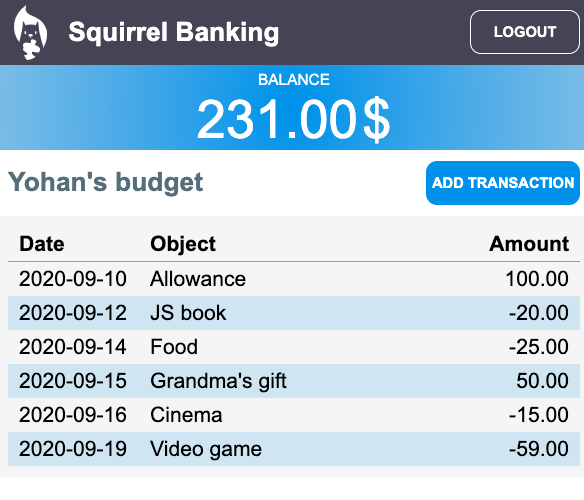
Here's an example of a styled dashboard page: