
32 KiB
GitHub အကြောင်းမိတ်ဆက်
ဒီသင်ခန်းစာမှာ GitHub ရဲ့ အခြေခံအချက်တွေကို လေ့လာပါမယ်။ GitHub က သင့်ရဲ့ ကုဒ်ကို host လုပ်ပြီး ပြောင်းလဲမှုတွေကို စီမံခန့်ခွဲဖို့ platform တစ်ခုဖြစ်ပါတယ်။
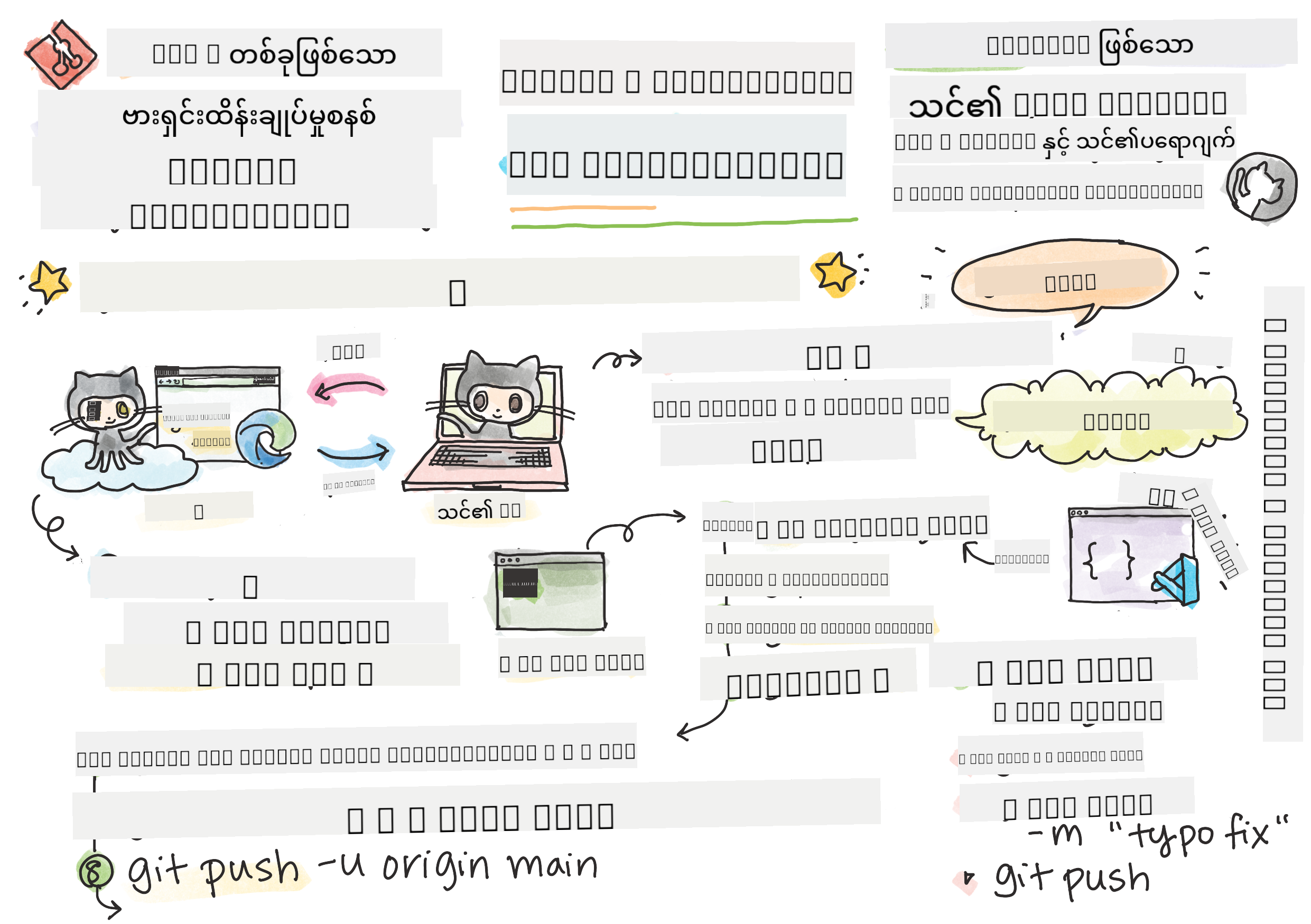
Tomomi Imura ရဲ့ Sketchnote
သင်ခန်းစာမတိုင်မီ စမ်းမေးခွန်း
မိတ်ဆက်
ဒီသင်ခန်းစာမှာ အောက်ပါအချက်တွေကို လေ့လာပါမယ်-
- သင့်စက်မှာ လုပ်ဆောင်မှုတွေကို မှတ်တမ်းတင်ခြင်း
- အခြားသူတွေနဲ့ ပရောဂျက်တွေမှာ အတူတူလုပ်ဆောင်ခြင်း
- open source software တွေကို ဘယ်လိုပံ့ပိုးပေးနိုင်မလဲ
ကြိုတင်လိုအပ်ချက်များ
စတင်မလုပ်ခင် Git install လုပ်ထားမထား စစ်ဆေးဖို့လိုပါတယ်။ Terminal မှာ git --version လို့ရိုက်ပါ။
Git install မလုပ်ထားရင် Git ကို ဒေါင်းလုဒ်လုပ်ပါ။ ပြီးရင် Terminal မှာ သင့်ရဲ့ Git profile ကို setup လုပ်ပါ:
git config --global user.name "your-name"git config --global user.email "your-email"
Git configure လုပ်ထားမထား စစ်ဆေးဖို့ git config --list လို့ရိုက်ပါ။
GitHub account တစ်ခု၊ code editor (ဥပမာ Visual Studio Code) တစ်ခု၊ Terminal (သို့မဟုတ် command prompt) ကို ဖွင့်ထားဖို့လိုပါတယ်။
github.com ကိုသွားပြီး account တစ်ခုဖန်တီးပါ၊ မဟုတ်ရင် login လုပ်ပြီး profile ကို ဖြည့်ပါ။
✅ GitHub က ကမ္ဘာ့ code repository တစ်ခုသာမဟုတ်ပါဘူး၊ အခြား platform တွေလည်းရှိပါတယ်။ ဒါပေမယ့် GitHub က အများဆုံးလူသိများပါတယ်။
ပြင်ဆင်မှု
သင့်ရဲ့ local machine (laptop သို့မဟုတ် PC) မှာ code project ပါတဲ့ folder တစ်ခုလိုအပ်ပါတယ်။ GitHub မှာ public repository တစ်ခုလည်းလိုအပ်ပါတယ်။ ဒါက အခြားသူတွေရဲ့ project တွေကို ဘယ်လိုပံ့ပိုးပေးရမလဲဆိုတာကို သင်ခန်းစာအနေနဲ့ အသုံးပြုနိုင်ပါတယ်။
Code စီမံခန့်ခွဲမှု
သင့် local machine မှာ code project ပါတဲ့ folder တစ်ခုရှိပြီး git ကို အသုံးပြုပြီး version control စနစ်နဲ့ progress ကို track လုပ်ချင်တယ်ဆိုပါစို့။ git ကို အသုံးပြုတာကို အချို့လူတွေက "အနာဂတ်မှာ ကိုယ့်ကိုယ်ကိုချစ်တဲ့စာရေးတာ" လို့တင်စားကြပါတယ်။ commit messages တွေကို ရက်ပေါင်းများစွာ၊ လများစွာ၊ နှစ်များစွာအကြာမှာ ပြန်ဖတ်တဲ့အခါ သင့်ရဲ့ဆုံးဖြတ်ချက်ကို ဘာကြောင့်လုပ်ခဲ့တယ်ဆိုတာကို ပြန်လည်သတိရနိုင်ပါတယ်။ ဒါမှမဟုတ် ပြောင်းလဲမှုကို "rollback" လုပ်နိုင်ပါတယ်။ ဒါဟာ သင့်ရဲ့ commit messages တွေကောင်းမွန်တဲ့အခါမှာ ဖြစ်နိုင်ပါတယ်။
Task: Repository တစ်ခုဖန်တီးပြီး code ကို commit လုပ်ပါ
ဗီဒီယိုကို ကြည့်ပါ
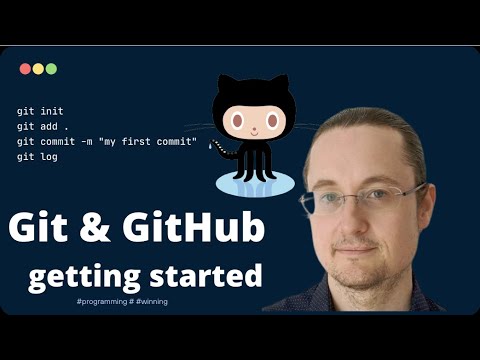
-
GitHub မှာ repository ဖန်တီးပါ။ GitHub.com မှာ repositories tab မှာ သို့မဟုတ် navigation bar ရဲ့ အပေါ်ယာဘက်မှာ new repo button ကို ရှာပါ။
- သင့် repository (folder) ကို နာမည်ပေးပါ။
- create repository ကို ရွေးပါ။
-
သင့်ရဲ့ working folder ကို သွားပါ။ Terminal မှာ သင့်ရဲ့ folder (directory) ကို switch လုပ်ပါ။ Terminal မှာ အောက်ပါအတိုင်း ရိုက်ပါ:
cd [name of your folder] -
Git repository ကို initialize လုပ်ပါ။ Project မှာ အောက်ပါအတိုင်း ရိုက်ပါ:
git init -
Status ကို စစ်ဆေးပါ။ Repository ရဲ့ status ကို စစ်ဆေးဖို့ အောက်ပါအတိုင်း ရိုက်ပါ:
git statusoutput က အောက်ပါအတိုင်း ဖြစ်နိုင်ပါတယ်:
Changes not staged for commit:
(use "git add <file>..." to update what will be committed)
(use "git checkout -- <file>..." to discard changes in working directory)

     modified:   file.txt
     modified:   file2.txt
git statuscommand က typically repo မှာ save လုပ်ဖို့အဆင်သင့်ဖြစ်နေတဲ့ file တွေ၊ သို့မဟုတ် ပြောင်းလဲမှုရှိတဲ့ file တွေကို ပြသပေးပါတယ်။ -
File အားလုံးကို tracking အတွက် add လုပ်ပါ ဒါကို staging files/ adding files to the staging area လို့လည်းခေါ်ပါတယ်။
git add .git addနဲ့.argument က သင့်ရဲ့ file အားလုံးနဲ့ ပြောင်းလဲမှုတွေကို tracking အတွက် add လုပ်ပေးပါတယ်။ -
ရွေးချယ်ထားတဲ့ file တွေကို tracking အတွက် add လုပ်ပါ
git add [file or folder name]ဒီ command က သင့်ရဲ့ next commit မှာ file အားလုံးကို add မလုပ်ချင်တဲ့အခါ ရွေးချယ်ထားတဲ့ file တွေကိုသာ staging area မှာ add လုပ်နိုင်ပါတယ်။
-
File အားလုံးကို unstaging လုပ်ပါ
git resetဒီ command က file အားလုံးကို တစ်ခါတည်း unstaging လုပ်နိုင်ပါတယ်။
-
File တစ်ခုကို unstaging လုပ်ပါ
git reset [file or folder name]ဒီ command က next commit မှာ ထည့်မလိုတဲ့ file တစ်ခုကို unstaging လုပ်နိုင်ပါတယ်။
-
သင့်ရဲ့လုပ်ဆောင်မှုကို permanent လုပ်ပါ။ ဒီအချိန်မှာ သင့်ရဲ့ file တွေကို staging area မှာ add လုပ်ပြီး Git က tracking လုပ်နေပါပြီ။ ပြောင်းလဲမှုကို permanent လုပ်ဖို့ commit လုပ်ဖို့လိုပါတယ်။ Commit လုပ်ဖို့
git commitcommand ကို အသုံးပြုပါ။ Commit က သင့် repo ရဲ့ history မှာ saving point တစ်ခုကို ကိုယ်စားပြုပါတယ်။ Commit လုပ်ဖို့ အောက်ပါအတိုင်း ရိုက်ပါ:git commit -m "first commit"ဒီ command က သင့်ရဲ့ file အားလုံးကို commit လုပ်ပြီး "first commit" message ကို ထည့်ပေးပါတယ်။ အနာဂတ် commit messages တွေမှာ သင့်ပြောင်းလဲမှုအမျိုးအစားကို ဖော်ပြနိုင်ဖို့ ပိုမိုဖော်ပြနိုင်တဲ့ description ကို အသုံးပြုပါ။
-
Local Git repo ကို GitHub နဲ့ ချိတ်ဆက်ပါ။ Git repo ကို local machine မှာ အသုံးပြုနိုင်ပေမယ့် တစ်ချိန်မှာ file တွေကို backup လုပ်ဖို့ သို့မဟုတ် အခြားသူတွေကို သင့် repo မှာ အတူတူလုပ်ဆောင်ဖို့ ဖိတ်ခေါ်ဖို့လိုပါတယ်။ GitHub က အဲ့ဒီအတွက် အကောင်းဆုံးနေရာတစ်ခုဖြစ်ပါတယ်။ GitHub မှာ repo တစ်ခုဖန်တီးပြီးသားဖြစ်တဲ့အတွက် local Git repo ကို GitHub နဲ့ ချိတ်ဆက်ဖို့သာလိုပါတယ်။
git remote addcommand က အဲ့ဒီအလုပ်ကို လုပ်ပေးပါမယ်။ အောက်ပါ command ကို ရိုက်ပါ:မှတ်ချက်- Command ရိုက်မလုပ်ခင် GitHub repo page ကိုသွားပြီး repository URL ကို ရှာပါ။ အောက်ပါ command မှာ
https://github.com/username/repository_name.gitကို သင့် GitHub URL နဲ့ အစားထိုးပါ။git remote add origin https://github.com/username/repository_name.gitဒီ command က "origin" လို့ခေါ်တဲ့ remote connection တစ်ခုကို ဖန်တီးပြီး GitHub repository ကို ချိတ်ဆက်ပေးပါတယ်။
-
Local file တွေကို GitHub ကို ပို့ပါ။ အခုအချိန်မှာ local repo နဲ့ GitHub repo အကြား connection တစ်ခုဖန်တီးပြီးသားဖြစ်ပါတယ်။ File တွေကို GitHub ကို ပို့ဖို့
git pushcommand ကို အသုံးပြုပါ:မှတ်ချက်- သင့် branch name က
mainနဲ့ default အနေနဲ့ မတူနိုင်ပါတယ်။git push -u origin mainဒီ command က သင့်ရဲ့ "main" branch ရဲ့ commit တွေကို GitHub ကို ပို့ပေးပါတယ်။
-
အခြားပြောင်းလဲမှုတွေကို ထည့်ပါ။ ပြောင်းလဲမှုတွေကို ဆက်လက်လုပ်ဆောင်ပြီး GitHub ကို push လုပ်ချင်ရင် အောက်ပါ command သုံးခုကို အသုံးပြုရပါမယ်:
git add .
git commit -m "type your commit message here"
git push
Tip-
.gitignorefile တစ်ခုကို အသုံးပြုပြီး GitHub မှာ track လုပ်ချင်မယ့် file တွေကို ဖယ်ရှားနိုင်ပါတယ်။ ဥပမာ- သင့် folder မှာရှိတဲ့ notes file တစ်ခုက public repository မှာ မပါသင့်တဲ့အခါ။.gitignorefile template တွေကို .gitignore templates မှာ ရှာနိုင်ပါတယ်။
Commit messages
Git commit subject line က အောက်ပါစာကြောင်းကို ပြည့်စုံစေပါမယ်- If applied, this commit will
Subject မှာ imperative, present tense ကို အသုံးပြုပါ- "change" မဟုတ်ရင် "changed" သို့မဟုတ် "changes" မဟုတ်ပါဘူး။
Subject အတိုင်း body (optional) မှာလည်း imperative, present tense ကို အသုံးပြုပါ။ Body မှာ ပြောင်းလဲမှုရဲ့ motivation ကို ဖော်ပြပြီး ယခင်အခြေအနေနဲ့ နှိုင်းယှဉ်ပါ။ why ကို ရှင်းပြတာဖြစ်ပြီး how ကို မဟုတ်ပါ။
✅ GitHub ကို အချိန်အနည်းငယ် သွားလေ့လာပါ။ Commit message ကောင်းကောင်းတစ်ခုကို ရှာနိုင်ပါသလား? အနည်းဆုံး message တစ်ခုကို ရှာနိုင်ပါသလား? Commit message မှာ ဘယ်အချက်တွေက အရေးကြီးပြီး အသုံးဝင်တယ်လို့ သင်ထင်ပါသလဲ?
Task: အတူတူလုပ်ဆောင်ပါ
GitHub မှာ အရာတွေကို ထည့်သွင်းတာရဲ့ အဓိကရည်ရွယ်ချက်က အခြား developer တွေနဲ့ အတူတူလုပ်ဆောင်နိုင်ဖို့ပါ။
အခြားသူတွေနဲ့ ပရောဂျက်တွေမှာ အတူတူလုပ်ဆောင်ခြင်း
ဗီဒီယိုကို ကြည့်ပါ
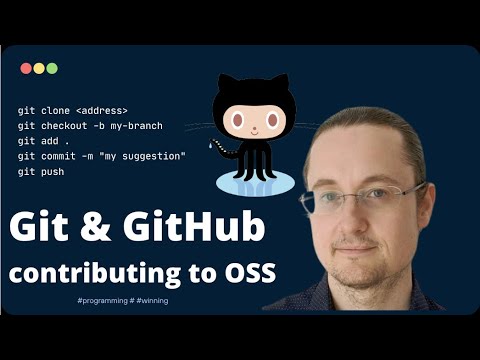
သင့် repository မှာ Insights > Community ကို သွားပြီး သင့် project က recommended community standards တွေနဲ့ ဘယ်လိုနှိုင်းယှဉ်နိုင်တယ်ဆိုတာကို ကြည့်ပါ။
GitHub repo ကို တိုးတက်အောင်လုပ်နိုင်တဲ့ အချက်တွေက:
- Description. သင့် project အတွက် description ထည့်ထားပါသလား?
- README. README ထည့်ထားပါသလား? GitHub က README ရေးဖို့ လမ်းညွှန်ချက်ပေးပါတယ်။
- Contributing guideline. သင့် project မှာ contributing guidelines ရှိပါသလား?
- Code of Conduct. Code of Conduct ရှိပါသလား?
- License. အရေးကြီးဆုံးအနေနဲ့ license ရှိပါသလား?
ဒီ resource တွေက အသစ် join လုပ်တဲ့ team member တွေကို အကျိုးရှိစေပါမယ်။ Contributor တွေက သင့် code ကို မကြည့်ခင် project က သင့်အချိန်ကို သုံးဖို့ သင့်တော်တဲ့နေရာလားဆိုတာကို သိဖို့ အရင်ဆုံး ဒီအချက်တွေကို ကြည့်ကြပါတယ်။
✅ README file တွေက ပြင်ဆင်ဖို့ အချိန်ယူရတယ်၊ ဒါပေမယ့် 忙နေတဲ့ maintainer တွေက မကြည့်မိတတ်ပါတယ်။ အလွန်ဖော်ပြချက်ကောင်းတဲ့ README file တစ်ခုကို ရှာနိုင်ပါသလား? မှတ်ချက်- README file ကောင်းကောင်းရေးဖို့ tools တွေရှိပါတယ်၊ သင်စမ်းသုံးချင်နိုင်ပါတယ်။
Task: Code တစ်ချို့ကို Merge လုပ်ပါ
Contributing docs တွေက လူတွေ project ကို contribute လုပ်ဖို့ အကူအညီပေးပါတယ်။ ဘယ်အမျိုးအစားရဲ့ contribution တွေကို ရှာနေတယ်ဆိုတာနဲ့ process ဘယ်လိုလုပ်ရမယ်ဆိုတာကို ရှင်းပြပါတယ်။ Contributor တွေက သင့် GitHub repo ကို contribute လုပ်ဖို့ အောက်ပါအဆင့်တွေကို လိုက်နာရပါမယ်:
- Forking your repo Contributor တွေကို သင့် project ကို fork လုပ်ဖို့ လိုအပ်ပါတယ်။ Forking ဆိုတာ သင့် repository ရဲ့ replica ကို သူတို့ရဲ့ GitHub profile မှာ ဖန်တီးတာဖြစ်ပါတယ်။
- Clone. သူတို့ project ကို local machine မှာ clone လုပ်ပါ။
- Create a branch. Contributor တွေကို သူတို့ရဲ့အလုပ်အတွက် branch တစ်ခုဖန်တီးဖို့ တိုက်တွန်းပါ။
- Focus their change on one area. Contributor တွေကို တစ်ခါ commit မှာ တစ်ခုတည်းသောအရာကို အာရုံစိုက်ဖို့ တိုက်တွန်းပါ- ဒါက သူတို့ရဲ့အလုပ်ကို merge လုပ်နိုင်တဲ့ အခွင့်အလမ်းကို မြှင့်တင်ပေးပါတယ်။ ဥပမာ- bug fix တစ်ခုရေးတာ၊ feature အသစ်တစ်ခုထည့်တာ၊ test အချို့ကို update လုပ်တာ- သင့်အနေနဲ့ ၃ ခုထဲက ၂ ခု သို့မဟုတ် ၁ ခုကိုသာ implement လုပ်ချင်ရင် ဘာဖြစ်မလဲ?
✅ Branch တွေက code ကောင်းကောင်းရေးပြီး ship လုပ်ဖို့ အရေးကြီးတဲ့အခြေအနေတွေကို စဉ်းစားနိုင်ပါသလား?
မှတ်ချက်- သင်လိုချင်တဲ့ပြောင်းလဲမှုကို အခြားသူတွေကလုပ်ဖို့ မစောင့်ပါနဲ့၊ သင့်အလုပ်အတွက် branch တွေကို ဖန်တီးပါ။ သင့်ရဲ့ commit တွေကို သင့် "checked out" လုပ်ထားတဲ့ branch မှာသာလုပ်ပါမယ်။
git statusကို အသုံးပြုပြီး ဘယ် branch မှာရှိတယ်ဆိုတာကို စစ်ဆေးပါ။
Contributor workflow ကို လေ့လာကြပါစို့။ Contributor က repo ကို fork လုပ်ပြီး clone လုပ်ထားပြီး local machine မှာ Git repo တစ်ခုရှိပြီးသားဖြစ်တယ်လို့ ယူဆပါ:
-
Branch တစ်ခုဖန်တီးပါ. Contributor ရဲ့ပြောင်းလဲမှုတွေကို ထည့်သွင်းမယ့် branch ကို ဖန်တီးဖို့
git branchcommand ကို အသုံးပြုပါ:git branch [branch-name] -
Working branch ကို switch လုပ်ပါ. သတ်မှတ်ထားတဲ့ branch ကို switch လုပ်ပြီး working directory ကို update လုပ်ဖို့
git switchကို အသုံးပြုပါ:git switch [branch-name] -
အလုပ်လုပ်ပါ. ဒီအချိန်မှာ သင့်ပြောင်းလဲမှုတွေကို ထည့်သွင်းပါ။ Git ကို အောက်ပါ command တွေကို အသုံးပြုပြီး ပြောပြဖို့ မမေ့ပါနဲ့:
git add .
git commit -m "my changes"
Commit ကို အကောင်းဆုံးနာမည်ပေးပါ၊ သင့်အတွက်သာမက repo maintainer အတွက်လည်း အရေးကြီးပါတယ်။
-
သင့်အလုပ်ကို
mainbranch နဲ့ ပေါင်းစည်းပါ. တစ်ချိန်မှာ သင့်အလုပ်ပြီးဆုံးပြီးmainbranch နဲ့ ပေါင်းစည်းချင်ပါတယ်။mainbranch က meantime မှာ ပြောင်းလဲမှုရှိနိုင်ပါတယ်၊ ဒါကြောင့် အောက်ပါ command တွေကို အသုံးပြုပြီး update လုပ်ပါ:git switch main git pullဒီအချိန်မှာ conflict ဖြစ်နိုင်တဲ့အခြေအနေတွေကို သင့် working branch မှာဖြစ်စေဖို့လိုပါတယ်။ အောက်ပါ command တွေကို run လုပ်ပါ:
GitHub ရဲ့ fork လုပ်ထားတဲ့ repo ကိုသွားပြီး သင် push လုပ်ထားတဲ့ remote branch ကိုဖျက်ပစ်ပါ။
Pull request ဆိုတာ အနည်းငယ်အဓိပ္ပာယ်မမှန်သလိုပဲ။ အကြောင်းကတော့ သင်ဟာ project ကို သင့်ရဲ့ပြောင်းလဲမှုတွေ push လုပ်ချင်တာပါ။ ဒါပေမယ့် maintainer (project ရဲ့ပိုင်ရှင်) သို့မဟုတ် core team က သင့်ပြောင်းလဲမှုတွေကို project ရဲ့ "main" branch နဲ့ပေါင်းစည်းမလားဆိုတာ ဆုံးဖြတ်ဖို့လိုပါတယ်။ ဒါကြောင့် သင်ဟာ maintainer ကို ပြောင်းလဲမှုအပေါ်ဆုံးဖြတ်ချက်တောင်းနေတဲ့အရာပါ။
Pull request က branch တစ်ခုမှာပြုလုပ်ထားတဲ့ အပြောင်းအလဲတွေကို နှိုင်းယှဉ်ပြီး ဆွေးနွေးဖို့နေရာတစ်ခုပါ။ Review, comment, integrated test စတာတွေပါဝင်ပါတယ်။ Pull request ကောင်းတစ်ခုဟာ commit message နဲ့တူတဲ့ စည်းမျဉ်းတွေကိုလိုက်နာပါတယ်။ သင့်အလုပ်က အခက်အခဲတစ်ခုကိုဖြေရှင်းပေးနိုင်တဲ့အခါ issue tracker မှာ issue တစ်ခုကို reference ထည့်နိုင်ပါတယ်။ ဒါကို # နဲ့ issue နံပါတ်ကိုထည့်ရပါတယ်။ ဥပမာ #97 လိုပါ။
🤞 အားလုံးအဆင်ပြေပြီး project owner(s) က သင့်ပြောင်းလဲမှုတွေကို project ထဲမှာပေါင်းစည်းပေးမယ်လို့မျှော်လင့်ပါတယ် 🤞
GitHub ရဲ့ remote branch မှာ commit အသစ်တွေကို သင့်ရဲ့ local working branch နဲ့ update လုပ်ပါ။
git pull
Open Source ကို ဘယ်လိုပံ့ပိုးမလဲ
ပထမဦးစွာ GitHub မှာ သင့်စိတ်ဝင်စားပြီး ပြောင်းလဲမှုတစ်ခုလုပ်ချင်တဲ့ repository (သို့မဟုတ် repo) တစ်ခုကိုရှာပါ။ အဲဒီ repo ရဲ့အကြောင်းအရာတွေကို သင့်စက်ထဲကို copy လုပ်ချင်ပါလိမ့်မယ်။
✅ 'Beginner-friendly' repo တွေကို good-first-issue tag နဲ့ရှာဖွေပါ။
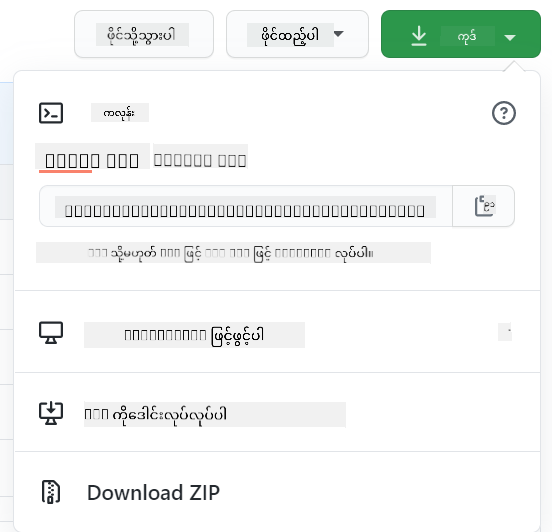
Code ကို copy လုပ်ဖို့နည်းလမ်းအများကြီးရှိပါတယ်။ နည်းလမ်းတစ်ခုကတော့ repository ရဲ့အကြောင်းအရာတွေကို HTTPS, SSH, သို့မဟုတ် GitHub CLI (Command Line Interface) ကိုသုံးပြီး "clone" လုပ်တာပါ။
Terminal ကိုဖွင့်ပြီး repository ကိုအောက်ပါအတိုင်း clone လုပ်ပါ:
git clone https://github.com/ProjectURL
Project ပေါ်မှာအလုပ်လုပ်ဖို့အတွက် မှန်ကန်တဲ့ folder ကိုရွှေ့ပါ:
cd ProjectURL
GitHub ရဲ့ embedded code editor / cloud development environment ဖြစ်တဲ့ Codespaces သို့မဟုတ် GitHub Desktop ကိုသုံးပြီး project အပြည့်အစုံကိုဖွင့်နိုင်ပါတယ်။
နောက်ဆုံးအနေနဲ့ code ကို zipped folder အနေနဲ့ download လုပ်နိုင်ပါတယ်။
GitHub အကြောင်း စိတ်ဝင်စားစရာအချက်အချို့
GitHub မှာ public repository မည်သည့်အရာမဆို star, watch, သို့မဟုတ် "fork" လုပ်နိုင်ပါတယ်။ သင့်ရဲ့ starred repositories တွေကို အပေါ်ညာဘက် drop-down menu မှာတွေ့နိုင်ပါတယ်။ Bookmark လုပ်တာနဲ့တူပေမယ့် code အတွက်ပါ။
Projects တွေမှာ issue tracker တစ်ခုရှိပါတယ်၊ အများအားဖြင့် GitHub ရဲ့ "Issues" tab မှာရှိပါတယ်၊ project နဲ့ပတ်သက်တဲ့ပြဿနာတွေကိုဆွေးနွေးဖို့နေရာပါ။ Pull Requests tab မှာတော့ ပြုလုပ်ဆဲပြောင်းလဲမှုတွေကိုဆွေးနွေးပြီး review လုပ်ကြပါတယ်။
Projects တွေမှာ forum, mailing list, သို့မဟုတ် Slack, Discord, IRC လို chat channel တွေမှာလည်း ဆွေးနွေးမှုတွေရှိနိုင်ပါတယ်။
✅ သင့်ရဲ့ GitHub repo အသစ်ကိုကြည့်ပြီး settings edit လုပ်တာ, repo မှာအချက်အလက်ထည့်တာ, project တစ်ခု (Kanban board လို) ဖန်တီးတာလို အရာတွေကိုစမ်းကြည့်ပါ။ လုပ်နိုင်စရာအများကြီးရှိပါတယ်!
🚀 စိန်ခေါ်မှု
မိတ်ဆွေတစ်ယောက်နဲ့တွဲဖက်ပြီး တစ်ဦးရဲ့ code ပေါ်မှာအလုပ်လုပ်ပါ။ Project တစ်ခုကိုပူးတွဲဖန်တီးပြီး, code ကို fork လုပ်ပါ, branch တွေဖန်တီးပြီး ပြောင်းလဲမှုတွေကိုပေါင်းစည်းပါ။
Post-Lecture Quiz
ပြန်လည်သုံးသပ်ခြင်းနှင့် ကိုယ်တိုင်လေ့လာခြင်း
Open source software ကိုဘယ်လိုပံ့ပိုးမလဲ ဆိုတာကိုပိုမိုဖတ်ရှုပါ။
Git cheatsheet ကိုကြည့်ပါ။
လေ့ကျင့်ပါ၊ လေ့ကျင့်ပါ၊ လေ့ကျင့်ပါ။ GitHub မှာ skills.github.com မှတဆင့် လေ့လာရေးလမ်းကြောင်းကောင်းများရှိပါတယ်။
ပိုမိုအဆင့်မြင့်သင်တန်းတွေကိုလည်းတွေ့နိုင်ပါတယ်။
လုပ်ငန်းတာဝန်
GitHub မှာပထမဆုံးအပတ် သင်တန်း ကိုပြီးစီးပါ။
ဝက်ဘ်ဆိုက်မှတ်ချက်:
ဤစာရွက်စာတမ်းကို AI ဘာသာပြန်ဝန်ဆောင်မှု Co-op Translator ကို အသုံးပြု၍ ဘာသာပြန်ထားပါသည်။ ကျွန်ုပ်တို့သည် တိကျမှန်ကန်မှုအတွက် ကြိုးစားနေသော်လည်း၊ အလိုအလျောက်ဘာသာပြန်ခြင်းတွင် အမှားများ သို့မဟုတ် မမှန်ကန်မှုများ ပါဝင်နိုင်သည်ကို ကျေးဇူးပြု၍ သတိပြုပါ။ မူလဘာသာစကားဖြင့် ရေးသားထားသော စာရွက်စာတမ်းကို အာဏာတည်သော ရင်းမြစ်အဖြစ် သတ်မှတ်သင့်ပါသည်။ အရေးကြီးသော အချက်အလက်များအတွက် လူ့ဘာသာပြန်ပညာရှင်များကို အသုံးပြုရန် အကြံပြုပါသည်။ ဤဘာသာပြန်ကို အသုံးပြုခြင်းမှ ဖြစ်ပေါ်လာသော နားလည်မှုမှားများ သို့မဟုတ် အဓိပ္ပာယ်မှားများအတွက် ကျွန်ုပ်တို့သည် တာဝန်မယူပါ။