
4.4 KiB
Build a nightlight - Virtual IoT Hardware
In this part of the lesson, you will add a light sensor to your virtual IoT device.
Virtual Hardware
The nightlight needs one sensor, created in the CounterFit app.
The sensor is a light sensor. In a physical IoT device, it would be a photodiode that converts light to an electrical signal. Light sensors are analog sensors that sends an integer value indicating a relative amount of light, that doesn't map to any standard unit of measurement such as lux.
Add the sensors to CounterFit
To use a virtual light sensor, you need to add it to the CounterFit app
Task - add the sensors to CounterFit
Add the light sensor to the CounterFit app.
-
Make sure the CounterFit web app is running from the previous part of this assignment. If not, start it.
-
Create a light sensor:
-
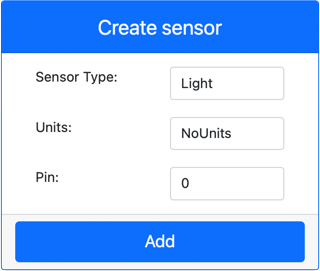
In the Create sensor box in the Sensors pane, drop down the Sensor type box and select Light.
-
Leave the Units set to NoUnits
-
Ensure the Pin is set to 0
-
Select the Add button to create the light sensor on Pin 0
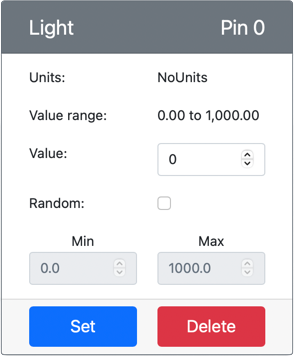
The light sensor will be created and appear in the sensors list.
-
Program the light sensor
The device can now be programmed to use the built in light sensor.
Task - program the light sensor
Program the device.
-
Open the nightlight project in VS Code that you created in the previous part of this assignment. Kill and re-create the terminal to ensure it is running using the virtual environment if necessary.
-
Open the
app.pyfile -
Add the following code to the top of
app.pyfile with the rest of theimportstatements to connect to import some required libraries:import time from counterfit_shims_grove.grove_light_sensor_v1_2 import GroveLightSensorThe
import timestatement imports the Pythontimemodule that will be used later in this assignment.The
from counterfit_shims_grove.grove_light_sensor_v1_2 import GroveLightSensorstatement imports theGroveLightSensorfrom the CounterFit Grove shim Python libraries. This library has code to interact with a light sensor created in the CounterFit app. -
Add the following code to the bottom of the file to create instances of classes that manage the light sensor:
light_sensor = GroveLightSensor(0)The line
light_sensor = GroveLightSensor(0)creates an instance of theGroveLightSensorclass connecting to pin 0 - the CounterFit Grove pin that the light sensor is connected to. -
Add an infinite loop after the code above to poll the light sensor value and print it to the console:
while True:
    light = light_sensor.light
    print('Light level:', light)
This will read the current light level using the
lightproperty of theGroveLightSensorclass. This property reads the analog value from the pin. This value is then printed to the console. -
Add a small sleep of one second at the end of the
whileloop as the light levels don't need to be checked continuously. A sleep reduces the power consumption of the device.time.sleep(1) -
From the VS Code Terminal, run the following to run your Python app:
python3 app.pyYou should see light values being output to the console. Initially this value will be 0.
-
From the CounterFit app, change the value of the light sensor that will be read by the app. You can do this in one of two ways:
-
Enter a number in the Value box for the light sensor, then select the Set button. The number you enter will be the value returned by the sensor.
-
Check the Random checkbox, and enter a Min and Max value, then select the Set button. Every time the sensor reads a value, it will read a random number between Min and Max.
You should see the values you set appearing in the console. Change the Value or the Random settings to see the value change.
(.venv) ➜ GroveTest python3 app.py Light level: 143 Light level: 244 Light level: 246 Light level: 253 -
💁 You can find this code in the code-sensor/virtual-device folder.
😀 Your nightlight program was a success!