
6.2 KiB
Configure your microphone and speakers - Wio Terminal
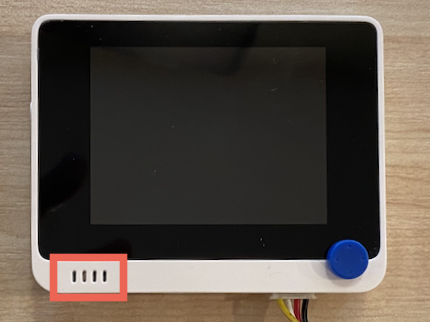
For dis part of di lesson, you go add speaker to your Wio Terminal. Di Wio Terminal don already get microphone wey dem build inside, and you fit use am to capture talk.
Hardware
Di Wio Terminal don already get mic inside, and you fit use am to capture sound for talk recognition.
To add speaker, you fit use di ReSpeaker 2-Mics Pi Hat. Dis na external board wey get 2 MEMS microphones, plus speaker connector and headphone socket.
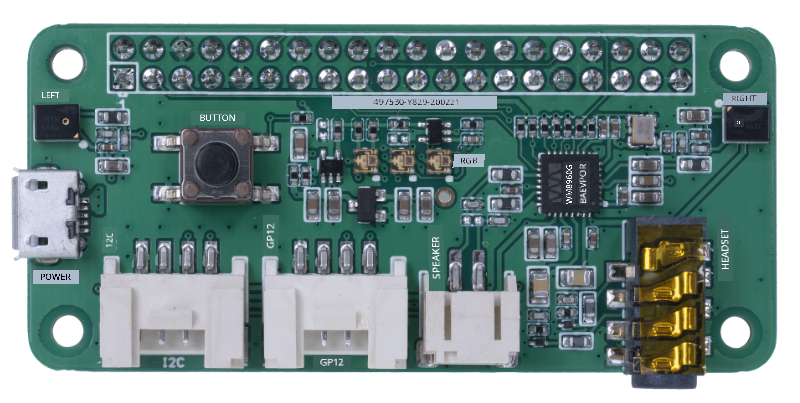
You go need add either headphone, speaker wey get 3.5mm jack, or speaker wey get JST connection like di Mono Enclosed Speaker - 2W 6 Ohm.
To connect di ReSpeaker 2-Mics Pi Hat, you go need 40 pin-to-pin (dem dey call am male-to-male too) jumper cables.
💁 If you sabi solder, you fit use di 40 Pin Raspberry Pi Hat Adapter Board For Wio Terminal to connect di ReSpeaker.
You go also need SD card to download and play sound. Di Wio Terminal dey support SD Cards wey no pass 16GB, and dem need to dey formatted as FAT32 or exFAT.
Task - connect di ReSpeaker Pi Hat
-
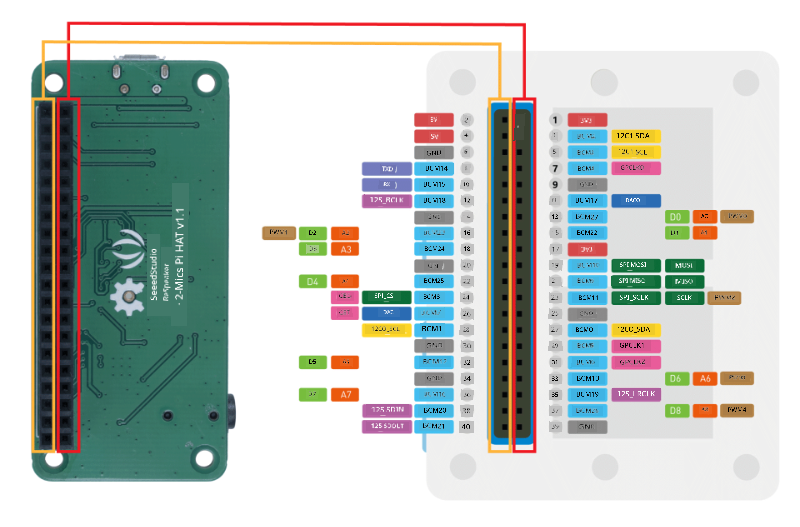
When di Wio Terminal dey off, connect di ReSpeaker 2-Mics Pi Hat to di Wio Terminal using di jumper cables and di GPIO sockets wey dey back of di Wio Terminal:
Di pins go need connect like dis:
-
Arrange di ReSpeaker and Wio Terminal make di GPIO sockets dey face up, and dey left-hand side.
-
Start from di socket wey dey top left of di GPIO socket for di ReSpeaker. Connect pin-to-pin jumper cable from di top left socket of di ReSpeaker to di top left socket of di Wio Terminal.
-
Do am like dat go reach di bottom for di GPIO sockets wey dey left-hand side. Make sure say di pins dey enter well.
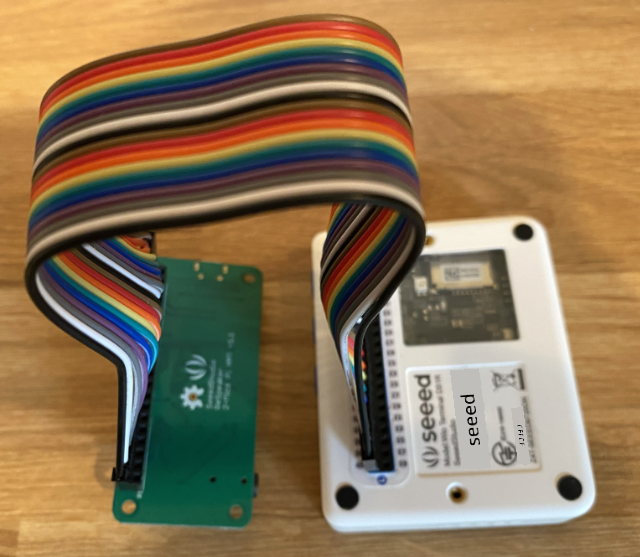
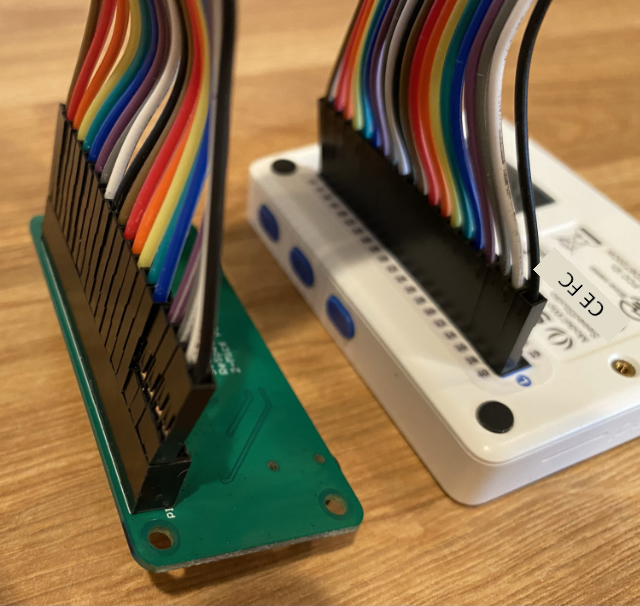
💁 If your jumper cables dey together as ribbon, leave dem like dat - e go make am easy to confirm say you don connect all di cables well.
-
Do di same process for di right-hand GPIO sockets for di ReSpeaker and Wio Terminal. Di cables go need pass around di cables wey don dey already.
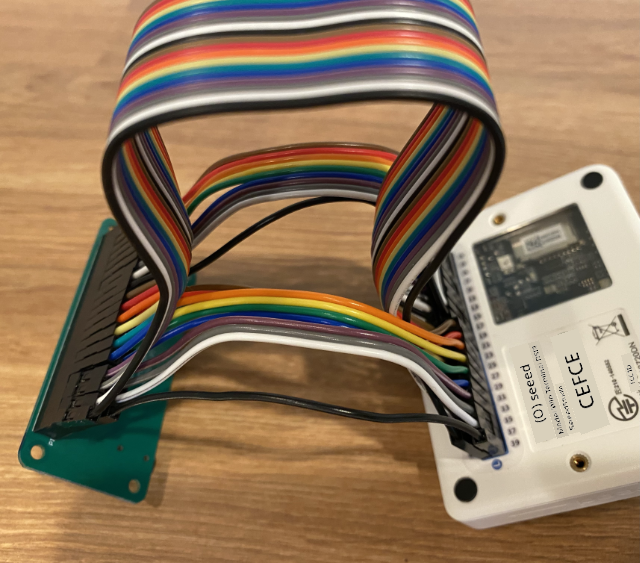
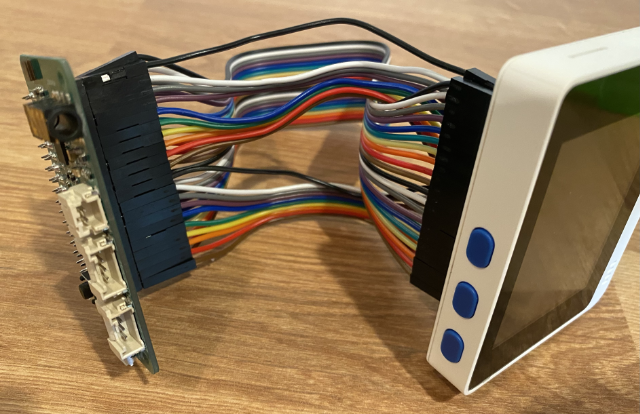
💁 If your jumper cables dey as ribbon, divide dem into two ribbons. Pass one each side of di cables wey don dey already.
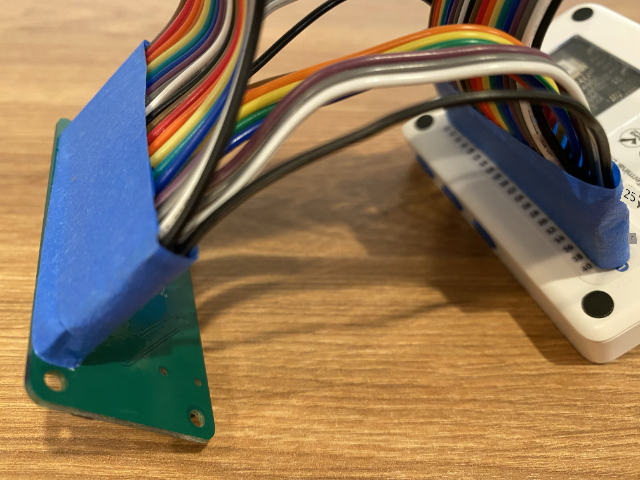
💁 You fit use sticky tape to hold di pins together make dem no commot as you dey connect dem.
-
You go need add speaker.
-
If you dey use speaker wey get JST cable, connect am to di JST port for di ReSpeaker.
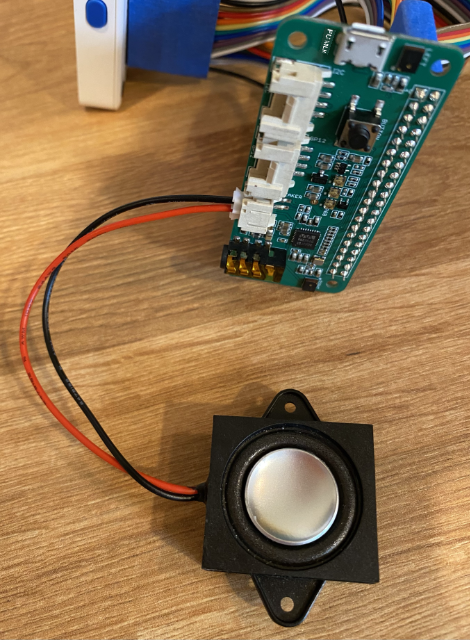
-
If you dey use speaker wey get 3.5mm jack, or headphone, put am inside di 3.5mm jack socket.
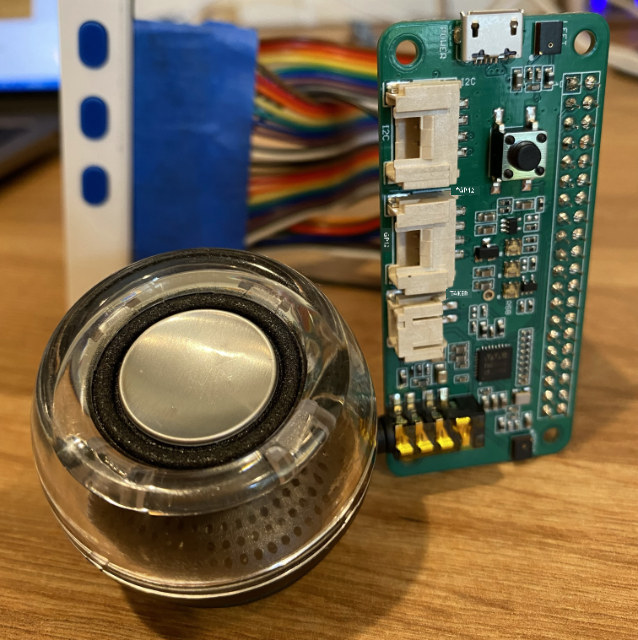
-
Task - set up di SD card
-
Connect di SD Card to your computer, use external reader if your computer no get SD Card slot.
-
Format di SD Card with di correct tool for your computer, make sure say you use FAT32 or exFAT file system.
-
Put di SD card inside di SD Card slot wey dey left-hand side of di Wio Terminal, just under di power button. Make sure say di card enter well and click - you fit need thin tool or another SD Card to help push am enter.
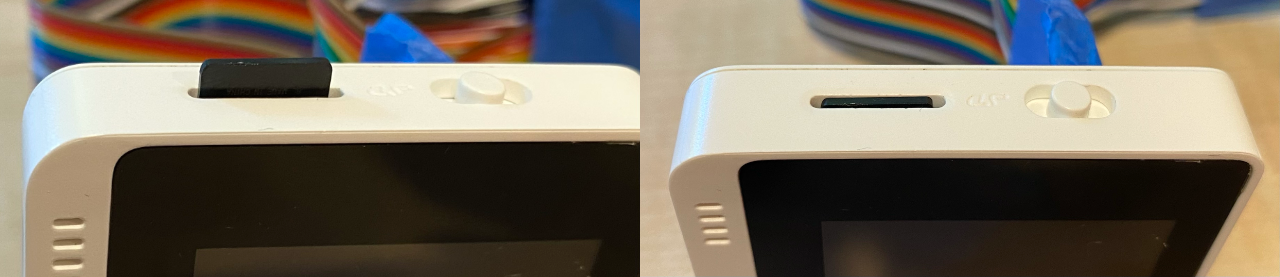
💁 To commot di SD Card, you go need push am small and e go commot. You go need thin tool like flat-head screwdriver or another SD Card to do dis.
Disclaimer:
Dis docu don dey translate wit AI translation service Co-op Translator. Even though we dey try make sure say e correct, abeg no forget say automatic translation fit get mistake or no dey accurate well. Di original docu for di language wey dem write am first na di main correct one. For important information, e good make una use professional human translation. We no go fit take blame for any misunderstanding or wrong interpretation wey fit happen because of dis translation.