
6.9 KiB
Measure temperature - Wio Terminal
For dis part of di lesson, you go add temperature sensor to your Wio Terminal, and read di temperature values wey e dey give.
Hardware
Di Wio Terminal need temperature sensor.
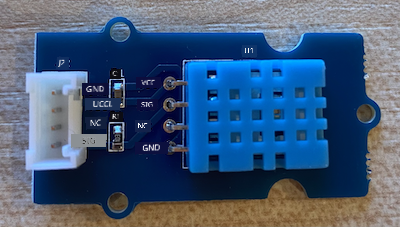
Di sensor wey you go use na DHT11 humidity and temperature sensor, wey combine 2 sensors inside one package. E dey popular well well, and plenty sensors wey dem dey sell for market dey combine temperature, humidity, and sometimes atmospheric pressure. Di temperature sensor na negative temperature coefficient (NTC) thermistor, wey mean say di resistance go reduce as di temperature dey increase.
Dis sensor na digital sensor, so e get onboard ADC wey go create digital signal wey get di temperature and humidity data wey di microcontroller fit read.
Connect di temperature sensor
Di Grove temperature sensor fit connect to di Wio Terminal digital port.
Task - connect di temperature sensor
Connect di temperature sensor.
-
Put one end of di Grove cable inside di socket for di humidity and temperature sensor. E go only enter one way.
-
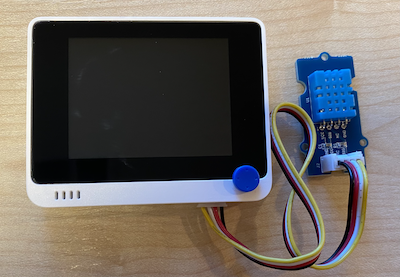
Make sure say di Wio Terminal no dey connect to your computer or any power supply, then connect di other end of di Grove cable to di right-hand side Grove socket for di Wio Terminal as you dey look di screen. Dis socket na di one wey far pass di power button.
Program di temperature sensor
Di Wio Terminal fit now dey programmed to use di temperature sensor wey you don attach.
Task program di temperature sensor
Program di device.
-
Create new Wio Terminal project using PlatformIO. Call di project
temperature-sensor. Add code for disetupfunction to configure di serial port.⚠️ You fit check di instructions for how to create PlatformIO project for project 1, lesson 1 if you need am.
-
Add library dependency for di Seeed Grove Humidity and Temperature sensor library to di project
platformio.inifile:lib_deps = seeed-studio/Grove Temperature And Humidity Sensor @ 1.0.1⚠️ You fit check di instructions for how to add libraries to PlatformIO project for project 1, lesson 4 if you need am.
-
Add di following
#includedirectives to di top of di file, under di existing#include <Arduino.h>:#include <DHT.h> #include <SPI.h>Dis one go import di files wey you need to interact with di sensor. Di
DHT.hheader file get di code for di sensor itself, and diSPI.hheader go make sure say di code wey you need to talk to di sensor go dey linked when di app dey compiled. -
Before di
setupfunction, declare di DHT sensor:DHT dht(D0, DHT11);Dis one go declare one instance of di
DHTclass wey dey manage di Digital Humidity and Temperature sensor. E dey connected to portD0, di right-hand-side Grove socket for di Wio Terminal. Di second parameter go tell di code say di sensor wey you dey use na DHT11 sensor - di library wey you dey use dey support other types of dis sensor. -
For di
setupfunction, add code to set up di serial connection:void setup() { Serial.begin(9600); while (!Serial) ; // Wait for Serial to be ready delay(1000); } -
For di end of di
setupfunction, after di lastdelay, add one call to start di DHT sensor:dht.begin(); -
For di
loopfunction, add code to call di sensor and print di temperature to di serial port:void loop() { float temp_hum_val[2] = {0}; dht.readTempAndHumidity(temp_hum_val); Serial.print("Temperature: "); Serial.print(temp_hum_val[1]); Serial.println ("°C"); delay(10000); }Dis code go declare one empty array of 2 floats, and e go pass am to di call to
readTempAndHumidityfor diDHTinstance. Dis call go put 2 values inside di array - di humidity go enter di 0th item for di array (remember say for C++ arrays, e dey 0-based, so di 0th item na di 'first' item for di array), and di temperature go enter di 1st item.Di temperature go dey read from di 1st item for di array, and e go print am to di serial port.
🇺🇸 Di temperature dey read for Celsius. For Americans, to change am to Fahrenheit, divide di Celsius value wey you read by 5, then multiply am by 9, then add 32. For example, temperature reading of 20°C go be ((20/5)*9) + 32 = 68°F.
-
Build and upload di code to di Wio Terminal.
⚠️ You fit check di instructions for how to create PlatformIO project for project 1, lesson 1 if you need am.
-
Once you don upload am, you fit dey monitor di temperature using di serial monitor:
> Executing task: platformio device monitor <

--- Available filters and text transformations: colorize, debug, default, direct, hexlify, log2file, nocontrol, printable, send_on_enter, time
--- More details at http://bit.ly/pio-monitor-filters
--- Miniterm on /dev/cu.usbmodem1201  9600,8,N,1 ---
--- Quit: Ctrl+C | Menu: Ctrl+T | Help: Ctrl+T followed by Ctrl+H ---
Temperature: 25.00°C
Temperature: 25.00°C
Temperature: 25.00°C
Temperature: 24.00°C
💁 You fit find dis code for di code-temperature/wio-terminal folder.
😀 Your temperature sensor program don work well!
Disclaimer:
Dis dokyument don use AI translation service Co-op Translator do di translation. Even as we dey try make am accurate, abeg sabi say automatic translation fit get mistake or no dey correct well. Di original dokyument for im native language na di main source wey you go trust. For important mata, e good make professional human translator check am. We no go fit take blame for any misunderstanding or wrong interpretation wey fit happen because you use dis translation.