
20 KiB


📔 第一天
简介
祝贺您决定参加为期30天的 JavaScript 编程挑战。在这个挑战中,你将学到成为一名 JavaScript 程序员所需要的一切,总的来说,就是整个编程的概念。在挑战的最后,你将获得一个 30DaysOfJavaScript 编程挑战完成证书。如果你需要帮助或者你想帮助别人,你可以加入电报组。
A 30DaysOfJavaScript 挑战是为初学者和高级 JavaScript 开发人员提供的指南。欢迎来到 JavaScript 。JavaScript 是网络的语言。我喜欢使用和教授JavaScript,我希望你也会这样做。
在这个循序渐进的 JavaScript 挑战中,你将学习人类历史上最流行的编程语言--JavaScript。
JavaScript被用来 为网站增加互动性,开发移动应用、桌面应用、游戏,如今 JavaScript 还可以被用于 机器学习 和 人工智能。 近年来,JavaScript(JS) 越来越受欢迎,并连续六年成为领先的编程语言。 连续6年成为领先的编程语言,并且是 Github 上使用最多的编程语言。
必要条件
遵循这一挑战,不需要事先了解编程知识。你只需要:
- 积极性
- 电脑
- 互联网
- 浏览器
- 代码编辑器
设置
我相信你有成为一名开发者的动机和强烈愿望。一台电脑和互联网。如果你有这些,那么你就有一切可以开始的东西。
安装 Node.js
你现在可能不需要node.js,但你以后可能需要它。 安装 node.js.
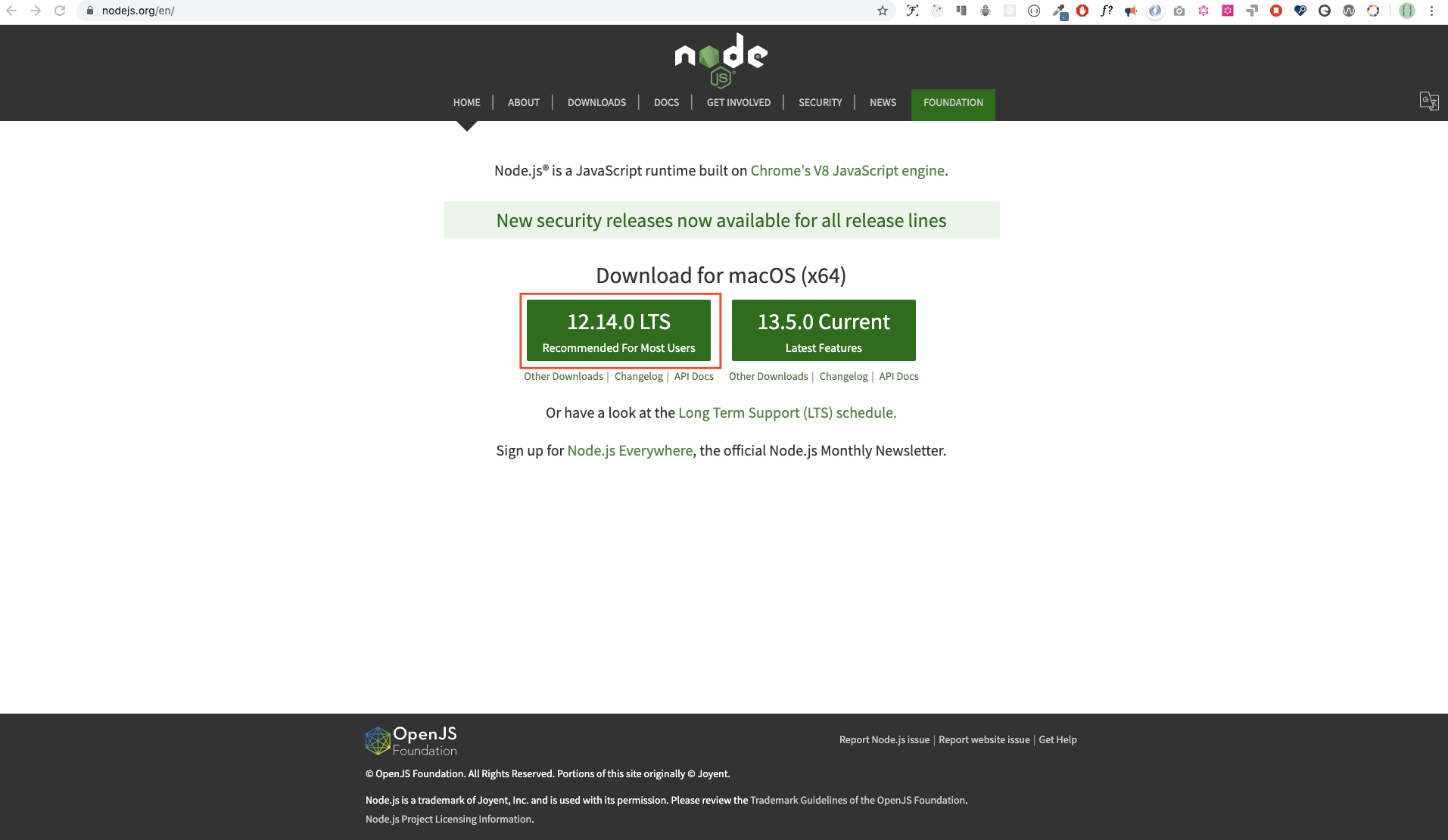
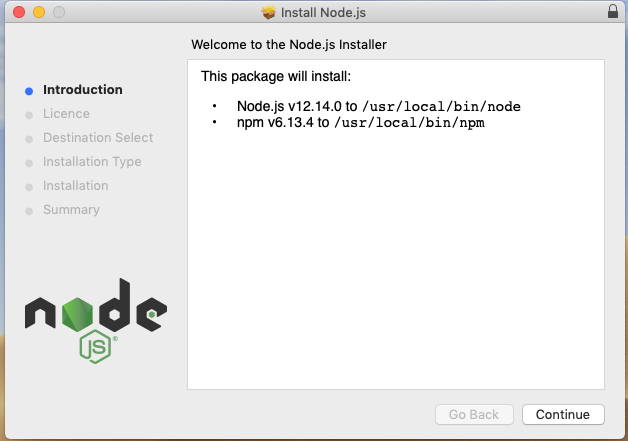
下载后,双击并安装
我们可以通过打开设备终端或命令提示符来检查 node 是否安装在我们的本地机器上。
asabeneh $ node -v
v12.14.0
制作本教程时,我使用的是12.14.0版本的 node,但现在 node.js 的推荐下载版本是12.17.0。
浏览器
现在有很多浏览器。然而,我强烈推荐谷歌浏览器。
安装chrome浏览器
如果你还没有 chrome浏览器,请安装。我们可以在浏览器控制台编写小的 JavaScript 代码,但我们不使用浏览器控制台来开发应用程序。
打开chrome浏览器控制台
你可以通过点击浏览器右上角的三个点,选择 更多工具->开发工具 或使用键盘快捷键来打开浏览器控制台。我更喜欢使用快捷键。
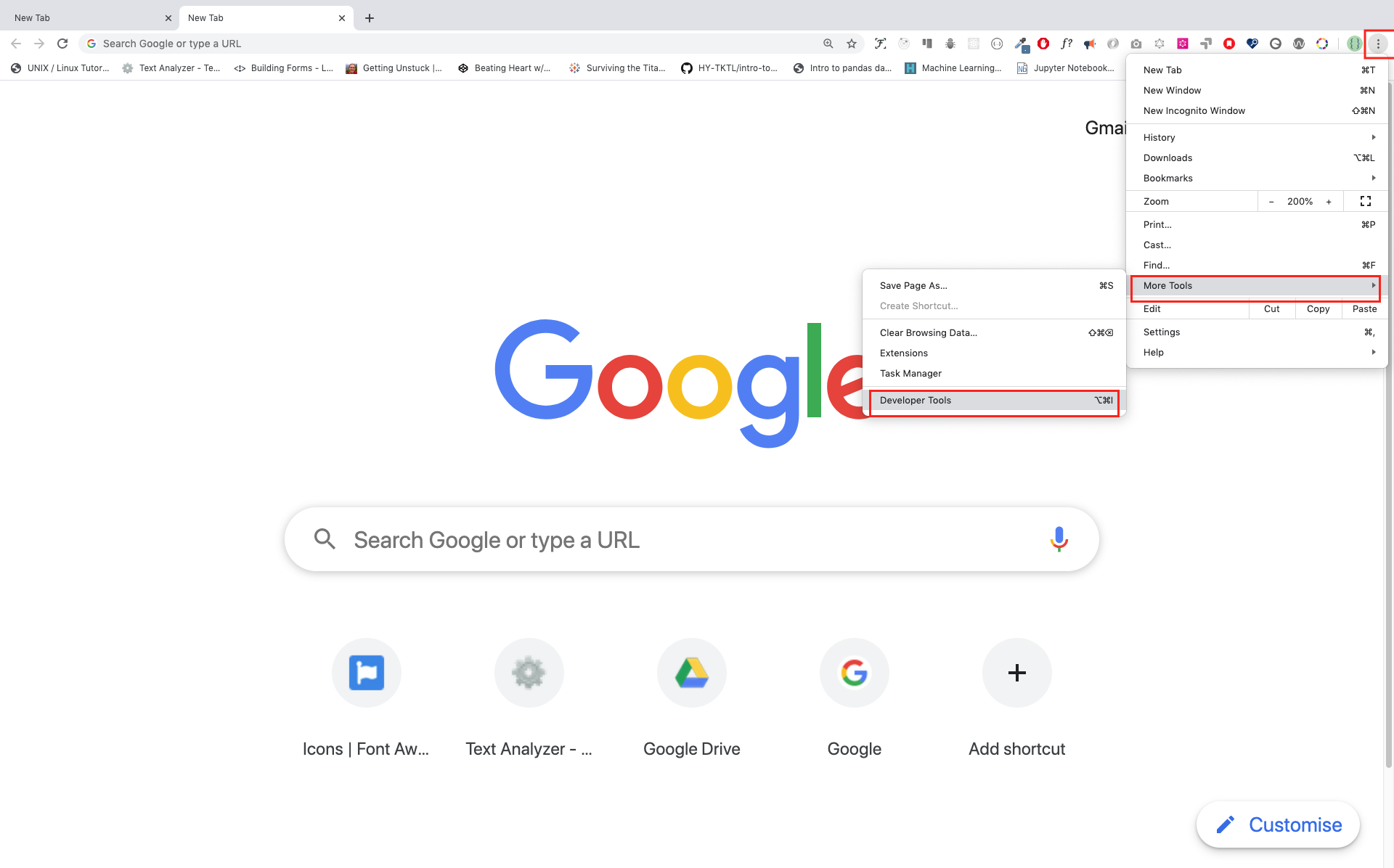
使用键盘快捷方式打开 Chrome 浏览器的控制台。
Mac
Command+Option+J

Windows/Linux:
Ctl+Shift+J
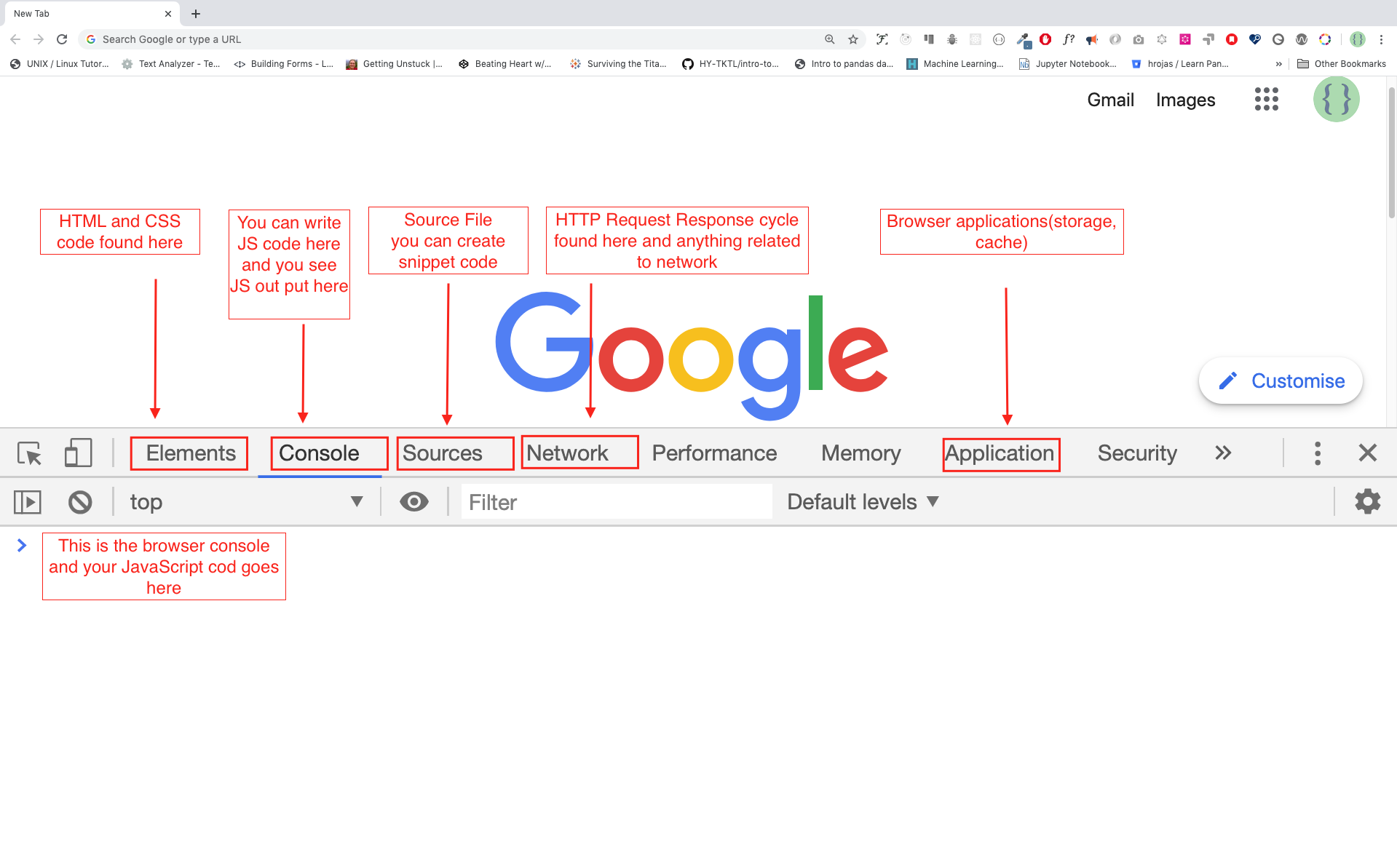
在你打开 chrome 浏览器的控制台后,尝试探索标记的按钮。我们将在控制台中花费大部分时间。控制台是你的 JavaScript 代码所处的地方。Google Console V8 引擎会将你的 JavaScript 代码变成机器代码。 让我们在 chrome 浏览器的控制台写一段 JavaScript 代码:
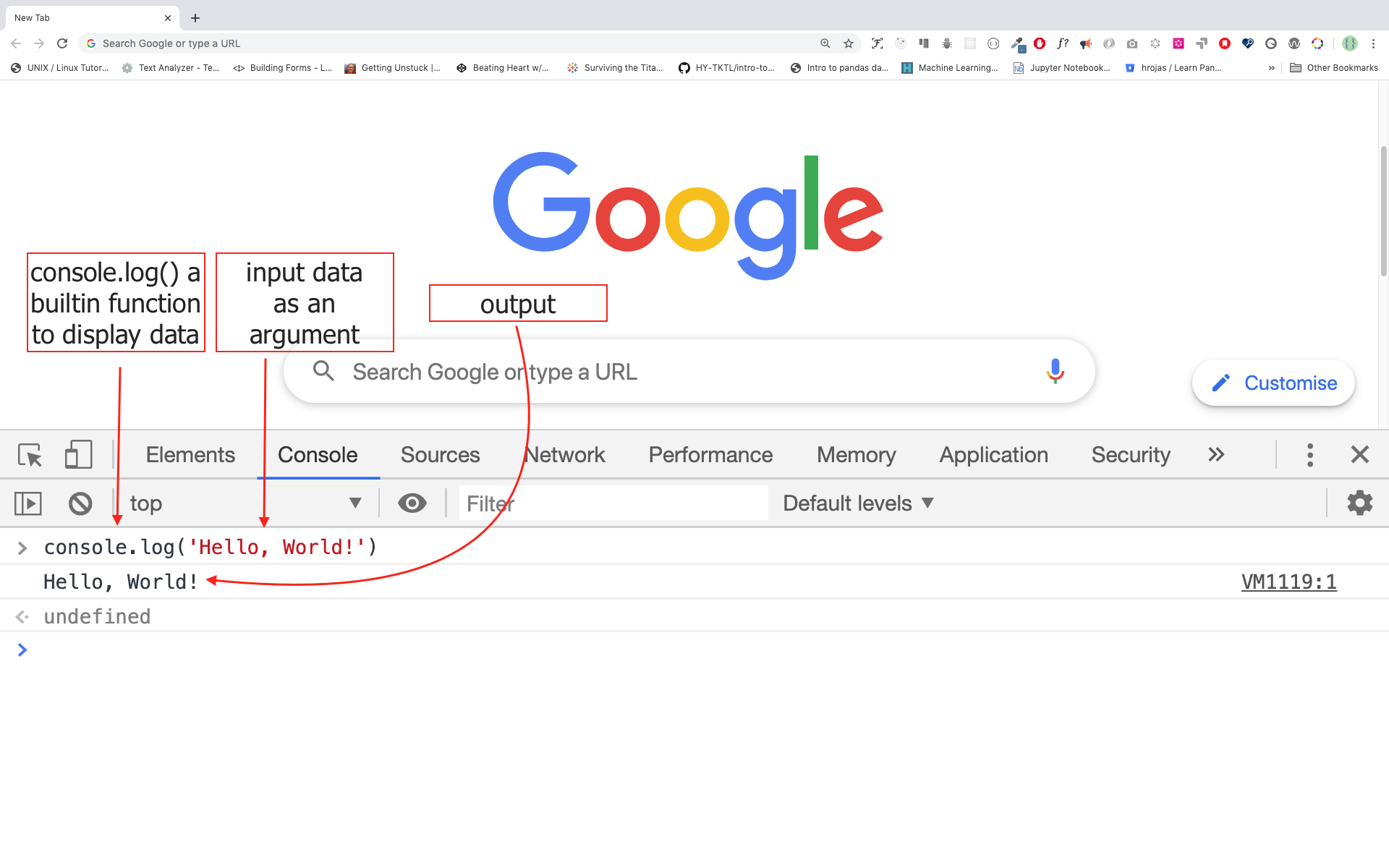
在浏览器控制台上写代码
我们可以在 Chrome 控制台或任何浏览器控制台编写任何JavaScript代码。但是,在这个挑战中,我们只关注谷歌浏览器的控制台。用以下方法打开控制台:
Mac
Command+Option+I

Windows:
Ctl+Shift+I
Console.log
为了编写我们的第一段 JavaScript 代码,我们使用了一个内置函数console.log()。我们传递了一个参数作为输入数据,然后函数显示输出。我们在 console.log() 函数中传递了'Hello, World'作为输入数据或参数。
console.log('Hello, World!')
带有多个参数的 Console.log
**conole.log()**函数可以接受用逗号分隔的多个参数。其语法如下:console.log(param1, param2, param3)
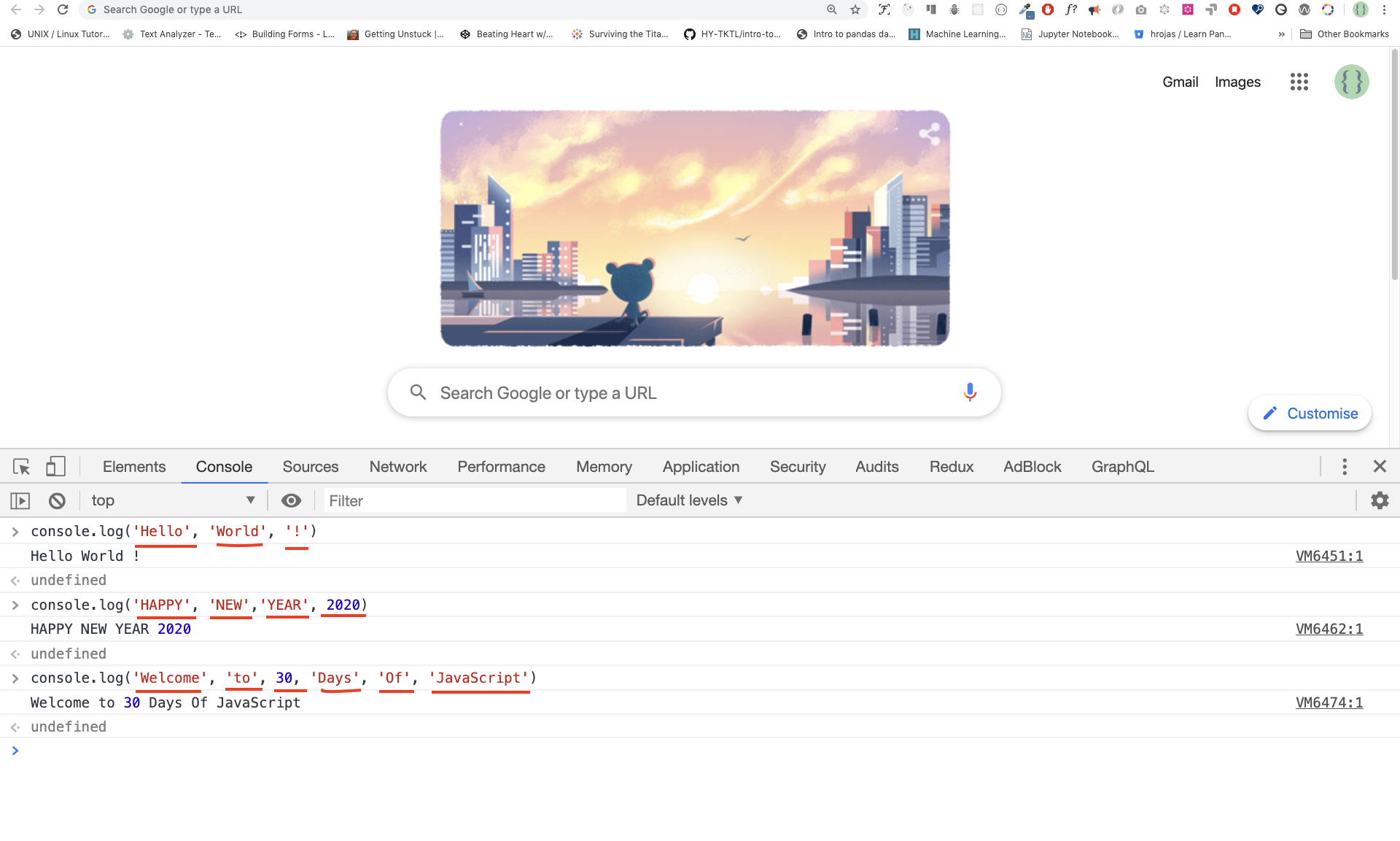
console.log('Hello', 'World', '!')
console.log('HAPPY', 'NEW', 'YEAR', 2020)
console.log('Welcome', 'to', 30, 'Days', 'Of', 'JavaScript')
正如你从上面的代码片段中看到的,console.log() 可以接受多个参数。
祝贺你! 你用 console.log() 写了你的第一段JavaScript代码。
注释
我们在代码中添加注释。注释是非常重要的,它可以使代码更有可读性,也可以在我们的代码中留下备注。JavaScript 不会执行我们代码中的注释部分。在 JavaScript 中,任何以 // 开头的文本行都是注释,任何像这样被括起来的/* * */也是注释。
示例: 单行注释
// This is the first comment
// This is the second comment
// I am a single line comment
示例: 多行注释
/*
This is a multiline comment
Multiline comments can take multiple lines
JavaScript is the language of the web
*/
语法
编程语言与人类语言相似。英语或许多其他语言使用单词、短语、句子、复合句子和其他更多的东西来传达一个有意义的信息。句法的英文含义是 在一种语言中对单词和短语的安排,以创造良好的句子。语法的技术定义是 计算机语言中的语句结构 编程语言有语法。 JavaScript 是一种编程语言,和其他编程语言一样,它有自己的语法。如果我们不写一个 JavaScript 能理解的语法,它就会产生不同类型的错误。我们将在后面探讨不同类型的 JavaScript 错误。现在,让我们来看看语法错误。
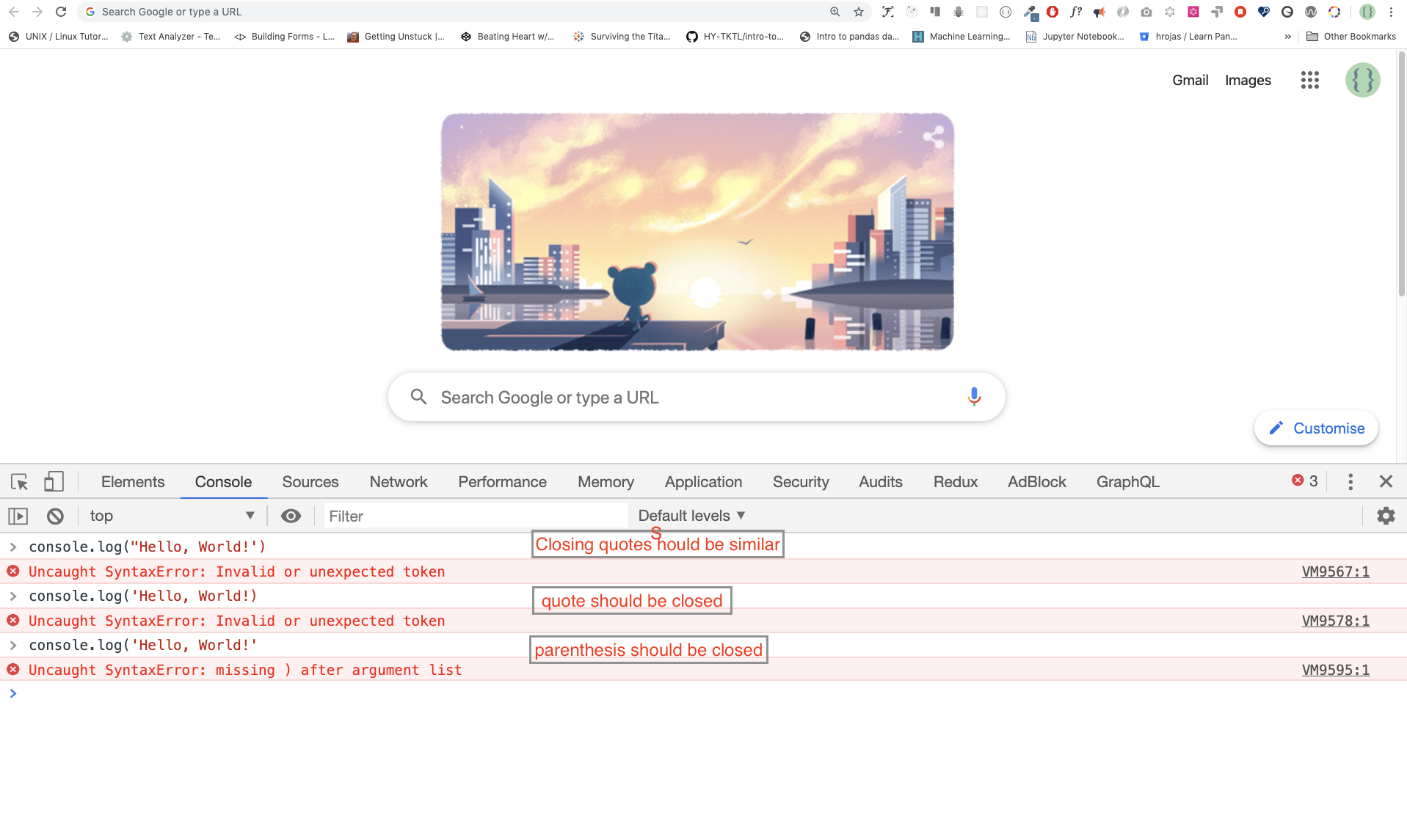
我故意犯了一个错误。结果,控制台提出了语法错误。实际上,语法的信息量很大。它告知了所犯错误的类型。通过阅读错误反馈准则,我们可以纠正语法并解决问题。识别和消除程序中的错误的过程被称为调试。让我们来解决这些错误:
console.log('Hello, World!')
console.log('Hello, World!')
So far, we saw how to display text using the console.log(). If we are printing text or string using console.log(), the text has to be inside the single quotes, double quotes, or a backtick quotes. 到目前为止,我们看到了如何使用 console.log() 来显示文本。如果我们使用 console.log() 打印文本或字符串,文本必须在单引号、双引号或反斜线引号内。 示例:
console.log('Hello, World!')
console.log('Hello, World!')
console.log(`Hello, World!`)
运算
现在,让我们多练习一下在 chrome 控制台使用 console.log() 来编写数字数据类型的 JavaScript 代码。 除了文字之外,我们还可以用 JavaScript 进行数学计算。让我们来做以下简单的计算。 控制台可以直接接受参数,不需要**console.log()**函数。然而,在这个介绍中包括了它,因为这个挑战大部分是在文本编辑器中进行的,在那里必须使用该函数。你可以直接使用控制台的指令进行游戏。
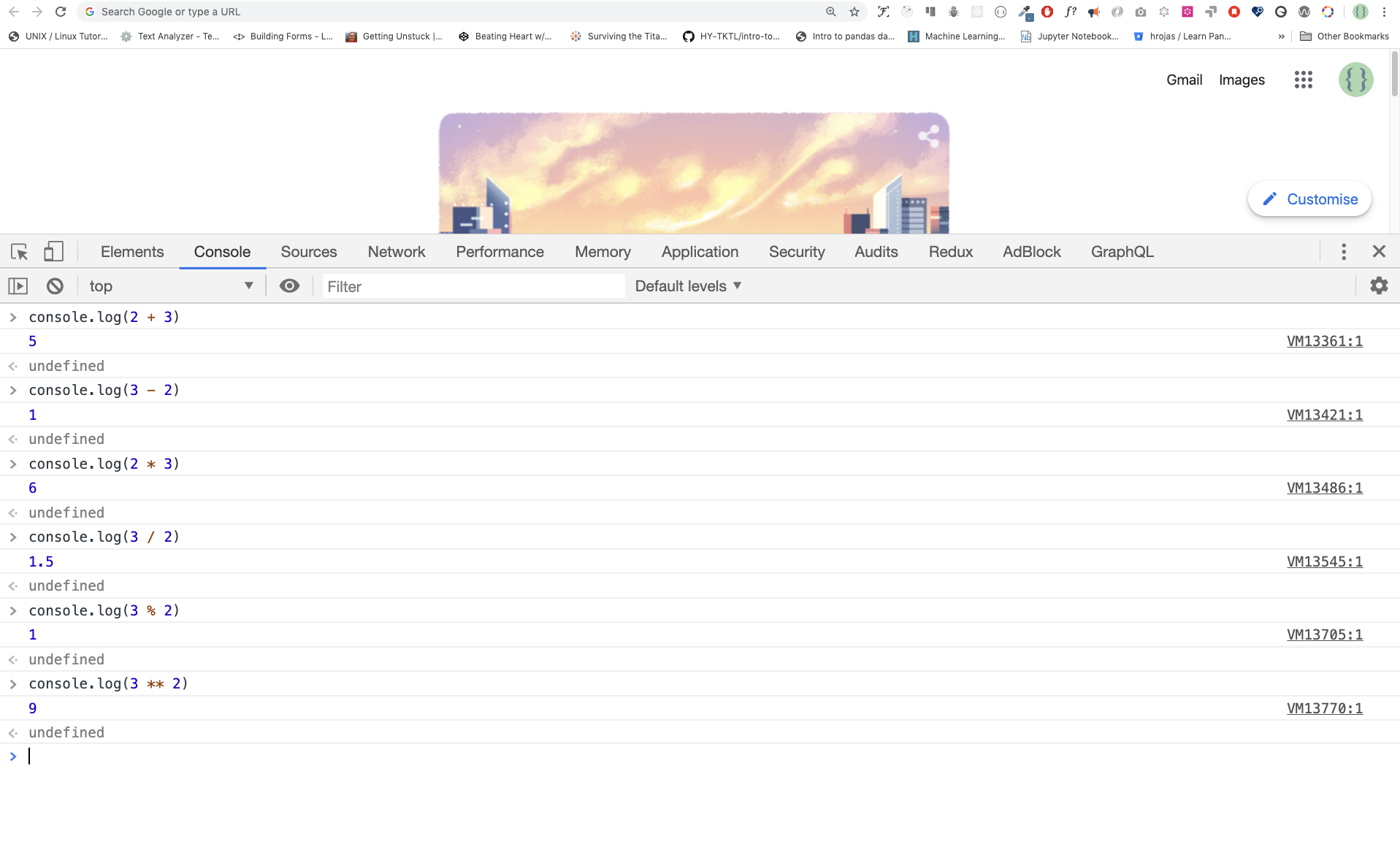
console.log(2 + 3) // Addition
console.log(3 - 2) // Subtraction
console.log(2 * 3) // Multiplication
console.log(3 / 2) // Division
console.log(3 % 2) // Modulus - finding remainder
console.log(3 ** 2) // Exponentiation 3 ** 2 == 3 * 3
代码编辑器
我们可以在浏览器的控制台上写代码,但对于较大的项目来说,这是不可能的。在真实的工作环境中,开发人员会使用不同的代码编辑器来编写代码。在这个30天 JavaScript 挑战中,我们将使用 Visual Studio Code。
安装 Visual Studio Code
Visual studio code是一个非常流行的开源文本编辑器。我建议使用Visual Studio Code,但如果你赞成使用其他编辑器,请随意使用你的东西。
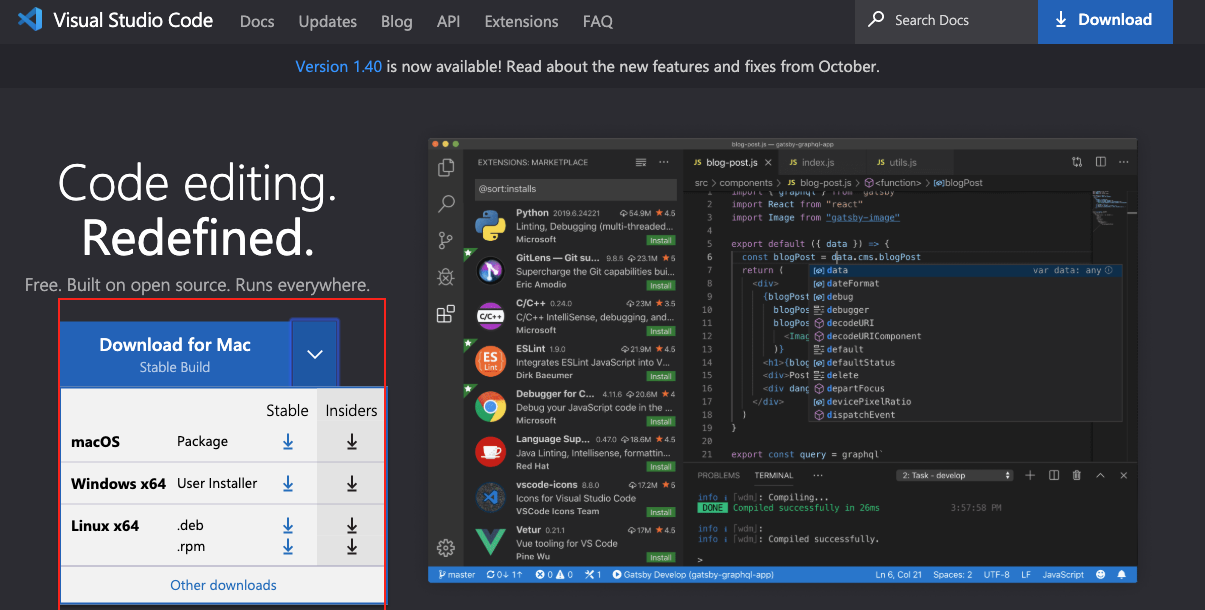
如果你安装了Visual Studio Code,让我们开始使用它。
如何使用 Visual Studio Code
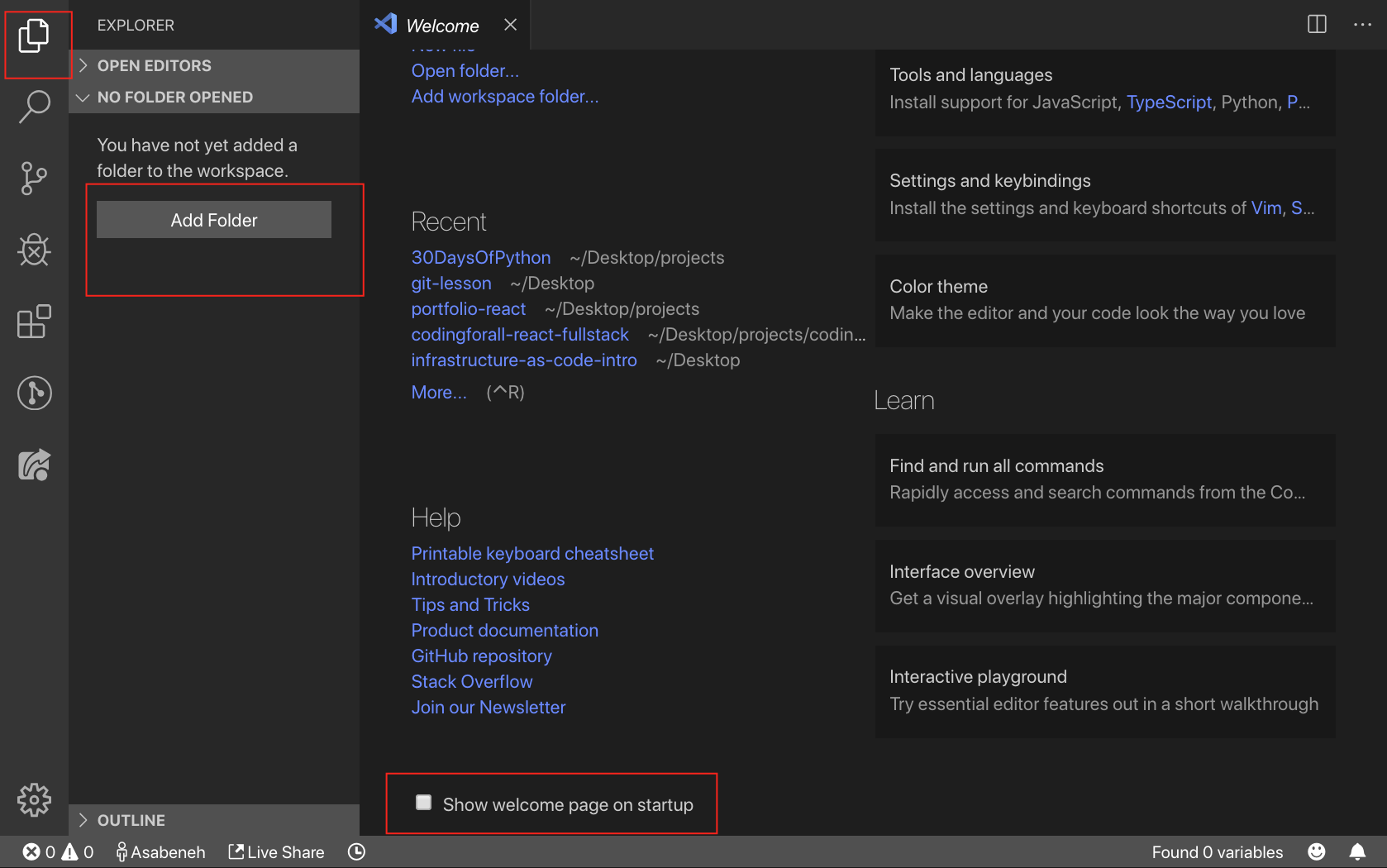
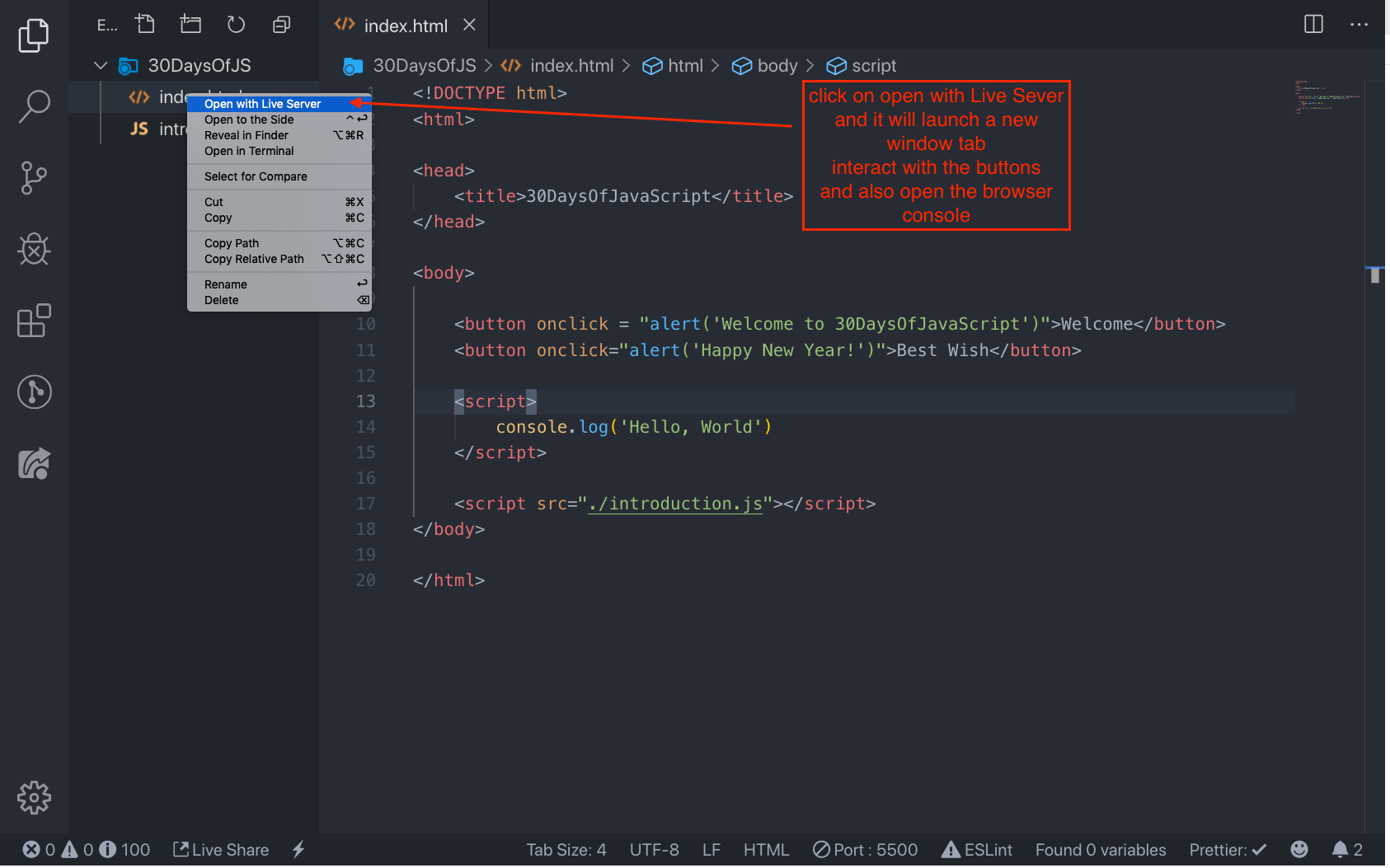
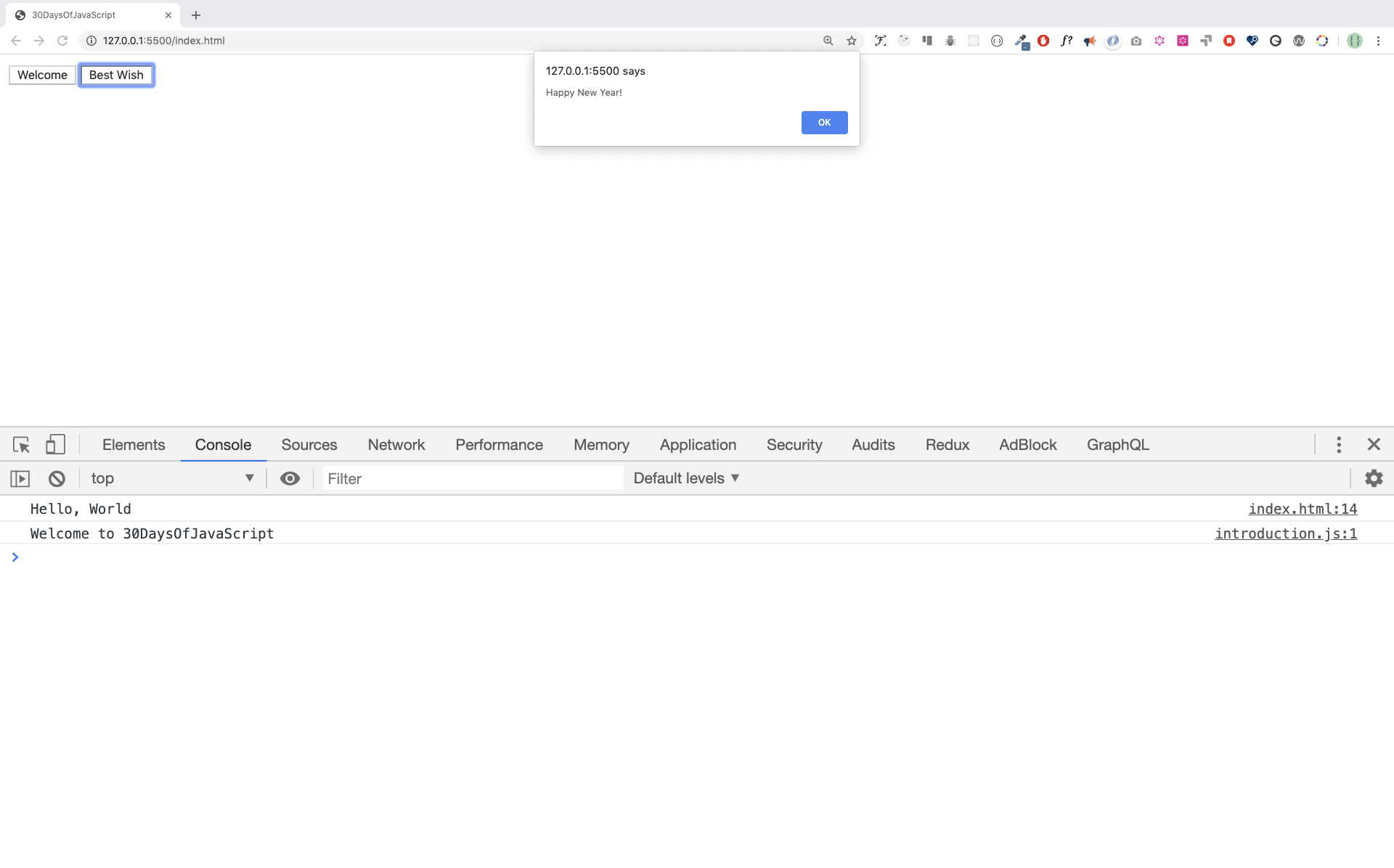
通过双击Visual Studio Code的图标来打开它。当你打开它时,你会得到这样的界面。试着与标记的图标互动。
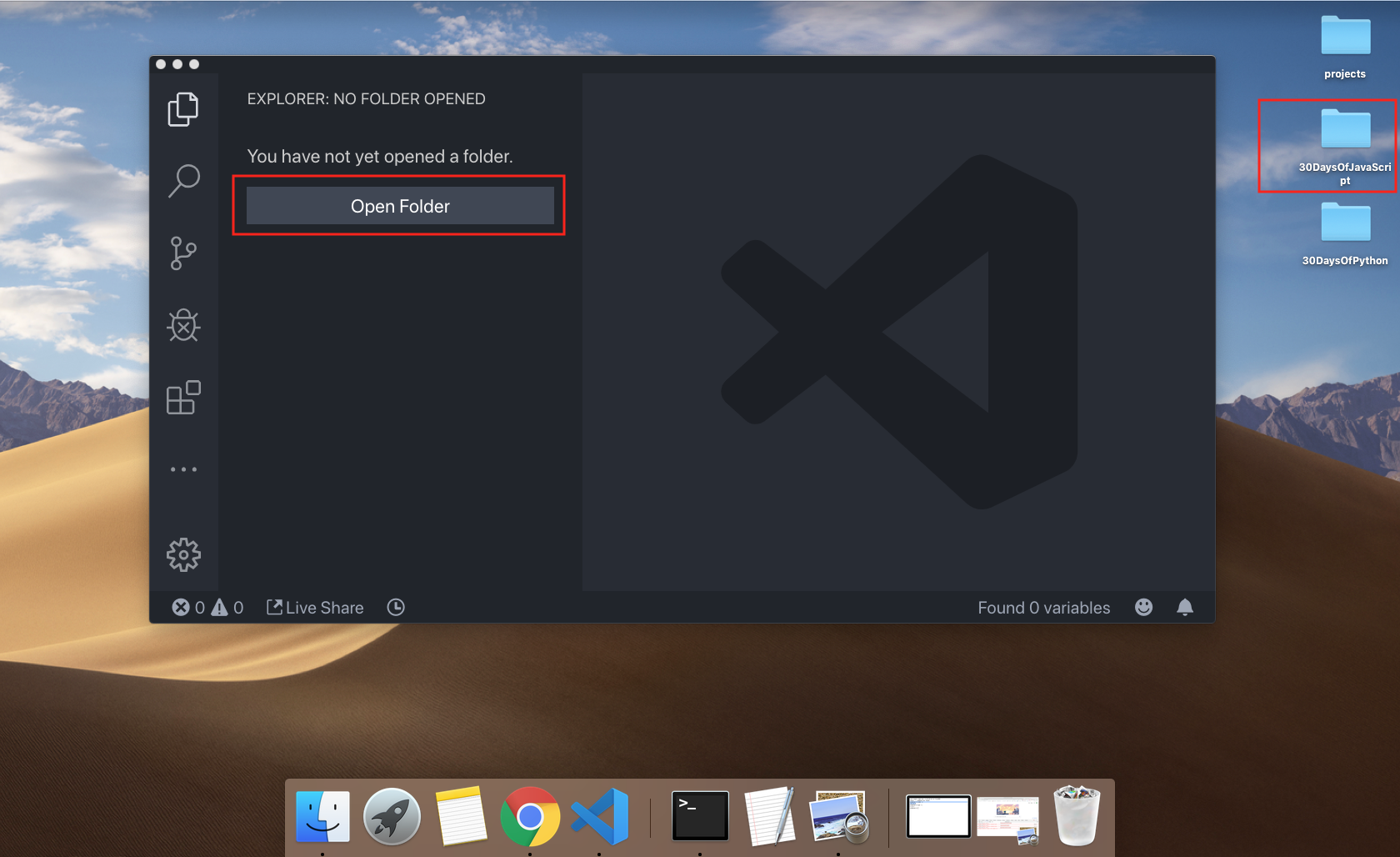
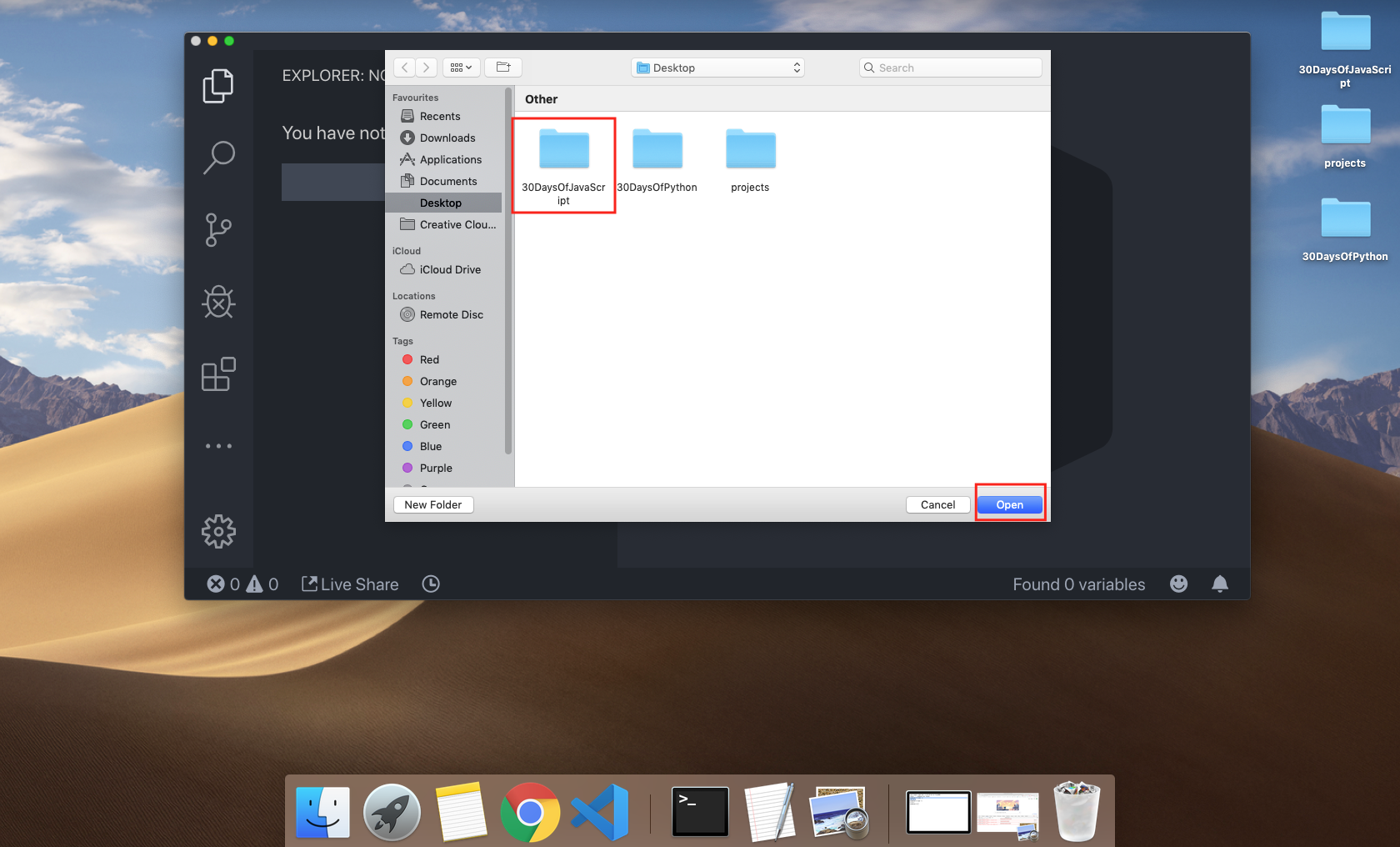
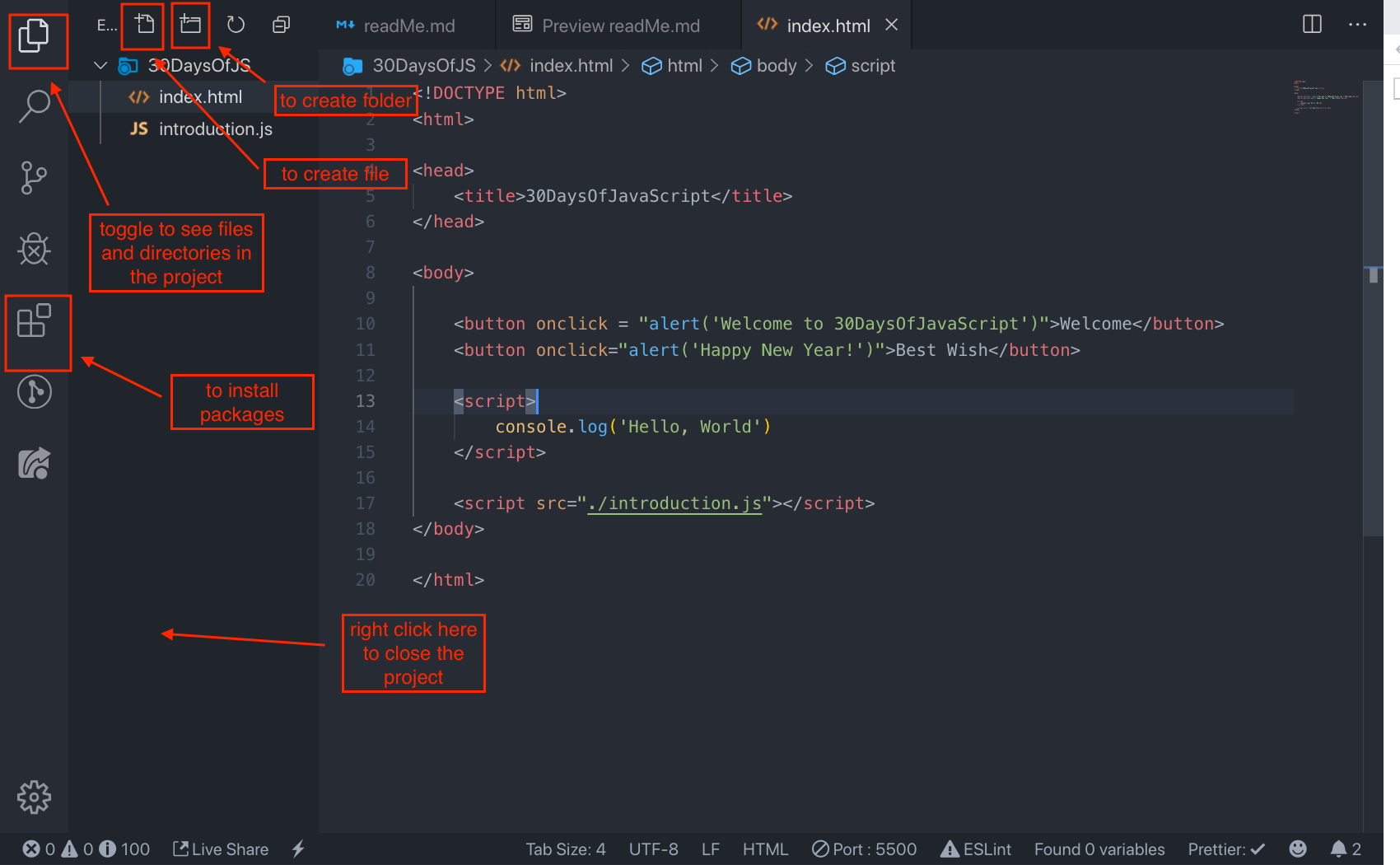
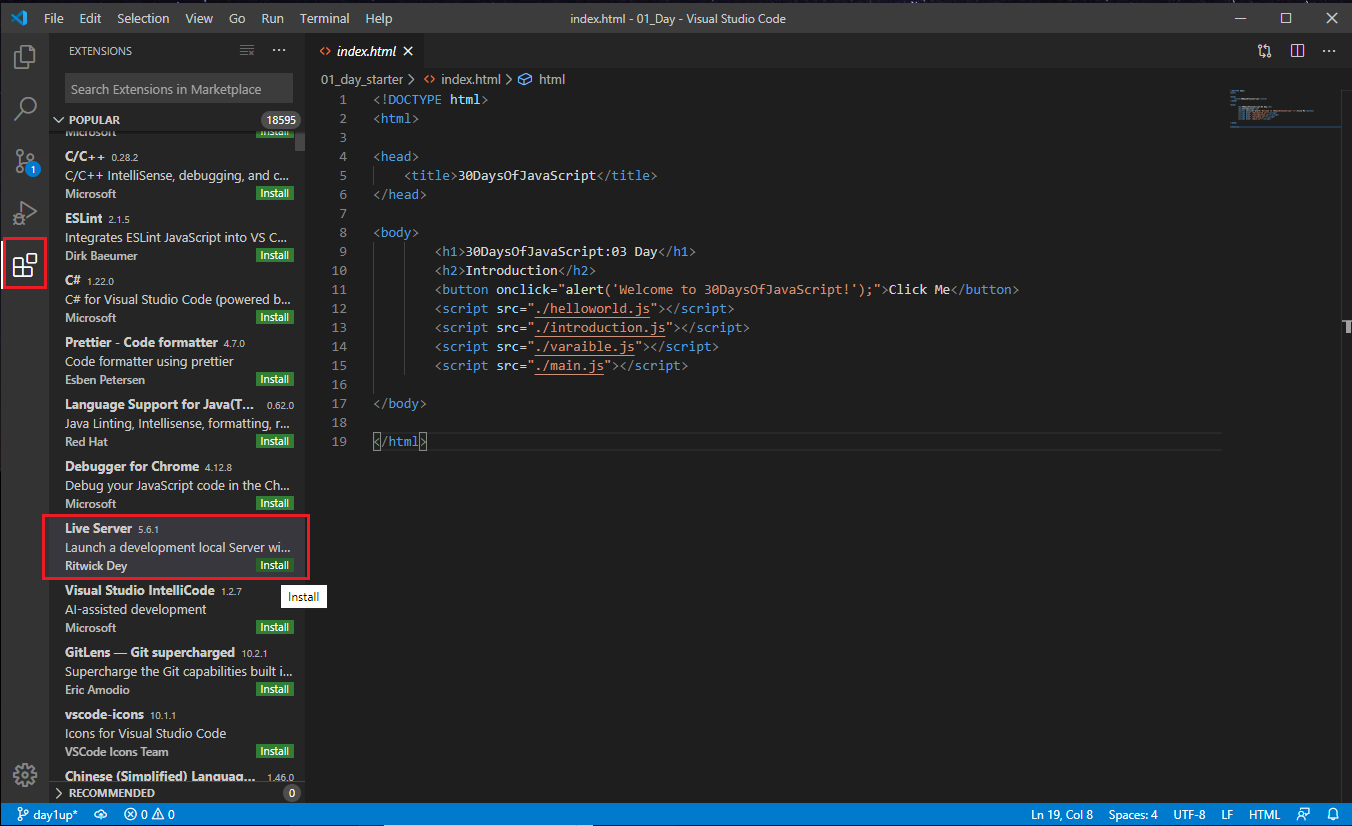
将JavaScript添加到网页中
可以通过三种不同的方式将JavaScript添加到网页上:
- Inline script
- Internal script
- External script
- Multiple External scripts
以下部分显示了将 JavaScript 代码添加到你的网页的不同方法。
内嵌式脚本
在你的桌面或任何位置创建一个项目文件夹,命名为30DaysOfJS,并在项目文件夹中创建一个**index.html**文件。然后粘贴以下代码并在浏览器中打开,例如Chrome。
<!DOCTYPE html>
<html>
  <head>
    <title>30DaysOfScript:Inline Script</title>
  </head>
  <body>
    <button onclick="alert('Welcome to 30DaysOfJavaScript!')">Click Me</button>
  </body>
</html>
现在,你刚刚写了你的第一个内嵌脚本。我们可以使用 alert() 内置函数创建一个弹出式警报信息。
内部脚本
内部脚本可以写在 head 或 body 中,但最好把它放在HTML文档的body中。 首先,让我们写在页面的头部部分。
<!DOCTYPE html>
<html>
  <head>
    <title>30DaysOfScript:Internal Script</title>
    <script>
      console.log('Welcome to 30DaysOfJavaScript')
    </script>
  </head>
  <body></body>
</html>
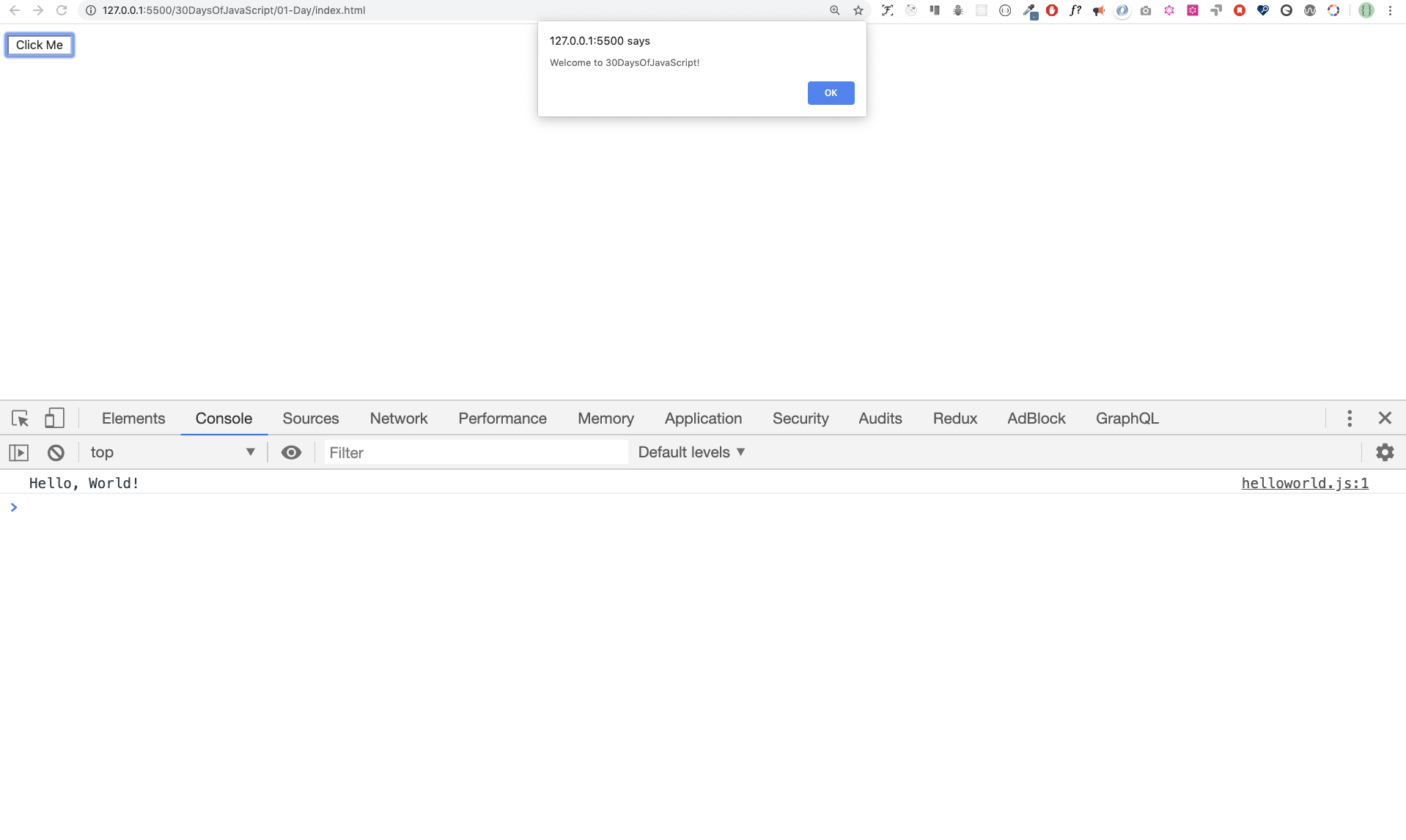
大多数时候,我们就是这样写内部脚本的。将JavaScript代码写在正文部分是最理想的选择。打开浏览器的控制台,看看 console.log() 的输出情况
<!DOCTYPE html>
<html>
  <head>
    <title>30DaysOfScript:Internal Script</title>
  </head>
  <body>
    <button onclick="alert('Welcome to 30DaysOfJavaScript!');">Click Me</button>
    <script>
      console.log('Welcome to 30DaysOfJavaScript')
    </script>
  </body>
</html>
打开浏览器的控制台,查看 console.log() 的输出。
外部脚本
与内部脚本类似,外部脚本链接可以放在标题或正文中,但最好放在正文中。 首先,我们应该创建一个扩展名为 .js 的外部 JavaScript 文件。。所有以.js结尾的文件都是JavaScript文件。在你的项目目录内创建一个名为 introduction.js 的文件,并写下以下代码,在正文的底部链接这个 .js 文件。
console.log('Welcome to 30DaysOfJavaScript')
外部脚本在 head 中:
<!DOCTYPE html>
<html>
  <head>
    <title>30DaysOfJavaScript:External script</title>
    <script src="introduction.js"></script>
  </head>
  <body></body>
</html>
外部脚本在 body 中:
<!DOCTYPE html>
<html>
  <head>
    <title>30DaysOfJavaScript:External script</title>
  </head>
  <body>
    //it could be in the header or in the body // Here is the recommended place
    to put the external script
    <script src="introduction.js"></script>
  </body>
</html>
打开浏览器控制台,查看 console.log() 的输出。
多个外部脚本
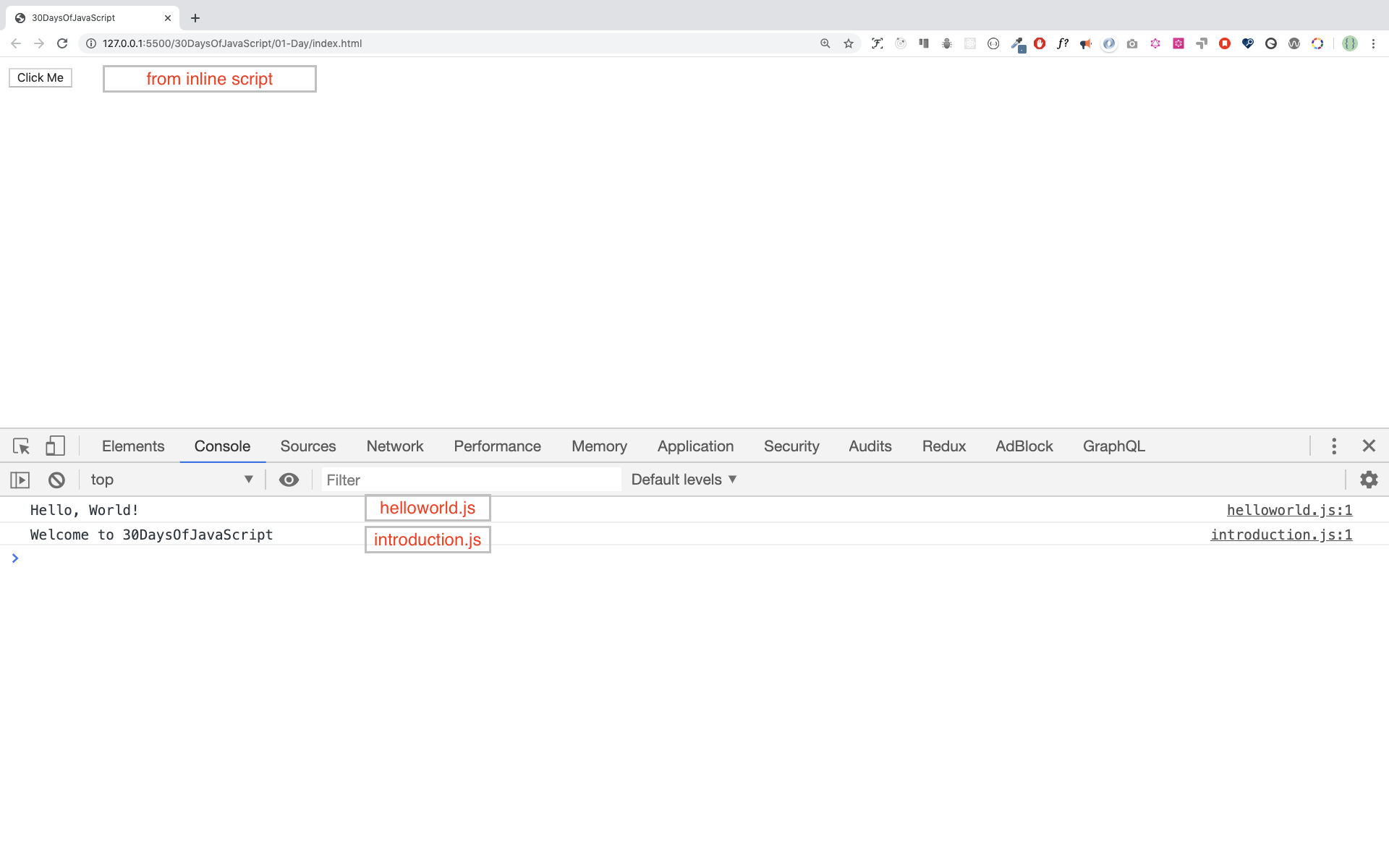
我们还可以将多个外部 JavaScript 文件链接到一个网页上。 在30DaysOfJS文件夹内创建一个helloworld.js文件,并编写以下代码。
console.log('Hello, World!')
<!DOCTYPE html>
<html>
  <head>
    <title>Multiple External Scripts</title>
  </head>
  <body>
    <script src="./helloworld.js"></script>
    <script src="./introduction.js"></script>
  </body>
</html>
你的 main.js 文件应该在所有其他脚本的下面。记住这一点是非常重要的。
数据类型介绍
在 JavaScript 和其他编程语言中,有不同种类的数据类型。以下是 JavaScript 的原始数据类型:String, Number, Boolean, undefined, Null, and Symbol。
数值
- Integers: 整数(负数、零数和正数)。 例如: ... -3, -2, -1, 0, 1, 2, 3 ...
- Float-point numbers: 小数点后的数字 例如: ... -3.5, -2.25, -1.0, 0.0, 1.1, 2.2, 3.5 ...
字符串
两个单引号、双引号或反斜线之间的一个或多个字符的集合。 例如:
'Asabeneh'
'Finland'
'JavaScript is a beautiful programming language'
'I love teaching'
'I hope you are enjoying the first day'`We can also create a string using a backtick`
;('A string could be just as small as one character as big as many pages')
布尔值
一个布尔值要么是真,要么是假。任何比较都会返回一个布尔值,即真或假。
布尔数据类型是一个真或假的值。
例如:
true // if the light on ,the value is true
false // if the light off, the value is false
Undefined
在 JavaScript中,如果我们不给一个变量赋值,这个值就是未定义的。除此之外,如果一个函数没有返回任何东西,它就会返回 undefined。
let firstName
console.log(firstName) //not defined, because it is not assigned to a value yet
Null
在 JavaScript 中,Null意味着一个空值。
let emptyValue = null
检测数据类型
为了检测某个变量的数据类型,我们使用typeof操作符。请看下面的例子。
console.log(typeof 'Asabeneh') // string
console.log(typeof 5) // number
console.log(typeof true) // boolean
console.log(typeof null) // object type
console.log(typeof undefined) // undefined
再次强调注释
记住,JavaScript 中的注释与其他编程语言类似。注释对于使你的代码更具有可读性非常重要。 有两种注释的方式。
- 单行注释
- 多行注释
// commenting the code itself with a single comment
// let firstName = 'Asabeneh'; single line comment
// let lastName = 'Yetayeh'; single line comment
多行注释:
/*
    let location = 'Helsinki';
    let age = 100;
    let isMarried = true;
    This is a Multiple line comment
    */
变量
变量是数据的 容器。变量是用来将数据 存储 在内存位置的。当一个变量被声明时,一个内存位置被保留。当一个变量被分配到一个值(数据)时,内存空间将被该数据填满。为了声明一个变量,我们使用 var、let 或 const 等关键字。
对于一个在不同时间变化的变量,我们使用 let。如果数据完全没有变化,我们使用 const。例如,PI、国家名称、重力都没有变化,我们可以使用 const。在这个挑战中,我们不会使用 var,我也不建议你使用它。它是一种容易出错的声明变量的方式,有很多漏洞。我们将在其他章节(范围)中详细讨论 var、let 和 const 的问题。现在,上面的解释已经足够了。
一个有效的JavaScript变量名必须遵循以下规则:
- 一个 JavaScript 变量名不应该以数字开头。
- 除了美元符号和下划线之外,JavaScript 变量名称不允许使用特殊字符。
- 一个 JavaScript 变量名遵循驼峰命名。
- 一个 JavaScript 变量的名称不应该在单词之间有空格。
以下是有效的 JavaScript 变量的例子。
firstName
lastName
country
city
capitalCity
age
isMarried

first_name
last_name
is_married
capital_city

num1
num_1
_num_1
$num1
year2020
year_2020
The first and second variables on the list follows the camelCase convention of declaring in JavaScrip. In this material, we will use camelCase variables.
Example of invalid variables:
  first-name
  1_num
  num_#_1
Let us declare variables with different data types. To declare a variable, we need to use let or const keyword before the variable name. Following the variable name, we write an equal sign (assignment operator), and a value(assigned data).
// Syntax
let nameOfVariable = value
Examples of declared variables
// Declaring different variables of different data types
let firstName = 'Asabeneh' // first name of a person
let lastName = 'Yetayeh' // last name of a person
let country = 'Finland' // country
let city = 'Helsinki' // capital city
let age = 100 // age in years
let isMarried = true

console.log(firstName, lastName, country, city, age, isMarried)
Asabeneh Yetayeh Finland Helsinki 100 True
// Declaring variables with number values
let age = 100 // age in years
const gravity = 9.81 // earth gravity  in m/s2
const boilingPoint = 100 // water boiling point, temperature in oC
const PI = 3.14 // geometrical constant

console.log(gravity, boilingPoint, PI)
9.81 100 3.14
// Variables can also be declaring in one line separated by comma
let name = 'Asabeneh', // name of a person
  job = 'teacher',
  live = 'Finland'
console.log(name, job, live)
Asabeneh teacher Finland
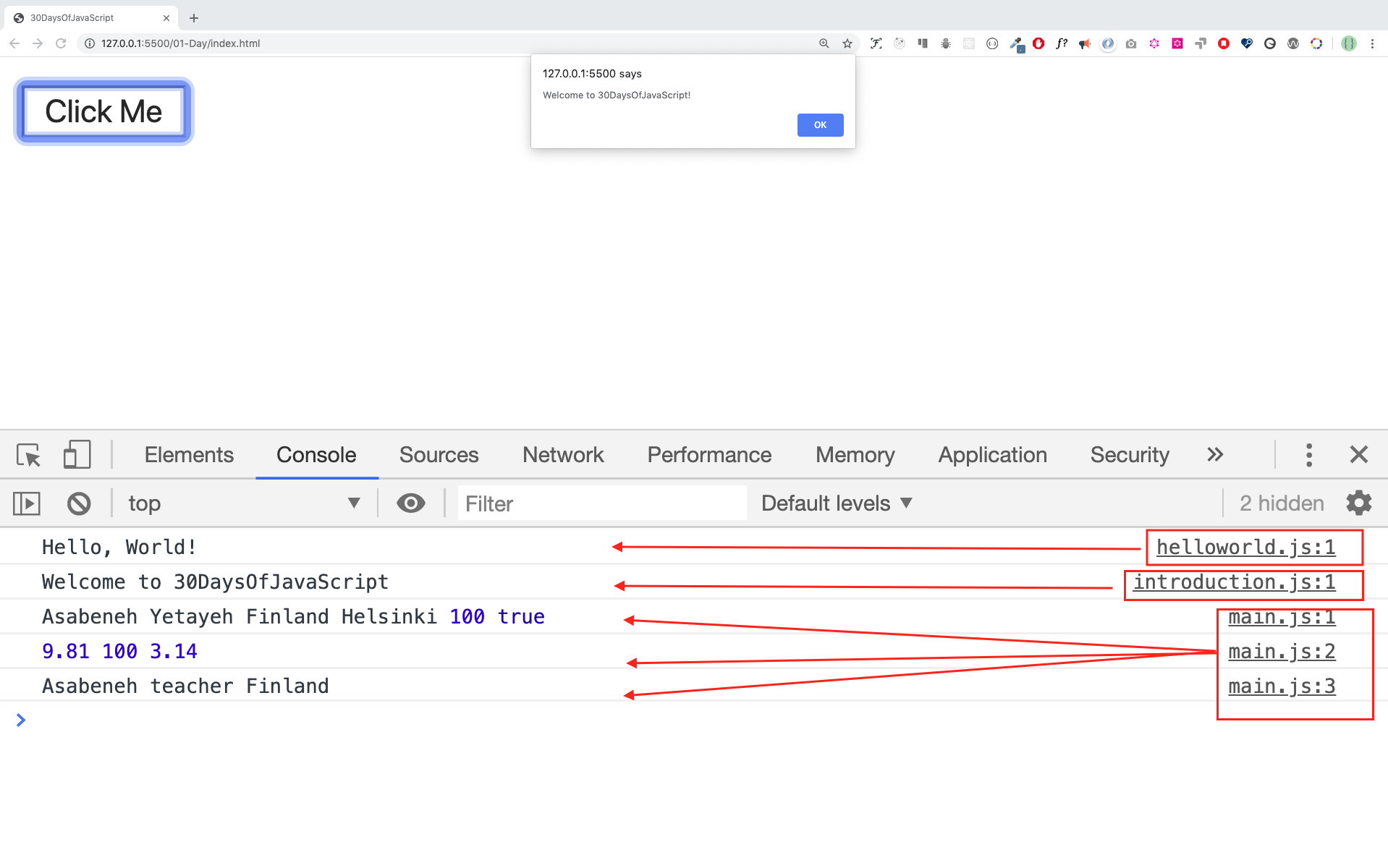
When you run index.html file in the 01-Day folder you should get this:
🌕 You are amazing! You have just completed day 1 challenge and you are on your way to greatness. Now do some exercises for your brain and muscle.
💻 Day 1: Exercises
-
Write a single line comment which says, comments can make code readable
-
Write another single comment which says, Welcome to 30DaysOfJavaScript
-
Write a multiline comment which says, comments can make code readable, easy to reuse and informative
-
Create a variable.js file and declare variables and assign string, boolean, undefined and null data types
-
Create datatypes.js file and use the JavaScript typeof operator to check different data types. Check the data type of each variable
-
Declare four variables without assigning values
-
Declare four variables with assigned values
-
Declare variables to store your first name, last name, marital status, country and age in multiple lines
-
Declare variables to store your first name, last name, marital status, country and age in a single line
-
Declare two variables myAge and yourAge and assign them initial values and log to the browser console.
I am 25 years old.
You are 30 years old.
🎉 CONGRATULATIONS ! 🎉