
17 KiB
Browser Extension Project Part 1: All about Browsers
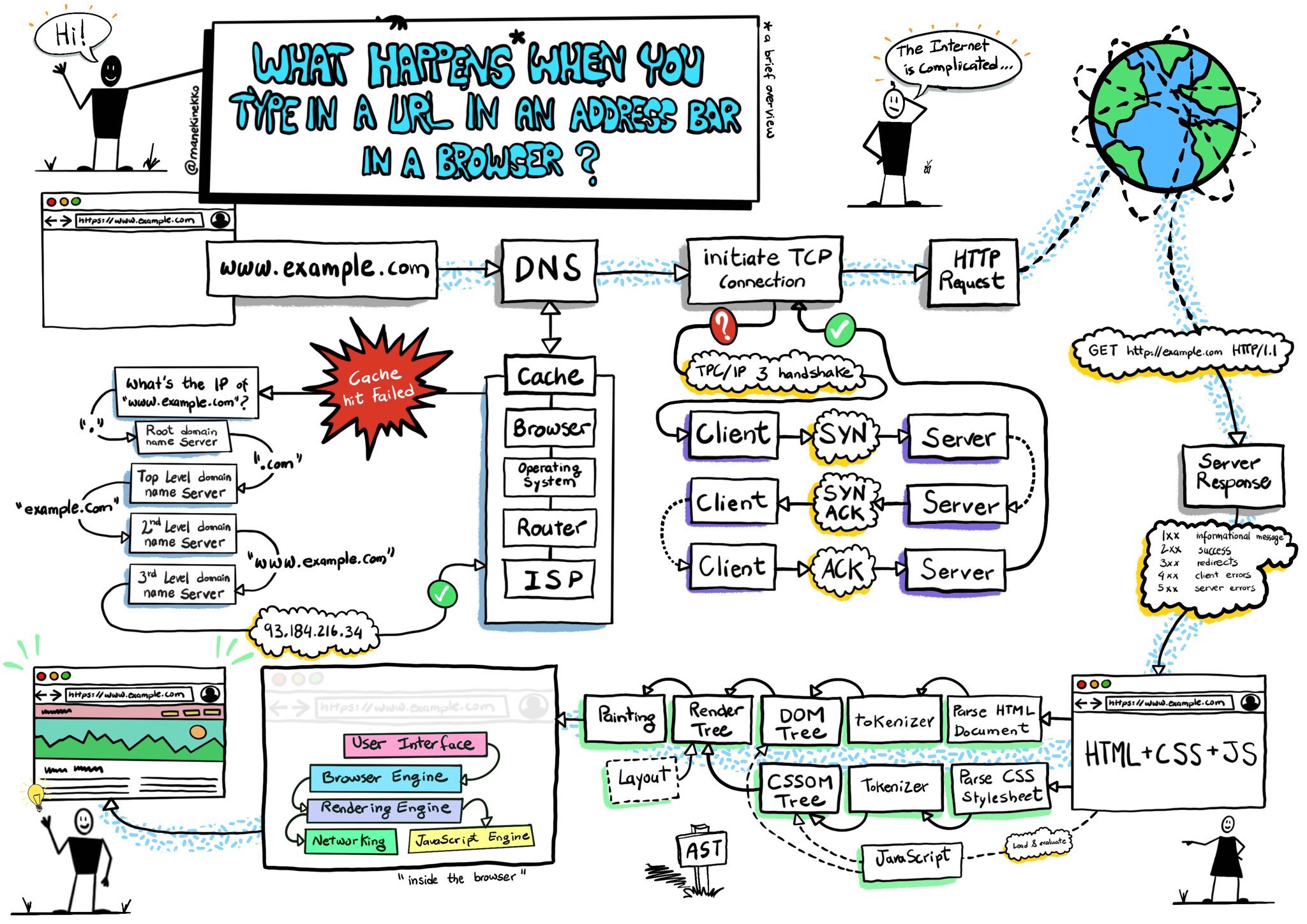
Sketchnote by Wassim Chegham
Pre-Lecture Quiz
Introduction
Browser extensions are mini-applications that enhance your web browsing experience. Like Tim Berners-Lee's original vision of an interactive web, extensions extend the browser's capabilities beyond simple document viewing. From password managers that keep your accounts secure to color pickers that help designers grab perfect shades, extensions solve everyday browsing challenges.
Before we build your first extension, let's understand how browsers work. Just as Alexander Graham Bell needed to understand sound transmission before inventing the telephone, knowing browser fundamentals will help you create extensions that integrate seamlessly with existing browser systems.
By the end of this lesson, you'll understand browser architecture and have started building your first extension.
Understanding Web Browsers
A web browser is essentially a sophisticated document interpreter. When you type "google.com" into the address bar, the browser performs a complex series of operations - requesting content from servers worldwide, then parsing and rendering that code into the interactive web pages you see.
This process mirrors how the first web browser, WorldWideWeb, was designed by Tim Berners-Lee in 1990 to make hyperlinked documents accessible to everyone.
✅ A little history: The first browser was called 'WorldWideWeb' and was created by Sir Timothy Berners-Lee in 1990.

Some early browsers, via Karen McGrane
How Browsers Process Web Content
The process between entering a URL and seeing a webpage involves several coordinated steps that happen within seconds:
sequenceDiagram
    participant User
    participant Browser
    participant DNS
    participant Server

    User->>Browser: Types URL and presses Enter
    Browser->>DNS: Looks up server IP address
    DNS->>Browser: Returns IP address
    Browser->>Server: Requests web page content
    Server->>Browser: Sends HTML, CSS, and JavaScript
    Browser->>User: Renders complete web page
Here's what this process accomplishes:
- Translates the human-readable URL into a server IP address through DNS lookup
- Establishes a secure connection with the web server using HTTP or HTTPS protocols
- Requests the specific web page content from the server
- Receives HTML markup, CSS styling, and JavaScript code from the server
- Renders all content into the interactive web page you see
Browser Core Features
Modern browsers provide numerous features that extension developers can leverage:
| Feature | Purpose | Extension Opportunities |
|---|---|---|
| Rendering Engine | Displays HTML, CSS, and JavaScript | Content modification, styling injection |
| JavaScript Engine | Executes JavaScript code | Custom scripts, API interactions |
| Local Storage | Saves data locally | User preferences, cached data |
| Network Stack | Handles web requests | Request monitoring, data analysis |
| Security Model | Protects users from malicious content | Content filtering, security enhancements |
Understanding these features helps you:
- Identify where your extension can add the most value
- Choose the right browser APIs for your extension's functionality
- Design extensions that work efficiently with browser systems
- Ensure your extension follows browser security best practices
Cross-Browser Development Considerations
Different browsers implement standards with slight variations, similar to how different programming languages might handle the same algorithm differently. Chrome, Firefox, and Safari each have unique characteristics that developers must consider during extension development.
💡 Pro Tip: Use caniuse.com to check which web technologies are supported across different browsers. This is invaluable when planning your extension's features!
Key considerations for extension development:
- Test your extension across Chrome, Firefox, and Edge browsers
- Adapt to different browser extension APIs and manifest formats
- Handle varying performance characteristics and limitations
- Provide fallbacks for browser-specific features that may not be available
✅ Analytics Insight: You can determine which browsers your users prefer by installing analytics packages in your web development projects. This data helps you prioritize which browsers to support first.
Understanding Browser Extensions
Browser extensions solve common web browsing challenges by adding functionality directly to the browser interface. Rather than requiring separate applications or complex workflows, extensions provide immediate access to tools and features.
This concept mirrors how early computer pioneers like Douglas Engelbart envisioned augmenting human capabilities with technology - extensions augment your browser's basic functionality.
Popular extension categories and their benefits:
- Productivity Tools: Task managers, note-taking apps, and time trackers that help you stay organized
- Security Enhancements: Password managers, ad blockers, and privacy tools that protect your data
- Developer Tools: Code formatters, color pickers, and debugging utilities that streamline development
- Content Enhancement: Reading modes, video downloaders, and screenshot tools that improve your web experience
✅ Reflection Question: What are your favorite browser extensions? What specific tasks do they perform, and how do they improve your browsing experience?
Installing and Managing Extensions
Understanding the extension installation process helps you anticipate the user experience when people install your extension. The installation process is standardized across modern browsers, with minor variations in interface design.
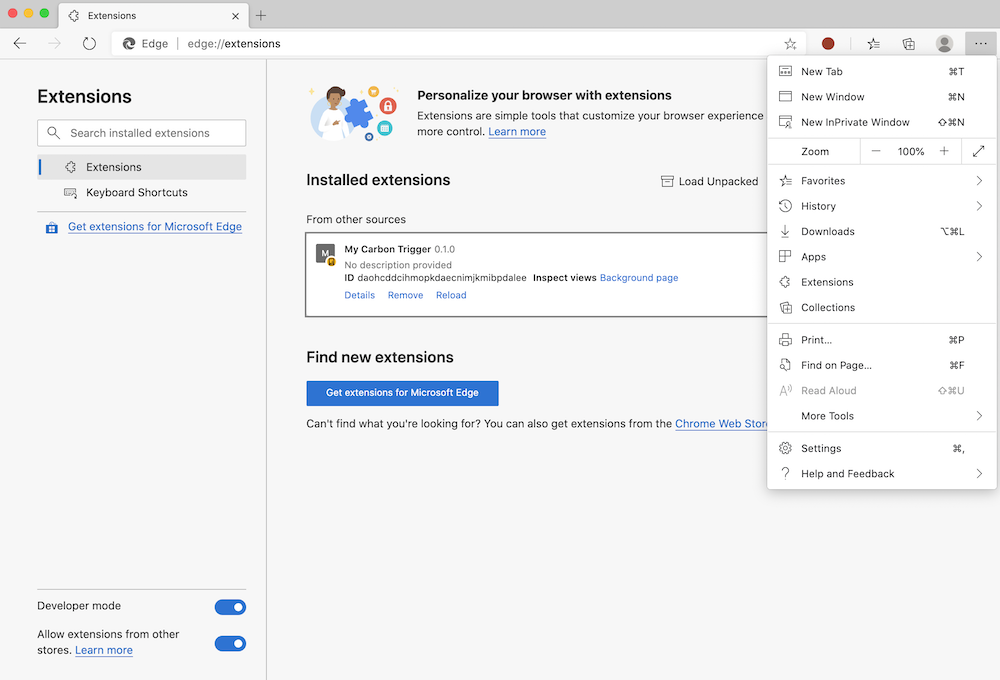
Important: Make sure to toggle on developer mode and allow extensions from other stores when testing your own extensions.
Development Extension Installation Process
When you're developing and testing your own extensions, follow this workflow:
# Step 1: Build your extension
npm run build
What this command accomplishes:
- Compiles your source code into browser-ready files
- Bundles JavaScript modules into optimized packages
- Generates the final extension files in the
/distfolder - Prepares your extension for installation and testing
Step 2: Navigate to Browser Extensions
- Open your browser's extensions management page
- Click the "Settings and more" button (the
...icon) on the top right - Select "Extensions" from the dropdown menu
Step 3: Load Your Extension
- For new installations: Choose
load unpackedand select your/distfolder - For updates: Click
reloadnext to your already-installed extension - For testing: Enable "Developer mode" to access additional debugging features
Production Extension Installation
✅ Note: These development instructions are specifically for extensions you build yourself. To install published extensions, visit the official browser extension stores like the Microsoft Edge Add-ons store.
Understanding the difference:
- Development installations let you test unpublished extensions during development
- Store installations provide vetted, published extensions with automatic updates
- Sideloading allows installation of extensions from outside official stores (requires developer mode)
Building Your Carbon Footprint Extension
We'll create a browser extension that displays the carbon footprint of your region's energy use. This project demonstrates essential extension development concepts while creating a practical tool for environmental awareness.
This approach follows the principle of "learning by doing" that has proven effective since John Dewey's educational theories - combining technical skills with meaningful real-world applications.
Project Requirements
Before beginning development, let's gather the required resources and dependencies:
Required API Access:
- CO2 Signal API key: Enter your email address to receive your free API key
- Region code: Find your region code using the Electricity Map (for example, Boston uses 'US-NEISO')
Development Tools:
- Node.js and NPM: Package management tool for installing project dependencies
- Starter code: Download the
startfolder to begin development
✅ Learn More: Enhance your package management skills with this comprehensive Learn module
Understanding the Project Structure
Understanding the project structure helps organize development work efficiently. Like how the Library of Alexandria was organized for easy knowledge retrieval, a well-structured codebase makes development more efficient:
project-root/
├── dist/                    # Built extension files
│   ├── manifest.json        # Extension configuration
│   ├── index.html           # User interface markup
│   ├── background.js        # Background script functionality
│   └── main.js              # Compiled JavaScript bundle
└── src/                     # Source development files
    └── index.js             # Your main JavaScript code
Breaking down what each file accomplishes:
manifest.json: Defines extension metadata, permissions, and entry pointsindex.html: Creates the user interface that appears when users click your extensionbackground.js: Handles background tasks and browser event listenersmain.js: Contains the final bundled JavaScript after the build processsrc/index.js: Houses your main development code that gets compiled intomain.js
💡 Organization Tip: Store your API key and region code in a secure note for easy reference during development. You'll need these values to test your extension's functionality.
✅ Security Note: Never commit API keys or sensitive credentials to your code repository. We'll show you how to handle these securely in the next steps.
Creating the Extension Interface
Now we'll build the user interface components. The extension uses a two-screen approach: a configuration screen for initial setup and a results screen for data display.
This follows the progressive disclosure principle used in interface design since the early days of computing - revealing information and options in a logical sequence to avoid overwhelming users.
Extension Views Overview
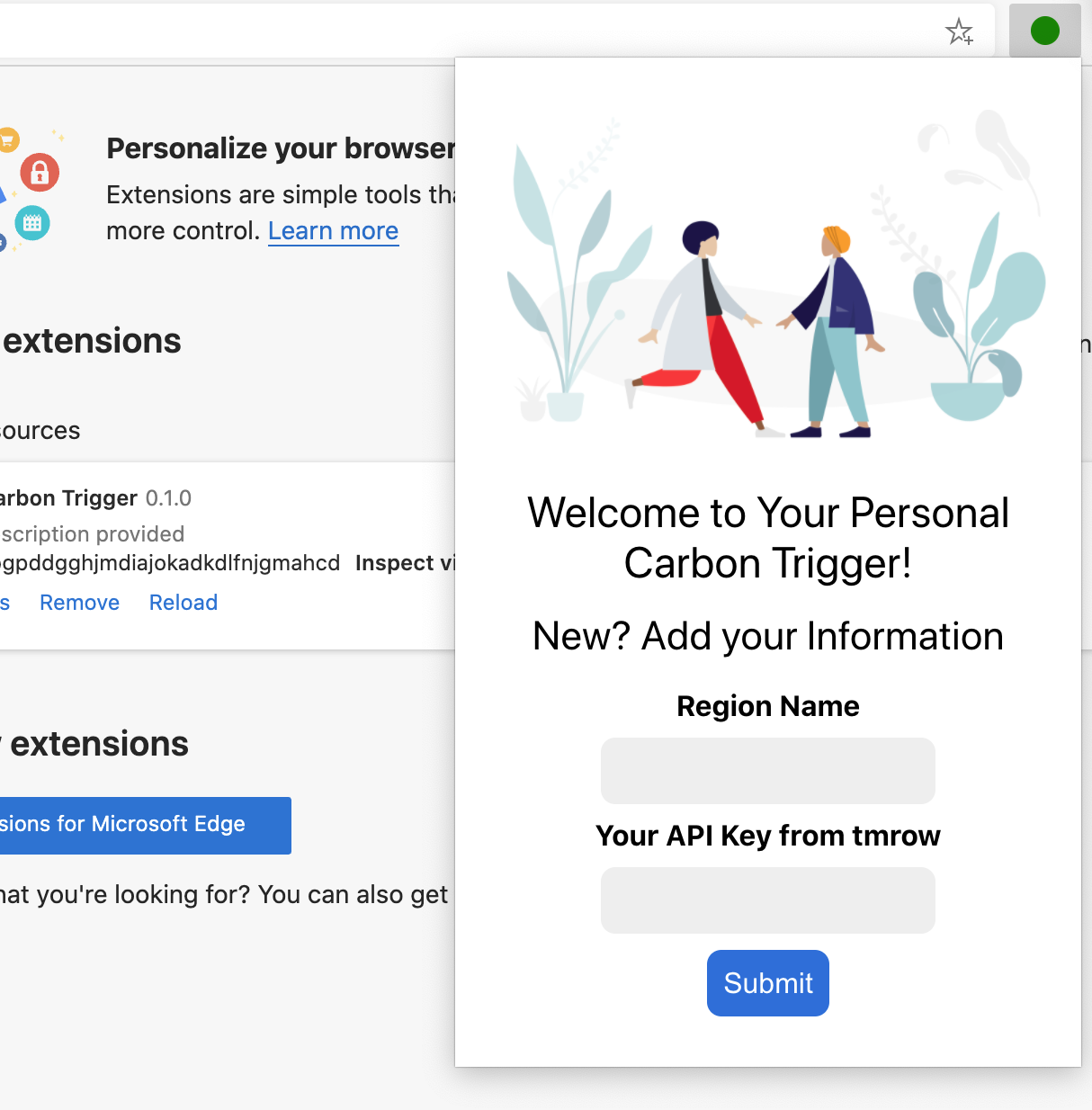
Setup View - First-time user configuration:
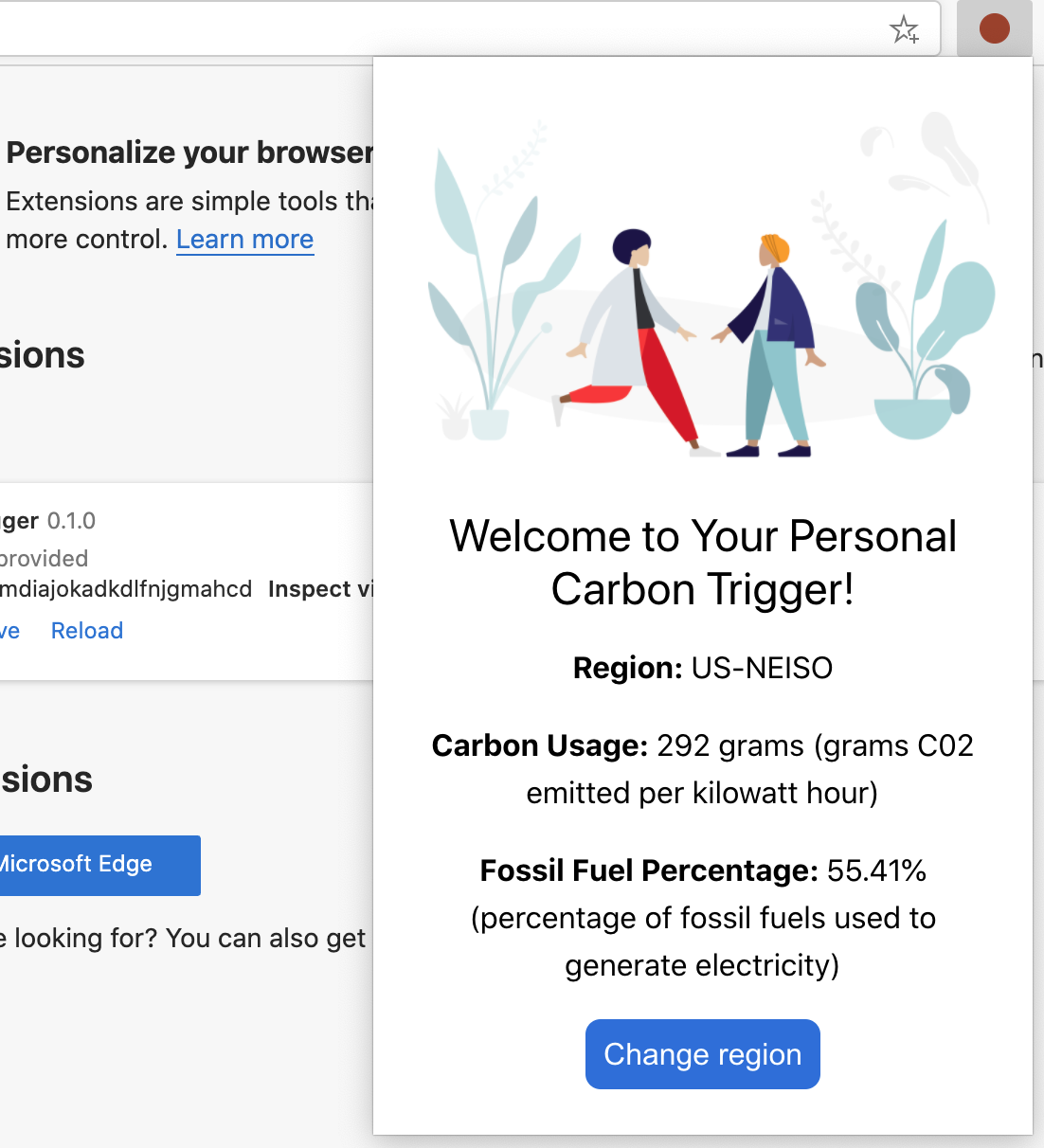
Results View - Carbon footprint data display:
Building the Configuration Form
The setup form collects user configuration data during initial use. Once configured, this information persists in browser storage for future sessions.
In the /dist/index.html file, add this form structure:
<form class="form-data" autocomplete="on">
    <div>
        <h2>New? Add your Information</h2>
    </div>
    <div>
        <label for="region">Region Name</label>
        <input type="text" id="region" required class="region-name" />
    </div>
    <div>
        <label for="api">Your API Key from tmrow</label>
        <input type="text" id="api" required class="api-key" />
    </div>
    <button class="search-btn">Submit</button>
</form>
Here's what this form accomplishes:
- Creates a semantic form structure with proper labels and input associations
- Enables browser autocomplete functionality for improved user experience
- Requires both fields to be filled before submission using the
requiredattribute - Organizes inputs with descriptive class names for easy styling and JavaScript targeting
- Provides clear instructions for users who are setting up the extension for the first time
Building the Results Display
Next, create the results area that will show the carbon footprint data. Add this HTML below the form:
<div class="result">
    <div class="loading">loading...</div>
    <div class="errors"></div>
    <div class="data"></div>
    <div class="result-container">
        <p><strong>Region: </strong><span class="my-region"></span></p>
        <p><strong>Carbon Usage: </strong><span class="carbon-usage"></span></p>
        <p><strong>Fossil Fuel Percentage: </strong><span class="fossil-fuel"></span></p>
    </div>
    <button class="clear-btn">Change region</button>
</div>
Breaking down what this structure provides:
loading: Displays a loading message while API data is being fetchederrors: Shows error messages if API calls fail or data is invaliddata: Holds raw data for debugging purposes during developmentresult-container: Presents formatted carbon footprint information to usersclear-btn: Allows users to change their region and reconfigure the extension
Setting Up the Build Process
Now let's install the project dependencies and test the build process:
npm install
What this installation process accomplishes:
- Downloads Webpack and other development dependencies specified in
package.json - Configures the build toolchain for compiling modern JavaScript
- Prepares the development environment for extension building and testing
- Enables code bundling, optimization, and cross-browser compatibility features
💡 Build Process Insight: Webpack bundles your source code from
/src/index.jsinto/dist/main.js. This process optimizes your code for production and ensures browser compatibility.
Testing Your Progress
At this point, you can test your extension:
- Run the build command to compile your code
- Load the extension into your browser using the developer mode
- Verify that the form displays correctly and looks professional
- Check that all form elements are properly aligned and functional
What you've accomplished:
- Built the foundational HTML structure for your extension
- Created both configuration and results interfaces with proper semantic markup
- Set up a modern development workflow using industry-standard tools
- Prepared the foundation for adding interactive JavaScript functionality
You've completed the first phase of browser extension development. Like how the Wright brothers first needed to understand aerodynamics before achieving flight, understanding these foundational concepts prepares you for building more complex interactive features in the next lesson.
GitHub Copilot Agent Challenge 🚀
Use the Agent mode to complete the following challenge:
Description: Enhance the browser extension by adding form validation and user feedback features to improve the user experience when entering API keys and region codes.
Prompt: Create JavaScript validation functions that check if the API key field contains at least 20 characters and if the region code follows the correct format (like 'US-NEISO'). Add visual feedback by changing input border colors to green for valid inputs and red for invalid ones. Also add a toggle feature to show/hide the API key for security purposes.
Learn more about agent mode here.
🚀 Challenge
Take a look at a browser extension store and install one to your browser. You can examine its files in interesting ways. What do you discover?
Post-Lecture Quiz
Review & Self Study
In this lesson you learned a little about the history of the web browser; take this opportunity to learn about how the inventors of the World Wide Web envisioned its use by reading more about its history. Some useful sites include:
An interview with Tim Berners-Lee