
 chris
3067636ae6
chris
3067636ae6
|
1 month ago | |
|---|---|---|
| .. | ||
| images | 5 years ago | |
| translations | 3 months ago | |
| README.md | 1 month ago | |
| assignment.md | 2 months ago | |
README.md
Browser Extension Project Part 2: Call an API, use Local Storage
journey
    title Your API Integration & Storage Journey
    section Foundation
      Setup DOM references: 3: Student
      Add event listeners: 4: Student
      Handle form submission: 4: Student
    section Data Management
      Implement local storage: 4: Student
      Build API calls: 5: Student
      Handle async operations: 5: Student
    section User Experience
      Add error handling: 5: Student
      Create loading states: 4: Student
      Polish interactions: 5: Student
Pre-Lecture Quiz
Introduction
Remember that browser extension you started building? Right now you've got a nice-looking form, but it's essentially static. Today we'll bring it to life by connecting it to real data and giving it memory.
Think about the Apollo mission control computers - they didn't just display fixed information. They constantly communicated with spacecraft, updated with telemetry data, and remembered critical mission parameters. That's the kind of dynamic behavior we're building today. Your extension will reach out to the internet, grab real environmental data, and remember your settings for next time.
API integration might sound complex, but it's really just teaching your code how to communicate with other services. Whether you're fetching weather data, social media feeds, or carbon footprint information like we'll do today, it's all about establishing these digital connections. We'll also explore how browsers can persist information - similar to how libraries have used card catalogs to remember where books belong.
By the end of this lesson, you'll have a browser extension that fetches real data, stores user preferences, and provides a smooth experience. Let's get started!
mindmap
  root((Dynamic Extensions))
    DOM Manipulation
      Element Selection
      Event Handling
      State Management
      UI Updates
    Local Storage
      Data Persistence
      Key-Value Pairs
      Session Management
      User Preferences
    API Integration
      HTTP Requests
      Authentication
      Data Parsing
      Error Handling
    Async Programming
      Promises
      Async/Await
      Error Catching
      Non-blocking Code
    User Experience
      Loading States
      Error Messages
      Smooth Transitions
      Data Validation
✅ Follow the numbered segments in the appropriate files to know where to place your code
Set up the elements to manipulate in the extension
Before your JavaScript can manipulate the interface, it needs references to specific HTML elements. Think of it like a telescope needing to be pointed at particular stars - before Galileo could study Jupiter's moons, he had to locate and focus on Jupiter itself.
In your index.js file, we'll create const variables that capture references to each important form element. This is similar to how scientists label their equipment - instead of searching through the entire laboratory each time, they can directly access what they need.
flowchart LR
    A[JavaScript Code] --> B[document.querySelector]
    B --> C[CSS Selectors]
    C --> D[HTML Elements]

    D --> E[".form-data"]
    D --> F[".region-name"]
    D --> G[".api-key"]
    D --> H[".loading"]
    D --> I[".errors"]
    D --> J[".result-container"]

    E --> K[Form Element]
    F --> L[Input Field]
    G --> M[Input Field]
    H --> N[UI Element]
    I --> O[UI Element]
    J --> P[UI Element]

    style A fill:#e1f5fe
    style D fill:#e8f5e8
    style K fill:#fff3e0
    style L fill:#fff3e0
    style M fill:#fff3e0
// form fields
const form = document.querySelector('.form-data');
const region = document.querySelector('.region-name');
const apiKey = document.querySelector('.api-key');

// results
const errors = document.querySelector('.errors');
const loading = document.querySelector('.loading');
const results = document.querySelector('.result-container');
const usage = document.querySelector('.carbon-usage');
const fossilfuel = document.querySelector('.fossil-fuel');
const myregion = document.querySelector('.my-region');
const clearBtn = document.querySelector('.clear-btn');
Here's what this code does:
- Captures form elements using
document.querySelector()with CSS class selectors - Creates references to input fields for the region name and API key
- Establishes connections to result display elements for carbon usage data
- Sets up access to UI elements like loading indicators and error messages
- Stores each element reference in a
constvariable for easy reuse throughout your code
Add event listeners
Now we'll make your extension respond to user actions. Event listeners are your code's way of monitoring user interactions. Think of them like the operators in early telephone exchanges - they listened for incoming calls and connected the right circuits when someone wanted to make a connection.
sequenceDiagram
    participant User
    participant Form
    participant JavaScript
    participant API
    participant Storage

    User->>Form: Fills out region/API key
    User->>Form: Clicks submit
    Form->>JavaScript: Triggers submit event
    JavaScript->>JavaScript: handleSubmit(e)
    JavaScript->>Storage: Save user preferences
    JavaScript->>API: Fetch carbon data
    API->>JavaScript: Returns data
    JavaScript->>Form: Update UI with results

    User->>Form: Clicks clear button
    Form->>JavaScript: Triggers click event
    JavaScript->>Storage: Clear saved data
    JavaScript->>Form: Reset to initial state
form.addEventListener('submit', (e) => handleSubmit(e));
clearBtn.addEventListener('click', (e) => reset(e));
init();
Understanding these concepts:
- Attaches a submit listener to the form that triggers when users press Enter or click submit
- Connects a click listener to the clear button for resetting the form
- Passes the event object
(e)to handler functions for additional control - Calls the
init()function immediately to set up the initial state of your extension
✅ Notice the shorthand arrow function syntax used here. This modern JavaScript approach is cleaner than traditional function expressions, but both work equally well!
🔄 Pedagogical Check-in
Event Handling Understanding: Before moving to initialization, ensure you can:
- ✅ Explain how
addEventListenerconnects user actions to JavaScript functions - ✅ Understand why we pass the event object
(e)to handler functions - ✅ Recognize the difference between
submitandclickevents - ✅ Describe when the
init()function runs and why
Quick Self-Test: What would happen if you forgot e.preventDefault() in a form submission?
Answer: The page would reload, losing all JavaScript state and interrupting the user experience
Build the initialization and reset functions
Let's create the initialization logic for your extension. The init() function is like a ship's navigation system checking its instruments - it determines the current state and adjusts the interface accordingly. It checks if someone has used your extension before and loads their previous settings.
The reset() function provides users with a fresh start - similar to how scientists reset their instruments between experiments to ensure clean data.
function init() {
	// Check if user has previously saved API credentials
	const storedApiKey = localStorage.getItem('apiKey');
	const storedRegion = localStorage.getItem('regionName');

	// Set extension icon to generic green (placeholder for future lesson)
	// TODO: Implement icon update in next lesson

	if (storedApiKey === null || storedRegion === null) {
		// First-time user: show the setup form
		form.style.display = 'block';
		results.style.display = 'none';
		loading.style.display = 'none';
		clearBtn.style.display = 'none';
		errors.textContent = '';
	} else {
		// Returning user: load their saved data automatically
		displayCarbonUsage(storedApiKey, storedRegion);
		results.style.display = 'none';
		form.style.display = 'none';
		clearBtn.style.display = 'block';
	}
}

function reset(e) {
	e.preventDefault();
	// Clear stored region to allow user to choose a new location
	localStorage.removeItem('regionName');
	// Restart the initialization process
	init();
}
Breaking down what happens here:
- Retrieves stored API key and region from browser's local storage
- Checks if this is a first-time user (no stored credentials) or returning user
- Shows the setup form for new users and hides other interface elements
- Loads saved data automatically for returning users and displays the reset option
- Manages the user interface state based on available data
Key concepts about Local Storage:
- Persists data between browser sessions (unlike session storage)
- Stores data as key-value pairs using
getItem()andsetItem() - Returns
nullwhen no data exists for a given key - Provides a simple way to remember user preferences and settings
💡 Understanding Browser Storage: LocalStorage is like giving your extension persistent memory. Consider how the ancient Library of Alexandria stored scrolls - information remained available even when scholars left and returned.
Key characteristics:
- Persists data even after you close your browser
- Survives computer restarts and browser crashes
- Provides substantial storage space for user preferences
- Offers instant access without network delays
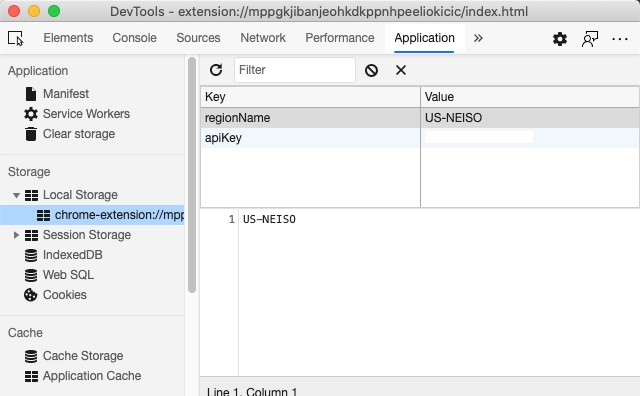
Important Note: Your browser extension has its own isolated local storage that's separate from regular web pages. This provides security and prevents conflicts with other websites.
You can view your stored data by opening browser Developer Tools (F12), navigating to the Application tab, and expanding the Local Storage section.
stateDiagram-v2
    [*] --> CheckStorage: Extension starts
    CheckStorage --> FirstTime: No stored data
    CheckStorage --> Returning: Data found

    FirstTime --> ShowForm: Display setup form
    ShowForm --> UserInput: User enters data
    UserInput --> SaveData: Store in localStorage
    SaveData --> FetchAPI: Get carbon data

    Returning --> LoadData: Read from localStorage
    LoadData --> FetchAPI: Get carbon data

    FetchAPI --> ShowResults: Display data
    ShowResults --> UserAction: User interacts

    UserAction --> Reset: Clear button clicked
    UserAction --> ShowResults: View data

    Reset --> ClearStorage: Remove saved data
    ClearStorage --> FirstTime: Back to setup
⚠️ Security Consideration: In production applications, storing API keys in LocalStorage poses security risks since JavaScript can access this data. For learning purposes, this approach works fine, but real applications should use secure server-side storage for sensitive credentials.
Handle form submission
Now we'll handle what happens when someone submits your form. By default, browsers reload the page when forms are submitted, but we'll intercept this behavior to create a smoother experience.
This approach mirrors how mission control handles spacecraft communications - instead of resetting the entire system for each transmission, they maintain continuous operation while processing new information.
Create a function that captures the form submission event and extracts the user's input:
function handleSubmit(e) {
	e.preventDefault();
	setUpUser(apiKey.value, region.value);
}
In the above, we've:
- Prevents the default form submission behavior that would refresh the page
- Extracts user input values from the API key and region fields
- Passes the form data to the
setUpUser()function for processing - Maintains single-page application behavior by avoiding page reloads
✅ Remember that your HTML form fields include the required attribute, so the browser automatically validates that users provide both the API key and region before this function runs.
Set up user preferences
The setUpUser function is responsible for saving the user's credentials and initiating the first API call. This creates a smooth transition from setup to displaying results.
function setUpUser(apiKey, regionName) {
	// Save user credentials for future sessions
	localStorage.setItem('apiKey', apiKey);
	localStorage.setItem('regionName', regionName);

	// Update UI to show loading state
	loading.style.display = 'block';
	errors.textContent = '';
	clearBtn.style.display = 'block';

	// Fetch carbon usage data with user's credentials
	displayCarbonUsage(apiKey, regionName);
}
Step by step, here's what's happening:
- Saves the API key and region name to local storage for future use
- Shows a loading indicator to inform users that data is being fetched
- Clears any previous error messages from the display
- Reveals the clear button for users to reset their settings later
- Initiates the API call to fetch real carbon usage data
This function creates a seamless user experience by managing both data persistence and user interface updates in one coordinated action.
Display carbon usage data
Now we'll connect your extension to external data sources through APIs. This transforms your extension from a standalone tool into something that can access real-time information from across the internet.
Understanding APIs
APIs are how different applications communicate with each other. Think of them like the telegraph system that connected distant cities in the 19th century - operators would send requests to distant stations and receive responses with the requested information. Every time you check social media, ask a voice assistant a question, or use a delivery app, APIs are facilitating these data exchanges.
flowchart TD
    A[Your Extension] --> B[HTTP Request]
    B --> C[CO2 Signal API]
    C --> D{Valid Request?}
    D -->|Yes| E[Query Database]
    D -->|No| F[Return Error]
    E --> G[Carbon Data]
    G --> H[JSON Response]
    H --> I[Your Extension]
    F --> I
    I --> J[Update UI]

    subgraph "API Request"
        K[Headers: auth-token]
        L[Parameters: countryCode]
        M[Method: GET]
    end

    subgraph "API Response"
        N[Carbon Intensity]
        O[Fossil Fuel %]
        P[Timestamp]
    end

    style C fill:#e8f5e8
    style G fill:#fff3e0
    style I fill:#e1f5fe
Key concepts about REST APIs:
- REST stands for 'Representational State Transfer'
- Uses standard HTTP methods (GET, POST, PUT, DELETE) to interact with data
- Returns data in predictable formats, typically JSON
- Provides consistent, URL-based endpoints for different types of requests
✅ The CO2 Signal API we'll use provides real-time carbon intensity data from electrical grids worldwide. This helps users understand the environmental impact of their electricity usage!
💡 Understanding Asynchronous JavaScript: The
asynckeyword enables your code to handle multiple operations simultaneously. When you request data from a server, you don't want your entire extension to freeze - that would be like air traffic control stopping all operations while waiting for one plane to respond.Key benefits:
- Maintains extension responsiveness while data loads
- Allows other code to continue executing during network requests
- Improves code readability compared to traditional callback patterns
- Enables graceful error handling for network issues
Here's a quick video about async:

🎥 Click the image above for a video about async/await.
🔄 Pedagogical Check-in
Async Programming Understanding: Before diving into the API function, verify you understand:
- ✅ Why we use
async/awaitinstead of blocking the entire extension - ✅ How
try/catchblocks handle network errors gracefully - ✅ The difference between synchronous and asynchronous operations
- ✅ Why API calls can fail and how to handle those failures
Real-World Connection: Consider these everyday async examples:
- Ordering food: You don't wait by the kitchen - you get a receipt and continue other activities
- Sending emails: Your email app doesn't freeze while sending - you can compose more emails
- Loading web pages: Images load progressively while you can already read the text
API Authentication Flow:
sequenceDiagram
    participant Ext as Extension
    participant API as CO2 Signal API
    participant DB as Database

    Ext->>API: Request with auth-token
    API->>API: Validate token
    API->>DB: Query carbon data
    DB->>API: Return data
    API->>Ext: JSON response
    Ext->>Ext: Update UI
Create the function to fetch and display carbon usage data:
// Modern fetch API approach (no external dependencies needed)
async function displayCarbonUsage(apiKey, region) {
	try {
		// Fetch carbon intensity data from CO2 Signal API
		const response = await fetch('https://api.co2signal.com/v1/latest', {
			method: 'GET',
			headers: {
				'auth-token': apiKey,
				'Content-Type': 'application/json'
			},
			// Add query parameters for the specific region
			...new URLSearchParams({ countryCode: region }) && {
				url: `https://api.co2signal.com/v1/latest?countryCode=${region}`
			}
		});

		// Check if the API request was successful
		if (!response.ok) {
			throw new Error(`API request failed: ${response.status}`);
		}

		const data = await response.json();
		const carbonData = data.data;

		// Calculate rounded carbon intensity value
		const carbonIntensity = Math.round(carbonData.carbonIntensity);

		// Update the user interface with fetched data
		loading.style.display = 'none';
		form.style.display = 'none';
		myregion.textContent = region.toUpperCase();
		usage.textContent = `${carbonIntensity} grams (grams CO₂ emitted per kilowatt hour)`;
		fossilfuel.textContent = `${carbonData.fossilFuelPercentage.toFixed(2)}% (percentage of fossil fuels used to generate electricity)`;
		results.style.display = 'block';

		// TODO: calculateColor(carbonIntensity) - implement in next lesson

	} catch (error) {
		console.error('Error fetching carbon data:', error);

		// Show user-friendly error message
		loading.style.display = 'none';
		results.style.display = 'none';
		errors.textContent = 'Sorry, we couldn\'t fetch data for that region. Please check your API key and region code.';
	}
}
Breaking down what happens here:
- Uses the modern
fetch()API instead of external libraries like Axios for cleaner, dependency-free code - Implements proper error checking with
response.okto catch API failures early - Handles asynchronous operations with
async/awaitfor more readable code flow - Authenticates with the CO2 Signal API using the
auth-tokenheader - Parses JSON response data and extracts carbon intensity information
- Updates multiple UI elements with formatted environmental data
- Provides user-friendly error messages when API calls fail
Key modern JavaScript concepts demonstrated:
- Template literals with
${}syntax for clean string formatting - Error handling with try/catch blocks for robust applications
- Async/await pattern for handling network requests gracefully
- Object destructuring to extract specific data from API responses
- Method chaining for multiple DOM manipulations
✅ This function demonstrates several important web development concepts - communicating with external servers, handling authentication, processing data, updating interfaces, and managing errors gracefully. These are fundamental skills that professional developers use regularly.
flowchart TD
    A[Start API Call] --> B[Fetch Request]
    B --> C{Network Success?}
    C -->|No| D[Network Error]
    C -->|Yes| E{Response OK?}
    E -->|No| F[API Error]
    E -->|Yes| G[Parse JSON]
    G --> H{Valid Data?}
    H -->|No| I[Data Error]
    H -->|Yes| J[Update UI]

    D --> K[Show Error Message]
    F --> K
    I --> K
    J --> L[Hide Loading]
    K --> L

    style A fill:#e1f5fe
    style J fill:#e8f5e8
    style K fill:#ffebee
    style L fill:#f3e5f5
🔄 Pedagogical Check-in
Complete System Understanding: Verify your mastery of the entire flow:
- ✅ How DOM references enable JavaScript to control the interface
- ✅ Why local storage creates persistence between browser sessions
- ✅ How async/await makes API calls without freezing the extension
- ✅ What happens when API calls fail and how errors are handled
- ✅ Why user experience includes loading states and error messages
🎉 What you've accomplished: You've created a browser extension that:
- Connects to the internet and retrieves real environmental data
- Persists user settings between sessions
- Handles errors gracefully instead of crashing
- Provides a smooth, professional user experience
Test your work by running npm run build and refreshing your extension in the browser. You now have a functional carbon footprint tracker. The next lesson will add dynamic icon functionality to complete the extension.
GitHub Copilot Agent Challenge 🚀
Use the Agent mode to complete the following challenge:
Description: Enhance the browser extension by adding error handling improvements and user experience features. This challenge will help you practice working with APIs, local storage, and DOM manipulation using modern JavaScript patterns.
Prompt: Create an enhanced version of the displayCarbonUsage function that includes: 1) A retry mechanism for failed API calls with exponential backoff, 2) Input validation for the region code before making the API call, 3) A loading animation with progress indicators, 4) Caching of API responses in localStorage with expiration timestamps (cache for 30 minutes), and 5) A feature to display historical data from previous API calls. Also add proper TypeScript-style JSDoc comments to document all function parameters and return types.
Learn more about agent mode here.
🚀 Challenge
Expand your understanding of APIs by exploring the wealth of browser-based APIs available for web development. Choose one of these browser APIs and build a small demonstration:
- Geolocation API - Get user's current location
- Notification API - Send desktop notifications
- HTML Drag and Drop API - Create interactive drag interfaces
- Web Storage API - Advanced local storage techniques
- Fetch API - Modern alternative to XMLHttpRequest
Research questions to consider:
- What real-world problems does this API solve?
- How does the API handle errors and edge cases?
- What security considerations exist when using this API?
- How widely supported is this API across different browsers?
After your research, identify what characteristics make an API developer-friendly and reliable.
Post-Lecture Quiz
Review & Self Study
You learned about LocalStorage and APIs in this lesson, both very useful for the professional web developer. Can you think about how these two things work together? Think about how you would architect a web site that would store items to be used by an API.
⚡ What You Can Do in the Next 5 Minutes
- Open DevTools Application tab and explore localStorage on any website
- Create a simple HTML form and test form validation in the browser
- Try storing and retrieving data using localStorage in the browser console
- Inspect form data being submitted using the Network tab
🎯 What You Can Accomplish This Hour
- Complete the post-lesson quiz and understand form handling concepts
- Build a browser extension form that saves user preferences
- Implement client-side form validation with helpful error messages
- Practice using the chrome.storage API for extension data persistence
- Create a user interface that responds to saved user settings
📅 Your Week-Long Extension Building
- Complete a full-featured browser extension with form functionality
- Master different storage options: local, sync, and session storage
- Implement advanced form features like autocomplete and validation
- Add import/export functionality for user data
- Test your extension thoroughly across different browsers
- Polish your extension's user experience and error handling
🌟 Your Month-Long Web API Mastery
- Build complex applications using various browser storage APIs
- Learn about offline-first development patterns
- Contribute to open source projects involving data persistence
- Master privacy-focused development and GDPR compliance
- Create reusable libraries for form handling and data management
- Share knowledge about web APIs and extension development
🎯 Your Extension Development Mastery Timeline
timeline
    title API Integration & Storage Learning Progression

    section DOM Fundamentals (15 minutes)
        Element References: querySelector mastery
                          : Event listener setup
                          : State management basics

    section Local Storage (20 minutes)
        Data Persistence: Key-value storage
                        : Session management
                        : User preference handling
                        : Storage inspection tools

    section Form Handling (25 minutes)
        User Input: Form validation
                  : Event prevention
                  : Data extraction
                  : UI state transitions

    section API Integration (35 minutes)
        External Communication: HTTP requests
                              : Authentication patterns
                              : JSON data parsing
                              : Response handling

    section Async Programming (40 minutes)
        Modern JavaScript: Promise handling
                         : Async/await patterns
                         : Error management
                         : Non-blocking operations

    section Error Handling (30 minutes)
        Robust Applications: Try/catch blocks
                           : User-friendly messages
                           : Graceful degradation
                           : Debugging techniques

    section Advanced Patterns (1 week)
        Professional Development: Caching strategies
                                : Rate limiting
                                : Retry mechanisms
                                : Performance optimization

    section Production Skills (1 month)
        Enterprise Features: Security best practices
                           : API versioning
                           : Monitoring & logging
                           : Scalable architecture
🛠️ Your Full-Stack Development Toolkit Summary
After completing this lesson, you now have:
- DOM Mastery: Precise element targeting and manipulation
- Storage Expertise: Persistent data management with localStorage
- API Integration: Real-time data fetching and authentication
- Async Programming: Non-blocking operations with modern JavaScript
- Error Handling: Robust applications that gracefully handle failures
- User Experience: Loading states, validation, and smooth interactions
- Modern Patterns: fetch API, async/await, and ES6+ features
Professional Skills Gained: You've implemented patterns used in:
- Web Applications: Single-page apps with external data sources
- Mobile Development: API-driven apps with offline capabilities
- Desktop Software: Electron apps with persistent storage
- Enterprise Systems: Authentication, caching, and error handling
- Modern Frameworks: React/Vue/Angular data management patterns
Next Level: You're ready to explore advanced topics like caching strategies, real-time WebSocket connections, or complex state management!