
38 KiB
Build a Banking App Part 1: HTML Templates and Routes in a Web App
journey
    title Your Banking App Development Journey
    section SPA Fundamentals
      Understand single-page apps: 3: Student
      Learn template concepts: 4: Student
      Master DOM manipulation: 4: Student
    section Routing Systems
      Implement client-side routing: 4: Student
      Handle browser history: 5: Student
      Create navigation systems: 5: Student
    section Professional Patterns
      Build modular architecture: 5: Student
      Apply best practices: 5: Student
      Create user experiences: 5: Student
When Apollo 11's guidance computer navigated to the moon in 1969, it had to switch between different programs without restarting the entire system. Modern web applications work similarly – they change what you see without reloading everything from scratch. This creates the smooth, responsive experience users expect today.
Unlike traditional websites that reload entire pages for every interaction, modern web apps update only the parts that need changing. This approach, much like how mission control switches between different displays while maintaining constant communication, creates that fluid experience we've come to expect.
Here's what makes the difference so dramatic:
| Traditional Multi-Page Apps | Modern Single-Page Apps |
|---|---|
| Navigation | Full page reload for each screen |
| Performance | Slower due to complete HTML downloads |
| User Experience | Jarring page flashes |
| Data Sharing | Difficult between pages |
| Development | Multiple HTML files to maintain |
Understanding the evolution:
- Traditional apps require server requests for every navigation action
- Modern SPAs load once and update content dynamically using JavaScript
- User expectations now favor instant, seamless interactions
- Performance benefits include reduced bandwidth and faster responses
In this lesson, we'll build a banking app with multiple screens that flow together seamlessly. Like how scientists use modular instruments that can be reconfigured for different experiments, we'll use HTML templates as reusable components that can be displayed as needed.
You'll work with HTML templates (reusable blueprints for different screens), JavaScript routing (the system that switches between screens), and the browser's history API (which keeps the back button working as expected). These are the same fundamental techniques used by frameworks like React, Vue, and Angular.
By the end, you'll have a working banking app that demonstrates professional single-page application principles.
mindmap
  root((Single-Page Applications))
    Architecture
      Template System
      Client-side Routing
      State Management
      Event Handling
    Templates
      Reusable Components
      Dynamic Content
      DOM Manipulation
      Content Switching
    Routing
      URL Management
      History API
      Navigation Logic
      Browser Integration
    User Experience
      Fast Navigation
      Smooth Transitions
      Consistent State
      Modern Interactions
    Performance
      Reduced Server Requests
      Faster Page Transitions
      Efficient Resource Usage
      Better Responsiveness
Pre-Lecture Quiz
What You'll Need
We'll need a local web server to test our banking app – don't worry, it's easier than it sounds! If you don't already have one set up, just install Node.js and run npx lite-server from your project folder. This handy command spins up a local server and automatically opens your app in the browser.
Preparation
On your computer, create a folder named bank with a file named index.html inside it. We'll start from this HTML boilerplate:
<!DOCTYPE html>
<html lang="en">
  <head>
    <meta charset="UTF-8">
    <meta name="viewport" content="width=device-width, initial-scale=1.0">
    <title>Bank App</title>
  </head>
  <body>
    <!-- This is where you'll work -->
  </body>
</html>
Here's what this boilerplate provides:
- Establishes the HTML5 document structure with proper DOCTYPE declaration
- Configures character encoding as UTF-8 for international text support
- Enables responsive design with the viewport meta tag for mobile compatibility
- Sets a descriptive title that appears in the browser tab
- Creates a clean body section where we'll build our application
📁 Project Structure Preview
By the end of this lesson, your project will contain:
bank/
├── index.html      <!-- Main HTML with templates -->
├── app.js          <!-- Routing and navigation logic -->
└── style.css       <!-- (Optional for future lessons) -->
File responsibilities:
- index.html: Contains all templates and provides the app structure
- app.js: Handles routing, navigation, and template management
- Templates: Define the UI for login, dashboard, and other screens
HTML Templates
Templates solve a fundamental problem in web development. When Gutenberg invented movable type printing in the 1440s, he realized that instead of carving entire pages, he could create reusable letter blocks and arrange them as needed. HTML templates work on the same principle – instead of creating separate HTML files for each screen, you define reusable structures that can be displayed when needed.
flowchart TD
    A["📋 Template Definition"] --> B["💬 Hidden in DOM"]
    B --> C["🔍 JavaScript Finds Template"]
    C --> D["📋 Clone Template Content"]
    D --> E["🔗 Attach to Visible DOM"]
    E --> F["👁️ User Sees Content"]

    G["Login Template"] --> A
    H["Dashboard Template"] --> A
    I["Future Templates"] --> A

    style A fill:#e3f2fd
    style D fill:#e8f5e8
    style F fill:#fff3e0
    style B fill:#f3e5f5
Think of templates as blueprints for different parts of your app. Just as an architect creates one blueprint and uses it multiple times rather than redrawing identical rooms, we create templates once and instantiate them as needed. The browser keeps these templates hidden until JavaScript activates them.
If you want to create multiple screens for a web page, one solution would be to create one HTML file for every screen you want to display. However, this solution comes with some inconvenience:
- You have to reload the entire HTML when switching screen, which can be slow.
- It's difficult to share data between the different screens.
Another approach is to have only one HTML file, and define multiple HTML templates using the <template> element. A template is a reusable HTML block that is not displayed by the browser, and needs to be instantiated at runtime using JavaScript.
Let's Build It
We're going to create a bank app with two main screens: a login page and a dashboard. First, let's add a placeholder element to our HTML body – this is where all our different screens will appear:
<div id="app">Loading...</div>
Understanding this placeholder:
- Creates a container with the ID "app" where all screens will be displayed
- Shows a loading message until the JavaScript initializes the first screen
- Provides a single mounting point for our dynamic content
- Enables easy targeting from JavaScript using
document.getElementById()
💡 Pro Tip: Since the content of this element will be replaced, we can put in a loading message or indicator that will be shown while the app is loading.
Next, let's add below the HTML template for the login page. For now we'll only put in there a title and a section containing a link that we'll use to perform the navigation.
<template id="login">
  <h1>Bank App</h1>
  <section>
    <a href="/dashboard">Login</a>
  </section>
</template>
Breaking down this login template:
- Defines a template with the unique identifier "login" for JavaScript targeting
- Includes a main heading that establishes the app's branding
- Contains a semantic
<section>element to group related content - Provides a navigation link that will route users to the dashboard
Then we'll add another HTML template for the dashboard page. This page will contain different sections:
- A header with a title and a logout link
- The current balance of the bank account
- A list of transactions, displayed in a table
<template id="dashboard">
  <header>
    <h1>Bank App</h1>
    <a href="/login">Logout</a>
  </header>
  <section>
    Balance: 100$
  </section>
  <section>
    <h2>Transactions</h2>
    <table>
      <thead>
        <tr>
          <th>Date</th>
          <th>Object</th>
          <th>Amount</th>
        </tr>
      </thead>
      <tbody></tbody>
    </table>
  </section>
</template>
Let's understand each part of this dashboard:
- Structures the page with a semantic
<header>element containing navigation - Displays the app title consistently across screens for branding
- Provides a logout link that routes back to the login screen
- Shows the current account balance in a dedicated section
- Organizes transaction data using a properly structured HTML table
- Defines table headers for Date, Object, and Amount columns
- Leaves the table body empty for dynamic content injection later
💡 Pro Tip: When creating HTML templates, if you want to see what it will look like, you can comment out the
<template>and</template>lines by enclosing them with<!-- -->.
🔄 Pedagogical Check-in
Template System Understanding: Before implementing JavaScript, ensure you understand:
- ✅ How templates differ from regular HTML elements
- ✅ Why templates remain hidden until activated by JavaScript
- ✅ The importance of semantic HTML structure in templates
- ✅ How templates enable reusable UI components
Quick Self-Test: What happens if you remove the <template> tags from around your HTML?
Answer: The content becomes visible immediately and loses its template functionality
Architecture Benefits: Templates provide:
- Reusability: One definition, multiple instances
- Performance: No redundant HTML parsing
- Maintainability: Centralized UI structure
- Flexibility: Dynamic content switching
✅ Why do you think we use id attributes on the templates? Could we use something else like classes?
Bringing Templates to Life with JavaScript
Now we need to make our templates functional. Like how a 3D printer takes a digital blueprint and creates a physical object, JavaScript takes our hidden templates and creates visible, interactive elements that users can see and use.
The process follows three consistent steps that form the foundation of modern web development. Once you understand this pattern, you'll recognize it across many frameworks and libraries.
If you try your current HTML file in a browser, you'll see that it gets stuck displaying Loading.... That's because we need to add some JavaScript code to instantiate and display the HTML templates.
Instantiating a template is usually done in 3 steps:
- Retrieve the template element in the DOM, for example using
document.getElementById. - Clone the template element, using
cloneNode. - Attach it to the DOM under a visible element, for example using
appendChild.
flowchart TD
    A[🔍 Step 1: Find Template] --> B[📋 Step 2: Clone Template]
    B --> C[🔗 Step 3: Attach to DOM]

    A1["document.getElementById('login')"] --> A
    B1["template.content.cloneNode(true)"] --> B
    C1["app.appendChild(view)"] --> C

    C --> D[👁️ Template Visible to User]

    style A fill:#e1f5fe
    style B fill:#f3e5f5
    style C fill:#e8f5e8
    style D fill:#fff3e0
Visual breakdown of the process:
- Step 1 locates the hidden template in the DOM structure
- Step 2 creates a working copy that can be safely modified
- Step 3 inserts the copy into the visible page area
- Result is a functional screen that users can interact with
✅ Why do we need to clone the template before attaching it to the DOM? What do you think would happen if we skipped this step?
Task
Create a new file named app.js in your project folder and import that file in the <head> section of your HTML:
<script src="app.js" defer></script>
Understanding this script import:
- Links the JavaScript file to our HTML document
- Uses the
deferattribute to ensure the script runs after HTML parsing completes - Enables access to all DOM elements since they're fully loaded before script execution
- Follows modern best practices for script loading and performance
Now in app.js, we'll create a new function updateRoute:
function updateRoute(templateId) {
  const template = document.getElementById(templateId);
  const view = template.content.cloneNode(true);
  const app = document.getElementById('app');
  app.innerHTML = '';
  app.appendChild(view);
}
Step by step, here's what's happening:
- Locates the template element using its unique ID
- Creates a deep copy of the template's content using
cloneNode(true) - Finds the app container where the content will be displayed
- Clears any existing content from the app container
- Inserts the cloned template content into the visible DOM
Now call this function with one of the template and look at the result.
updateRoute('login');
What this function call accomplishes:
- Activates the login template by passing its ID as a parameter
- Demonstrates how to programmatically switch between different app screens
- Shows the login screen in place of the "Loading..." message
✅ What's the purpose of this code app.innerHTML = '';? What happens without it?
Creating Routes
Routing is essentially about connecting URLs to the right content. Consider how early telephone operators used switchboards to connect calls – they would take an incoming request and route it to the correct destination. Web routing works similarly, taking a URL request and determining which content to display.
flowchart LR
    A["🌐 URL Path<br/>/dashboard"] --> B["🗺️ Routes Object<br/>Lookup"]
    B --> C["🎯 Template ID<br/>'dashboard'"]
    C --> D["📌 Find Template<br/>getElementById"]
    D --> E["👁️ Display Screen<br/>Clone & Append"]

    F["📍 /login"] --> G["🎯 'login'"]
    H["📍 /unknown"] --> I["❌ Not Found"]
    I --> J["🔄 Redirect to /login"]

    style B fill:#e3f2fd
    style E fill:#e8f5e8
    style I fill:#ffebee
    style J fill:#fff3e0
Traditionally, web servers handled this by serving different HTML files for different URLs. Since we're building a single-page app, we need to handle this routing ourselves with JavaScript. This approach gives us more control over the user experience and performance.
flowchart LR
    A["🌐 URL Path<br/>/dashboard"] --> B["🗺️ Routes Object<br/>Lookup"]
    B --> C["🎯 Template ID<br/>'dashboard'"]
    C --> D["📄 Find Template<br/>getElementById"]
    D --> E["👁️ Display Screen<br/>Clone & Append"]

    F["📍 /login"] --> G["🎯 'login'"]
    H["📍 /unknown"] --> I["❌ Not Found"]
    I --> J["🔄 Redirect to /login"]

    style B fill:#e3f2fd
    style E fill:#e8f5e8
    style I fill:#ffebee
    style J fill:#fff3e0
Understanding the routing flow:
- URL changes trigger a lookup in our routes configuration
- Valid routes map to specific template IDs for rendering
- Invalid routes trigger fallback behavior to prevent broken states
- Template rendering follows the three-step process we learned earlier
When talking about a web app, we call Routing the intent to map URLs to specific screens that should be displayed. On a website with multiple HTML files, this is done automatically as the file paths are reflected on the URL. For example, with these files in your project folder:
mywebsite/index.html
mywebsite/login.html
mywebsite/admin/index.html
If you create a web server with mywebsite as the root, the URL mapping will be:
https://site.com            --> mywebsite/index.html
https://site.com/login.html --> mywebsite/login.html
https://site.com/admin/     --> mywebsite/admin/index.html
However, for our web app we are using a single HTML file containing all the screens so this default behavior won't help us. We have to create this map manually and perform update the displayed template using JavaScript.
Task
We'll use a simple object to implement a map between URL paths and our templates. Add this object at the top of your app.js file.
const routes = {
  '/login': { templateId: 'login' },
  '/dashboard': { templateId: 'dashboard' },
};
Understanding this routes configuration:
- Defines a mapping between URL paths and template identifiers
- Uses object syntax where keys are URL paths and values contain template information
- Enables easy lookup of which template to display for any given URL
- Provides a scalable structure for adding new routes in the future
Now let's modify a bit the updateRoute function. Instead of passing directly the templateId as an argument, we want to retrieve it by first looking at the current URL, and then use our map to get the corresponding template ID value. We can use window.location.pathname to get only the path section from the URL.
function updateRoute() {
  const path = window.location.pathname;
  const route = routes[path];

  const template = document.getElementById(route.templateId);
  const view = template.content.cloneNode(true);
  const app = document.getElementById('app');
  app.innerHTML = '';
  app.appendChild(view);
}
Breaking down what happens here:
- Extracts the current path from the browser's URL using
window.location.pathname - Looks up the corresponding route configuration in our routes object
- Retrieves the template ID from the route configuration
- Follows the same template rendering process as before
- Creates a dynamic system that responds to URL changes
Here we mapped the routes we declared to the corresponding template. You can try it that it works correctly by changing the URL manually in your browser.
✅ What happens if you enter an unknown path in the URL? How could we solve this?
Adding Navigation
With routing established, users need a way to navigate through the app. Traditional websites reload entire pages when clicking links, but we want to update both the URL and content without page refreshes. This creates a smoother experience similar to how desktop applications switch between different views.
We need to coordinate two things: updating the browser's URL so users can bookmark pages and share links, and displaying the appropriate content. When implemented correctly, this creates the seamless navigation users expect from modern applications.
sequenceDiagram
    participant User
    participant Browser
    participant App
    participant Template

    User->>Browser: Clicks "Login" link
    Browser->>App: onclick event triggered
    App->>App: preventDefault() & navigate('/dashboard')
    App->>Browser: history.pushState('/dashboard')
    Browser->>Browser: URL updates to /dashboard
    App->>App: updateRoute() called
    App->>Template: Find & clone dashboard template
    Template->>App: Return cloned content
    App->>Browser: Replace app content with template
    Browser->>User: Display dashboard screen

    Note over User,Template: User clicks browser back button

    User->>Browser: Clicks back button
    Browser->>Browser: History moves back to /login
    Browser->>App: popstate event fired
    App->>App: updateRoute() called automatically
    App->>Template: Find & clone login template
    Template->>App: Return cloned content
    App->>Browser: Replace app content with template
    Browser->>User: Display login screen
🔄 Pedagogical Check-in
Single-Page Application Architecture: Verify your understanding of the complete system:
- ✅ How does client-side routing differ from traditional server-side routing?
- ✅ Why is the History API essential for proper SPA navigation?
- ✅ How do templates enable dynamic content without page reloads?
- ✅ What role does event handling play in intercepting navigation?
System Integration: Your SPA demonstrates:
- Template Management: Reusable UI components with dynamic content
- Client-side Routing: URL management without server requests
- Event-driven Architecture: Responsive navigation and user interactions
- Browser Integration: Proper history and back/forward button support
- Performance Optimization: Fast transitions and reduced server load
Professional Patterns: You've implemented:
- Model-View Separation: Templates separate from application logic
- State Management: URL state synchronized with displayed content
- Progressive Enhancement: JavaScript enhances basic HTML functionality
- User Experience: Smooth, app-like navigation without page refreshes
<EFBFBD> Architecture Insight: Navigation System Components
What you're building:
- 🔄 URL Management: Updates browser address bar without page reloads
- 📋 Template System: Swaps content dynamically based on current route
- 📚 History Integration: Maintains browser back/forward button functionality
- 🛡️ Error Handling: Graceful fallbacks for invalid or missing routes
How components work together:
- Listens for navigation events (clicks, history changes)
- Updates the URL using the History API
- Renders the appropriate template for the new route
- Maintains a seamless user experience throughout
The next step for our app is to add the possibility to navigate between pages without having to change the URL manually. This implies two things:
- Updating the current URL
- Updating the displayed template based on the new URL
We already took care of the second part with the updateRoute function, so we have to figure out how to update the current URL.
We'll have to use JavaScript and more specifically the history.pushState that allows to update the URL and create a new entry in the browsing history, without reloading the HTML.
⚠️ Important Note: While the HTML anchor element
<a href>can be used on its own to create hyperlinks to different URLs, it will make the browser reload the HTML by default. It is necessary to prevent this behavior when handling routing with custom javascript, using the preventDefault() function on the click event.
Task
Let's create a new function we can use to navigate in our app:
function navigate(path) {
  window.history.pushState({}, path, path);
  updateRoute();
}
Understanding this navigation function:
- Updates the browser's URL to the new path using
history.pushState - Adds a new entry to the browser's history stack for proper back/forward button support
- Triggers the
updateRoute()function to display the corresponding template - Maintains the single-page app experience without page reloads
This method first updates the current URL based on the path given, then updates the template. The property window.location.origin returns the URL root, allowing us to reconstruct a complete URL from a given path.
Now that we have this function, we can take care of the problem we have if a path does not match any defined route. We'll modify the updateRoute function by adding a fallback to one of the existing route if we can't find a match.
function updateRoute() {
  const path = window.location.pathname;
  const route = routes[path];

  if (!route) {
    return navigate('/login');
  }

  const template = document.getElementById(route.templateId);
  const view = template.content.cloneNode(true);
  const app = document.getElementById('app');
  app.innerHTML = '';
  app.appendChild(view);
}
Key points to remember:
- Checks if a route exists for the current path
- Redirects to the login page when an invalid route is accessed
- Provides a fallback mechanism that prevents broken navigation
- Ensures users always see a valid screen, even with incorrect URLs
If a route cannot be found, we'll now redirect to the login page.
Now let's create a function to get the URL when a link is clicked, and to prevent the browser's default link behavior:
function onLinkClick(event) {
  event.preventDefault();
  navigate(event.target.href);
}
Breaking down this click handler:
- Prevents the browser's default link behavior using
preventDefault() - Extracts the destination URL from the clicked link element
- Calls our custom navigate function instead of reloading the page
- Maintains the smooth single-page application experience
<a href="/dashboard" onclick="onLinkClick(event)">Login</a>
...
<a href="/login" onclick="onLinkClick(event)">Logout</a>
What this onclick binding accomplishes:
- Connects each link to our custom navigation system
- Passes the click event to our
onLinkClickfunction for processing - Enables smooth navigation without page reloads
- Maintains proper URL structure that users can bookmark or share
The onclick attribute bind the click event to JavaScript code, here the call to the navigate() function.
Try clicking on these links, you should be now able to navigate between the different screens of your app.
✅ The history.pushState method is part of the HTML5 standard and implemented in all modern browsers. If you're building a web app for older browsers, there's a trick you can use in place of this API: using a hash (#) before the path you can implement routing that works with regular anchor navigation and does not reload the page, as it's purpose was to create internal links within a page.
Making the Back and Forward Buttons Work
The back and forward buttons are fundamental to web browsing, much like how NASA mission controllers can review previous system states during space missions. Users expect these buttons to work, and when they don't, it breaks the expected browsing experience.
Our single-page app needs additional configuration to support this. The browser maintains a history stack (which we've been adding to with history.pushState), but when users navigate through this history, our app needs to respond by updating the displayed content accordingly.
sequenceDiagram
    participant User
    participant Browser
    participant App
    participant Template

    User->>Browser: Clicks "Login" link
    Browser->>App: onclick event triggered
    App->>App: preventDefault() & navigate('/dashboard')
    App->>Browser: history.pushState('/dashboard')
    Browser->>Browser: URL updates to /dashboard
    App->>App: updateRoute() called
    App->>Template: Find & clone dashboard template
    Template->>App: Return cloned content
    App->>Browser: Replace app content with template
    Browser->>User: Display dashboard screen

    Note over User,Template: User clicks browser back button

    User->>Browser: Clicks back button
    Browser->>Browser: History moves back to /login
    Browser->>App: popstate event fired
    App->>App: updateRoute() called automatically
    App->>Template: Find & clone login template
    Template->>App: Return cloned content
    App->>Browser: Replace app content with template
    Browser->>User: Display login screen
Key interaction points:
- User actions trigger navigation through clicks or browser buttons
- App intercepts link clicks to prevent page reloads
- History API manages URL changes and browser history stack
- Templates provide the content structure for each screen
- Event listeners ensure the app responds to all navigation types
Using the history.pushState creates new entries in the browser's navigation history. You can check that by holding the back button of your browser, it should display something like this:
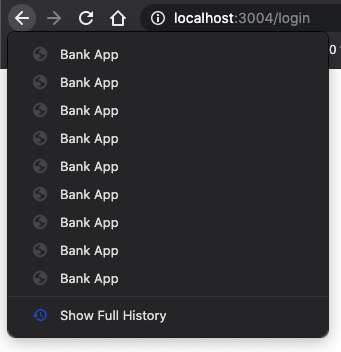
If you try clicking on the back button a few times, you'll see that the current URL changes and the history is updated, but the same template keeps being displayed.
That's because the application does not know that we need to call updateRoute() every time the history changes. If you take a look at the history.pushState documentation, you can see that if the state changes - meaning that we moved to a different URL - the popstate event is triggered. We'll use that to fix that issue.
Task
To make sure the displayed template is updated when the browser history changes, we'll attach a new function that calls updateRoute(). We'll do that at the bottom of our app.js file:
window.onpopstate = () => updateRoute();
updateRoute();
Understanding this history integration:
- Listens for
popstateevents that occur when users navigate with browser buttons - Uses an arrow function for concise event handler syntax
- Calls
updateRoute()automatically whenever the history state changes - Initializes the app by calling
updateRoute()when the page first loads - Ensures the correct template displays regardless of how users navigate
💡 Pro Tip: We used an arrow function here to declare our
popstateevent handler for conciseness, but a regular function would work the same.
Here's a refresher video on arrow functions:

🎥 Click the image above for a video about arrow functions.
Now try to use the back and forward buttons of your browsers, and check that the displayed route is correctly updated this time.
⚡ What You Can Do in the Next 5 Minutes
- Test your banking app's navigation using browser back/forward buttons
- Try manually typing different URLs in the address bar to test routing
- Open browser DevTools and inspect how templates are cloned into the DOM
- Experiment with adding console.log statements to track the routing flow
🎯 What You Can Accomplish This Hour
- Complete the post-lesson quiz and understand SPA architecture concepts
- Add CSS styling to make your banking app templates look professional
- Implement the 404 error page challenge with proper error handling
- Create the credits page challenge with additional routing functionality
- Add loading states and transitions between template switches
📅 Your Week-Long SPA Development Journey
- Complete the full banking app with forms, data management, and persistence
- Add advanced routing features like route parameters and nested routes
- Implement navigation guards and authentication-based routing
- Create reusable template components and a component library
- Add animations and transitions for smoother user experience
- Deploy your SPA to a hosting platform and configure routing properly
🌟 Your Month-Long Frontend Architecture Mastery
- Build complex SPAs using modern frameworks like React, Vue, or Angular
- Learn advanced state management patterns and libraries
- Master build tools and development workflows for SPA development
- Implement Progressive Web App features and offline functionality
- Study performance optimization techniques for large-scale SPAs
- Contribute to open source SPA projects and share your knowledge
🎯 Your Single-Page Application Mastery Timeline
timeline
    title SPA Development & Modern Web Architecture Learning Progression

    section Foundation (20 minutes)
        Template Systems: HTML template elements
                        : DOM manipulation
                        : Content cloning
                        : Dynamic rendering

    section Routing Basics (30 minutes)
        Client-side Navigation: URL management
                              : History API
                              : Route mapping
                              : Event handling

    section User Experience (40 minutes)
        Navigation Polish: Browser integration
                         : Back button support
                         : Error handling
                         : Smooth transitions

    section Architecture Patterns (50 minutes)
        Professional SPAs: Component systems
                         : State management
                         : Performance optimization
                         : Error boundaries

    section Advanced Techniques (1 week)
        Framework Integration: React Router
                             : Vue Router
                             : Angular Router
                             : State libraries

    section Production Skills (1 month)
        Enterprise Development: Build systems
                              : Testing strategies
                              : Deployment pipelines
                              : Performance monitoring
🛠️ Your SPA Development Toolkit Summary
After completing this lesson, you now have mastered:
- Template Architecture: Reusable HTML components with dynamic content rendering
- Client-side Routing: URL management and navigation without page reloads
- Browser Integration: History API usage and back/forward button support
- Event-driven Systems: Navigation handling and user interaction management
- DOM Manipulation: Template cloning, content switching, and element management
- Error Handling: Graceful fallbacks for invalid routes and missing content
- Performance Patterns: Efficient content loading and rendering strategies
Real-World Applications: Your SPA development skills apply directly to:
- Modern Web Applications: React, Vue, Angular, and other framework development
- Progressive Web Apps: Offline-capable applications with app-like experiences
- Enterprise Dashboards: Complex business applications with multiple views
- E-commerce Platforms: Product catalogs, shopping carts, and checkout flows
- Content Management: Dynamic content creation and editing interfaces
- Mobile Development: Hybrid apps using web technologies
Professional Skills Gained: You can now:
- Architect single-page applications with proper separation of concerns
- Implement client-side routing systems that scale with application complexity
- Debug complex navigation flows using browser developer tools
- Optimize application performance through efficient template management
- Design user experiences that feel native and responsive
Frontend Development Concepts Mastered:
- Component Architecture: Reusable UI patterns and template systems
- State Synchronization: URL state management and browser history
- Event-driven Programming: User interaction handling and navigation
- Performance Optimization: Efficient DOM manipulation and content loading
- User Experience Design: Smooth transitions and intuitive navigation
Next Level: You're ready to explore modern frontend frameworks, advanced state management, or build complex enterprise applications!
🌟 Achievement Unlocked: You've built a professional single-page application foundation with modern web architecture patterns!
GitHub Copilot Agent Challenge 🚀
Use the Agent mode to complete the following challenge:
Description: Enhance the banking app by implementing error handling and a 404 page template for invalid routes, improving the user experience when navigating to non-existent pages.
Prompt: Create a new HTML template with id "not-found" that displays a user-friendly 404 error page with styling. Then modify the JavaScript routing logic to show this template when users navigate to invalid URLs, and add a "Go Home" button that navigates back to the login page.
Learn more about agent mode here.
🚀 Challenge
Add a new template and route for a third page that shows the credits for this app.
Challenge goals:
- Create a new HTML template with appropriate content structure
- Add the new route to your routes configuration object
- Include navigation links to and from the credits page
- Test that all navigation works correctly with browser history
Post-Lecture Quiz
Review & Self Study
Routing is one of the surprisingly tricky parts of web development, especially as the web moves from page refresh behaviors to Single Page Application page refreshes. Read a little about how the Azure Static Web App service handles routing. Can you explain why some of the decisions described on that document are necessary?
Additional learning resources:
- Explore how popular frameworks like React Router and Vue Router implement client-side routing
- Research the differences between hash-based routing and history API routing
- Learn about server-side rendering (SSR) and how it affects routing strategies
- Investigate how Progressive Web Apps (PWAs) handle routing and navigation