
33 KiB
VSCode.dev ကို အသုံးပြု၍ ရှေးပြိုင် CV ဝက်ဘ်ဆိုဒ် တည်ဆောက်ခြင်း
သင့်ရဲ့ အလုပ်အကိုင်အခွင့်အလမ်းများကို ပြောင်းလဲပေးနိုင်မယ့် အခေတ်မီ၊ အပြန်အလှန်ဆက်သွယ်နိုင်တဲ့ CV ဝက်ဘ်ဆိုဒ်တစ်ခုကို တည်ဆောက်ခြင်းအားဖြင့် သင့်ရဲ့ ကျွမ်းကျင်မှုများနှင့် အတွေ့အကြုံများကို ပြသပါ။ ရိုးရိုး PDF များပေးပို့ခြင်းအစား၊ သင့်ရဲ့ အရည်အချင်းများနှင့် ဝက်ဘ်ဆိုင်ရာ ဖွံ့ဖြိုးတိုးတက်မှုစွမ်းရည်များကို ပြသနိုင်တဲ့ လှပပြီး တုံ့ပြန်မှုရှိတဲ့ ဝက်ဘ်ဆိုဒ်တစ်ခုကို အလုပ်ရှင်များထံ ပေးပို့နိုင်မည်ကို စိတ်ကူးပါ။
ဒီလက်တွေ့လုပ်ငန်းမှာ သင့် VSCode.dev ကျွမ်းကျင်မှုများကို လေ့ကျင့်နိုင်ပြီး သင့်ရဲ့ အလုပ်အကိုင်အတွက် အကျိုးရှိတဲ့ အရာတစ်ခုကို ဖန်တီးနိုင်ပါမည်။ သင့်ဘရောက်ဇာတွင်းမှာ Repository တည်ဆောက်ခြင်းမှ စ၍ ဝက်ဘ်ဖွံ့ဖြိုးတိုးတက်မှုလုပ်ငန်းစဉ်ကို အပြည့်အဝ လေ့လာနိုင်ပါမည်။
ဒီပရောဂျက်ကို ပြီးမြောက်ပါက၊ သင့်ရဲ့ ကျွမ်းကျင်မှုများ တိုးတက်လာသည့်အခါ အလွယ်တကူ ပြင်ဆင်နိုင်ပြီး သင့်ရဲ့ ကိုယ်ပိုင်အမှတ်တံဆိပ်နှင့် ကိုက်ညီအောင် ပြင်ဆင်နိုင်သော အလုပ်ရှင်များနှင့် မျှဝေနိုင်သော Professional Online Presence တစ်ခုကို ရရှိပါမည်။ ဒါဟာ အမှန်တကယ် ဝက်ဘ်ဖွံ့ဖြိုးတိုးတက်မှု ကျွမ်းကျင်မှုများကို ပြသနိုင်တဲ့ လက်တွေ့လုပ်ငန်းတစ်ခုဖြစ်ပါတယ်။
သင်ယူရမည့် ရည်မှန်းချက်များ
ဒီလုပ်ငန်းကို ပြီးမြောက်ပါက၊ သင်သည် အောက်ပါများကို လုပ်နိုင်ပါမည်-
- ဖန်တီးခြင်းနှင့် VSCode.dev ကို အသုံးပြု၍ ဝက်ဘ်ဖွံ့ဖြိုးတိုးတက်မှု ပရောဂျက်တစ်ခုကို စီမံခန့်ခွဲခြင်း
- ဖွဲ့စည်းခြင်း: Semantic HTML elements အသုံးပြု၍ Professional ဝက်ဘ်ဆိုဒ်တစ်ခုကို ဖွဲ့စည်းခြင်း
- ဒီဇိုင်းဆွဲခြင်း: Modern CSS နည်းလမ်းများဖြင့် တုံ့ပြန်မှုရှိသော Layout များကို ဒီဇိုင်းဆွဲခြင်း
- အကောင်အထည်ဖော်ခြင်း: အခြေခံ ဝက်ဘ်နည်းပညာများကို အသုံးပြု၍ အပြန်အလှန်ဆက်သွယ်မှု Features များ ထည့်သွင်းခြင်း
- တင်ပို့ခြင်း: URL မျှဝေနိုင်သော Live ဝက်ဘ်ဆိုဒ်တစ်ခုကို တင်ပို့ခြင်း
- Version Control: ဖွံ့ဖြိုးတိုးတက်မှုလုပ်ငန်းစဉ်တစ်လျှောက်လုံး Best Practices များကို ပြသခြင်း
ကြိုတင်လိုအပ်ချက်များ
ဒီလုပ်ငန်းကို စတင်မလုပ်မီ အောက်ပါများရှိကြောင်း သေချာပါစေ-
- GitHub အကောင့်တစ်ခု (github.com တွင် လိုအပ်ပါက ဖန်တီးပါ)
- VSCode.dev သင်ခန်းစာကို Interface Navigation နှင့် အခြေခံလုပ်ဆောင်မှုများအတွက် ပြီးမြောက်ထားခြင်း
- HTML ဖွဲ့စည်းမှုနှင့် CSS ဒီဇိုင်းဆွဲမှု အခြေခံအယူအဆများကို နားလည်ထားခြင်း
ပရောဂျက် Setup နှင့် Repository တည်ဆောက်ခြင်း
သင့်ပရောဂျက်အခြေခံကို စတင်တည်ဆောက်ပါ။ ဒီလုပ်ငန်းစဉ်သည် Repository Initialization နှင့် Structure Planning ဖြင့် စတင်သော အမှန်တကယ် ဖွံ့ဖြိုးတိုးတက်မှုလုပ်ငန်းစဉ်များကို အတုယူထားသည်။
အဆင့် ၁: GitHub Repository တစ်ခု ဖန်တီးပါ
Dedicated Repository တစ်ခုကို Setup လုပ်ခြင်းအားဖြင့် သင့်ပရောဂျက်ကို စတင်ချိန်မှစ၍ Properly Organized နှင့် Version-Controlled ဖြစ်စေပါသည်။
- GitHub.com သို့ သွားပြီး သင့်အကောင့်ဖြင့် Sign In လုပ်ပါ
- အပေါ်ယံညာဘက်ရှိ အစိမ်းရောင် "New" ခလုတ် သို့မဟုတ် "+" icon ကို Click လုပ်ပါ
- သင့် Repository ကို
my-resumeဟု အမည်ပေးပါ (သို့မဟုတ်john-smith-resumeကဲ့သို့ ကိုယ်ပိုင်အမည်ကို ရွေးပါ) - အတိုချုံးဖော်ပြချက်တစ်ခု ထည့်ပါ: "Professional resume website built with HTML and CSS"
- "Public" ကို ရွေးပါ၊ သို့မှသာ သင့် CV ကို အလုပ်ရှင်များအတွက် ရရှိနိုင်ပါမည်
- "Add a README file" ကို Check လုပ်ပြီး Initial Project Description တစ်ခု ဖန်တီးပါ
- "Create repository" ကို Click လုပ်ပြီး Setup ကို အပြီးသတ်ပါ
💡 Repository Naming Tip: Project ရဲ့ ရည်ရွယ်ချက်ကို ရှင်းလင်းစွာ ဖော်ပြနိုင်သော Descriptive, Professional Name များကို အသုံးပြုပါ။ ဒါဟာ အလုပ်ရှင်များနှင့် မျှဝေရာတွင် သို့မဟုတ် Portfolio Review များတွင် အထောက်အကူဖြစ်စေပါသည်။
အဆင့် ၂: Project Structure ကို Initialize လုပ်ပါ
VSCode.dev သည် Repository ကို ဖွင့်ရန် အနည်းဆုံး File တစ်ခုလိုအပ်သောကြောင့် GitHub တွင် Main HTML File ကို တိုက်ရိုက်ဖန်တီးပြီး Web Editor သို့ ပြောင်းပါမည်။
- သင့် Repository အသစ်တွင် "creating a new file" link ကို Click လုပ်ပါ
index.htmlကို Filename အဖြစ် ရိုက်ထည့်ပါ- Initial HTML Structure ကို ထည့်ပါ:
<!DOCTYPE html>
<html lang="en">
<head>
    <meta charset="UTF-8">
    <meta name="viewport" content="width=device-width, initial-scale=1.0">
    <title>Your Name - Professional Resume</title>
</head>
<body>
    <h1>Your Name</h1>
    <p>Professional Resume Website</p>
</body>
</html>
- Commit Message ရေးပါ: "Add initial HTML structure"
- "Commit new file" ကို Click လုပ်ပြီး သင့်ပြောင်းလဲမှုများကို Save လုပ်ပါ
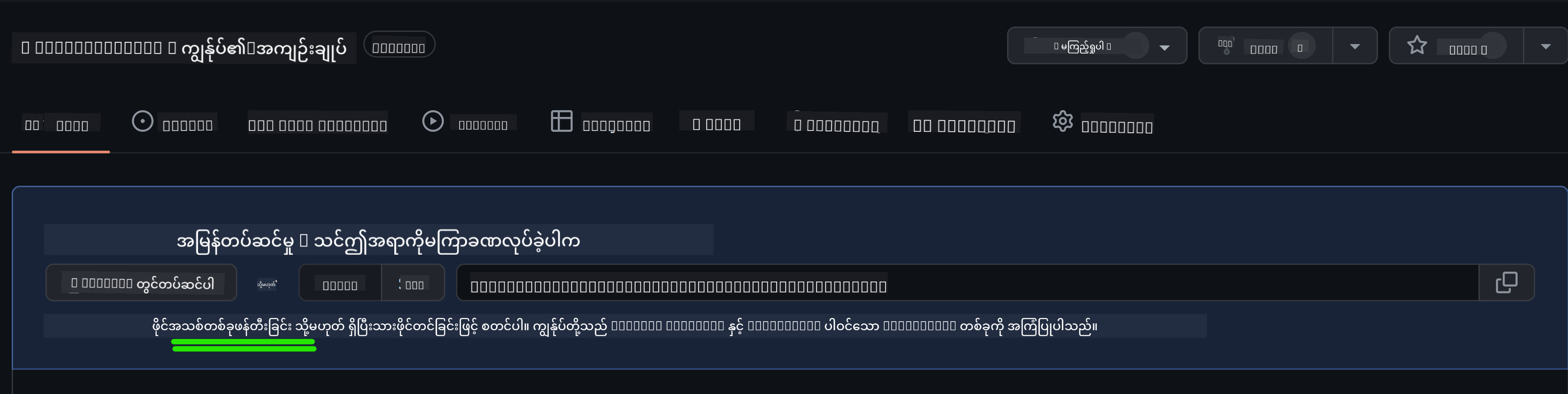
ဒီ Initial Setup က ဘာတွေကို အကောင်အထည်ဖော်ထားသလဲ:
- HTML5 Document Structure ကို Semantic Elements ဖြင့် Properly Establish လုပ်ထားသည်
- Responsive Design Compatibility အတွက် Viewport Meta Tag ကို ထည့်သွင်းထားသည်
- Browser Tabs တွင် ပေါ်လာမည့် Descriptive Page Title ကို Set လုပ်ထားသည်
- Professional Content Organization အတွက် Foundation တစ်ခု ဖန်တီးထားသည်
VSCode.dev တွင် အလုပ်လုပ်ခြင်း
သင့် Repository Foundation ကို တည်ဆောက်ပြီးပါက Main Development Work အတွက် VSCode.dev သို့ ပြောင်းပါ။ ဒီ Web-Based Editor သည် Professional Web Development အတွက် လိုအပ်သော Tools အားလုံးကို ပေးစွမ်းပါသည်။
အဆင့် ၃: VSCode.dev တွင် သင့်ပရောဂျက်ကို ဖွင့်ပါ
-
vscode.dev သို့ Browser Tab အသစ်တွင် သွားပါ
-
Welcome Screen တွင် "Open Remote Repository" ကို Click လုပ်ပါ
-
GitHub မှ သင့် Repository URL ကို Copy လုပ်ပြီး Input Field တွင် Paste လုပ်ပါ
Format:
https://github.com/your-username/my-resumeyour-usernameကို သင့် GitHub Username ဖြင့် အစားထိုးပါ -
Enter ကို နှိပ်ပြီး သင့် Project ကို Load လုပ်ပါ
✅ Success Indicator: Explorer Sidebar တွင် သင့် Project Files တွေကို မြင်ရပြီး Main Editor Area တွင် index.html ကို Edit လုပ်နိုင်ပါမည်။
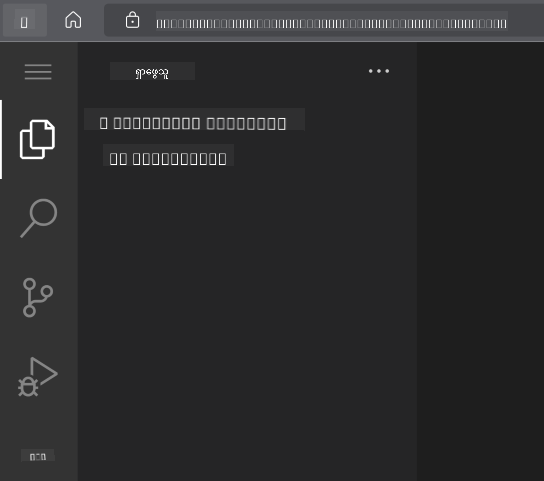
Interface တွင် မြင်ရမည့်အရာများ:
- Explorer Sidebar: သင့် Repository Files နှင့် Folder Structure ကို ပြသသည်
- Editor Area: ရွေးထားသော Files များ၏ Content ကို ပြသသည်
- Activity Bar: Source Control နှင့် Extensions ကဲ့သို့သော Features များကို Access လုပ်နိုင်သည်
- Status Bar: Connection Status နှင့် Current Branch Information ကို ပြသသည်
အဆင့် ၄: CV Content ကို တည်ဆောက်ပါ
index.html တွင် Placeholder Content ကို Comprehensive Resume Structure ဖြင့် အစားထိုးပါ။ ဒီ HTML သည် သင့်ရဲ့ အရည်အချင်းများကို Professional Presentation အဖြစ် ဖော်ပြရန် အခြေခံကို ပေးပါသည်။
Complete HTML Resume Structure
<!DOCTYPE html>
<html lang="en">
<head>
    <meta charset="UTF-8">
    <meta name="viewport" content="width=device-width, initial-scale=1.0">
    <link href="style.css" rel="stylesheet">
    <link rel="stylesheet" href="https://cdnjs.cloudflare.com/ajax/libs/font-awesome/5.15.4/css/all.min.css">
    <title>Your Name - Professional Resume</title>
</head>
<body>
    <header id="header">
        <h1>Your Full Name</h1>
        <hr>
        <p class="role">Your Professional Title</p>
        <hr>
    </header>

    <main>
        <article id="mainLeft">
            <section>
                <h2>CONTACT</h2>
                <p>
                    <i class="fa fa-envelope" aria-hidden="true"></i>
                    <a href="mailto:your.email@domain.com">your.email@domain.com</a>
                </p>
                <p>
                    <i class="fab fa-github" aria-hidden="true"></i>
                    <a href="https://github.com/your-username">github.com/your-username</a>
                </p>
                <p>
                    <i class="fab fa-linkedin" aria-hidden="true"></i>
                    <a href="https://linkedin.com/in/your-profile">linkedin.com/in/your-profile</a>
                </p>
            </section>

            <section>
                <h2>SKILLS</h2>
                <ul>
                    <li>HTML5 & CSS3</li>
                    <li>JavaScript (ES6+)</li>
                    <li>Responsive Web Design</li>
                    <li>Version Control (Git)</li>
                    <li>Problem Solving</li>
                </ul>
            </section>

            <section>
                <h2>EDUCATION</h2>
                <h3>Your Degree or Certification</h3>
                <p>Institution Name</p>
                <p>Start Date - End Date</p>
            </section>
        </article>

        <article id="mainRight">
            <section>
                <h2>ABOUT</h2>
                <p>Write a compelling summary that highlights your passion for web development, key achievements, and career goals. This section should give employers insight into your personality and professional approach.</p>
            </section>

            <section>
                <h2>WORK EXPERIENCE</h2>
                <div class="job">
                    <h3>Job Title</h3>
                    <p class="company">Company Name | Start Date – End Date</p>
                    <ul>
                        <li>Describe a key accomplishment or responsibility</li>
                        <li>Highlight specific skills or technologies used</li>
                        <li>Quantify impact where possible (e.g., "Improved efficiency by 25%")</li>
                    </ul>
                </div>

                <div class="job">
                    <h3>Previous Job Title</h3>
                    <p class="company">Previous Company | Start Date – End Date</p>
                    <ul>
                        <li>Focus on transferable skills and achievements</li>
                        <li>Demonstrate growth and learning progression</li>
                        <li>Include any leadership or collaboration experiences</li>
                    </ul>
                </div>
            </section>

            <section>
                <h2>PROJECTS</h2>
                <div class="project">
                    <h3>Project Name</h3>
                    <p>Brief description of what the project accomplishes and technologies used.</p>
                    <a href="#" target="_blank">View Project</a>
                </div>
            </section>
        </article>
    </main>
</body>
</html>
Customization Guidelines:
- Placeholder Text အားလုံးကို သင့်ရဲ့ အချက်အလက်များဖြင့် အစားထိုးပါ
- သင့်အတွေ့အကြုံနှင့် အလုပ်အကိုင်အာရုံစိုက်မှုအပေါ် မူတည်၍ Section များကို ပြင်ဆင်ပါ
- လိုအပ်သလို Section များကို ထည့်သွင်းပါ (ဥပမာ- Certifications, Volunteer Work, Languages)
- သင့်ရဲ့ Profile များနှင့် Project များသို့ Link များ ထည့်ပါ
အဆင့် ၅: Supporting Files များ ဖန်တီးပါ
Professional ဝက်ဘ်ဆိုဒ်များသည် File Structure များကို Properly Organize လုပ်ထားရန် လိုအပ်ပါသည်။ CSS Stylesheet နှင့် Configuration Files များကို ဖန်တီးပါ။
- Explorer Sidebar တွင် သင့် Project Folder Name အပေါ် Hover လုပ်ပါ
- ပေါ်လာသော "New File" icon (📄+) ကို Click လုပ်ပါ
- အောက်ပါ Files များကို တစ်ခုချင်းစီ ဖန်တီးပါ:
style.css(Styling နှင့် Layout အတွက်)codeswing.json(Preview Extension Configuration အတွက်)
CSS File (style.css) ဖန်တီးခြင်း:
Professional CSS Styling
/* Modern Resume Styling */
body {
    font-family: 'Segoe UI', Tahoma, Geneva, Verdana, sans-serif;
    font-size: 16px;
    line-height: 1.6;
    max-width: 960px;
    margin: 0 auto;
    padding: 20px;
    color: #333;
    background-color: #f9f9f9;
}

/* Header Styling */
header {
    text-align: center;
    margin-bottom: 3em;
    padding: 2em;
    background: linear-gradient(135deg, #667eea 0%, #764ba2 100%);
    color: white;
    border-radius: 10px;
    box-shadow: 0 4px 6px rgba(0, 0, 0, 0.1);
}

h1 {
    font-size: 3em;
    letter-spacing: 0.1em;
    margin-bottom: 0.2em;
    font-weight: 300;
}

.role {
    font-size: 1.3em;
    font-weight: 300;
    margin: 1em 0;
}

/* Main Content Layout */
main {
    display: grid;
    grid-template-columns: 35% 65%;
    gap: 3em;
    margin-top: 3em;
    background: white;
    padding: 2em;
    border-radius: 10px;
    box-shadow: 0 2px 10px rgba(0, 0, 0, 0.1);
}

/* Typography */
h2 {
    font-size: 1.4em;
    font-weight: 600;
    margin-bottom: 1em;
    color: #667eea;
    border-bottom: 2px solid #667eea;
    padding-bottom: 0.3em;
}

h3 {
    font-size: 1.1em;
    font-weight: 600;
    margin-bottom: 0.5em;
    color: #444;
}

/* Section Styling */
section {
    margin-bottom: 2.5em;
}

#mainLeft {
    border-right: 1px solid #e0e0e0;
    padding-right: 2em;
}

/* Contact Links */
section a {
    color: #667eea;
    text-decoration: none;
    transition: color 0.3s ease;
}

section a:hover {
    color: #764ba2;
    text-decoration: underline;
}

/* Icons */
i {
    margin-right: 0.8em;
    width: 20px;
    text-align: center;
    color: #667eea;
}

/* Lists */
ul {
    list-style: none;
    padding-left: 0;
}

li {
    margin: 0.5em 0;
    padding: 0.3em 0;
    position: relative;
}

li:before {
    content: "▸";
    color: #667eea;
    margin-right: 0.5em;
}

/* Work Experience */
.job, .project {
    margin-bottom: 2em;
    padding-bottom: 1.5em;
    border-bottom: 1px solid #f0f0f0;
}

.company {
    font-style: italic;
    color: #666;
    margin-bottom: 0.5em;
}

/* Responsive Design */
@media (max-width: 768px) {
    main {
        grid-template-columns: 1fr;
        gap: 2em;
    }

    #mainLeft {
        border-right: none;
        border-bottom: 1px solid #e0e0e0;
        padding-right: 0;
        padding-bottom: 2em;
    }

    h1 {
        font-size: 2.2em;
    }

    body {
        padding: 10px;
    }
}

/* Print Styles */
@media print {
    body {
        background: white;
        color: black;
        font-size: 12pt;
    }

    header {
        background: none;
        color: black;
        box-shadow: none;
    }

    main {
        box-shadow: none;
    }
}
Configuration File (codeswing.json) ဖန်တီးခြင်း:
{
    "scripts": [],
    "styles": []
}
CSS Features ကို နားလည်ခြင်း:
- CSS Grid ကို အသုံးပြု၍ Responsive, Professional Layout Structure ကို ဖန်တီးထားသည်
- Gradient Headers ဖြင့် Modern Color Schemes ကို Implement လုပ်ထားသည်
- Hover Effects နှင့် Smooth Transitions ကို ထည့်သွင်းထားသည်
- Device Size အားလုံးတွင် အဆင်ပြေသော Responsive Design ကို ပေးထားသည်
- PDF Generation အတွက် Print-Friendly Styles များ ထည့်သွင်းထားသည်
အဆင့် ၆: Extensions များကို Install နှင့် Configure လုပ်ပါ
Extensions များသည် Development Experience ကို တိုးတက်စေပြီး Live Preview Capabilities နှင့် Workflow Tools များကို ပေးပါသည်။ CodeSwing Extension သည် ဝက်ဘ်ဖွံ့ဖြိုးတိုးတက်မှု Project များအတွက် အထူးအသုံးဝင်ပါသည်။
CodeSwing Extension ကို Install လုပ်ခြင်း:
- Activity Bar တွင် Extensions icon (🧩) ကို Click လုပ်ပါ
- Marketplace Search Box တွင် "CodeSwing" ကို ရှာပါ
- Search Results မှ CodeSwing Extension ကို ရွေးပါ
- အပြာရောင် "Install" ခလုတ်ကို Click လုပ်ပါ
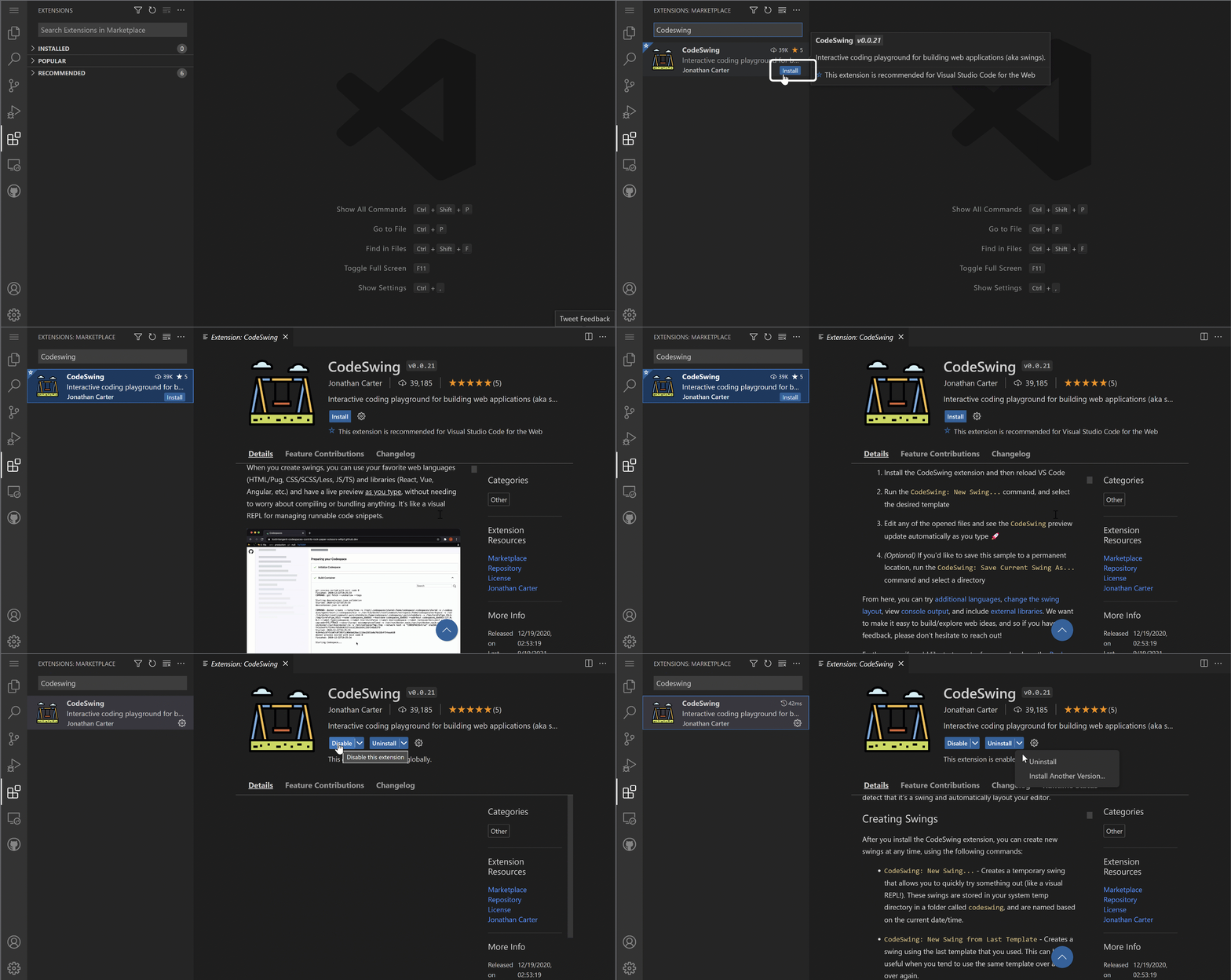
CodeSwing ပေးသော အကျိုးကျေးဇူးများ:
- Edit လုပ်နေစဉ် Website ကို Live Preview ပြသနိုင်သည်
- Manual Refresh မလိုအပ်ဘဲ Changes များကို Real-Time တွင် ပြသနိုင်သည်
- HTML, CSS, JavaScript အပါအဝင် File Types များကို Support လုပ်သည်
- Integrated Development Environment Experience ကို ပေးသည်
Installation ပြီးနောက် ရရှိသော ရလဒ်များ: CodeSwing Install ပြီးပါက သင့် Resume Website ၏ Live Preview ကို Editor တွင် မြင်ရပါမည်။ သင့် Site ရဲ့ အလှပဆုံးပုံစံကို Changes များလုပ်နေစဉ် မြင်နိုင်ပါသည်။
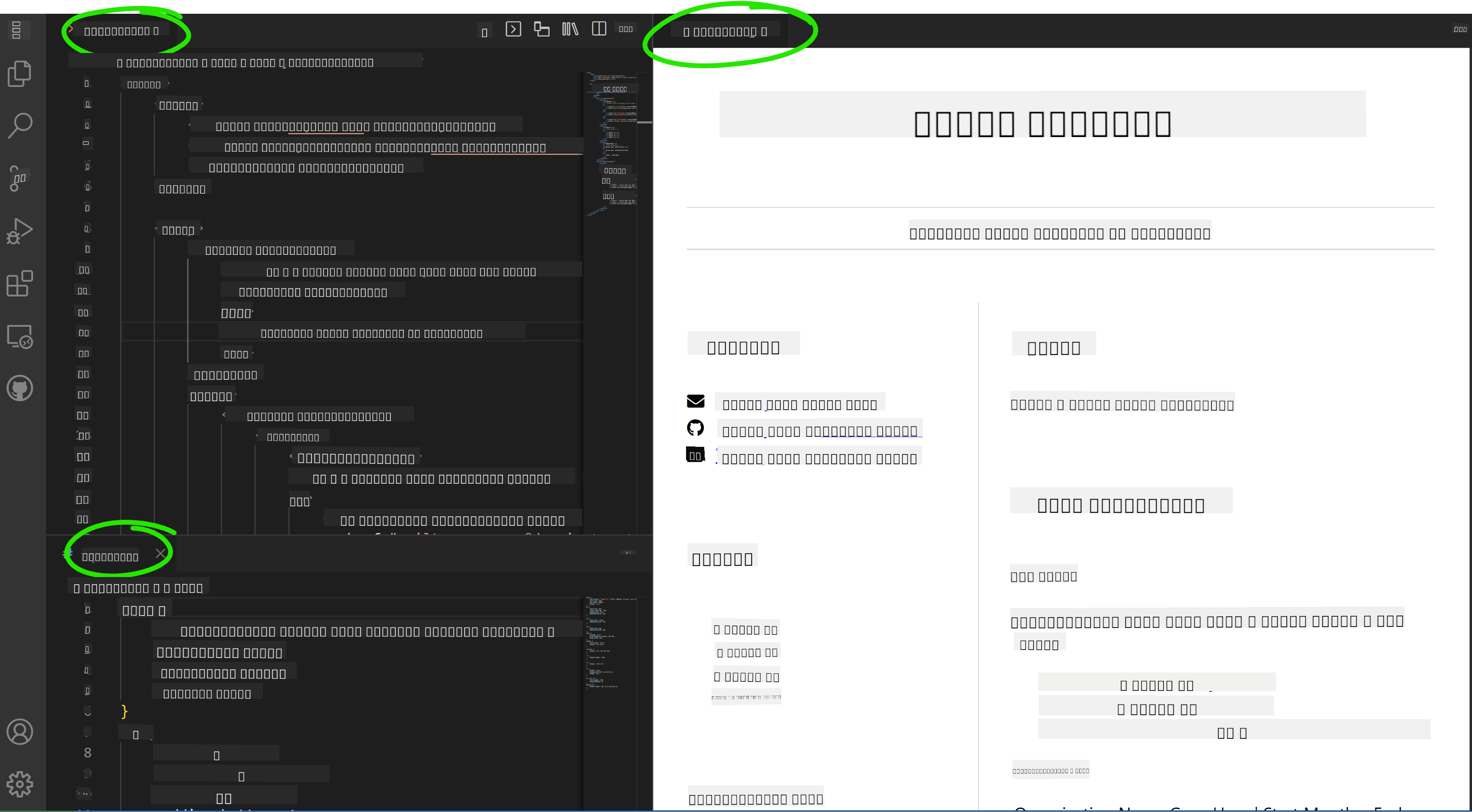
Enhanced Interface ကို နားလည်ခြင်း:
- Split View: Code ကို တစ်ဖက်၊ Live Preview ကို တစ်ဖက်တွင် ပြသသည်
- Real-Time Updates: Changes များကို ရိုက်နေစဉ် Reflect လုပ်သည်
- Interactive Preview: Links နှင့် Interactions များကို စမ်းသပ်နိုင်သည်
- Mobile Simulation: Responsive Design Testing Capabilities ကို ပေးသည်
အဆင့် ၇: Version Control နှင့် Publishing
သင့် Resume Website ကို ပြီးမြောက်ပြီးပါက Git ကို အသုံးပြု၍ သင့်အလုပ်များကို Save လုပ်ပြီး Online တွင် ရရှိနိုင်အောင် ပြုလုပ်ပါ။
Changes များကို Commit လုပ်ခြင်း:
- Activity Bar တွင် Source Control icon (🌿) ကို Click လုပ်ပါ
- "Changes" Section တွင် သင့်ဖန်တီးထားသော Files အားလုံးကို Review လုပ်ပါ
- File တစ်ခုချင်းစီအနားရှိ "+" icon ကို Click လုပ်ပြီး Changes များကို Stage လုပ်ပါ
- Descriptive Commit Message ရေးပါ၊ ဥပမာ:
- "Add complete resume website with responsive design"
- "Implement professional styling and content structure"
- Checkmark (✓) ကို Click လုပ်ပြီး Commit နှင့် Push လုပ်ပါ
Effective Commit Message Examples:
- "Add professional resume content and styling"
- "Implement responsive design for mobile compatibility"
- "Update contact information and project links"
💡 Professional Tip: Commit Messages က သင့် Project ရဲ့ Progress ကို Tracking လုပ်ရာတွင် အထောက်အကူဖြစ်စေပြီး အလုပ်ရှင်များအတွက် သေချာမှုကို ပြသနိုင်သည်။
Published Site ကို Access လုပ်ခြင်း: Commit ပြီးပါက GitHub Repository သို့ Hamburger Menu (☰) ကို အသုံးပြု၍ ပြန်သွားနိုင်ပါသည်။ သင့် Resume Website သည် Version-Controlled ဖြစ်ပြီး Deployment သို့မဟုတ် Sharing အတွက် အသင့်ဖြစ်နေပါပြီ။
ရလဒ်များနှင့် နောက်တစ်ဆင့်များ
ဂုဏ်ယူပါတယ်! 🎉 သင်သည် VSCode.dev ကို အသုံးပြု၍ Professional Resume Website တစ်ခုကို အောင်မြင်စွာ ဖန်တီးနိုင်ခဲ့ပါပြီ။ သင့် Project သည် အောက်ပါများကို ပြသပါသည်-
ပြသနိုင်သော Technical Skills:
- Repository Management: Complete Project Structure တစ်ခုကို ဖန်တီးပြီး စီမံခန့်ခွဲနိုင်ခြင်း
- Web Development: Modern HTML5 နှင့် CSS3 ကို အသုံးပြု၍ Responsive Website တစ်ခုကို တည်ဆောက်နိုင်ခြင်း
- Version Control: Proper Git Workflow ကို Implement လုပ်နိုင်ခြင်း
- Tool Proficiency: VSCode.dev ရဲ့ Interface နှင့် Extension System ကို ထိထိရောက်ရောက် အသုံးပြုနိုင်ခြင်း
ရရှိနိုင်သော Professional Outcomes:
- Online Presence: သင့်ရဲ့ အရည်အချင်းများကို ပြသနိုင်သော Shareable URL
- Modern Format: Traditional PDF CV များအစား Interactive Alternative
- Demonstrable Skills: သင့်ရဲ့ Web Development စွမ်းရည်များကို Concrete Evidence အဖြစ် ပြသနိုင်ခြင်း
- Easy Updates: Continuously Improve နှင့် Customize လုပ်နိုင်သော Foundation
Deployment Options
သင့် CV ကို အလုပ်ရှင်များအတွက် ရရှိနိုင်အောင် Hosting Options များကို စဉ်းစားပါ-
GitHub Pages (Recommended):
- GitHub တွင် သင့် Repository Settings သို့ သွားပါ
- "Pages" Section သို့ Scroll လုပ်ပါ
- "Deploy from a branch" ကို ရွေးပြီး "main" ကို ရွေးပါ
- သင့် Site သည်
https://your-username.github.io/my-resumeတွင် ရရှိနိုင်ပါမည်
အခြား Platform များ:
- Netlify: Custom Domains ဖြင့် Automatic Deployment
- Vercel: Modern Hosting Features ဖြင့် Fast Deployment
- GitHub Codespaces: Built-In Preview ဖြင့် Development Environment
Enhancement Suggestions
သင့် Skills များကို တိုးတက်စေရန် အောက်ပါ Features များကို ထည့်သွင်းပါ-
Technical Improvements:
- JavaScript Interactivity: Smooth Scrolling သို့မဟုတ် Interactive Elements များ ထည့်သွင်းပါ
- Dark Mode Toggle: User Preference အတွက် Theme Switching ကို Implement လုပ်ပါ
- Contact Form: အလုပ်ရှင်များနှင့် တိုက်ရိုက် ဆက်သွယ်နိုင်ရန် Form တစ်ခု ထည့်ပါ
- SEO Optimization: Search Visibility ကို မြှင့်တင်ရန် Meta
- လက်လှမ်းမီမှု: ဝက်ဘ်ဒီဇိုင်းအားလုံးပါဝင်စေရန် WCAG လမ်းညွှန်များကိုလေ့လာပါ
- စွမ်းဆောင်ရည်: Lighthouse ကဲ့သို့သော optimization tools များကိုလေ့လာပါ
- SEO: ရှာဖွေမှုအင်ဂျင်အာမခံမှုအခြေခံအချက်များကိုနားလည်ပါ
ပရော်ဖက်ရှင်နယ်ဖွံ့ဖြိုးတိုးတက်မှု:
- Portfolio တည်ဆောက်ခြင်း: အမျိုးမျိုးသောကျွမ်းကျင်မှုများကိုပြသရန် အပိုပရောဂျက်များဖန်တီးပါ
- Open Source: ပူးပေါင်းလုပ်ဆောင်မှုအတွေ့အကြုံရရှိရန် ရှိပြီးသားပရောဂျက်များတွင်ပါဝင်ဆောင်ရွက်ပါ
- Networking: Developer communities တွင် သင့်ရဲ့ resume website ကိုမျှဝေပြီး အကြံဉာဏ်ရယူပါ
- ဆက်လက်လေ့လာခြင်း: ဝက်ဘ်ဖွံ့ဖြိုးတိုးတက်မှုလမ်းကြောင်းများနှင့်နည်းပညာများကိုအမြဲအသစ်တိုးတက်နေပါ
သင့်အနာဂတ်အဆင့်များ: သင့် resume website ကို မိတ်ဆွေများ၊ မိသားစုများ သို့မဟုတ် အကြံပေးသူများနှင့်မျှဝေပါ။ သူတို့ရဲ့အကြံဉာဏ်များကိုအသုံးပြုပြီး သင့်ဒီဇိုင်းကိုပြန်လည်တိုးတက်အောင်လုပ်ပါ။ ဒီပရောဂျက်ဟာ resume တစ်ခုသာမဟုတ်ပါဘူး – ဒါဟာ သင့်ရဲ့ဝက်ဘ်ဒီဗယ်လော့ပါအဖြစ်တိုးတက်မှုကိုပြသတဲ့အရာပါ!
အကြောင်းကြားချက်:
ဤစာရွက်စာတမ်းကို AI ဘာသာပြန်ဝန်ဆောင်မှု Co-op Translator ကို အသုံးပြု၍ ဘာသာပြန်ထားပါသည်။ ကျွန်ုပ်တို့သည် တိကျမှန်ကန်မှုအတွက် ကြိုးစားနေသော်လည်း အလိုအလျောက် ဘာသာပြန်မှုများတွင် အမှားများ သို့မဟုတ် မမှန်ကန်မှုများ ပါဝင်နိုင်သည်ကို သတိပြုပါ။ မူရင်းဘာသာစကားဖြင့် ရေးသားထားသော စာရွက်စာတမ်းကို အာဏာတရားရှိသော အရင်းအမြစ်အဖြစ် သတ်မှတ်သင့်ပါသည်။ အရေးကြီးသော အချက်အလက်များအတွက် လူ့ဘာသာပြန်ပညာရှင်များကို အသုံးပြုရန် အကြံပြုပါသည်။ ဤဘာသာပြန်မှုကို အသုံးပြုခြင်းမှ ဖြစ်ပေါ်လာသော အလွဲအမှားများ သို့မဟုတ် အနားယူမှုများအတွက် ကျွန်ုပ်တို့သည် တာဝန်မယူပါ။