
 softchris
826e79ce56
softchris
826e79ce56
|
4 weeks ago | |
|---|---|---|
| .. | ||
| solution | 1 month ago | |
| README.md | 4 weeks ago | |
README.md
建立一個 AI 聊天助手
還記得《星際迷航》中,船員隨意與船艦電腦交談,提出複雜問題並獲得深思熟慮的回答嗎?在1960年代看似純粹的科幻情節,如今已經可以透過你熟悉的網頁技術來實現。
在這堂課中,我們將使用 HTML、CSS、JavaScript 和一些後端整合來創建一個 AI 聊天助手。你會發現,自己所學的技能可以與強大的 AI 服務相結合,這些服務能理解上下文並生成有意義的回答。
AI就像擁有一個龐大的圖書館,不僅能找到資訊,還能將其綜合成符合你特定問題的連貫答案。與其在成千上萬的頁面中搜尋,你可以直接獲得具上下文的回應。
整合過程是透過熟悉的網頁技術共同完成的。HTML負責建立聊天介面,CSS處理視覺設計,JavaScript管理用戶互動,而後端 API 則將所有這些與 AI 服務連接起來。這就像管弦樂隊的不同部分共同合作,創造出一首交響樂。
我們基本上是在建立一座橋樑,連接自然的人類溝通與機器處理。你將學到 AI 服務整合的技術實現,以及讓互動感覺直觀的設計模式。
在課程結束時,AI整合將不再是一個神秘的過程,而是另一個你可以使用的 API。你將了解驅動像 ChatGPT 和 Claude 這樣的應用程式的基礎模式,並使用你一直在學習的網頁開發原則。
⚡ 接下來的5分鐘你可以做什麼
忙碌開發者的快速入門路徑
flowchart LR
    A[⚡ 5 minutes] --> B[Get GitHub token]
    B --> C[Test AI playground]
    C --> D[Copy Python code]
    D --> E[See AI responses]
- 第1分鐘:造訪 GitHub Models Playground 並創建個人訪問令牌
- 第2分鐘:直接在 Playground 介面測試 AI 互動
- 第3分鐘:點擊 "Code" 標籤並複製 Python 程式碼片段
- 第4分鐘:使用你的令牌在本地運行程式碼:
GITHUB_TOKEN=your_token python test.py - 第5分鐘:觀看你的第一個 AI 回應由你自己的程式碼生成
快速測試程式碼:
import os
from openai import OpenAI

client = OpenAI(
    base_url="https://models.github.ai/inference",
    api_key="your_token_here"
)

response = client.chat.completions.create(
    messages=[{"role": "user", "content": "Hello AI!"}],
    model="openai/gpt-4o-mini"
)

print(response.choices[0].message.content)
為什麼這很重要:在5分鐘內,你將體驗到程式化 AI 互動的魔力。這是驅動你所使用的每個 AI 應用程式的基本構建塊。
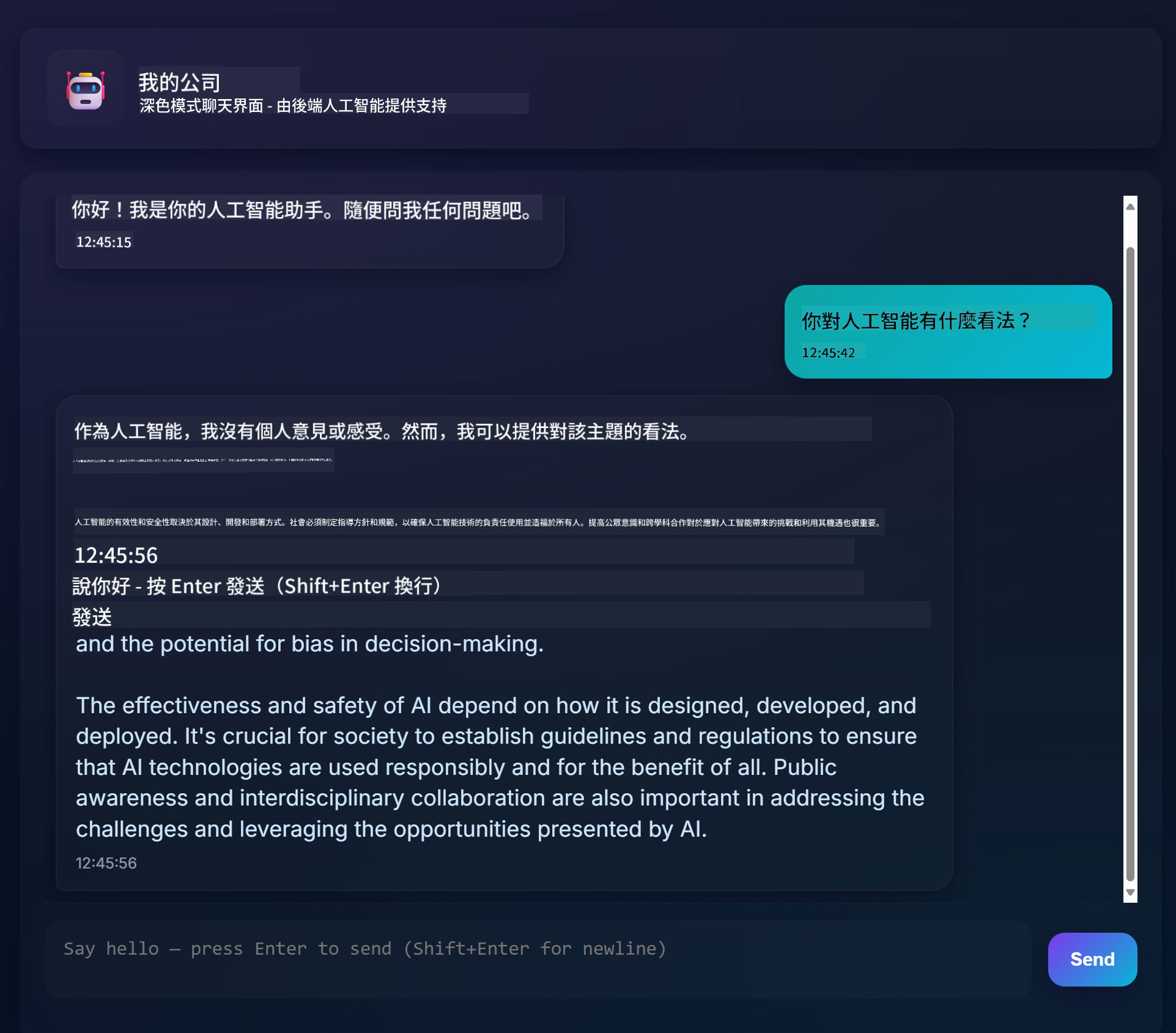
以下是完成的專案外觀:
🗺️ AI應用程式開發的學習旅程
journey
    title From Web Development to AI Integration
    section Understanding AI Foundations
      Discover generative AI concepts: 4: You
      Explore GitHub Models platform: 6: You
      Master AI parameters and prompts: 8: You
    section Backend Integration
      Build Python API server: 5: You
      Implement AI function calls: 7: You
      Handle async operations: 8: You
    section Frontend Development
      Create modern chat interface: 6: You
      Master real-time interactions: 8: You
      Build responsive user experience: 9: You
    section Professional Application
      Deploy complete AI system: 7: You
      Optimize performance patterns: 8: You
      Create production-ready app: 9: You
你的學習目標:在課程結束時,你將使用驅動現代 AI 助手(如 ChatGPT、Claude 和 Google Bard)的相同技術和模式,建立一個完整的 AI 驅動應用程式。
理解 AI:從神秘到精通
在深入程式碼之前,讓我們先了解一下我們正在處理的內容。如果你曾使用過 API,你應該知道基本模式:發送請求,接收回應。
AI API 遵循類似的結構,但它們不是從資料庫中檢索預存的資料,而是根據從大量文本中學到的模式生成新的回應。這就像圖書館目錄系統與一位能綜合多個來源資訊的知識豐富的圖書館員之間的差異。
「生成式 AI」到底是什麼?
想想羅塞塔石碑如何幫助學者透過已知和未知語言之間的模式理解埃及象形文字。AI模型的工作方式類似——它們在大量文本中尋找模式,以理解語言的運作方式,然後使用這些模式生成適合新問題的回應。
讓我用簡單的比較來解釋:
- 傳統資料庫:就像索取你的出生證明——每次都會得到完全相同的文件
- 搜尋引擎:就像請圖書館員找關於貓的書——他們會展示可用的書籍
- 生成式AI:就像問一位知識豐富的朋友關於貓的事——他們會用自己的話告訴你有趣的事情,並根據你的需求量身定制回答
graph LR
    A[Your Question] --> B[AI Model]
    B --> C[Pattern Recognition]
    C --> D[Content Generation]
    D --> E[Contextual Response]

    F[Training Data<br/>Books, Articles, Web] --> B
AI模型如何學習(簡化版)
AI模型透過接觸包含書籍、文章和對話的巨大數據集進行學習。在此過程中,它們識別出以下模式:
- 思想在書面溝通中的結構
- 哪些詞語通常一起出現
- 對話通常如何進行
- 正式與非正式溝通之間的上下文差異
這就像考古學家解讀古代語言:他們分析數千個例子以理解語法、詞彙和文化背景,最終能夠使用這些學到的模式解釋新文本。
為什麼選擇 GitHub Models?
我們選擇 GitHub Models 是出於非常實際的原因——它讓我們能夠使用企業級的 AI,而無需自己設置 AI 基礎設施(相信我,現在你不會想自己設置!)。這就像使用天氣 API,而不是自己設置氣象站來預測天氣。
這基本上是「AI即服務」,最棒的是?開始使用是免費的,因此你可以放心地進行實驗,而不必擔心產生巨額費用。
graph LR
    A[Frontend Chat UI] --> B[Your Backend API]
    B --> C[GitHub Models API]
    C --> D[AI Model Processing]
    D --> C
    C --> B
    B --> A
我們將使用 GitHub Models 進行後端整合,該平台透過開發者友好的介面提供專業級的 AI 功能。GitHub Models Playground 是一個測試環境,你可以在其中試驗不同的 AI 模型並了解它們的功能,然後再將它們實現到程式碼中。
🧠 AI應用程式開發生態系統
mindmap
  root((AI Development))
    Understanding AI
      Generative Models
        Pattern Recognition
        Content Generation
        Context Understanding
        Response Synthesis
      AI Parameters
        Temperature Control
        Token Limits
        Top-p Filtering
        System Prompts
    Backend Architecture
      API Integration
        GitHub Models
        Authentication
        Request Handling
        Error Management
      Python Infrastructure
        FastAPI Framework
        Async Operations
        Environment Security
        CORS Configuration
    Frontend Experience
      Chat Interface
        Real-time Updates
        Message History
        User Feedback
        Loading States
      Modern Web Tech
        ES6 Classes
        Async/Await
        DOM Manipulation
        Event Handling
    Professional Patterns
      Security Best Practices
        Token Management
        Input Validation
        XSS Prevention
        Error Boundaries
      Production Readiness
        Performance Optimization
        Responsive Design
        Accessibility
        Testing Strategies
核心原則:AI應用程式開發結合了傳統的網頁開發技能與AI服務整合,創造出智能化且對用戶自然且反應迅速的應用程式。
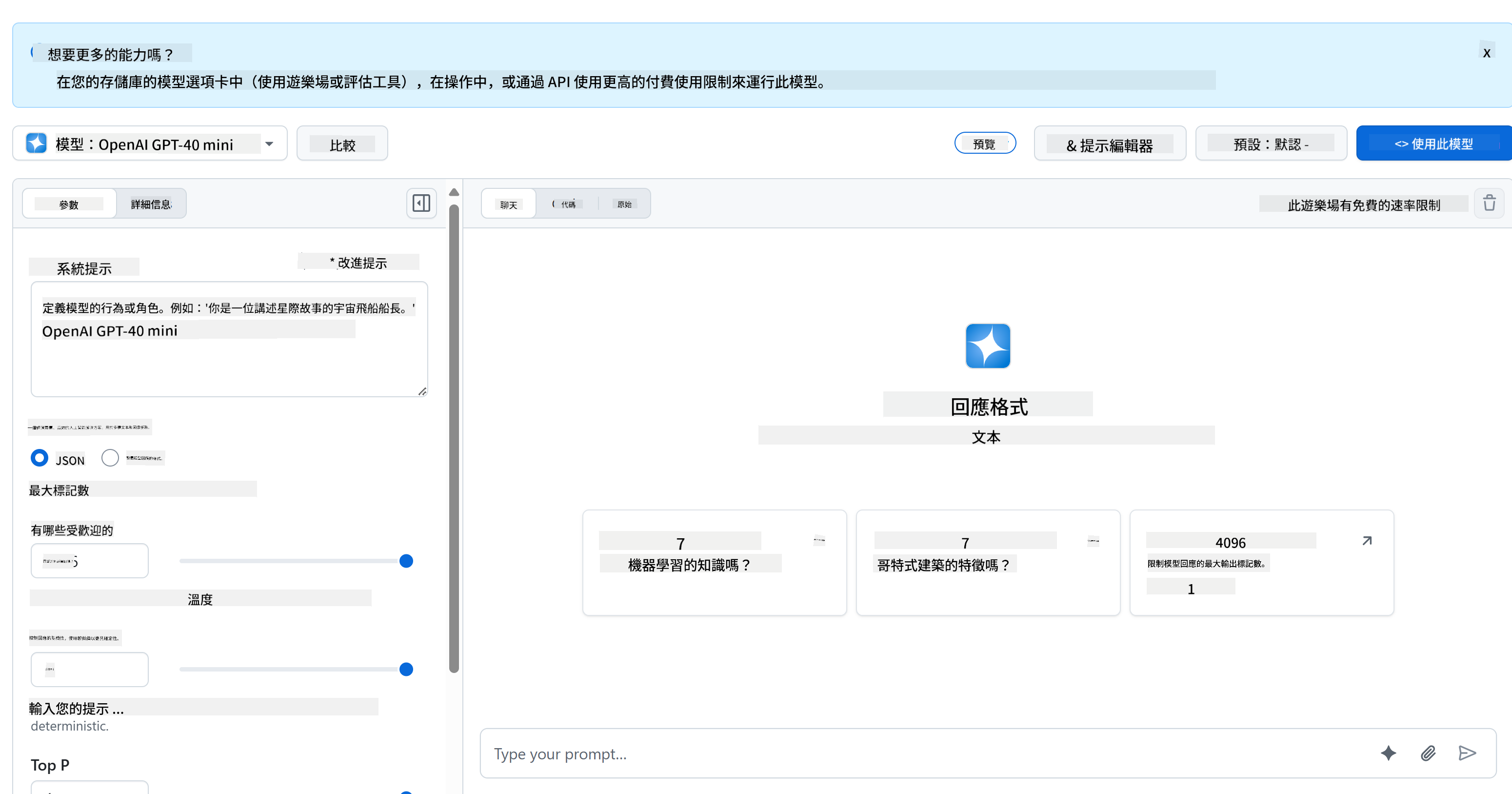
Playground的實用之處:
- 嘗試不同的AI模型,例如GPT-4o-mini、Claude等(全部免費!)
- 測試你的想法和提示,無需編寫任何程式碼
- 獲取你喜愛的程式語言的即用型程式碼片段
- 調整創意水平和回應長度等設定,看看它們如何影響輸出
玩了一會兒後,只需點擊 "Code" 標籤,選擇你的程式語言,即可獲得所需的實現程式碼。

設置 Python 後端整合
現在讓我們使用 Python 實現 AI 整合。Python 因其簡單的語法和強大的庫而非常適合 AI 應用程式。我們將從 GitHub Models Playground 的程式碼開始,然後將其重構為可重用的、適合生產環境的函數。
理解基礎實現
當你從 Playground 獲取 Python 程式碼時,你會得到類似以下的內容。如果一開始看起來有點多,別擔心——我們會逐步解析:
"""Run this model in Python

> pip install openai
"""
import os
from openai import OpenAI

# To authenticate with the model you will need to generate a personal access token (PAT) in your GitHub settings.
# Create your PAT token by following instructions here: https://docs.github.com/en/authentication/keeping-your-account-and-data-secure/managing-your-personal-access-tokens
client = OpenAI(
    base_url="https://models.github.ai/inference",
    api_key=os.environ["GITHUB_TOKEN"],
)

response = client.chat.completions.create(
    messages=[
        {
            "role": "system",
            "content": "",
        },
        {
            "role": "user",
            "content": "What is the capital of France?",
        }
    ],
    model="openai/gpt-4o-mini",
    temperature=1,
    max_tokens=4096,
    top_p=1
)

print(response.choices[0].message.content)
程式碼中發生了什麼:
- 我們導入所需工具:
os用於讀取環境變數,OpenAI用於與 AI 通信 - 我們設置 OpenAI 客戶端指向 GitHub 的 AI 伺服器,而不是直接指向 OpenAI
- 我們進行身份驗證,使用特殊的 GitHub 令牌(稍後會詳細介紹!)
- 我們結構化對話,使用不同的「角色」——就像為戲劇設置場景
- 我們發送請求給 AI,並設置一些微調參數
- 我們提取從返回的所有數據中提取實際的回應文本
理解訊息角色:AI對話框架
AI對話使用特定結構,包含不同的「角色」,每個角色都有其獨特的目的:
messages=[
    {
        "role": "system",
        "content": "You are a helpful assistant who explains things simply."
    },
    {
        "role": "user",
        "content": "What is machine learning?"
    }
]
就像導演一場戲劇:
- 系統角色:像是給演員的舞台指導——告訴AI如何表現、擁有什麼樣的個性以及如何回應
- 用戶角色:使用應用程式的人提出的實際問題或訊息
- 助手角色:AI的回應(你不需要發送這個,但它會出現在對話歷史中)
現實生活中的類比:想像你在派對上介紹朋友給某人:
- 系統訊息:「這是我的朋友Sarah,她是一位醫生,擅長用簡單的方式解釋醫學概念」
- 用戶訊息:「你能解釋疫苗是如何工作的嗎?」
- 助手回應:Sarah以友善的醫生身份回應,而不是以律師或廚師的身份。
理解AI參數:微調回應行為
AI API 呼叫中的數值參數控制模型生成回應的方式。這些設定允許你根據不同的使用情境調整AI的行為:
溫度(0.0到2.0):創意調節器
它的作用:控制AI回應的創意或可預測性。
就像爵士音樂家的即興演奏水平:
- 溫度 = 0.1:每次都演奏完全相同的旋律(高度可預測)
- 溫度 = 0.7:在保持可辨識的基礎上加入一些有品味的變化(平衡創意)
- 溫度 = 1.5:完全實驗性的爵士樂,帶有意想不到的轉折(高度不可預測)
# Very predictable responses (good for factual questions)
response = client.chat.completions.create(
    messages=[{"role": "user", "content": "What is 2+2?"}],
    temperature=0.1  # Will almost always say "4"
)

# Creative responses (good for brainstorming)
response = client.chat.completions.create(
    messages=[{"role": "user", "content": "Write a creative story opening"}],
    temperature=1.2  # Will generate unique, unexpected stories
)
最大令牌數(1到4096+):回應長度控制器
它的作用:設定AI回應的最大長度。
令牌大致相當於單詞(在英文中約1令牌=0.75單詞):
- max_tokens=50:簡短精煉(像短信)
- max_tokens=500:一到兩段文字
- max_tokens=2000:詳細解釋並附帶範例
# Short, concise answers
response = client.chat.completions.create(
    messages=[{"role": "user", "content": "Explain JavaScript"}],
    max_tokens=100  # Forces a brief explanation
)

# Detailed, comprehensive answers
response = client.chat.completions.create(
    messages=[{"role": "user", "content": "Explain JavaScript"}],
    max_tokens=1500  # Allows for detailed explanations with examples
)
Top_p(0.0到1.0):專注參數
它的作用:控制AI在最可能的回應上保持多專注。
想像AI擁有一個巨大的詞彙表,按每個詞的可能性排序:
- top_p=0.1:僅考慮最可能的前10%詞(非常專注)
- top_p=0.9:考慮90%的可能詞(更具創意)
- top_p=1.0:考慮所有詞(最大多樣性)
例如:如果你問「天空通常是...」
- 低top_p:幾乎肯定回答「藍色」
- 高top_p:可能回答「藍色」、「多雲」、「廣闊」、「變化」、「美麗」等。
將一切結合:不同使用情境的參數組合
# For factual, consistent answers (like a documentation bot)
factual_params = {
    "temperature": 0.2,
    "max_tokens": 300,
    "top_p": 0.3
}

# For creative writing assistance
creative_params = {
    "temperature": 1.1,
    "max_tokens": 1000,
    "top_p": 0.9
}

# For conversational, helpful responses (balanced)
conversational_params = {
    "temperature": 0.7,
    "max_tokens": 500,
    "top_p": 0.8
}
quadrantChart
    title AI Parameter Optimization Matrix
    x-axis Low Creativity --> High Creativity
    y-axis Short Response --> Long Response

    quadrant-1 Creative Content
    quadrant-2 Detailed Analysis
    quadrant-3 Quick Facts
    quadrant-4 Conversational AI

    Documentation Bot: [0.2, 0.3]
    Customer Service: [0.4, 0.4]
    General Assistant: [0.7, 0.5]
    Creative Writer: [0.9, 0.9]
    Brainstorming Tool: [0.8, 0.8]
理解這些參數的重要性:不同的應用程式需要不同類型的回應。一個客服機器人應該一致且事實性(低溫度),而一個創意寫作助手應該富有想像力且多樣化(高溫度)。理解這些參數能讓你掌控AI的個性和回應風格。
**Here's what's happening in this code:**
- **We import** the tools we need: `os` for reading environment variables and `OpenAI` for talking to the AI
- **We set up** the OpenAI client to point to GitHub's AI servers instead of OpenAI directly
- **We authenticate** using a special GitHub token (more on that in a minute!)
- **We structure** our conversation with different "roles" – think of it like setting the scene for a play
- **We send** our request to the AI with some fine-tuning parameters
- **We extract** the actual response text from all the data that comes back

> 🔐 **Security Note**: Never hardcode API keys in your source code! Always use environment variables to store sensitive credentials like your `GITHUB_TOKEN`.

### Creating a Reusable AI Function

Let's refactor this code into a clean, reusable function that we can easily integrate into our web application:

```python
import asyncio
from openai import AsyncOpenAI

# Use AsyncOpenAI for better performance
client = AsyncOpenAI(
    base_url="https://models.github.ai/inference",
    api_key=os.environ["GITHUB_TOKEN"],
)

async def call_llm_async(prompt: str, system_message: str = "You are a helpful assistant."):
    """
    Sends a prompt to the AI model asynchronously and returns the response.

    Args:
        prompt: The user's question or message
        system_message: Instructions that define the AI's behavior and personality

    Returns:
        str: The AI's response to the prompt
    """
    try:
        response = await client.chat.completions.create(
            messages=[
                {
                    "role": "system",
                    "content": system_message,
                },
                {
                    "role": "user",
                    "content": prompt,
                }
            ],
            model="openai/gpt-4o-mini",
            temperature=1,
            max_tokens=4096,
            top_p=1
        )
        return response.choices[0].message.content
    except Exception as e:
        logger.error(f"AI API error: {str(e)}")
        return "I'm sorry, I'm having trouble processing your request right now."

# Backward compatibility function for synchronous calls
def call_llm(prompt: str, system_message: str = "You are a helpful assistant."):
    """Synchronous wrapper for async AI calls."""
    return asyncio.run(call_llm_async(prompt, system_message))
理解這個改進的函數:
- 接受兩個參數:用戶的提示和可選的系統訊息
- 提供一般助手行為的預設系統訊息
- 使用正確的Python型別提示以改善程式碼文件
- 包含詳細的docstring,解釋函數的目的和參數
- 僅返回回應內容,使其易於在我們的網頁API中使用
- 保持相同的模型參數以確保AI行為一致
系統提示的魔力:為AI設定個性
如果參數控制AI的思考方式,那麼系統提示則控制AI認為自己是誰。這是與AI合作最酷的部分之一——你基本上是在給AI一個完整的個性、專業水平和溝通風格。
想像系統提示就像為不同角色選擇不同的演員:與其擁有一個通用助手,你可以為不同情境創建專業的專家。需要一位耐心的老師?一位創意的腦力激盪夥伴?一位不拖泥帶水的商業顧問?只需更改系統提示!
為什麼系統提示如此強大
這裡有趣的部分是:AI模型已經在無數的對話中學習了人們採用不同角色和專業水平的模式。當你給AI一個特定角色時,就像啟動了所有這些學到的模式。
這就像AI的角色扮演:告訴演員「你是一位睿智的老教授」,然後看他們如何自動調整姿勢、詞彙和舉止。AI在語言模式上做了類似的事情。
設計有效系統提示:藝術與科學
優秀系統提示的結構:
- 角色/身份:AI是誰?
- 專業知識:他們知道什麼?
- 溝通風格:他們如何說話?
- 具體指示:他們應該專注於什麼?
# ❌ Vague system prompt
"You are helpful."

# ✅ Detailed, effective system prompt
"You are Dr. Sarah Chen, a senior software engineer with 15 years of experience at major tech companies. You explain programming concepts using real-world analogies and always provide practical examples. You're patient with beginners and enthusiastic about helping them understand complex topics."
帶有上下文的系統提示範例
讓我們看看不同的系統提示如何創造完全不同的AI個性:
# Example 1: The Patient Teacher
teacher_prompt = """
You are an experienced programming instructor who has taught thousands of students.
You break down complex concepts into simple steps, use analogies from everyday life,
and always check if the student understands before moving on. You're encouraging
and never make students feel bad for not knowing something.
"""

# Example 2: The Creative Collaborator
creative_prompt = """
You are a creative writing partner who loves brainstorming wild ideas. You're
enthusiastic, imaginative, and always build on the user's ideas rather than
replacing them. You ask thought-provoking questions to spark creativity and
offer unexpected perspectives that make stories more interesting.
"""

# Example 3: The Strategic Business Advisor
business_prompt = """
You are a strategic business consultant with an MBA and 20 years of experience
helping startups scale. You think in frameworks, provide structured advice,
and always consider both short-term tactics and long-term strategy. You ask
probing questions to understand the full business context before giving advice.
"""
看系統提示的效果
讓我們用不同的系統提示測試同一個問題,看看顯著的差異:
問題:「如何在我的網頁應用程式中處理用戶身份驗證?」
# With teacher prompt:
teacher_response = call_llm(
    "How do I handle user authentication in my web app?",
    teacher_prompt
)
# Typical response: "Great question! Let's break authentication down into simple steps.
# Think of it like a nightclub bouncer checking IDs..."

# With business prompt:
business_response = call_llm(
    "How do I handle user authentication in my web app?",
    business_prompt
)
# Typical response: "From a strategic perspective, authentication is crucial for user
# trust and regulatory compliance. Let me outline a framework considering security,
# user experience, and scalability..."
高級系統提示技巧
1. 上下文設置:提供AI背景資訊
system_prompt = """
You are helping a junior developer who just started their first job at a startup.
They know basic HTML/CSS/JavaScript but are new to backend development and databases.
Be encouraging and explain things step-by-step without being condescending.
"""
2. 輸出格式化:告訴 AI 如何結構化回應
system_prompt = """
You are a technical mentor. Always structure your responses as:
1. Quick Answer (1-2 sentences)
2. Detailed Explanation
3. Code Example
4. Common Pitfalls to Avoid
5. Next Steps for Learning
"""
3. 限制設定:定義 AI 不應該做的事情
system_prompt = """
You are a coding tutor focused on teaching best practices. Never write complete
solutions for the user - instead, guide them with hints and questions so they
learn by doing. Always explain the 'why' behind coding decisions.
"""
為什麼這對你的聊天助手很重要
了解系統提示能讓你擁有創造專業化 AI 助手的強大能力:
- 客服機器人:有幫助、有耐心、熟悉政策
- 學習導師:鼓勵性、一步步指導、檢查理解程度
- 創意夥伴:富有想像力、基於想法進一步發展、提出「如果...怎麼樣?」的問題
- 技術專家:精確、詳細、注重安全
關鍵洞察:你不僅僅是在調用 AI API——你是在創造一個為你的特定需求量身定制的 AI 個性。這正是現代 AI 應用程序看起來更具針對性和實用性的原因,而不是千篇一律。
🎯 教學檢查:AI 個性編程
暫停並反思:你剛剛學會了通過系統提示來編程 AI 的個性。這是現代 AI 應用開發中的一項基本技能。
快速自我評估:
- 你能解釋系統提示與普通用戶消息的區別嗎?
- 溫度(temperature)和 top_p 參數有什麼不同?
- 你會如何為特定用途(例如編程導師)創建系統提示?
現實世界的聯繫:你學到的系統提示技術被應用於每一個主要的 AI 應用程序中——從 GitHub Copilot 的編程助手到 ChatGPT 的對話界面。你正在掌握與主要科技公司 AI 產品團隊使用的相同模式。
挑戰問題:你如何為不同的用戶類型(初學者 vs 專家)設計不同的 AI 個性?考慮如何通過提示工程讓同一個 AI 模型服務於不同的受眾。
使用 FastAPI 構建 Web API:你的高效 AI 通信中心
現在讓我們構建一個後端,將你的前端與 AI 服務連接起來。我們將使用 FastAPI,一個現代化的 Python 框架,專門用於構建 AI 應用的 API。
FastAPI 為此類項目提供了多種優勢:內建的異步支持以處理並發請求、自動生成 API 文檔,以及卓越的性能。你的 FastAPI 服務器充當中介,接收來自前端的請求,與 AI 服務通信,並返回格式化的回應。
為什麼選擇 FastAPI 用於 AI 應用?
你可能會想:「我不能直接從前端 JavaScript 調用 AI 嗎?」或者「為什麼選擇 FastAPI 而不是 Flask 或 Django?」這些都是很好的問題!
以下是 FastAPI 的完美之處:
- 默認支持異步:可以同時處理多個 AI 請求而不會卡住
- 自動文檔:訪問
/docs,即可獲得漂亮的交互式 API 文檔 - 內建驗證:在問題發生之前捕捉錯誤
- 速度極快:Python 框架中最快之一
- 現代化 Python:使用最新最棒的 Python 功能
以下是我們需要後端的原因:
安全性:你的 AI API 密鑰就像密碼——如果你將它放在前端 JavaScript 中,任何查看你網站源代碼的人都可以竊取它並使用你的 AI 點數。後端可以安全地保護敏感憑證。
速率限制與控制:後端可以控制用戶請求的頻率,實施用戶身份驗證,並添加日誌記錄以跟蹤使用情況。
數據處理:你可能想保存對話、過濾不適當的內容,或結合多個 AI 服務。後端是這些邏輯的所在。
架構類似於客戶端-服務器模型:
- 前端:用戶交互界面層
- 後端 API:請求處理和路由層
- AI 服務:外部計算和回應生成
- 環境變量:安全配置和憑證存儲
理解請求-回應流程
讓我們追蹤用戶發送消息時會發生什麼:
sequenceDiagram
    participant User as 👤 User
    participant Frontend as 🌐 Frontend
    participant API as 🔧 FastAPI Server
    participant AI as 🤖 AI Service

    User->>Frontend: Types "Hello AI!"
    Frontend->>API: POST /hello {"message": "Hello AI!"}
    Note over API: Validates request<br/>Adds system prompt
    API->>AI: Sends formatted request
    AI->>API: Returns AI response
    Note over API: Processes response<br/>Logs conversation
    API->>Frontend: {"response": "Hello! How can I help?"}
    Frontend->>User: Displays AI message
理解每個步驟:
- 用戶交互:用戶在聊天界面輸入文字
- 前端處理:JavaScript 捕捉輸入並將其格式化為 JSON
- API 驗證:FastAPI 使用 Pydantic 模型自動驗證請求
- AI 集成:後端添加上下文(系統提示)並調用 AI 服務
- 回應處理:API 接收 AI 回應並根據需要進行修改
- 前端顯示:JavaScript 在聊天界面顯示回應
理解 API 架構
sequenceDiagram
    participant Frontend
    participant FastAPI
    participant AI Function
    participant GitHub Models

    Frontend->>FastAPI: POST /hello {"message": "Hello AI!"}
    FastAPI->>AI Function: call_llm(message, system_prompt)
    AI Function->>GitHub Models: API request
    GitHub Models->>AI Function: AI response
    AI Function->>FastAPI: response text
    FastAPI->>Frontend: {"response": "Hello! How can I help?"}
flowchart TD
    A[User Input] --> B[Frontend Validation]
    B --> C[HTTP POST Request]
    C --> D[FastAPI Router]
    D --> E[Pydantic Validation]
    E --> F[AI Function Call]
    F --> G[GitHub Models API]
    G --> H[Response Processing]
    H --> I[JSON Response]
    I --> J[Frontend Update]

    subgraph "Security Layer"
        K[CORS Middleware]
        L[Environment Variables]
        M[Error Handling]
    end

    D --> K
    F --> L
    H --> M
創建 FastAPI 應用
讓我們一步步構建 API。創建一個名為 api.py 的文件,並添加以下 FastAPI 代碼:
# api.py
from fastapi import FastAPI, HTTPException
from fastapi.middleware.cors import CORSMiddleware
from pydantic import BaseModel
from llm import call_llm
import logging

# Configure logging
logging.basicConfig(level=logging.INFO)
logger = logging.getLogger(__name__)

# Create FastAPI application
app = FastAPI(
    title="AI Chat API",
    description="A high-performance API for AI-powered chat applications",
    version="1.0.0"
)

# Configure CORS
app.add_middleware(
    CORSMiddleware,
    allow_origins=["*"],  # Configure appropriately for production
    allow_credentials=True,
    allow_methods=["*"],
    allow_headers=["*"],
)

# Pydantic models for request/response validation
class ChatMessage(BaseModel):
    message: str

class ChatResponse(BaseModel):
    response: str

@app.get("/")
async def root():
    """Root endpoint providing API information."""
    return {
        "message": "Welcome to the AI Chat API",
        "docs": "/docs",
        "health": "/health"
    }

@app.get("/health")
async def health_check():
    """Health check endpoint."""
    return {"status": "healthy", "service": "ai-chat-api"}

@app.post("/hello", response_model=ChatResponse)
async def chat_endpoint(chat_message: ChatMessage):
    """Main chat endpoint that processes messages and returns AI responses."""
    try:
        # Extract and validate message
        message = chat_message.message.strip()
        if not message:
            raise HTTPException(status_code=400, detail="Message cannot be empty")

        logger.info(f"Processing message: {message[:50]}...")

        # Call AI service (note: call_llm should be made async for better performance)
        ai_response = await call_llm_async(message, "You are a helpful and friendly assistant.")

        logger.info("AI response generated successfully")
        return ChatResponse(response=ai_response)

    except HTTPException:
        raise
    except Exception as e:
        logger.error(f"Error processing chat message: {str(e)}")
        raise HTTPException(status_code=500, detail="Internal server error")

if __name__ == "__main__":
    import uvicorn
    uvicorn.run(app, host="0.0.0.0", port=5000, reload=True)
理解 FastAPI 實現:
- 導入 FastAPI 提供現代化的 Web 框架功能,Pydantic 用於數據驗證
- 創建自動 API 文檔(服務器運行時可在
/docs訪問) - 啟用 CORS 中間件以允許來自不同來源的前端請求
- 定義 Pydantic 模型以自動請求/回應驗證和文檔生成
- 使用異步端點以提高並發請求的性能
- 實現正確的 HTTP 狀態碼和使用 HTTPException 處理錯誤
- 包含結構化日誌記錄以進行監控和調試
- 提供健康檢查端點以監控服務狀態
FastAPI 相比傳統框架的主要優勢:
- 自動驗證:Pydantic 模型在處理之前確保數據完整性
- 交互式文檔:訪問
/docs獲取自動生成的可測試 API 文檔 - 類型安全:Python 類型提示防止運行時錯誤並提高代碼質量
- 異步支持:同時處理多個 AI 請求而不會阻塞
- 性能:顯著加快實時應用的請求處理速度
理解 CORS:Web 的安全守衛
CORS(跨來源資源共享)就像建築物的保安,檢查訪客是否被允許進入。讓我們了解它的重要性以及如何影響你的應用。
CORS 是什麼以及為什麼存在?
問題:想像一下,如果任何網站都可以在未經你允許的情況下代表你向你的銀行網站發送請求。這將是一場安全噩夢!瀏覽器通過「同源政策」默認阻止這種情況。
同源政策:瀏覽器只允許網頁向其加載的相同域名、端口和協議發送請求。
現實世界類比:這就像公寓樓的保安——只有住戶(同源)可以默認進入大樓。如果你想讓朋友(不同來源)來訪,你需要明確告訴保安可以。
CORS 在你的開發環境中的作用
在開發過程中,你的前端和後端運行在不同的端口:
- 前端:
http://localhost:3000(或 file:// 如果直接打開 HTML) - 後端:
http://localhost:5000
即使它們在同一台電腦上,這些也被認為是「不同來源」!
from fastapi.middleware.cors import CORSMiddleware

app = FastAPI(__name__)
CORS(app)   # This tells browsers: "It's okay for other origins to make requests to this API"
CORS 配置實際上做了什麼:
- 添加特殊的 HTTP 標頭到 API 回應,告訴瀏覽器「這個跨來源請求是允許的」
- 處理「預檢」請求(瀏覽器有時在發送實際請求之前檢查權限)
- 防止瀏覽器控制台中令人頭疼的「被 CORS 政策阻止」錯誤
CORS 安全性:開發 vs 生產
# 🚨 Development: Allows ALL origins (convenient but insecure)
CORS(app)

# ✅ Production: Only allow your specific frontend domain
CORS(app, origins=["https://yourdomain.com", "https://www.yourdomain.com"])

# 🔒 Advanced: Different origins for different environments
if app.debug:  # Development mode
    CORS(app, origins=["http://localhost:3000", "http://127.0.0.1:3000"])
else:  # Production mode
    CORS(app, origins=["https://yourdomain.com"])
為什麼這很重要:在開發中,CORS(app) 就像把你的前門敞開——方便但不安全。在生產中,你需要明確指定哪些網站可以與你的 API 通信。
常見的 CORS 場景和解決方案
| 場景 | 問題 | 解決方案 |
|---|---|---|
| 本地開發 | 前端無法訪問後端 | 將 CORSMiddleware 添加到 FastAPI |
| GitHub Pages + Heroku | 部署的前端無法訪問 API | 將你的 GitHub Pages URL 添加到 CORS origins |
| 自定義域名 | 生產環境中的 CORS 錯誤 | 更新 CORS origins 以匹配你的域名 |
| 移動應用 | 應用無法訪問 Web API | 添加你的應用域名或謹慎使用 * |
專業提示:你可以在瀏覽器的開發者工具中檢查 CORS 標頭,位於網絡選項卡下。查看回應中的 Access-Control-Allow-Origin 標頭。
錯誤處理和驗證
注意我們的 API 如何包含適當的錯誤處理:
# Validate that we received a message
if not message:
    return jsonify({"error": "Message field is required"}), 400
關鍵驗證原則:
- 檢查必填字段是否存在,然後再處理請求
- 返回有意義的錯誤消息,格式為 JSON
- 使用適當的 HTTP 狀態碼(400 表示錯誤請求)
- 提供清晰的反饋,幫助前端開發者調試問題
設置並運行你的後端
現在我們的 AI 集成和 FastAPI 服務器已準備就緒,讓我們開始運行所有內容。設置過程包括安裝 Python 依賴項、配置環境變量以及啟動你的開發服務器。
Python 環境設置
讓我們設置你的 Python 開發環境。虛擬環境就像曼哈頓計劃的分隔式方法——每個項目都有自己的獨立空間,擁有特定的工具和依賴項,防止不同項目之間的衝突。
# Navigate to your backend directory
cd backend

# Create a virtual environment (like creating a clean room for your project)
python -m venv venv

# Activate it (Linux/Mac)
source ./venv/bin/activate

# On Windows, use:
# venv\Scripts\activate

# Install the good stuff
pip install openai fastapi uvicorn python-dotenv
我們剛剛做了什麼:
- 創建我們自己的 Python 環境,安裝包不會影響其他項目
- 激活它,讓終端知道使用這個特定環境
- 安裝必要的工具:OpenAI 用於 AI 魔法,FastAPI 用於 Web API,Uvicorn 用於實際運行,python-dotenv 用於安全的秘密管理
關鍵依賴項解釋:
- FastAPI:現代化、快速的 Web 框架,帶有自動 API 文檔
- Uvicorn:超快的 ASGI 服務器,用於運行 FastAPI 應用
- OpenAI:GitHub Models 和 OpenAI API 集成的官方庫
- python-dotenv:從 .env 文件安全加載環境變量
環境配置:保持秘密安全
在啟動 API 之前,我們需要談談 Web 開發中最重要的課題之一:如何真正保護你的秘密。環境變量就像一個安全的保險箱,只有你的應用可以訪問。
環境變量是什麼?
想像環境變量像一個保險箱——你把貴重物品放進去,只有你(和你的應用)有鑰匙可以取出來。與其直接在代碼中寫入敏感信息(任何人都可以看到),你可以安全地將它存儲在環境中。
這裡是區別:
- 錯誤方式:把你的密碼寫在便利貼上,貼在顯示器上
- 正確方式:將你的密碼保存在只有你能訪問的安全密碼管理器中
為什麼環境變量重要
# 🚨 NEVER DO THIS - API key visible to everyone
client = OpenAI(
    api_key="ghp_1234567890abcdef...",  # Anyone can steal this!
    base_url="https://models.github.ai/inference"
)

# ✅ DO THIS - API key stored securely
client = OpenAI(
    api_key=os.environ["GITHUB_TOKEN"],  # Only your app can access this
    base_url="https://models.github.ai/inference"
)
當你硬編碼秘密時會發生什麼:
- 版本控制暴露:任何擁有 Git 存儲庫訪問權的人都能看到你的 API 密鑰
- 公共存儲庫:如果你推送到 GitHub,你的密鑰對整個互聯網可見
- 團隊共享:其他開發者在你的項目中工作時會獲得你的個人 API 密鑰
- 安全漏洞:如果有人竊取你的 API 密鑰,他們可以使用你的 AI 點數
設置你的環境文件
在後端目錄中創建 .env 文件。此文件在本地存儲你的秘密:
# .env file - This should NEVER be committed to Git
GITHUB_TOKEN=your_github_personal_access_token_here
FASTAPI_DEBUG=True
ENVIRONMENT=development
理解 .env 文件:
- 每行一個秘密,格式為
KEY=value - 等號周圍沒有空格
- 通常不需要引號
- 註釋以
#開頭
創建你的 GitHub 個人訪問令牌
你的 GitHub 令牌就像一個特殊的密碼,授予你的應用使用 GitHub AI 服務的權限:
逐步令牌創建:
- 前往 GitHub 設置 → 開發者設置 → 個人訪問令牌 → 經典令牌
- 點擊「生成新令牌(經典)」
- 設置到期時間(測試用 30 天,生產環境更長)
- 選擇範圍:勾選「repo」和其他需要的權限
- 生成令牌並立即複製(你無法再次查看它!)
- 粘貼到你的 .env 文件中
# Example of what your token looks like (this is fake!)
GITHUB_TOKEN=ghp_1A2B3C4D5E6F7G8H9I0J1K2L3M4N5O6P7Q8R
在 Python 中加載環境變量
import os
from dotenv import load_dotenv

# Load environment variables from .env file
load_dotenv()

# Now you can access them securely
api_key = os.environ.get("GITHUB_TOKEN")
if not api_key:
    raise ValueError("GITHUB_TOKEN not found in environment variables!")

client = OpenAI(
    api_key=api_key,
    base_url="https://models.github.ai/inference"
)
這段代碼的作用:
- 加載你的 .env 文件並使變量可供 Python 使用
- 檢查是否存在所需的令牌(良好的錯誤處理!)
- 引發清晰的錯誤,如果令牌丟失
- 安全使用令牌而不在代碼中暴露它
Git 安全性:.gitignore 文件
你的 .gitignore 文件告訴 Git 哪些文件永遠不要跟蹤或上傳:
# .gitignore - Add these lines
.env
*.env
.env.local
.env.production
__pycache__/
venv/
.vscode/
為什麼這至關重要:一旦你將 .env 添加到 .gitignore,Git 將忽略你的環境文件,防止你意外將秘密上傳到 GitHub。
不同環境,不同秘密
專業應用在不同環境中使用不同的 API 密鑰:
# .env.development
GITHUB_TOKEN=your_development_token
DEBUG=True

# .env.production
GITHUB_TOKEN=your_production_token
DEBUG=False
為什麼這很重要:你不希望你的開發實驗影響你的生產 AI 使用配額,並且你希望為不同的環境設置不同的安全級別。
啟動你的開發服務器:讓你的 FastAPI 活起來
現在到了令人興奮的時刻——啟動你的 FastAPI 開發伺服器,並見證你的 AI 整合活躍起來!FastAPI 使用 Uvicorn,一個專為非同步 Python 應用程式設計的超快速 ASGI 伺服器。
理解 FastAPI 伺服器啟動過程
# Method 1: Direct Python execution (includes auto-reload)
python api.py

# Method 2: Using Uvicorn directly (more control)
uvicorn api:app --host 0.0.0.0 --port 5000 --reload
當你執行這個命令時,以下是幕後發生的事情:
1. Python 加載你的 FastAPI 應用程式:
- 匯入所有必要的庫(FastAPI、Pydantic、OpenAI 等)
- 從
.env文件中加載環境變數 - 創建具有自動文件的 FastAPI 應用程式實例
2. Uvicorn 配置 ASGI 伺服器:
- 綁定到 5000 端口,具備非同步請求處理能力
- 設置請求路由並進行自動驗證
- 啟用開發模式的熱重載(文件更改時重新啟動)
- 生成互動式 API 文件
3. 伺服器開始監聽:
- 你的終端顯示:
INFO: Uvicorn running on http://0.0.0.0:5000 - 伺服器可以處理多個並發的 AI 請求
- 你的 API 已準備好,並在
http://localhost:5000/docs提供自動文件
當一切正常運行時你應該看到什麼
$ python api.py
INFO:     Will watch for changes in these directories: ['/your/project/path']
INFO:     Uvicorn running on http://0.0.0.0:5000 (Press CTRL+C to quit)
INFO:     Started reloader process [12345] using WatchFiles
INFO:     Started server process [12346]
INFO:     Waiting for application startup.
INFO:     Application startup complete.
理解 FastAPI 的輸出:
- 監控更改:開發模式啟用了自動重載
- Uvicorn 運行中:高性能 ASGI 伺服器已啟動
- 重載器進程已啟動:文件監視器自動重啟
- 應用程式啟動完成:FastAPI 應用程式成功初始化
- 互動式文件可用:訪問
/docs查看自動生成的 API 文件
測試你的 FastAPI:多種強大的方法
FastAPI 提供了幾種方便的方式來測試你的 API,包括自動互動式文件:
方法 1:互動式 API 文件(推薦)
- 打開瀏覽器並進入
http://localhost:5000/docs - 你會看到 Swagger UI,所有端點都已記錄
- 點擊
/hello→ "Try it out" → 輸入測試訊息 → "Execute" - 在瀏覽器中直接查看格式化的響應
方法 2:基本瀏覽器測試
- 進入
http://localhost:5000查看根端點 - 進入
http://localhost:5000/health檢查伺服器健康狀況 - 這確認了你的 FastAPI 伺服器正常運行
方法 3:命令行測試(進階)
# Test with curl (if available)
curl -X POST http://localhost:5000/hello \
  -H "Content-Type: application/json" \
  -d '{"message": "Hello AI!"}'

# Expected response:
# {"response": "Hello! I'm your AI assistant. How can I help you today?"}
方法 4:Python 測試腳本
# test_api.py - Create this file to test your API
import requests
import json

# Test the API endpoint
url = "http://localhost:5000/hello"
data = {"message": "Tell me a joke about programming"}

response = requests.post(url, json=data)
if response.status_code == 200:
    result = response.json()
    print("AI Response:", result['response'])
else:
    print("Error:", response.status_code, response.text)
常見啟動問題的故障排除
| 錯誤訊息 | 意思 | 解決方法 |
|---|---|---|
ModuleNotFoundError: No module named 'fastapi' |
FastAPI 未安裝 | 在虛擬環境中執行 pip install fastapi uvicorn |
ModuleNotFoundError: No module named 'uvicorn' |
ASGI 伺服器未安裝 | 在虛擬環境中執行 pip install uvicorn |
KeyError: 'GITHUB_TOKEN' |
環境變數未找到 | 檢查 .env 文件和 load_dotenv() 調用 |
Address already in use |
5000 端口被佔用 | 終止使用 5000 端口的其他進程或更改端口 |
ValidationError |
請求數據與 Pydantic 模型不匹配 | 檢查你的請求格式是否符合預期的結構 |
HTTPException 422 |
無法處理的實體 | 請求驗證失敗,檢查 /docs 獲取正確格式 |
OpenAI API error |
AI 服務身份驗證失敗 | 驗證你的 GitHub token 是否正確並具有適當的權限 |
開發最佳實踐
熱重載:FastAPI 與 Uvicorn 提供自動重載功能,當你保存 Python 文件的更改時,伺服器會自動更新。這意味著你可以修改代碼並立即測試,而無需手動重啟。
# Enable hot reloading explicitly
if __name__ == "__main__":
    app.run(host="0.0.0.0", port=5000, debug=True)  # debug=True enables hot reload
開發日誌:添加日誌以了解發生了什麼:
import logging

# Set up logging
logging.basicConfig(level=logging.INFO)
logger = logging.getLogger(__name__)

@app.route("/hello", methods=["POST"])
def hello():
    data = request.get_json()
    message = data.get("message", "")

    logger.info(f"Received message: {message}")

    if not message:
        logger.warning("Empty message received")
        return jsonify({"error": "Message field is required"}), 400

    try:
        response = call_llm(message, "You are a helpful and friendly assistant.")
        logger.info(f"AI response generated successfully")
        return jsonify({"response": response})
    except Exception as e:
        logger.error(f"AI API error: {str(e)}")
        return jsonify({"error": "AI service temporarily unavailable"}), 500
日誌的好處:在開發過程中,你可以清楚地看到哪些請求進來了,AI 的響應是什麼,以及錯誤發生在哪裡。這使得調試更加快速。
配置 GitHub Codespaces:輕鬆進行雲端開發
GitHub Codespaces 就像在雲端擁有一台強大的開發電腦,你可以從任何瀏覽器訪問。如果你在 Codespaces 中工作,還需要額外執行一些步驟,才能讓後端與前端正常通信。
理解 Codespaces 網絡
在本地開發環境中,所有內容都在同一台電腦上運行:
- 後端:
http://localhost:5000 - 前端:
http://localhost:3000(或 file://)
在 Codespaces 中,你的開發環境運行在 GitHub 的伺服器上,因此 "localhost" 的含義有所不同。GitHub 會自動為你的服務創建公共 URL,但你需要正確配置它們。
Codespaces 配置步驟
1. 啟動你的後端伺服器:
cd backend
python api.py
你會看到熟悉的 FastAPI/Uvicorn 啟動訊息,但注意它是在 Codespace 環境中運行。
2. 配置端口可見性:
- 在 VS Code 底部面板中找到 "Ports" 標籤
- 在列表中找到 5000 端口
- 右鍵點擊 5000 端口
- 選擇 "Port Visibility" → "Public"
為什麼要設為公開? 默認情況下,Codespace 端口是私有的(僅你可訪問)。設為公開可以讓你的前端(在瀏覽器中運行)與後端通信。
3. 獲取你的公共 URL: 設為公開後,你會看到一個 URL,例如:
https://your-codespace-name-5000.app.github.dev
4. 更新你的前端配置:
// In your frontend app.js, update the BASE_URL:
this.BASE_URL = "https://your-codespace-name-5000.app.github.dev";
理解 Codespace URL
Codespace URL 遵循一個可預測的模式:
https://[codespace-name]-[port].app.github.dev
拆解這個 URL:
codespace-name:你的 Codespace 的唯一標識符(通常包括你的用戶名)port:你的服務運行的端口號(我們的 FastAPI 應用是 5000)app.github.dev:GitHub 為 Codespace 應用提供的域名
測試你的 Codespace 設置
1. 直接測試後端: 在新的瀏覽器標籤中打開你的公共 URL。你應該看到:
Welcome to the AI Chat API. Send POST requests to /hello with JSON payload containing 'message' field.
2. 使用瀏覽器開發者工具測試:
// Open browser console and test your API
fetch('https://your-codespace-name-5000.app.github.dev/hello', {
  method: 'POST',
  headers: {'Content-Type': 'application/json'},
  body: JSON.stringify({message: 'Hello from Codespaces!'})
})
.then(response => response.json())
.then(data => console.log(data));
Codespaces 與本地開發的比較
| 方面 | 本地開發 | GitHub Codespaces |
|---|---|---|
| 設置時間 | 較長(安裝 Python、依賴項) | 即時(預配置環境) |
| URL 訪問 | http://localhost:5000 |
https://xyz-5000.app.github.dev |
| 端口配置 | 自動 | 手動(設置端口為公開) |
| 文件持久性 | 本地機器 | GitHub 儲存庫 |
| 協作 | 環境共享困難 | 輕鬆共享 Codespace 連結 |
| 網絡依賴性 | 僅限 AI API 調用 | 所有操作都需要網絡 |
Codespace 開發技巧
Codespaces 中的環境變數:
你的 .env 文件在 Codespaces 中的工作方式相同,但你也可以直接在 Codespace 中設置環境變數:
# Set environment variable for the current session
export GITHUB_TOKEN="your_token_here"

# Or add to your .bashrc for persistence
echo 'export GITHUB_TOKEN="your_token_here"' >> ~/.bashrc
端口管理:
- Codespaces 自動檢測你的應用程式何時開始監聽某個端口
- 你可以同時轉發多個端口(如果稍後添加數據庫,這會很有用)
- 只要你的 Codespace 在運行,端口就保持可訪問
開發工作流程:
- 在 VS Code 中進行代碼更改
- FastAPI 自動重載(得益於 Uvicorn 的重載模式)
- 通過公共 URL 立即測試更改
- 準備好後提交並推送
💡 專業提示:在開發過程中,將你的 Codespace 後端 URL 加入書籤。由於 Codespace 名稱是穩定的,只要你使用相同的 Codespace,URL 就不會改變。
創建前端聊天界面:人類與 AI 的交匯點
現在我們將構建用戶界面——這部分決定了人們如何與你的 AI 助手互動。就像原始 iPhone 界面的設計一樣,我們專注於讓複雜技術感覺直觀且自然。
理解現代前端架構
我們的聊天界面將採用所謂的 "單頁應用程式"(SPA)。與舊式方法每次點擊都加載新頁面不同,我們的應用程式將流暢且即時更新:
舊網站:像翻閱一本實體書——你翻到完全新的一頁 我們的聊天應用:像使用手機——一切流暢更新
graph TD
    A[User Types Message] --> B[JavaScript Captures Input]
    B --> C[Validate & Format Data]
    C --> D[Send to Backend API]
    D --> E[Display Loading State]
    E --> F[Receive AI Response]
    F --> G[Update Chat Interface]
    G --> H[Ready for Next Message]
classDiagram
    class ChatApp {
        +messages: HTMLElement
        +form: HTMLElement
        +input: HTMLElement
        +sendButton: HTMLElement
        +BASE_URL: string
        +API_ENDPOINT: string

        +constructor()
        +initializeEventListeners()
        +handleSubmit(event)
        +callAPI(message)
        +appendMessage(text, role)
        +escapeHtml(text)
        +scrollToBottom()
        +setLoading(isLoading)
    }

    ChatApp --> DOM : manipulates
    ChatApp --> FastAPI : sends requests
前端開發的三大支柱
每個前端應用程式——從簡單的網站到像 Discord 或 Slack 這樣的複雜應用——都建立在三種核心技術之上。可以將它們視為你在網頁上看到和交互的所有內容的基礎:
HTML(結構):這是你的基礎
- 決定哪些元素存在(按鈕、文本區域、容器)
- 賦予內容意義(這是標題,這是表單等)
- 創建所有其他內容構建的基本結構
CSS(呈現):這是你的室內設計師
- 讓一切看起來美觀(顏色、字體、佈局)
- 處理不同的屏幕尺寸(手機 vs 筆記本電腦 vs 平板電腦)
- 創建流暢的動畫和視覺反饋
JavaScript(行為):這是你的大腦
- 響應用戶的操作(點擊、輸入、滾動)
- 與後端通信並更新頁面
- 使一切互動且動態
將其視為建築設計:
- HTML:結構藍圖(定義空間和關係)
- CSS:美學和環境設計(視覺風格和用戶體驗)
- JavaScript:機械系統(功能和互動性)
為什麼現代 JavaScript 架構很重要
我們的聊天應用將使用現代 JavaScript 模式,這些模式在專業應用中很常見。理解這些概念將幫助你作為開發者成長:
基於類的架構:我們將把代碼組織成類,這就像為對象創建藍圖 Async/Await:處理需要時間的操作(如 API 調用)的現代方式 事件驅動編程:我們的應用會響應用戶操作(點擊、按鍵)而不是運行循環 DOM 操作:根據用戶交互和 API 響應動態更新網頁內容
項目結構設置
創建一個前端目錄,並使用以下結構進行組織:
frontend/
├── index.html      # Main HTML structure
├── app.js          # JavaScript functionality
└── styles.css      # Visual styling
理解架構:
- 分離結構(HTML)、行為(JavaScript)和呈現(CSS)
- 保持簡單的文件結構,易於導航和修改
- 遵循網頁開發的最佳實踐,便於組織和維護
構建 HTML 基礎:語義結構以提高可訪問性
讓我們從 HTML 結構開始。現代網頁開發強調 "語義 HTML"——使用能清楚描述其用途的 HTML 元素,而不僅僅是外觀。這使得你的應用對屏幕閱讀器、搜索引擎和其他工具更具可訪問性。
為什麼語義 HTML 很重要:想像一下,你在電話中向某人描述你的聊天應用。你會說 "有一個標題顯示標題,主要區域顯示對話,底部有一個表單用於輸入消息。" 語義 HTML 使用與這種自然描述相匹配的元素。
創建 index.html,並使用以下精心設計的標記:
<!DOCTYPE html>
<html lang="en">
<head>
    <meta charset="UTF-8">
    <meta name="viewport" content="width=device-width, initial-scale=1.0">
    <title>AI Chat Assistant</title>
    <link rel="stylesheet" href="styles.css">
</head>
<body>
    <div class="chat-container">
        <header class="chat-header">
            <h1>AI Chat Assistant</h1>
            <p>Ask me anything!</p>
        </header>

        <main class="chat-messages" id="messages" role="log" aria-live="polite">
            <!-- Messages will be dynamically added here -->
        </main>

        <form class="chat-form" id="chatForm">
            <div class="input-group">
                <input
                    type="text"
                    id="messageInput"
                    placeholder="Type your message here..."
                    required
                    aria-label="Chat message input"
                >
                <button type="submit" id="sendBtn" aria-label="Send message">
                    Send
                </button>
            </div>
        </form>
    </div>
    <script src="app.js"></script>
</body>
</html>
理解每個 HTML 元素及其用途:
文件結構
<!DOCTYPE html>:告訴瀏覽器這是現代 HTML5<html lang="en">:指定頁面語言,供屏幕閱讀器和翻譯工具使用<meta charset="UTF-8">:確保國際文本的正確字符編碼<meta name="viewport"...>:通過控制縮放和比例使頁面適應移動設備
語義元素
<header>:清楚地標識頂部部分,包含標題和描述<main>:指定主要內容區域(對話顯示的地方)<form>:語義上正確的用於用戶輸入,支持鍵盤導航
可訪問性功能
role="log":告訴屏幕閱讀器此區域包含消息的時間順序記錄aria-live="polite":向屏幕閱讀器宣布新消息而不打斷aria-label:為表單控件提供描述性標籤required:瀏覽器驗證用戶在發送前輸入消息
CSS 和 JavaScript 集成
class屬性:為 CSS 提供樣式掛鉤(例如chat-container、input-group)id屬性:允許 JavaScript 查找和操作特定元素- 腳本位置:JavaScript 文件在最後加載,確保 HTML 先加載
為什麼這個結構有效:
- 邏輯流程:標題 → 主要內容 → 輸入表單符合自然閱讀順序
- 鍵盤可訪問:用戶可以通過 Tab 鍵瀏覽所有交互元素
- 屏幕閱讀器友好:清晰的地標和描述,方便視障用戶
- 移動響應式:視口 meta 標籤支持響應式設計
- 漸進增強:即使 CSS 或 JavaScript 加載失敗也能正常工作
添加互動式 JavaScript:現代網頁應用邏輯
現在讓我們來建立使聊天介面活起來的 JavaScript。我們將使用現代的 JavaScript 模式,這些模式在專業的網頁開發中非常常見,包括 ES6 類別、async/await 和事件驅動編程。
理解現代 JavaScript 架構
與其編寫程序式代碼(按順序執行的一系列函數),我們將創建一個基於類的架構。可以將類比作創建物件的藍圖,就像建築師的藍圖可以用來建造多個房屋。
為什麼在網頁應用中使用類?
- 組織性:所有相關功能都集中在一起
- 可重用性:可以在同一頁面上創建多個聊天實例
- 可維護性:更容易調試和修改特定功能
- 專業標準:此模式在 React、Vue 和 Angular 等框架中被廣泛使用
使用現代且結構良好的 JavaScript 創建 app.js:
// app.js - Modern chat application logic

class ChatApp {
    constructor() {
        // Get references to DOM elements we'll need to manipulate
        this.messages = document.getElementById("messages");
        this.form = document.getElementById("chatForm");
        this.input = document.getElementById("messageInput");
        this.sendButton = document.getElementById("sendBtn");

        // Configure your backend URL here
        this.BASE_URL = "http://localhost:5000"; // Update this for your environment
        this.API_ENDPOINT = `${this.BASE_URL}/hello`;

        // Set up event listeners when the chat app is created
        this.initializeEventListeners();
    }

    initializeEventListeners() {
        // Listen for form submission (when user clicks Send or presses Enter)
        this.form.addEventListener("submit", (e) => this.handleSubmit(e));

        // Also listen for Enter key in the input field (better UX)
        this.input.addEventListener("keypress", (e) => {
            if (e.key === "Enter" && !e.shiftKey) {
                e.preventDefault();
                this.handleSubmit(e);
            }
        });
    }

    async handleSubmit(event) {
        event.preventDefault(); // Prevent form from refreshing the page

        const messageText = this.input.value.trim();
        if (!messageText) return; // Don't send empty messages

        // Provide user feedback that something is happening
        this.setLoading(true);

        // Add user message to chat immediately (optimistic UI)
        this.appendMessage(messageText, "user");

        // Clear input field so user can type next message
        this.input.value = '';

        try {
            // Call the AI API and wait for response
            const reply = await this.callAPI(messageText);

            // Add AI response to chat
            this.appendMessage(reply, "assistant");
        } catch (error) {
            console.error('API Error:', error);
            this.appendMessage("Sorry, I'm having trouble connecting right now. Please try again.", "error");
        } finally {
            // Re-enable the interface regardless of success or failure
            this.setLoading(false);
        }
    }

    async callAPI(message) {
        const response = await fetch(this.API_ENDPOINT, {
            method: "POST",
            headers: {
                "Content-Type": "application/json"
            },
            body: JSON.stringify({ message })
        });

        if (!response.ok) {
            throw new Error(`HTTP error! status: ${response.status}`);
        }

        const data = await response.json();
        return data.response;
    }

    appendMessage(text, role) {
        const messageElement = document.createElement("div");
        messageElement.className = `message ${role}`;
        messageElement.innerHTML = `
            <div class="message-content">
                <span class="message-text">${this.escapeHtml(text)}</span>
                <span class="message-time">${new Date().toLocaleTimeString()}</span>
            </div>
        `;

        this.messages.appendChild(messageElement);
        this.scrollToBottom();
    }

    escapeHtml(text) {
        const div = document.createElement('div');
        div.textContent = text;
        return div.innerHTML;
    }

    scrollToBottom() {
        this.messages.scrollTop = this.messages.scrollHeight;
    }

    setLoading(isLoading) {
        this.sendButton.disabled = isLoading;
        this.input.disabled = isLoading;
        this.sendButton.textContent = isLoading ? "Sending..." : "Send";
    }
}

// Initialize the chat application when the page loads
document.addEventListener("DOMContentLoaded", () => {
    new ChatApp();
});
理解每個 JavaScript 概念
ES6 類結構:
class ChatApp {
    constructor() {
        // This runs when you create a new ChatApp instance
        // It's like the "setup" function for your chat
    }

    methodName() {
        // Methods are functions that belong to the class
        // They can access class properties using "this"
    }
}
Async/Await 模式:
// Old way (callback hell):
fetch(url)
  .then(response => response.json())
  .then(data => console.log(data))
  .catch(error => console.error(error));

// Modern way (async/await):
try {
    const response = await fetch(url);
    const data = await response.json();
    console.log(data);
} catch (error) {
    console.error(error);
}
事件驅動編程: 與其不斷檢查是否發生了某些事情,我們可以“監聽”事件:
// When form is submitted, run handleSubmit
this.form.addEventListener("submit", (e) => this.handleSubmit(e));

// When Enter key is pressed, also run handleSubmit
this.input.addEventListener("keypress", (e) => { /* ... */ });
DOM 操作:
// Create new elements
const messageElement = document.createElement("div");

// Modify their properties
messageElement.className = "message user";
messageElement.innerHTML = "Hello world!";

// Add to the page
this.messages.appendChild(messageElement);
安全性和最佳實踐
防止 XSS 攻擊:
escapeHtml(text) {
    const div = document.createElement('div');
    div.textContent = text;  // This automatically escapes HTML
    return div.innerHTML;
}
為什麼這很重要:如果使用者輸入 <script>alert('hack')</script>,此函數確保它顯示為文本而不是執行為代碼。
錯誤處理:
try {
    const reply = await this.callAPI(messageText);
    this.appendMessage(reply, "assistant");
} catch (error) {
    // Show user-friendly error instead of breaking the app
    this.appendMessage("Sorry, I'm having trouble...", "error");
}
使用者體驗考量:
- 樂觀 UI:立即添加使用者消息,不等待伺服器響應
- 加載狀態:在等待時禁用按鈕並顯示“正在發送...”
- 自動滾動:保持最新消息可見
- 輸入驗證:不要發送空消息
- 鍵盤快捷鍵:Enter 鍵發送消息(像真正的聊天應用)
理解應用流程
- 頁面加載 →
DOMContentLoaded事件觸發 → 創建new ChatApp() - 構造函數運行 → 獲取 DOM 元素引用 → 設置事件監聽器
- 使用者輸入消息 → 按下 Enter 或點擊發送 → 運行
handleSubmit - handleSubmit → 驗證輸入 → 顯示加載狀態 → 調用 API
- API 響應 → 將 AI 消息添加到聊天中 → 重新啟用介面
- 準備下一條消息 → 使用者可以繼續聊天
此架構具有可擴展性——您可以輕鬆添加消息編輯、文件上傳或多個對話線程等功能,而無需重寫核心結構。
🎯 教學檢查:現代前端架構
架構理解:您已使用現代 JavaScript 模式實現了一個完整的單頁應用。這代表了專業級的前端開發。
掌握的關鍵概念:
- ES6 類架構:組織良好且易於維護的代碼結構
- Async/Await 模式:現代異步編程
- 事件驅動編程:響應式使用者介面設計
- 安全性最佳實踐:防止 XSS 攻擊和輸入驗證
行業聯繫:您學到的模式(基於類的架構、異步操作、DOM 操作)是現代框架如 React、Vue 和 Angular 的基礎。您正在使用生產應用中使用的相同架構思維進行構建。
反思問題:如何擴展此聊天應用以處理多個對話或使用者身份驗證?考慮所需的架構更改以及類結構如何演變。
為聊天介面設計樣式
現在讓我們使用 CSS 創建一個現代且視覺吸引力的聊天介面。良好的樣式設計使您的應用感覺更專業並改善整體使用者體驗。我們將使用現代 CSS 功能,如 Flexbox、CSS Grid 和自定義屬性,來設計一個響應式且可訪問的介面。
使用以下全面的樣式創建 styles.css:
/* styles.css - Modern chat interface styling */

:root {
    --primary-color: #2563eb;
    --secondary-color: #f1f5f9;
    --user-color: #3b82f6;
    --assistant-color: #6b7280;
    --error-color: #ef4444;
    --text-primary: #1e293b;
    --text-secondary: #64748b;
    --border-radius: 12px;
    --shadow: 0 4px 6px -1px rgba(0, 0, 0, 0.1);
}

* {
    margin: 0;
    padding: 0;
    box-sizing: border-box;
}

body {
    font-family: -apple-system, BlinkMacSystemFont, 'Segoe UI', Roboto, sans-serif;
    background: linear-gradient(135deg, #667eea 0%, #764ba2 100%);
    min-height: 100vh;
    display: flex;
    align-items: center;
    justify-content: center;
    padding: 20px;
}

.chat-container {
    width: 100%;
    max-width: 800px;
    height: 600px;
    background: white;
    border-radius: var(--border-radius);
    box-shadow: var(--shadow);
    display: flex;
    flex-direction: column;
    overflow: hidden;
}

.chat-header {
    background: var(--primary-color);
    color: white;
    padding: 20px;
    text-align: center;
}

.chat-header h1 {
    font-size: 1.5rem;
    margin-bottom: 5px;
}

.chat-header p {
    opacity: 0.9;
    font-size: 0.9rem;
}

.chat-messages {
    flex: 1;
    padding: 20px;
    overflow-y: auto;
    display: flex;
    flex-direction: column;
    gap: 15px;
    background: var(--secondary-color);
}

.message {
    display: flex;
    max-width: 80%;
    animation: slideIn 0.3s ease-out;
}

.message.user {
    align-self: flex-end;
}

.message.user .message-content {
    background: var(--user-color);
    color: white;
    border-radius: var(--border-radius) var(--border-radius) 4px var(--border-radius);
}

.message.assistant {
    align-self: flex-start;
}

.message.assistant .message-content {
    background: white;
    color: var(--text-primary);
    border-radius: var(--border-radius) var(--border-radius) var(--border-radius) 4px;
    border: 1px solid #e2e8f0;
}

.message.error .message-content {
    background: var(--error-color);
    color: white;
    border-radius: var(--border-radius);
}

.message-content {
    padding: 12px 16px;
    box-shadow: var(--shadow);
    position: relative;
}

.message-text {
    display: block;
    line-height: 1.5;
    word-wrap: break-word;
}

.message-time {
    display: block;
    font-size: 0.75rem;
    opacity: 0.7;
    margin-top: 5px;
}

.chat-form {
    padding: 20px;
    border-top: 1px solid #e2e8f0;
    background: white;
}

.input-group {
    display: flex;
    gap: 10px;
    align-items: center;
}

#messageInput {
    flex: 1;
    padding: 12px 16px;
    border: 2px solid #e2e8f0;
    border-radius: var(--border-radius);
    font-size: 1rem;
    outline: none;
    transition: border-color 0.2s ease;
}

#messageInput:focus {
    border-color: var(--primary-color);
}

#messageInput:disabled {
    background: #f8fafc;
    opacity: 0.6;
    cursor: not-allowed;
}

#sendBtn {
    padding: 12px 24px;
    background: var(--primary-color);
    color: white;
    border: none;
    border-radius: var(--border-radius);
    font-size: 1rem;
    font-weight: 600;
    cursor: pointer;
    transition: background-color 0.2s ease;
    min-width: 80px;
}

#sendBtn:hover:not(:disabled) {
    background: #1d4ed8;
}

#sendBtn:disabled {
    background: #94a3b8;
    cursor: not-allowed;
}

@keyframes slideIn {
    from {
        opacity: 0;
        transform: translateY(10px);
    }
    to {
        opacity: 1;
        transform: translateY(0);
    }
}

/* Responsive design for mobile devices */
@media (max-width: 768px) {
    body {
        padding: 10px;
    }

    .chat-container {
        height: calc(100vh - 20px);
        border-radius: 8px;
    }

    .message {
        max-width: 90%;
    }

    .input-group {
        flex-direction: column;
        gap: 10px;
    }

    #messageInput {
        width: 100%;
    }

    #sendBtn {
        width: 100%;
    }
}

/* Accessibility improvements */
@media (prefers-reduced-motion: reduce) {
    .message {
        animation: none;
    }

    * {
        transition: none !important;
    }
}

/* Dark mode support */
@media (prefers-color-scheme: dark) {
    .chat-container {
        background: #1e293b;
        color: #f1f5f9;
    }

    .chat-messages {
        background: #0f172a;
    }

    .message.assistant .message-content {
        background: #334155;
        color: #f1f5f9;
        border-color: #475569;
    }

    .chat-form {
        background: #1e293b;
        border-color: #475569;
    }

    #messageInput {
        background: #334155;
        color: #f1f5f9;
        border-color: #475569;
    }
}
理解 CSS 架構:
- 使用 CSS 自定義屬性(變數)以保持主題一致性並易於維護
- 實現 Flexbox 布局以實現響應式設計和正確對齊
- 包含平滑的消息出現動畫,不會讓人分心
- 提供使用者消息、AI 回應和錯誤狀態之間的視覺區分
- 支持在桌面和移動設備上都能正常工作的響應式設計
- 考慮可訪問性,減少運動偏好並提供適當的對比度
- 提供基於使用者系統偏好的暗模式支持
配置您的後端 URL
最後一步是更新 JavaScript 中的 BASE_URL 以匹配您的後端伺服器:
// For local development
this.BASE_URL = "http://localhost:5000";

// For GitHub Codespaces (replace with your actual URL)
this.BASE_URL = "https://your-codespace-name-5000.app.github.dev";
確定您的後端 URL:
- 本地開發:如果前端和後端都在本地運行,請使用
http://localhost:5000 - Codespaces:在將 5000 端口設置為公開後,請在 Ports 標籤中找到您的後端 URL
- 生產環境:部署到託管服務時,請替換為您的實際域名
💡 測試提示:您可以通過在瀏覽器中訪問根 URL 直接測試您的後端。您應該看到來自 FastAPI 伺服器的歡迎消息。
測試和部署
現在您已完成前端和後端組件的構建,讓我們測試一切是否正常運行,並探索部署選項,以便與其他人分享您的聊天助手。
本地測試工作流程
按照以下步驟測試您的完整應用:
graph TD
    A[Start Backend Server] --> B[Configure Environment Variables]
    B --> C[Test API Endpoints]
    C --> D[Open Frontend in Browser]
    D --> E[Test Chat Functionality]
    E --> F[Debug Any Issues]
逐步測試流程:
-
啟動您的後端伺服器:
cd backend source venv/bin/activate # or venv\Scripts\activate on Windows python api.py -
驗證 API 是否正常工作:
- 在瀏覽器中打開
http://localhost:5000 - 您應該看到來自 FastAPI 伺服器的歡迎消息
- 在瀏覽器中打開
-
打開您的前端:
- 導航到您的前端目錄
- 在瀏覽器中打開
index.html - 或使用 VS Code 的 Live Server 擴展以獲得更好的開發體驗
-
測試聊天功能:
- 在輸入框中輸入消息
- 點擊“發送”或按 Enter
- 驗證 AI 是否正確回應
- 檢查瀏覽器控制台是否有任何 JavaScript 錯誤
常見問題排查
| 問題 | 症狀 | 解決方案 |
|---|---|---|
| CORS 錯誤 | 前端無法訪問後端 | 確保 FastAPI 的 CORSMiddleware 配置正確 |
| API 金鑰錯誤 | 401 未授權響應 | 檢查您的 GITHUB_TOKEN 環境變數 |
| 連接被拒絕 | 前端出現網絡錯誤 | 驗證後端 URL 並確保 Flask 伺服器正在運行 |
| 無 AI 回應 | 空或錯誤響應 | 檢查後端日誌以查看 API 配額或身份驗證問題 |
常見調試步驟:
- 檢查瀏覽器開發者工具控制台中的 JavaScript 錯誤
- 驗證網絡選項卡顯示成功的 API 請求和響應
- 查看後端終端輸出中的 Python 錯誤或 API 問題
- 確認環境變數是否正確加載並可訪問
📈 您的 AI 應用開發掌握時間表
timeline
    title Complete AI Application Development Journey

    section AI Foundations
        Understanding Generative AI
            : Grasp pattern recognition concepts
            : Master AI parameter control
            : Learn prompt engineering techniques

        GitHub Models Integration
            : Navigate AI service platforms
            : Handle authentication securely
            : Optimize model parameters

    section Backend Development
        Python API Architecture
            : Build FastAPI applications
            : Implement async operations
            : Create secure endpoints

        AI Service Integration
            : Connect to external AI APIs
            : Handle rate limiting
            : Implement error boundaries

    section Frontend Mastery
        Modern JavaScript Patterns
            : Master ES6 class architecture
            : Implement async/await flows
            : Build responsive interfaces

        Real-time User Experience
            : Create dynamic chat interfaces
            : Handle loading states
            : Optimize user interactions

    section Production Readiness
        Security & Performance
            : Implement secure token management
            : Prevent XSS vulnerabilities
            : Optimize API performance

        Professional Deployment
            : Build scalable architectures
            : Create maintainable code
            : Document development processes
🎓 畢業里程碑:您已成功使用現代技術和架構模式構建了一個完整的 AI 驅動應用。這些技能代表了傳統網頁開發與尖端 AI 集成的交匯點。
🔄 下一級能力:
- 準備探索高級 AI 框架(LangChain、LangGraph)
- 準備構建多模態 AI 應用(文本、圖像、語音)
- 能夠實現向量數據庫和檢索系統
- 為機器學習和 AI 模型微調奠定基礎
GitHub Copilot Agent 挑戰 🚀
使用 Agent 模式完成以下挑戰:
描述: 增強聊天助手,添加對話歷史和消息持久性。此挑戰將幫助您理解如何在聊天應用中管理狀態並實現數據存儲以改善使用者體驗。
提示: 修改聊天應用以包含會話歷史,並在會話之間保持持久性。添加功能以將聊天消息保存到本地存儲,在頁面加載時顯示會話歷史,並包括“清除歷史”按鈕。同時實現打字指示器和消息時間戳,使聊天體驗更逼真。
了解更多 agent mode 的信息。
作業:建立您的個人 AI 助手
現在您將創建自己的 AI 助手實現。與其簡單地複製教程代碼,這是一個應用概念的機會,同時構建一些反映您自己興趣和使用案例的東西。
項目要求
讓我們用一個乾淨、有組織的結構來設置您的項目:
my-ai-assistant/
├── backend/
│   ├── api.py          # Your FastAPI server
│   ├── llm.py          # AI integration functions
│   ├── .env            # Your secrets (keep this safe!)
│   └── requirements.txt # Python dependencies
├── frontend/
│   ├── index.html      # Your chat interface
│   ├── app.js          # The JavaScript magic
│   └── styles.css      # Make it look amazing
└── README.md           # Tell the world about your creation
核心實現任務
後端開發:
- 採用我們的 FastAPI 代碼並使其成為您的代碼
- 創建一個獨特的 AI 人格——也許是一個有幫助的烹飪助手、一個創意寫作夥伴或一個學習夥伴?
- 添加穩健的錯誤處理,以確保您的應用在出現問題時不會崩潰
- 撰寫清晰的文檔,供任何想了解您的 API 的人使用
前端開發:
- 構建一個直觀且令人愉悅的聊天介面
- 撰寫乾淨、現代的 JavaScript,您會自豪地向其他開發者展示
- 設計反映您 AI 人格的自定義樣式——有趣且多彩?乾淨且簡約?完全由您決定!
- 確保它在手機和電腦上都能正常工作
個性化要求:
- 選擇一個獨特的名字和人格給您的 AI 助手——也許是反映您的興趣或您想解決的問題
- 自定義視覺設計以匹配助手的氛圍
- 撰寫一個吸引人的歡迎消息,讓人們想要開始聊天
- 測試您的助手,使用不同類型的問題來查看它的回應
增強想法(可選)
想讓您的項目更上一層樓?以下是一些有趣的想法供您探索:
| 功能 | 描述 | 您將練習的技能 |
|---|---|---|
| 消息歷史 | 在頁面刷新後記住會話 | 使用 localStorage,JSON 處理 |
| 打字指示器 | 在等待回應時顯示“AI 正在輸入...” | CSS 動畫,異步編程 |
| 消息時間戳 | 顯示每條消息的發送時間 | 日期/時間格式化,使用者體驗設計 |
| 導出聊天 | 允許使用者下載他們的會話 | 文件處理,數據導出 |
| 主題切換 | 明亮/暗模式切換 | CSS 變數,使用者偏好 |
| 語音輸入 | 添加語音轉文本功能 | Web API,可訪問性 |
測試和文檔
品質保證:
- 測試您的應用,使用各種輸入類型和邊界情況
- 驗證響應式設計在不同屏幕尺寸上的效果
- 檢查可訪問性,使用鍵盤導航和屏幕閱讀器
- 驗證 HTML 和 CSS 是否符合標準
文檔要求:
- 撰寫 README.md,解釋您的項目及如何運行
- 包含聊天介面運行中的截圖
- 記錄您添加的任何獨特功能或自定義
- 提供清晰的設置說明,供其他開發者使用
提交指南
項目交付物:
- 包含所有源代碼的完整項目文件夾
- README.md,包含項目描述和設置說明
- 展示您的聊天助手運行中的截圖
- 簡短反思您學到的內容以及面臨的挑戰
評估標準:
- 功能性:聊天助手是否按預期工作?
- 代碼質量:代碼是否組織良好、註釋清晰且易於維護?
- 設計:介面是否視覺吸引且使用者友好?
- 創意性:您的實現有多獨特和個性化?
- 文檔:設置說明是否清晰完整?
💡 成功提示:首先完成基本要求,然後在一切正常運行後添加增強功能。專注於創建一個精緻的核心體驗,然後再添加高級功能。
解決方案
額外挑戰
準備好讓您的 AI 助手更上一層樓?嘗試這些高級挑戰,深入了解 AI 集成和網頁開發。
人格定制
真正的魔力在於您賦予 AI 助手獨特的人格。嘗試不同的系統提示來創建專業化助手:
專業助手示例:
call_llm(message, "You are a professional business consultant with 20 years of experience. Provide structured, actionable advice with specific steps and considerations.")
創意寫作助手示例:
call_llm(message, "You are an enthusiastic creative writing coach. Help users develop their storytelling skills with imaginative prompts and constructive feedback.")
技術導師示例:
call_llm(message, "You are a patient senior developer who explains complex programming concepts using simple analogies and practical examples.")
前端增強
通過以下視覺和功能改進來改造您的聊天介面:
高級 CSS 功能:
- 實現平滑的消息動畫和過渡效果
- 添加自定義聊天氣泡設計,使用 CSS 形狀和漸變
- 創建AI“思考”時的打字指示器動畫
- 設計表情符號反應或消息評分系統
JavaScript 增強:
- 添加鍵盤快捷鍵(Ctrl+Enter 發送,Escape 清除輸入)
- 實現消息搜索和過濾功能
- 創建會話導出功能(下載為文本或 JSON)
- 添加自動保存到 localStorage,以防止消息丟失
高級 AI 集成
多個 AI 人格:
- 創建下拉選單以切換不同的 AI 人格
- 保存使用者偏好的人格到 localStorage
- 實現上下文切換,保持會話流暢
智能回應功能:
- 添加會話上下文感知(AI 記住之前的消息)
- 實現基於對話主題的智能建議
- 創建常見問題的快速回覆按鈕
🎯 學習目標:這些額外挑戰將幫助你了解用於生產應用的高級網頁開發模式和人工智能整合技術。
總結與下一步
恭喜你!你已成功從零開始構建了一個完整的人工智能驅動聊天助手。這個項目讓你親身體驗了現代網頁開發技術和人工智能整合——這些技能在當今科技領域越來越重要。
你已完成的內容
在這節課中,你掌握了多項關鍵技術和概念:
後端開發:
- 整合 GitHub Models API 以實現人工智能功能
- 使用 Flask 構建 RESTful API,並實現正確的錯誤處理
- 實現使用環境變數的安全身份驗證
- 配置 CORS 以支持前端和後端之間的跨域請求
前端開發:
- 創建使用語義化 HTML 的響應式聊天界面
- 實現使用 async/await 和基於類的架構的現代 JavaScript
- 設計使用 CSS Grid、Flexbox 和動畫的吸引人界面
- 添加無障礙功能和響應式設計原則
全棧整合:
- 通過 HTTP API 調用連接前端和後端
- 處理實時用戶交互和異步數據流
- 實現整個應用中的錯誤處理和用戶反饋
- 測試從用戶輸入到人工智能回應的完整應用工作流程
關鍵學習成果
mindmap
  root((AI Chat App Skills))
    API Integration
      Authentication
      Error Handling
      Async Programming
    Web Development
      HTML5 Semantics
      Modern CSS
      ES6+ JavaScript
    User Experience
      Responsive Design
      Accessibility
      Real-time Interaction
    AI Understanding
      Prompt Engineering
      Model Parameters
      Conversation Flow
這個項目讓你了解了構建人工智能驅動應用的基礎知識,這代表了網頁開發的未來。你現在已經掌握如何將人工智能功能整合到傳統網頁應用中,創造智能且響應迅速的用戶體驗。
職業應用
你在這節課中開發的技能可以直接應用於現代軟件開發職業:
- 全棧網頁開發,使用現代框架和 API
- 人工智能整合,應用於網頁和移動應用
- API 設計與開發,支持微服務架構
- 用戶界面開發,專注於無障礙性和響應式設計
- DevOps 實踐,包括環境配置和部署
繼續你的人工智能開發之旅
下一步學習方向:
- 探索更高級的人工智能模型和 API(GPT-4、Claude、Gemini)
- 學習提示工程技術以獲得更好的人工智能回應
- 研究對話設計和聊天機器人的用戶體驗原則
- 調查人工智能安全、倫理和負責任的人工智能開發實踐
- 構建具有對話記憶和上下文感知的更複雜應用
高級項目建議:
- 帶有人工智能管理的多用戶聊天室
- 人工智能驅動的客戶服務聊天機器人
- 提供個性化學習的教育輔導助手
- 擁有不同人工智能個性的創意寫作合作助手
- 為開發者提供技術文檔助手
使用 GitHub Codespaces 開始
想在雲端開發環境中嘗試這個項目嗎?GitHub Codespaces 提供了一個完整的開發設置,直接在瀏覽器中使用,非常適合在不需要本地設置的情況下試驗人工智能應用。
設置你的開發環境
步驟 1:從模板創建
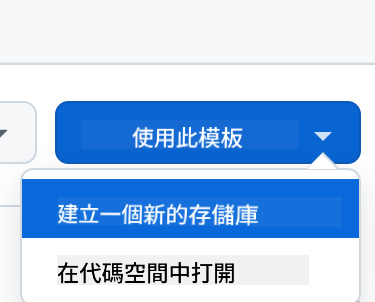
- 導航到 Web Dev For Beginners repository
- 點擊右上角的 "Use this template"(確保你已登錄 GitHub)
步驟 2:啟動 Codespaces
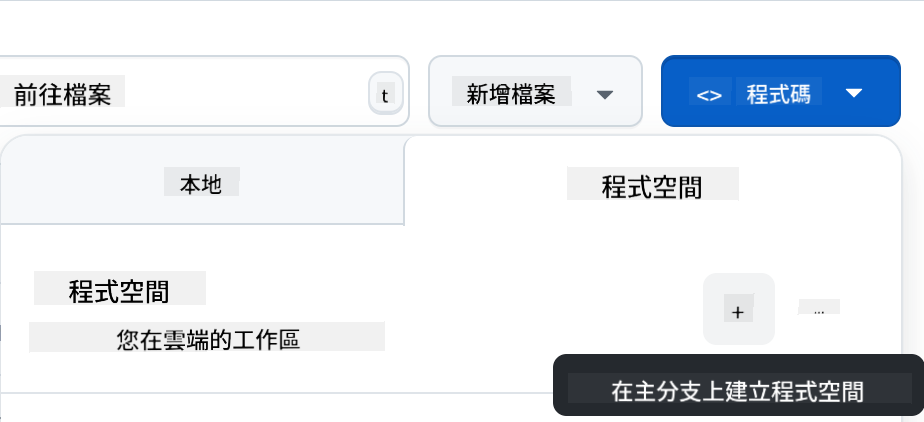
- 打開你新創建的倉庫
- 點擊綠色的 "Code" 按鈕並選擇 "Codespaces"
- 選擇 "Create codespace on main" 以啟動你的開發環境
步驟 3:環境配置
當你的 Codespace 加載完成後,你將擁有以下功能:
- 預先安裝的 Python、Node.js 和所有必要的開發工具
- VS Code 界面,配有網頁開發擴展
- 終端訪問,用於運行後端和前端服務器
- 端口轉發,用於測試你的應用
Codespaces 提供的功能:
- 消除本地環境設置和配置問題
- 提供跨不同設備的一致開發環境
- 包含預配置的工具和擴展,用於網頁開發
- 提供與 GitHub 的無縫集成,用於版本控制和協作
🚀 專業提示:Codespaces 是學習和原型設計人工智能應用的理想選擇,因為它自動處理所有複雜的環境設置,讓你專注於構建和學習,而不是配置故障排除。
免責聲明:
本文件已使用 AI 翻譯服務 Co-op Translator 進行翻譯。儘管我們努力確保翻譯的準確性,但請注意,自動翻譯可能包含錯誤或不準確之處。原始文件的母語版本應被視為權威來源。對於關鍵信息,建議使用專業人工翻譯。我們對因使用此翻譯而產生的任何誤解或誤釋不承擔責任。