
 chris
5bac96af11
chris
5bac96af11
|
10 months ago | |
|---|---|---|
| .. | ||
| README.md | 10 months ago | |
| assignment.md | 10 months ago | |
README.md
Introduction to Programming Languages and Modern Developer Tools
Welcome to the exciting world of programming! This lesson will introduce you to the fundamental concepts that power every website, app, and digital experience you use daily. You'll discover what programming languages are, how they work, and why they're the building blocks of our digital world.
Programming might seem mysterious at first, but think of it as learning a new language – one that lets you communicate with computers and bring your creative ideas to life. Whether you want to build websites, create mobile apps, or automate everyday tasks, understanding programming languages is your first step toward digital creativity and problem-solving.
In this lesson, you'll explore the essential tools that modern web developers use every day. From code editors that help you write clean, efficient code to browsers that let you test and debug your creations, you'll get hands-on experience with the same professional tools used by developers at top tech companies worldwide.
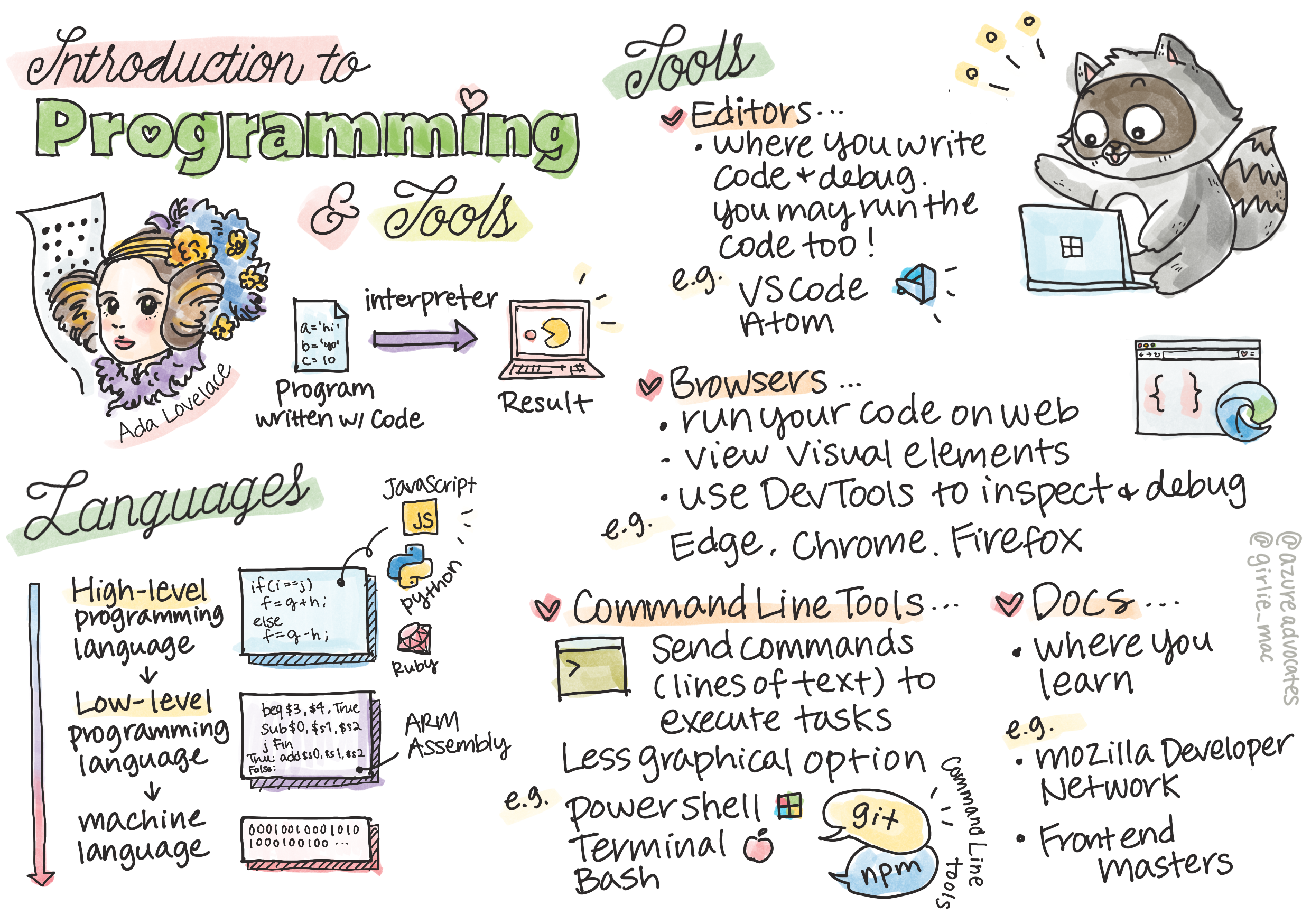
Sketchnote by Tomomi Imura
Pre-Lecture Quiz
What You'll Learn
In this comprehensive introduction, you'll discover:
- What programming is and why it matters – Understanding the role of programming in creating digital solutions
- Types of programming languages and their uses – Exploring the landscape of languages from JavaScript to Python
- Basic elements of a program – Learning the fundamental building blocks that make code work
- Modern software and tooling for professional developers – Getting hands-on with the same tools used in the industry
💡 Learning Tip: Don't worry about memorizing everything! Focus on understanding the concepts – you'll practice and reinforce these ideas throughout the entire curriculum.
You can take this lesson on Microsoft Learn!
What is Programming?
Programming (also known as coding or software development) is the process of creating instructions that tell a computer, smartphone, or any digital device exactly what to do. Think of it like writing a very detailed recipe – except instead of making cookies, you're creating websites, games, mobile apps, or even smart home controls.
These instructions are written in special languages called programming languages, which act as a bridge between human thinking and computer processing. While computers only understand binary code (1s and 0s), programming languages let us write instructions in a way that's much more readable and logical for humans.
Every digital experience you interact with started as someone's code: the social media app you scroll through, the GPS that guides your drive, even the simple calculator on your phone. When you learn to program, you're learning to create these digital solutions that can solve real problems and make life easier for millions of people.
✅ Quick Research Challenge: Who is considered to have been the world's first computer programmer? Take a moment to look this up – the answer might surprise you!
Programming Languages
Just as humans speak different languages like English, Spanish, or Mandarin, computers can understand different programming languages. Each programming language has its own syntax (grammar rules) and is designed for specific types of tasks, making some languages better suited for certain jobs than others.
Programming languages serve as translators between human ideas and computer actions. They allow developers to write instructions that are both human-readable and computer-executable. When you write code in a programming language, special software converts your instructions into the binary code that computers actually understand.
Popular Programming Languages and Their Uses
| Language | Best For | Why It's Popular |
|---|---|---|
| JavaScript | Web development, user interfaces | Runs in browsers and powers interactive websites |
| Python | Data science, automation, AI | Easy to read and learn, powerful libraries |
| Java | Enterprise applications, Android apps | Platform-independent, robust for large systems |
| C# | Windows applications, game development | Strong Microsoft ecosystem support |
| Go | Cloud services, backend systems | Fast, simple, designed for modern computing |
High-Level vs. Low-Level Languages
Programming languages exist on a spectrum from low-level (closer to machine code) to high-level (closer to human language):
- Low-level languages (like Assembly or C) require fewer translation steps but are harder for humans to read and write
- High-level languages (like JavaScript, Python, or C#) are more readable and have larger communities, making them ideal for most modern development
💡 Think of it this way: Low-level languages are like speaking directly to the computer in its native dialect, while high-level languages are like having a skilled interpreter who translates your everyday language into computer-speak.
Comparing Programming Languages in Action
To illustrate the difference between high-level and low-level languages, let's look at the same task written in two different ways. Both code examples below generate the famous Fibonacci sequence (where each number is the sum of the two preceding ones: 0, 1, 1, 2, 3, 5, 8, 13, 21, 34...).
High-level language (JavaScript) – Human-friendly:
// Step 1: Basic Fibonacci setup
const fibonacciCount = 10;
let current = 0;
let next = 1;

console.log('Fibonacci sequence:');
Here's what this code does:
- Declare a constant to specify how many Fibonacci numbers we want to generate
- Initialize two variables to track the current and next numbers in the sequence
- Set up the starting values (0 and 1) that define the Fibonacci pattern
- Display a header message to identify our output
// Step 2: Generate the sequence with a loop
for (let i = 0; i < fibonacciCount; i++) {
  console.log(`Position ${i + 1}: ${current}`);

  // Calculate next number in sequence
  const sum = current + next;
  current = next;
  next = sum;
}
Breaking down what happens here:
- Loop through each position in our sequence using a
forloop - Display each number with its position using template literal formatting
- Calculate the next Fibonacci number by adding current and next values
- Update our tracking variables to move to the next iteration
// Step 3: Modern functional approach
const generateFibonacci = (count) => {
  const sequence = [0, 1];

  for (let i = 2; i < count; i++) {
    sequence[i] = sequence[i - 1] + sequence[i - 2];
  }

  return sequence;
};

// Usage example
const fibSequence = generateFibonacci(10);
console.log(fibSequence);
In the above, we've:
- Created a reusable function using modern arrow function syntax
- Built an array to store the complete sequence rather than displaying one by one
- Used array indexing to calculate each new number from previous values
- Returned the complete sequence for flexible use in other parts of our program
Low-level language (ARM Assembly) – Computer-friendly:
 area ascen,code,readonly
 entry
 code32
 adr r0,thumb+1
 bx r0
 code16
thumb
 mov r0,#00
 sub r0,r0,#01
 mov r1,#01
 mov r4,#10
 ldr r2,=0x40000000
back add r0,r1
 str r0,[r2]
 add r2,#04
 mov r3,r0
 mov r0,r1
 mov r1,r3
 sub r4,#01
 cmp r4,#00
 bne back
 end
Notice how the JavaScript version reads almost like English instructions, while the Assembly version uses cryptic commands that directly control the computer's processor. Both accomplish the exact same task, but the high-level language is much easier for humans to understand, write, and maintain.
Key differences you'll notice:
- Readability: JavaScript uses descriptive names like
fibonacciCountwhile Assembly uses cryptic labels liker0,r1 - Comments: High-level languages encourage explanatory comments that make code self-documenting
- Structure: JavaScript's logical flow matches how humans think about problems step-by-step
- Maintenance: Updating the JavaScript version for different requirements is straightforward and clear
✅ A Fibonacci sequence is defined as a set of numbers where each number is the sum of the two preceding ones, starting from 0 and 1. This mathematical pattern appears frequently in nature, from flower petals to spiral shells!
Elements of a Program
Now that you understand what programming languages are, let's explore the fundamental building blocks that make up any program. Think of these elements as the grammar and vocabulary of programming – once you understand these concepts, you'll be able to read and write code in any language.
Statements: The Basic Instructions
A statement is a single instruction in a program, like a sentence in human language. Each statement tells the computer to perform one specific action. Just as sentences end with periods, statements have specific ways to indicate where one instruction ends and the next begins (this varies by programming language).
// Basic statements that perform single actions
const userName = "Alex";
console.log("Hello, world!");
const sum = 5 + 3;
Here's what this code does:
- Declare a constant variable to store a user's name
- Display a greeting message to the console output
- Calculate and store the result of a mathematical operation
// Statements that interact with web pages
document.title = "My Awesome Website";
document.body.style.backgroundColor = "lightblue";
Step by step, here's what's happening:
- Modify the webpage's title that appears in the browser tab
- Change the background color of the entire page body
Variables: Storing Information
Variables are like labeled containers that hold information your program needs to remember. Just as you might write a grocery list on paper and refer back to it, variables let programs store data and use it later. Variables have unique names and their contents can change as the program runs.
// Step 1: Creating basic variables
const siteName = "Weather Dashboard";
let currentWeather = "sunny";
let temperature = 75;
let isRaining = false;
Understanding these concepts:
- Store unchanging values in
constvariables (like site name) - Use
letfor values that can change throughout your program - Assign different data types: strings (text), numbers, and booleans (true/false)
- Choose descriptive names that explain what each variable contains
// Step 2: Working with objects to group related data
const weatherData = {
  location: "San Francisco",
  humidity: 65,
  windSpeed: 12
};
In the above, we've:
- Created an object to group related weather information together
- Organized multiple pieces of data under one variable name
- Used key-value pairs to label each piece of information clearly
// Step 3: Using and updating variables
console.log(`${siteName}: Today is ${currentWeather} and ${temperature}°F`);
console.log(`Wind speed: ${weatherData.windSpeed} mph`);

// Updating changeable variables
currentWeather = "cloudy";
temperature = 68;
Let's understand each part:
- Display information using template literals with
${}syntax - Access object properties using dot notation (
weatherData.windSpeed) - Update variables declared with
letto reflect changing conditions - Combine multiple variables to create meaningful messages
// Step 4: Modern destructuring for cleaner code
const { location, humidity } = weatherData;
console.log(`${location} humidity: ${humidity}%`);
What you need to know:
- Extract specific properties from objects using destructuring assignment
- Create new variables automatically with the same names as object keys
- Simplify code by avoiding repetitive dot notation
Control Flow: Making Decisions
Programs often need to make decisions based on different situations. Control flow statements (like if...else) allow programs to choose different paths, making them smart and responsive to changing conditions.
// Step 1: Basic conditional logic
const userAge = 17;

if (userAge >= 18) {
  console.log("You can vote!");
} else {
  const yearsToWait = 18 - userAge;
  console.log(`You'll be able to vote in ${yearsToWait} year(s).`);
}
Here's what this code does:
- Check if the user's age meets the voting requirement
- Execute different code blocks based on the condition result
- Calculate and display how long until voting eligibility if under 18
- Provide specific, helpful feedback for each scenario
// Step 2: Multiple conditions with logical operators
const userAge = 17;
const hasPermission = true;

if (userAge >= 18 && hasPermission) {
  console.log("Access granted: You can enter the venue.");
} else if (userAge >= 16) {
  console.log("You need parent permission to enter.");
} else {
  console.log("Sorry, you must be at least 16 years old.");
}
Breaking down what happens here:
- Combine multiple conditions using the
&&(and) operator - Create a hierarchy of conditions using
else iffor multiple scenarios - Handle all possible cases with a final
elsestatement - Provide clear, actionable feedback for each different situation
// Step 3: Concise conditional with ternary operator
const votingStatus = userAge >= 18 ? "Can vote" : "Cannot vote yet";
console.log(`Status: ${votingStatus}`);
What you need to remember:
- Use the ternary operator (
? :) for simple two-option conditions - Write condition first, followed by
?, then true result, then:, then false result - Apply this pattern when you need to assign values based on conditions
// Step 4: Handling multiple specific cases
const dayOfWeek = "Tuesday";

switch (dayOfWeek) {
  case "Monday":
  case "Tuesday":
  case "Wednesday":
  case "Thursday":
  case "Friday":
    console.log("It's a weekday - time to work!");
    break;
  case "Saturday":
  case "Sunday":
    console.log("It's the weekend - time to relax!");
    break;
  default:
    console.log("Invalid day of the week");
}
This code accomplishes the following:
- Match the variable value against multiple specific cases
- Group similar cases together (weekdays vs. weekends)
- Execute the appropriate code block when a match is found
- Include a
defaultcase to handle unexpected values - Use
breakstatements to prevent code from continuing to the next case
💡 Real-world analogy: Think of control flow like a GPS giving you directions. It might say "If there's traffic on Main Street, take the highway instead." Programs use the same type of conditional logic to respond to different situations.
✅ Coming up: You'll dive deeper into these concepts and learn how to use them effectively in the upcoming lessons. Don't worry about memorizing everything now – focus on understanding the big picture!
Tools of the Trade
Just as a carpenter needs quality tools to build beautiful furniture, web developers rely on specialized software and workflows to create amazing digital experiences. In this section, you'll discover the essential tools that professional developers use every day – and the best part is, many of these powerful tools are completely free!
The modern web development landscape has been transformed by innovative tools like AI-powered code assistants (such as GitHub Copilot), cloud-based development environments, and sophisticated debugging tools. These technologies have made it easier than ever to learn programming and build professional-quality applications.
As you progress in your web development journey, you'll discover that having the right tools can dramatically improve your productivity, help you catch errors before they become problems, and make coding more enjoyable and efficient.
Code Editors and IDEs: Your Digital Workshop
Think of a code editor as your digital workshop – it's where you'll spend most of your time crafting, testing, and perfecting your code. Modern editors and Integrated Development Environments (IDEs) are far more than simple text editors; they're intelligent assistants that help you write better code faster.
What makes modern editors so powerful?
Modern code editors offer an impressive array of features designed to boost your productivity:
| Feature | What It Does | Why It Helps |
|---|---|---|
| Syntax Highlighting | Colors different parts of your code | Makes code easier to read and spot errors |
| Auto-completion | Suggests code as you type | Speeds up coding and reduces typos |
| Debugging Tools | Helps you find and fix errors | Saves hours of troubleshooting time |
| Extensions | Add specialized features | Customize your editor for any technology |
| AI Assistants | Suggest code and explanations | Accelerates learning and productivity |
🎥 Video Resource: Want to see these tools in action? Check out this Tools of the Trade video for a comprehensive overview.
Recommended Editors for Web Development
Visual Studio Code (Free)
- Most popular among web developers
- Excellent extension ecosystem
- Built-in terminal and Git integration
- Must-have extensions:
- GitHub Copilot - AI-powered code suggestions
- Live Share - Real-time collaboration
- Prettier - Automatic code formatting
- Code Spell Checker - Catch typos in your code
JetBrains WebStorm (Paid, free for students)
- Advanced debugging and testing tools
- Intelligent code completion
- Built-in version control
Cloud-Based IDEs (Various pricing)
- GitHub Codespaces - Full VS Code in your browser
- Replit - Great for learning and sharing code
- StackBlitz - Instant, full-stack web development
💡 Getting Started Tip: Start with Visual Studio Code – it's free, widely used in the industry, and has an enormous community creating helpful tutorials and extensions.
Web Browsers: Your Testing Laboratory
Web browsers are much more than tools for browsing the internet – they're sophisticated development environments that help you build, test, and optimize web applications. Every modern browser includes powerful developer tools (DevTools) that provide deep insights into how your code performs.
Why browsers are essential for web development:
When you create a website or web application, you need to see how it looks and behaves in the real world. Browsers not only display your work but also provide detailed feedback about performance, accessibility, and potential issues.
Browser Developer Tools (DevTools)
Modern browsers include comprehensive development suites:
| Tool Category | What It Does | Example Use Case |
|---|---|---|
| Element Inspector | View and edit HTML/CSS in real-time | Adjust styling to see immediate results |
| Console | View error messages and test JavaScript | Debug problems and experiment with code |
| Network Monitor | Track how resources load | Optimize performance and loading times |
| Accessibility Checker | Test for inclusive design | Ensure your site works for all users |
| Device Simulator | Preview on different screen sizes | Test responsive design without multiple devices |
Recommended Browsers for Development
- Chrome - Industry-standard DevTools with extensive documentation
- Firefox - Excellent CSS Grid and accessibility tools
- Edge - Built on Chromium with Microsoft's developer resources
⚠️ Important Testing Tip: Always test your websites in multiple browsers! What works perfectly in Chrome might look different in Safari or Firefox. Professional developers test across all major browsers to ensure consistent user experiences.
Command Line Tools: The Power User's Gateway
The command line (also called terminal or shell) might look intimidating at first – it's just a black screen with text! But don't let its simple appearance fool you. The command line is one of the most powerful tools in a developer's toolkit, allowing you to perform complex tasks with simple text commands.
Why developers love the command line:
While graphical interfaces are great for many tasks, the command line excels at automation, precision, and speed. Many development tools work primarily through command line interfaces, and learning to use them efficiently can dramatically improve your productivity.
# Step 1: Create and navigate to project directory
mkdir my-awesome-website
cd my-awesome-website
Here's what this code does:
- Create a new directory called "my-awesome-website" for your project
- Navigate into the newly created directory to begin working
# Step 2: Initialize project with package.json
npm init -y

# Install modern development tools
npm install --save-dev vite prettier eslint
npm install --save-dev @eslint/js
Step by step, here's what's happening:
- Initialize a new Node.js project with default settings using
npm init -y - Install Vite as a modern build tool for fast development and production builds
- Add Prettier for automatic code formatting and ESLint for code quality checks
- Use the
--save-devflag to mark these as development-only dependencies
# Step 3: Create project structure and files
mkdir src assets
echo '<!DOCTYPE html><html><head><title>My Site</title></head><body><h1>Hello World</h1></body></html>' > index.html

# Start development server
npx vite
In the above, we've:
- Organized our project by creating separate folders for source code and assets
- Generated a basic HTML file with proper document structure
- Started the Vite development server for live reloading and hot module replacement
Essential Command Line Tools for Web Development
| Tool | Purpose | Why You Need It |
|---|---|---|
| Git | Version control | Track changes, collaborate with others, backup your work |
| Node.js & npm | JavaScript runtime & package management | Run JavaScript outside browsers, install modern development tools |
| Vite | Build tool & dev server | Lightning-fast development with hot module replacement |
| ESLint | Code quality | Automatically find and fix problems in your JavaScript |
| Prettier | Code formatting | Keep your code consistently formatted and readable |
Platform-Specific Options
Windows:
- Windows Terminal - Modern, feature-rich terminal
- PowerShell 💻 - Powerful scripting environment
- Command Prompt 💻 - Traditional Windows command line
macOS:
Linux:
- Bash 💻 - Standard Linux shell
- KDE Konsole - Advanced terminal emulator
💻 = Pre-installed on the operating system
🎯 Learning Path: Start with basic commands like
cd(change directory),lsordir(list files), andmkdir(create folder). Practice with modern workflow commands likenpm install,git status, andcode .(opens current directory in VS Code). As you become more comfortable, you'll naturally pick up more advanced commands and automation techniques.
Documentation: Your Learning Compass
Documentation is like having a knowledgeable mentor available 24/7. When you encounter new concepts, need to understand how a tool works, or want to explore advanced features, high-quality documentation becomes your roadmap to success.
Why documentation matters:
Professional developers spend a significant portion of their time reading documentation – not because they don't know what they're doing, but because the web development landscape evolves so rapidly that staying current requires continuous learning. Great documentation helps you understand not just how to use something, but why and when to use it.
Essential Documentation Resources
Mozilla Developer Network (MDN)
- The gold standard for web technology documentation
- Comprehensive guides for HTML, CSS, and JavaScript
- Includes browser compatibility information
- Features practical examples and interactive demos
Web.dev (by Google)
- Modern web development best practices
- Performance optimization guides
- Accessibility and inclusive design principles
- Case studies from real-world projects
Microsoft Developer Documentation
- Edge browser development resources
- Progressive Web App guides
- Cross-platform development insights
Frontend Masters Learning Paths
- Structured learning curricula
- Video courses from industry experts
- Hands-on coding exercises
📚 Study Strategy: Don't try to memorize documentation – instead, learn how to navigate it efficiently. Bookmark frequently-used references and practice using the search functions to find specific information quickly.
✅ Reflection Exercise: Think about how web development tools might differ from web design tools. Consider how accessibility features, responsive design capabilities, and collaborative workflows might vary between the two roles. This comparison will help you understand the broader ecosystem of web creation!
GitHub Copilot Agent Challenge 🚀
Use the Agent mode to complete the following challenge:
Description: Explore the features of a modern code editor or IDE and demonstrate how it can improve your workflow as a web developer.
Prompt: Choose a code editor or IDE (such as Visual Studio Code, WebStorm, or a cloud-based IDE). List three features or extensions that help you write, debug, or maintain code more efficiently. For each, provide a brief explanation of how it benefits your workflow.
🚀 Challenge
Explore Programming Language Diversity
Now that you understand the basics of programming languages, dive deeper into their unique characteristics and use cases. Choose three programming languages from different categories (e.g., web development, mobile development, data science, systems programming) and research their distinctive features.
Your task:
- Compare syntax styles: Find the same simple task (like creating a variable or printing "Hello World") written in your chosen languages
- Identify unique strengths: What makes each language special? What problems is it designed to solve?
- Explore communities: Look at the size and activity of each language's developer community
- Consider learning paths: Which language seems most approachable for a beginner, and why?
Bonus challenge: Try to find examples of major websites, apps, or systems built with each language. You might be surprised by what powers your favorite digital experiences!
💡 Learning tip: Don't worry about understanding all the syntax details – focus on recognizing patterns and differences in how each language approaches problem-solving.
Post-Lecture Quiz
Review & Self Study
Deepen Your Understanding
Take time to explore the concepts you've learned by diving deeper into the tools and languages that interest you most:
Programming Language Exploration:
- Visit the official websites of 2-3 programming languages mentioned in this lesson
- Try online coding playgrounds like CodePen, JSFiddle, or Replit to experiment with simple code
- Read about the history and creators of your favorite programming language – understanding the "why" behind a language's design helps you use it more effectively
Tool Familiarization:
- Download and install Visual Studio Code (if you haven't already)
- Explore the Extensions marketplace and install a few recommended extensions
- Open your browser's Developer Tools and spend a few minutes exploring the different tabs and features
Community Connection:
- Follow developer communities on platforms like Dev.to, Stack Overflow, or GitHub
- Watch beginner-friendly programming videos on YouTube or coding tutorial platforms
- Consider joining local meetups or online communities focused on web development
🎯 Remember: The goal isn't to master everything immediately, but to build familiarity with the landscape of tools and concepts you'll encounter as you continue learning web development.
Assignment
Note: When selecting tools for your assignment, do not choose editors, browsers, or command line tools already listed above. Focus on tools that are current, widely used, and have strong community or official support.