
 chris
fe82727158
chris
fe82727158
|
1 month ago | |
|---|---|---|
| .. | ||
| images | 5 years ago | |
| README.md | 1 month ago | |
| assignment.md | 1 month ago | |
README.md
Build a Banking App Part 2: Build a Login and Registration Form
Pre-Lecture Quiz
Ever filled out a form online and had it reject your email format? Or lost all your information when you clicked submit? We've all encountered these frustrating experiences.
Forms are the bridge between your users and your application's functionality. Like the careful protocols that air traffic controllers use to guide planes safely to their destinations, well-designed forms provide clear feedback and prevent costly errors. Poor forms, on the other hand, can drive users away faster than a miscommunication in a busy airport.
In this lesson, we'll transform your static banking app into an interactive application. You'll learn to build forms that validate user input, communicate with servers, and provide helpful feedback. Think of it as building the control interface that lets users navigate your application's features.
By the end, you'll have a complete login and registration system with validation that guides users toward success rather than frustration.
Prerequisites
Before we start building forms, let's make sure you've got everything set up correctly. This lesson picks up right where we left off in the previous one, so if you skipped ahead, you might want to go back and get the basics working first.
Required Setup
| Component | Status | Description |
|---|---|---|
| HTML Templates | ✅ Required | Your basic banking app structure |
| Node.js | ✅ Required | JavaScript runtime for the server |
| Bank API Server | ✅ Required | Backend service for data storage |
💡 Development Tip: You'll be running two separate servers simultaneously – one for your front-end banking app and another for the backend API. This setup mirrors real-world development where frontend and backend services operate independently.
Server Configuration
Your development environment will include:
- Frontend server: Serves your banking app (typically port
3000) - Backend API server: Handles data storage and retrieval (port
5000) - Both servers can run simultaneously without conflicts
Testing your API connection:
curl http://localhost:5000/api
# Expected response: "Bank API v1.0.0"
If you see the API version response, you're ready to proceed!
Understanding HTML Forms and Controls
HTML forms are how users communicate with your web application. Think of them as the telegraph system that connected distant places in the 19th century – they're the communication protocol between user intent and application response. When designed thoughtfully, they catch errors, guide input formatting, and provide helpful suggestions.
Modern forms are significantly more sophisticated than basic text inputs. HTML5 introduced specialized input types that handle email validation, number formatting, and date selection automatically. These improvements benefit both accessibility and mobile user experiences.
Essential Form Elements
Building blocks every form needs:
<!-- Basic form structure -->
<form id="userForm" method="POST">
  <label for="username">Username</label>
  <input id="username" name="username" type="text" required>

  <button type="submit">Submit</button>
</form>
Here's what this code does:
- Creates a form container with a unique identifier
- Specifies the HTTP method for data submission
- Associates labels with inputs for accessibility
- Defines a submit button to process the form
Modern Input Types and Attributes
| Input Type | Purpose | Example Usage |
|---|---|---|
text |
General text input | <input type="text" name="username"> |
email |
Email validation | <input type="email" name="email"> |
password |
Hidden text entry | <input type="password" name="password"> |
number |
Numeric input | <input type="number" name="balance" min="0"> |
tel |
Phone numbers | <input type="tel" name="phone"> |
💡 Modern HTML5 Advantage: Using specific input types provides automatic validation, appropriate mobile keyboards, and better accessibility support without additional JavaScript!
Button Types and Behavior
<!-- Different button behaviors -->
<button type="submit">Save Data</button>     <!-- Submits the form -->
<button type="reset">Clear Form</button>    <!-- Resets all fields -->
<button type="button">Custom Action</button> <!-- No default behavior -->
Here's what each button type does:
- Submit buttons: Trigger form submission and send data to the specified endpoint
- Reset buttons: Restore all form fields to their initial state
- Regular buttons: Provide no default behavior, requiring custom JavaScript for functionality
⚠️ Important Note: The
<input>element is self-closing and doesn't require a closing tag. Modern best practice is to write<input>without the slash.
Building Your Login Form
Now let's create a practical login form that demonstrates modern HTML form practices. We'll start with a basic structure and gradually enhance it with accessibility features and validation.
<template id="login">
  <h1>Bank App</h1>
  <section>
    <h2>Login</h2>
    <form id="loginForm" novalidate>
      <div class="form-group">
        <label for="username">Username</label>
        <input id="username" name="user" type="text" required
               autocomplete="username" placeholder="Enter your username">
      </div>
      <button type="submit">Login</button>
    </form>
  </section>
</template>
Breaking down what happens here:
- Structures the form with semantic HTML5 elements
- Groups related elements using
divcontainers with meaningful classes - Associates labels with inputs using the
forandidattributes - Includes modern attributes like
autocompleteandplaceholderfor better UX - Adds
novalidateto handle validation with JavaScript instead of browser defaults
The Power of Proper Labels
Why labels matter for modern web development:
graph TD
    A[Label Element] --> B[Screen Reader Support]
    A --> C[Click Target Expansion]
    A --> D[Form Validation]
    A --> E[SEO Benefits]

    B --> F[Accessible to all users]
    C --> G[Better mobile experience]
    D --> H[Clear error messaging]
    E --> I[Better search ranking]
What proper labels accomplish:
- Enables screen readers to announce form fields clearly
- Expands the clickable area (clicking the label focuses the input)
- Improves mobile usability with larger touch targets
- Supports form validation with meaningful error messages
- Enhances SEO by providing semantic meaning to form elements
🎯 Accessibility Goal: Every form input should have an associated label. This simple practice makes your forms usable by everyone, including users with disabilities, and improves the experience for all users.
Creating the Registration Form
The registration form requires more detailed information to create a complete user account. Let's build it with modern HTML5 features and enhanced accessibility.
<hr/>
<h2>Register</h2>
<form id="registerForm" novalidate>
  <div class="form-group">
    <label for="user">Username</label>
    <input id="user" name="user" type="text" required
           autocomplete="username" placeholder="Choose a username">
  </div>

  <div class="form-group">
    <label for="currency">Currency</label>
    <input id="currency" name="currency" type="text" value="$"
           required maxlength="3" placeholder="USD, EUR, etc.">
  </div>

  <div class="form-group">
    <label for="description">Account Description</label>
    <input id="description" name="description" type="text"
           maxlength="100" placeholder="Personal savings, checking, etc.">
  </div>

  <div class="form-group">
    <label for="balance">Starting Balance</label>
    <input id="balance" name="balance" type="number" value="0"
           min="0" step="0.01" placeholder="0.00">
  </div>

  <button type="submit">Create Account</button>
</form>
In the above, we've:
- Organized each field in container divs for better styling and layout
- Added appropriate
autocompleteattributes for browser autofill support - Included helpful placeholder text to guide user input
- Set sensible defaults using the
valueattribute - Applied validation attributes like
required,maxlength, andmin - Used
type="number"for the balance field with decimal support
Exploring Input Types and Behavior
Modern input types provide enhanced functionality:
| Feature | Benefit | Example |
|---|---|---|
type="number" |
Numeric keypad on mobile | Easier balance entry |
step="0.01" |
Decimal precision control | Allows cents in currency |
autocomplete |
Browser autofill | Faster form completion |
placeholder |
Contextual hints | Guides user expectations |
🎯 Accessibility Challenge: Try navigating the forms using only your keyboard! Use
Tabto move between fields,Spaceto check boxes, andEnterto submit. This experience helps you understand how screen reader users interact with your forms.
Understanding Form Submission Methods
When someone fills out your form and hits submit, that data needs to go somewhere – usually to a server that can save it. There are a couple of different ways this can happen, and knowing which one to use can save you from some headaches later.
Let's take a look at what actually happens when someone clicks that submit button.
Default Form Behavior
First, let's observe what happens with basic form submission:
Test your current forms:
- Click the Register button in your form
- Observe the changes in your browser's address bar
- Notice how the page reloads and data appears in the URL

HTTP Methods Comparison
graph TD
    A[Form Submission] --> B{HTTP Method}
    B -->|GET| C[Data in URL]
    B -->|POST| D[Data in Request Body]

    C --> E[Visible in address bar]
    C --> F[Limited data size]
    C --> G[Bookmarkable]

    D --> H[Hidden from URL]
    D --> I[Large data capacity]
    D --> J[More secure]
Understanding the differences:
| Method | Use Case | Data Location | Security Level | Size Limit |
|---|---|---|---|---|
GET |
Search queries, filters | URL parameters | Low (visible) | ~2000 characters |
POST |
User accounts, sensitive data | Request body | Higher (hidden) | No practical limit |
Understanding the fundamental differences:
- GET: Appends form data to the URL as query parameters (appropriate for search operations)
- POST: Includes data in the request body (essential for sensitive information)
- GET limitations: Size constraints, visible data, persistent browser history
- POST advantages: Large data capacity, privacy protection, file upload support
💡 Best Practice: Use
GETfor search forms and filters (data retrieval), usePOSTfor user registration, login, and data creation.
Configuring Form Submission
Let's configure your registration form to communicate properly with the backend API using the POST method:
<form id="registerForm" action="//localhost:5000/api/accounts"
      method="POST" novalidate>
Here's what this configuration does:
- Directs form submission to your API endpoint
- Uses POST method for secure data transmission
- Includes
novalidateto handle validation with JavaScript
Testing Form Submission
Follow these steps to test your form:
- Fill out the registration form with your information
- Click the "Create Account" button
- Observe the server response in your browser
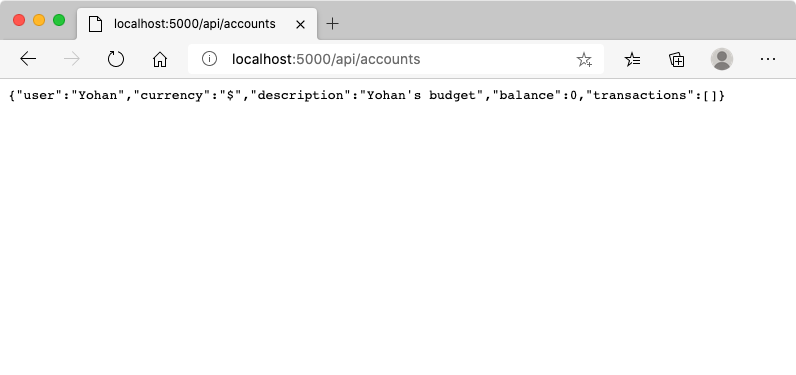
What you should see:
- Browser redirects to the API endpoint URL
- JSON response containing your newly created account data
- Server confirmation that the account was successfully created
🧪 Experiment Time: Try registering again with the same username. What response do you get? This helps you understand how the server handles duplicate data and error conditions.
Understanding JSON Responses
When the server processes your form successfully:
{
  "user": "john_doe",
  "currency": "$",
  "description": "Personal savings",
  "balance": 100,
  "id": "unique_account_id"
}
This response confirms:
- Creates a new account with your specified data
- Assigns a unique identifier for future reference
- Returns all account information for verification
- Indicates successful database storage
Modern Form Handling with JavaScript
Traditional form submissions cause full page reloads, similar to how early space missions required complete system resets for course corrections. This approach disrupts the user experience and loses application state.
JavaScript form handling works like the continuous guidance systems used by modern spacecraft – making real-time adjustments without losing navigation context. We can intercept form submissions, provide immediate feedback, handle errors gracefully, and update the interface based on server responses while maintaining the user's position in the application.
Why Avoid Page Reloads?
sequenceDiagram
    participant User
    participant SPA
    participant Server

    User->>SPA: Submits form
    SPA->>Server: AJAX request
    Server-->>SPA: JSON response
    SPA->>User: Updates interface

    Note over User,SPA: No page reload!
Benefits of JavaScript form handling:
- Maintains application state and user context
- Provides instant feedback and loading indicators
- Enables dynamic error handling and validation
- Creates smooth, app-like user experiences
- Allows conditional logic based on server responses
Transitioning from Traditional to Modern Forms
Traditional approach challenges:
- Redirects users away from your application
- Loses current application state and context
- Requires full page reloads for simple operations
- Provides limited control over user feedback
Modern JavaScript approach advantages:
- Keeps users within your application
- Maintains all application state and data
- Enables real-time validation and feedback
- Supports progressive enhancement and accessibility
Implementing JavaScript Form Handling
Let's replace the traditional form submission with modern JavaScript event handling:
<!-- Remove the action attribute and add event handling -->
<form id="registerForm" method="POST" novalidate>
Add the registration logic to your app.js file:
// Modern event-driven form handling
function register() {
  const registerForm = document.getElementById('registerForm');
  const formData = new FormData(registerForm);
  const data = Object.fromEntries(formData);
  const jsonData = JSON.stringify(data);

  console.log('Form data prepared:', data);
}

// Attach event listener when the page loads
document.addEventListener('DOMContentLoaded', () => {
  const registerForm = document.getElementById('registerForm');
  registerForm.addEventListener('submit', (event) => {
    event.preventDefault(); // Prevent default form submission
    register();
  });
});
Breaking down what happens here:
- Prevents default form submission using
event.preventDefault() - Retrieves the form element using modern DOM selection
- Extracts form data using the powerful
FormDataAPI - Converts FormData to a plain object with
Object.fromEntries() - Serializes the data to JSON format for server communication
- Logs the processed data for debugging and verification
Understanding the FormData API
The FormData API provides powerful form handling:
// Example of what FormData captures
const formData = new FormData(registerForm);

// FormData automatically captures:
// {
//   "user": "john_doe",
//   "currency": "$",
//   "description": "Personal account",
//   "balance": "100"
// }
FormData API advantages:
- Comprehensive collection: Captures all form elements including text, files, and complex inputs
- Type awareness: Handles different input types automatically without custom coding
- Efficiency: Eliminates manual field collection with single API call
- Adaptability: Maintains functionality as form structure evolves
Creating the Server Communication Function
Now let's build a robust function to communicate with your API server using modern JavaScript patterns:
async function createAccount(account) {
  try {
    const response = await fetch('//localhost:5000/api/accounts', {
      method: 'POST',
      headers: {
        'Content-Type': 'application/json',
        'Accept': 'application/json'
      },
      body: account
    });

    // Check if the response was successful
    if (!response.ok) {
      throw new Error(`HTTP error! status: ${response.status}`);
    }

    return await response.json();
  } catch (error) {
    console.error('Account creation failed:', error);
    return { error: error.message || 'Network error occurred' };
  }
}
Understanding asynchronous JavaScript:
sequenceDiagram
    participant JS as JavaScript
    participant Fetch as Fetch API
    participant Server as Backend Server

    JS->>Fetch: fetch() request
    Fetch->>Server: HTTP POST
    Server-->>Fetch: JSON response
    Fetch-->>JS: await response
    JS->>JS: Process data
What this modern implementation accomplishes:
- Uses
async/awaitfor readable asynchronous code - Includes proper error handling with try/catch blocks
- Checks response status before processing data
- Sets appropriate headers for JSON communication
- Provides detailed error messages for debugging
- Returns consistent data structure for success and error cases
The Power of Modern Fetch API
Fetch API advantages over older methods:
| Feature | Benefit | Implementation |
|---|---|---|
| Promise-based | Clean async code | await fetch() |
| Request customization | Full HTTP control | Headers, methods, body |
| Response handling | Flexible data parsing | .json(), .text(), .blob() |
| Error handling | Comprehensive error catching | Try/catch blocks |
🎥 Learn More: Async/Await Tutorial - Understanding asynchronous JavaScript patterns for modern web development.
Key concepts for server communication:
- Async functions allow pausing execution to wait for server responses
- Await keyword makes asynchronous code read like synchronous code
- Fetch API provides modern, promise-based HTTP requests
- Error handling ensures your app responds gracefully to network issues
Completing the Registration Function
Let's bring everything together with a complete, production-ready registration function:
async function register() {
  const registerForm = document.getElementById('registerForm');
  const submitButton = registerForm.querySelector('button[type="submit"]');

  try {
    // Show loading state
    submitButton.disabled = true;
    submitButton.textContent = 'Creating Account...';

    // Process form data
    const formData = new FormData(registerForm);
    const jsonData = JSON.stringify(Object.fromEntries(formData));

    // Send to server
    const result = await createAccount(jsonData);

    if (result.error) {
      console.error('Registration failed:', result.error);
      alert(`Registration failed: ${result.error}`);
      return;
    }

    console.log('Account created successfully!', result);
    alert(`Welcome, ${result.user}! Your account has been created.`);

    // Reset form after successful registration
    registerForm.reset();

  } catch (error) {
    console.error('Unexpected error:', error);
    alert('An unexpected error occurred. Please try again.');
  } finally {
    // Restore button state
    submitButton.disabled = false;
    submitButton.textContent = 'Create Account';
  }
}
This enhanced implementation includes:
- Provides visual feedback during form submission
- Disables the submit button to prevent duplicate submissions
- Handles both expected and unexpected errors gracefully
- Shows user-friendly success and error messages
- Resets the form after successful registration
- Restores UI state regardless of outcome
Testing Your Implementation
Open your browser developer tools and test the registration:
- Open the browser console (F12 → Console tab)
- Fill out the registration form
- Click "Create Account"
- Observe the console messages and user feedback
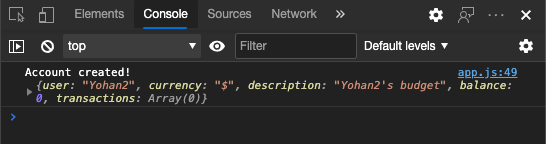
What you should see:
- Loading state appears on the submit button
- Console logs show detailed information about the process
- Success message appears when account creation succeeds
- Form resets automatically after successful submission
🔒 Security Consideration: Currently, data travels over HTTP, which is not secure for production. In real applications, always use HTTPS to encrypt data transmission. Learn more about HTTPS security and why it's essential for protecting user data.
Comprehensive Form Validation
Form validation prevents the frustrating experience of discovering errors only after submission. Like the multiple redundant systems on the International Space Station, effective validation employs multiple layers of safety checks.
The optimal approach combines browser-level validation for immediate feedback, JavaScript validation for enhanced user experience, and server-side validation for security and data integrity. This redundancy ensures both user satisfaction and system protection.
Understanding Validation Layers
graph TD
    A[User Input] --> B[HTML5 Validation]
    B --> C[Custom JavaScript Validation]
    C --> D[Client-Side Complete]
    D --> E[Server-Side Validation]
    E --> F[Data Storage]

    B -->|Invalid| G[Browser Error Message]
    C -->|Invalid| H[Custom Error Display]
    E -->|Invalid| I[Server Error Response]
Multi-layer validation strategy:
- HTML5 validation: Immediate browser-based checks
- JavaScript validation: Custom logic and user experience
- Server validation: Final security and data integrity checks
- Progressive enhancement: Works even if JavaScript is disabled
HTML5 Validation Attributes
Modern validation tools at your disposal:
| Attribute | Purpose | Example Usage | Browser Behavior |
|---|---|---|---|
required |
Mandatory fields | <input required> |
Prevents empty submission |
minlength/maxlength |
Text length limits | <input maxlength="20"> |
Enforces character limits |
min/max |
Numeric ranges | <input min="0" max="1000"> |
Validates number bounds |
pattern |
Custom regex rules | <input pattern="[A-Za-z]+"> |
Matches specific formats |
type |
Data type validation | <input type="email"> |
Format-specific validation |
CSS Validation Styling
Create visual feedback for validation states:
/* Valid input styling */
input:valid {
  border-color: #28a745;
  background-color: #f8fff9;
}

/* Invalid input styling */
input:invalid {
  border-color: #dc3545;
  background-color: #fff5f5;
}

/* Focus states for better accessibility */
input:focus:valid {
  box-shadow: 0 0 0 0.2rem rgba(40, 167, 69, 0.25);
}

input:focus:invalid {
  box-shadow: 0 0 0 0.2rem rgba(220, 53, 69, 0.25);
}
What these visual cues accomplish:
- Green borders: Indicate successful validation, like green lights in mission control
- Red borders: Signal validation errors requiring attention
- Focus highlights: Provide clear visual context for current input location
- Consistent styling: Establish predictable interface patterns users can learn
💡 Pro Tip: Use the
:validand:invalidCSS pseudo-classes to provide immediate visual feedback as users type, creating a responsive and helpful interface.
Implementing Comprehensive Validation
Let's enhance your registration form with robust validation that provides excellent user experience and data quality:
<form id="registerForm" method="POST" novalidate>
  <div class="form-group">
    <label for="user">Username <span class="required">*</span></label>
    <input id="user" name="user" type="text" required
           minlength="3" maxlength="20"
           pattern="[a-zA-Z0-9_]+"
           autocomplete="username"
           title="Username must be 3-20 characters, letters, numbers, and underscores only">
    <small class="form-text">Choose a unique username (3-20 characters)</small>
  </div>

  <div class="form-group">
    <label for="currency">Currency <span class="required">*</span></label>
    <input id="currency" name="currency" type="text" required
           value="$" maxlength="3"
           pattern="[A-Z$€£¥₹]+"
           title="Enter a valid currency symbol or code">
    <small class="form-text">Currency symbol (e.g., $, €, £)</small>
  </div>

  <div class="form-group">
    <label for="description">Account Description</label>
    <input id="description" name="description" type="text"
           maxlength="100"
           placeholder="Personal savings, checking, etc.">
    <small class="form-text">Optional description (up to 100 characters)</small>
  </div>

  <div class="form-group">
    <label for="balance">Starting Balance</label>
    <input id="balance" name="balance" type="number"
           value="0" min="0" step="0.01"
           title="Enter a positive number for your starting balance">
    <small class="form-text">Initial account balance (minimum $0.00)</small>
  </div>

  <button type="submit">Create Account</button>
</form>
Understanding the enhanced validation:
- Combines required field indicators with helpful descriptions
- Includes
patternattributes for format validation - Provides
titleattributes for accessibility and tooltips - Adds helper text to guide user input
- Uses semantic HTML structure for better accessibility
Advanced Validation Rules
What each validation rule accomplishes:
| Field | Validation Rules | User Benefit |
|---|---|---|
| Username | required, minlength="3", maxlength="20", pattern="[a-zA-Z0-9_]+" |
Ensures valid, unique identifiers |
| Currency | required, maxlength="3", pattern="[A-Z$€£¥₹]+" |
Accepts common currency symbols |
| Balance | min="0", step="0.01", type="number" |
Prevents negative balances |
| Description | maxlength="100" |
Reasonable length limits |
Testing Validation Behavior
Try these validation scenarios:
- Submit the form with empty required fields
- Enter a username shorter than 3 characters
- Try special characters in the username field
- Input a negative balance amount

What you'll observe:
- Browser displays native validation messages
- Styling changes based on
:validand:invalidstates - Form submission is prevented until all validations pass
- Focus automatically moves to the first invalid field
Client-Side vs Server-Side Validation
graph LR
    A[Client-Side Validation] --> B[Instant Feedback]
    A --> C[Better UX]
    A --> D[Reduced Server Load]

    E[Server-Side Validation] --> F[Security]
    E --> G[Data Integrity]
    E --> H[Business Rules]

    A -.-> I[Both Required]
    E -.-> I
Why you need both layers:
- Client-side validation: Provides immediate feedback and improves user experience
- Server-side validation: Ensures security and handles complex business rules
- Combined approach: Creates robust, user-friendly, and secure applications
- Progressive enhancement: Works even when JavaScript is disabled
🛡️ Security Reminder: Never trust client-side validation alone! Malicious users can bypass client-side checks, so server-side validation is essential for security and data integrity.
GitHub Copilot Agent Challenge 🚀
Use the Agent mode to complete the following challenge:
Description: Enhance the registration form with comprehensive client-side validation and user feedback. This challenge will help you practice form validation, error handling, and improving user experience with interactive feedback.
Prompt: Create a complete form validation system for the registration form that includes: 1) Real-time validation feedback for each field as the user types, 2) Custom validation messages that appear below each input field, 3) A password confirmation field with matching validation, 4) Visual indicators (like green checkmarks for valid fields and red warnings for invalid ones), 5) A submit button that only becomes enabled when all validations pass. Use HTML5 validation attributes, CSS for styling the validation states, and JavaScript for the interactive behavior.
Learn more about agent mode here.
🚀 Challenge
Show an error message in the HTML if the user already exists.
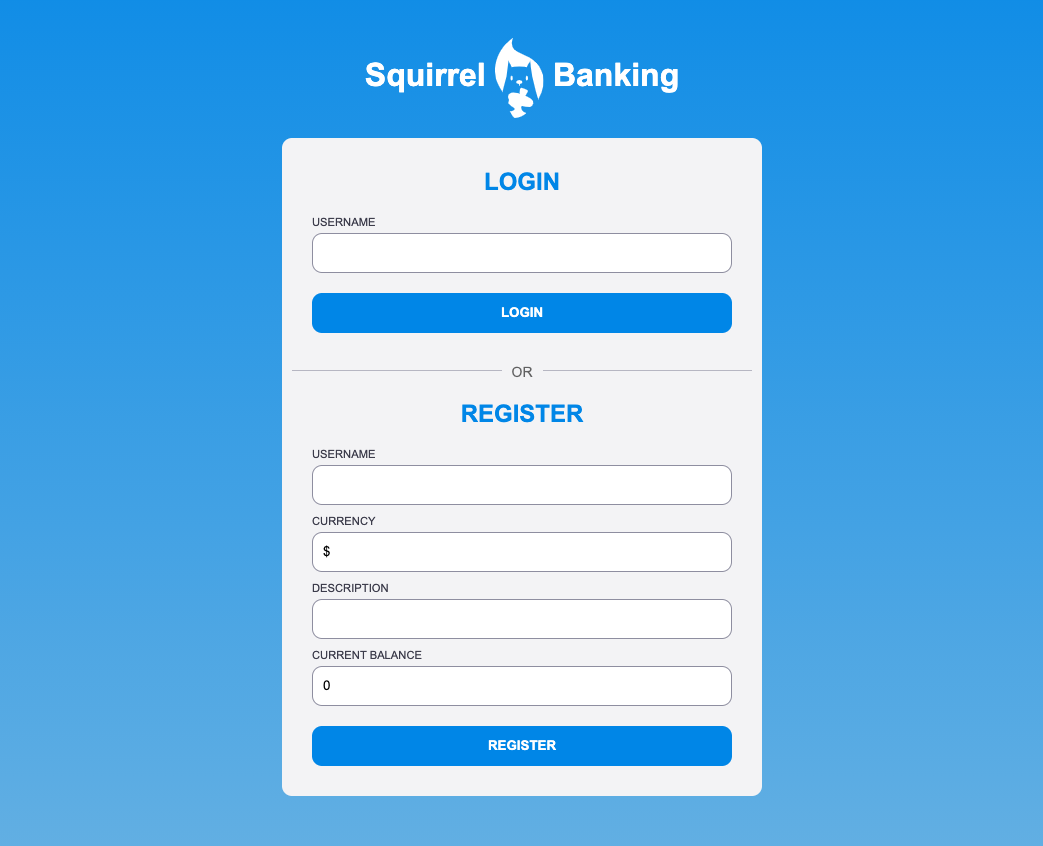
Here's an example of what the final login page can look like after a bit of styling:
Post-Lecture Quiz
Review & Self Study
Developers have gotten very creative about their form building efforts, especially regarding validation strategies. Learn about different form flows by looking through CodePen; can you find some interesting and inspiring forms?