
14 KiB
Build a Space Game Part 2: Draw Hero and Monsters to Canvas
The Canvas API is one of web development's most powerful features for creating dynamic, interactive graphics right in your browser. In this lesson, we'll transform that blank HTML <canvas> element into a game world filled with heroes and monsters. Think of the canvas as your digital art board where code becomes visual.
We're building on what you learned in the previous lesson, and now we'll dive into the visual aspects. You'll learn how to load and display game sprites, position elements precisely, and create the visual foundation for your space game. This bridges the gap between static web pages and dynamic, interactive experiences.
By the end of this lesson, you'll have a complete game scene with your hero ship positioned correctly and enemy formations ready for battle. You'll understand how modern games render graphics in browsers and gain skills to create your own interactive visual experiences. Let's explore canvas graphics and bring your space game to life!
Pre-Lecture Quiz
The Canvas
So what exactly is this <canvas> element? It's HTML5's solution for creating dynamic graphics and animations in web browsers. Unlike regular images or videos that are static, the canvas gives you pixel-level control over everything that appears on screen. This makes it perfect for games, data visualizations, and interactive art. Think of it as a programmable drawing surface where JavaScript becomes your paintbrush.
By default, a canvas element looks like a blank, transparent rectangle on your page. But that's where the potential lies! Its real power emerges when you use JavaScript to draw shapes, load images, create animations, and make things respond to user interactions. It's similar to how early computer graphics pioneers at Bell Labs in the 1960s had to program every pixel to create the first digital animations.
✅ Read more about the Canvas API on MDN.
Here's how it's typically declared, as part of the page's body:
<canvas id="myCanvas" width="200" height="100"></canvas>
Here's what this code does:
- Sets the
idattribute so you can reference this specific canvas element in JavaScript - Defines the
widthin pixels to control the canvas's horizontal size - Establishes the
heightin pixels to determine the canvas's vertical dimensions
Drawing Simple Geometry
Now that you know what the canvas element is, let's explore actually drawing on it! The canvas uses a coordinate system that might feel familiar from math class, but there's one important twist specific to computer graphics.
The canvas uses Cartesian coordinates with an x-axis (horizontal) and y-axis (vertical) to position everything you draw. But here's the key difference: unlike the coordinate system from math class, the origin point (0,0) starts at the top-left corner, with x-values increasing as you move right and y-values increasing as you move down. This approach dates back to early computer displays where electron beams scanned from top to bottom, making top-left the natural starting point.
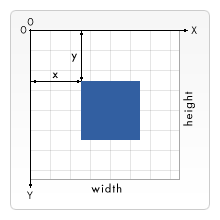
Image from MDN
To draw on the canvas element, you'll follow the same three-step process that forms the foundation of all canvas graphics. Once you do this a few times, it becomes second nature:
- Get a reference to your Canvas element from the DOM (just like any other HTML element)
- Get the 2D rendering context – this provides all the drawing methods
- Start drawing! Use the context's built-in methods to create your graphics
Here's how this looks in code:
// Step 1: Get the canvas element
const canvas = document.getElementById("myCanvas");

// Step 2: Get the 2D rendering context
const ctx = canvas.getContext("2d");

// Step 3: Set fill color and draw a rectangle
ctx.fillStyle = 'red';
ctx.fillRect(0, 0, 200, 200); // x, y, width, height
Let's break this down step by step:
- We grab our canvas element using its ID and store it in a variable
- We get the 2D rendering context – this is our toolkit full of drawing methods
- We tell the canvas we want to fill things with red using the
fillStyleproperty - We draw a rectangle starting at the top-left corner (0,0) that's 200 pixels wide and tall
✅ The Canvas API mostly focuses on 2D shapes, but you can also draw 3D elements to a web site; for this, you might use the WebGL API.
You can draw all sorts of things with the Canvas API like:
- Geometrical shapes, we've already showed how to draw a rectangle, but there is much more you can draw.
- Text, you can draw a text with any font and color you wish.
- Images, you can draw an image based off of an image asset like a .jpg or .png for example.
✅ Try it! You know how to draw a rectangle, can you draw a circle to a page? Take a look at some interesting Canvas drawings on CodePen. Here's a particularly impressive example.
Load and Draw an Image Asset
Drawing basic shapes is useful for getting started, but most games need actual images! Sprites, backgrounds, and textures are what give games their visual appeal. Loading and displaying images on the canvas works differently than drawing geometric shapes, but it's straightforward once you understand the process.
We need to create an Image object, load our image file (this happens asynchronously, meaning "in the background"), and then draw it to the canvas once it's ready. This approach ensures your images display properly without blocking your application while they load.
Basic Image Loading
const img = new Image();
img.src = 'path/to/my/image.png';
img.onload = () => {
  // Image loaded and ready to be used
  console.log('Image loaded successfully!');
};
Here's what's happening in this code:
- We create a brand new Image object to hold our sprite or texture
- We tell it which image file to load by setting the source path
- We listen for the load event so we know exactly when the image is ready to use
A Better Way to Load Images
Here's a more robust way to handle image loading that professional developers commonly use. We'll wrap the image loading in a Promise-based function – this approach, popularized when JavaScript Promises became standard in ES6, makes your code more organized and handles errors gracefully:
function loadAsset(path) {
  return new Promise((resolve, reject) => {
    const img = new Image();
    img.src = path;
    img.onload = () => {
      resolve(img);
    };
    img.onerror = () => {
      reject(new Error(`Failed to load image: ${path}`));
    };
  });
}

// Modern usage with async/await
async function initializeGame() {
  try {
    const heroImg = await loadAsset('hero.png');
    const monsterImg = await loadAsset('monster.png');
    // Images are now ready to use
  } catch (error) {
    console.error('Failed to load game assets:', error);
  }
}
What we've done here:
- Wrapped all that image loading logic in a Promise so we can handle it better
- Added error handling that actually tells us when something goes wrong
- Used modern async/await syntax because it's so much cleaner to read
- Included try/catch blocks to gracefully handle any loading hiccups
Once your images are loaded, drawing them to the canvas is actually pretty straightforward:
async function renderGameScreen() {
  try {
    // Load game assets
    const heroImg = await loadAsset('hero.png');
    const monsterImg = await loadAsset('monster.png');

    // Get canvas and context
    const canvas = document.getElementById("myCanvas");
    const ctx = canvas.getContext("2d");

    // Draw images to specific positions
    ctx.drawImage(heroImg, canvas.width / 2, canvas.height / 2);
    ctx.drawImage(monsterImg, 0, 0);
  } catch (error) {
    console.error('Failed to render game screen:', error);
  }
}
Let's walk through this step by step:
- We load both our hero and monster images in the background using await
- We grab our canvas element and get that 2D rendering context we need
- We position the hero image right in the center using some quick coordinate math
- We plop the monster image at the top-left corner to start our enemy formation
- We catch any errors that might happen during loading or rendering
Now It's Time to Start Building Your Game
Now we'll put everything together to create the visual foundation of your space game. You have a solid understanding of canvas fundamentals and image loading techniques, so this hands-on section will guide you through building a complete game screen with properly positioned sprites.
What to Build
You will build a web page with a Canvas element. It should render a black screen 1024*768. We've provided you with two images:
-
Hero ship

-
5*5 monster

Recommended steps to start development
Locate the starter files that have been created for you in the your-work sub folder. Your project structure should contain:
your-work/
├── assets/
│   ├── enemyShip.png
│   └── player.png
├── index.html
├── app.js
└── package.json
Here's what you're working with:
- Game sprites live in the
assets/folder so everything stays organized - Your main HTML file sets up the canvas element and gets everything ready
- A JavaScript file where you'll write all your game rendering magic
- A package.json that sets up a development server so you can test locally
Open this folder in Visual Studio Code to begin development. You'll need a local development environment with Visual Studio Code, NPM, and Node.js installed. If you don't have npm set up on your computer, here's how to install it.
Start your development server by navigating to the your-work folder:
cd your-work
npm start
This command does some pretty cool stuff:
- Starts up a local server at
http://localhost:5000so you can test your game - Serves all your files properly so your browser can load them correctly
- Watches your files for changes so you can develop smoothly
- Gives you a professional development environment to test everything
💡 Note: Your browser will show a blank page initially – that's expected! As you add code, refresh your browser to see your changes. This iterative development approach is similar to how NASA built the Apollo guidance computer – testing each component before integrating it into the larger system.
Add code
Add the required code to your-work/app.js to complete the following tasks:
-
Draw a canvas with black background
💡 Here's how: Find the TODO in
/app.jsand add just two lines. Setctx.fillStyleto black, then usectx.fillRect()starting at (0,0) with your canvas dimensions. Easy! -
Load game textures
💡 Here's how: Use
await loadAsset()to load your player and enemy images. Store them in variables so you can use them later. Remember – they won't show up until you actually draw them! -
Draw hero ship in the center-bottom position
💡 Here's how: Use
ctx.drawImage()to position your hero. For the x-coordinate, trycanvas.width / 2 - 45to center it, and for y-coordinate usecanvas.height - canvas.height / 4to put it in the bottom area. -
Draw a 5×5 formation of enemy ships
💡 Here's how: Find the
createEnemiesfunction and set up a nested loop. You'll need to do some math for spacing and positioning, but don't worry – I'll show you exactly how!
First, establish constants for proper enemy formation layout:
const ENEMY_TOTAL = 5;
const ENEMY_SPACING = 98;
const FORMATION_WIDTH = ENEMY_TOTAL * ENEMY_SPACING;
const START_X = (canvas.width - FORMATION_WIDTH) / 2;
const STOP_X = START_X + FORMATION_WIDTH;
Let's break down what these constants do:
- We set 5 enemies per row and column (a nice 5×5 grid)
- We define how much space to put between enemies so they don't look cramped
- We calculate how wide our whole formation will be
- We figure out where to start and stop so the formation looks centered
Then, create nested loops to draw the enemy formation:
for (let x = START_X; x < STOP_X; x += ENEMY_SPACING) {
  for (let y = 0; y < 50 * 5; y += 50) {
    ctx.drawImage(enemyImg, x, y);
  }
}
Here's what this nested loop does:
- The outer loop moves from left to right across our formation
- The inner loop goes from top to bottom to create neat rows
- We draw each enemy sprite at the exact x,y coordinates we calculated
- Everything stays evenly spaced so it looks professional and organized
Result
The finished result should look like so:

Solution
Please try solving it yourself first but if you get stuck, have a look at a solution
GitHub Copilot Agent Challenge 🚀
Use the Agent mode to complete the following challenge:
Description: Enhance your space game canvas by adding visual effects and interactive elements using the Canvas API techniques you've learned.
Prompt: Create a new file called enhanced-canvas.html with a canvas that displays animated stars in the background, a pulsing health bar for the hero ship, and enemy ships that slowly move downward. Include JavaScript code that draws twinkling stars using random positions and opacity, implements a health bar that changes color based on health level (green > yellow > red), and animates the enemy ships to move down the screen at different speeds.
Learn more about agent mode here.
🚀 Challenge
You've learned about drawing with the 2D-focused Canvas API; take a look at the WebGL API, and try to draw a 3D object.
Post-Lecture Quiz
Review & Self Study
Learn more about the Canvas API by reading about it.