
 softchris
2b844a03b0
softchris
2b844a03b0
|
1 month ago | |
|---|---|---|
| .. | ||
| solution | 1 month ago | |
| README.md | 1 month ago | |
README.md
AI Chat Assistant တည်ဆောက်ခြင်း
Star Trek မှာ အဖွဲ့ဝင်တွေက သင်္ဘောရဲ့ကွန်ပျူတာနဲ့ အလွယ်တကူ စကားပြောပြီး အခက်အခဲရှိတဲ့မေးခွန်းတွေကို မေးပြီး အတွေးအခေါ်ပြည့်ဝတဲ့ အဖြေတွေကို ရရှိခဲ့တာကို သတိရပါသလား။ 1960 ခုနှစ်တွေမှာ သိပ္ပံစိတ်ကူးယဉ်လိုပဲ ထင်ရတဲ့အရာက အခုတော့ သင်သိပြီးသား ဝဘ်နည်းပညာတွေကို အသုံးပြုပြီး တည်ဆောက်နိုင်ပါပြီ။
ဒီသင်ခန်းစာမှာတော့ HTML, CSS, JavaScript နဲ့ backend integration တို့ကို အသုံးပြုပြီး AI chat assistant တစ်ခုကို ဖန်တီးပါမယ်။ သင်လေ့လာနေတဲ့ အတန်းများနဲ့ AI ဝန်ဆောင်မှုများကို ဘယ်လိုချိတ်ဆက်ပြီး အကြောင်းအရာကို နားလည်နိုင်တဲ့ အဖြေများကို ဖန်တီးပေးနိုင်မလဲဆိုတာကို ရှာဖွေတွေ့ရှိပါမယ်။
AI ကို သင်မေးတဲ့မေးခွန်းတွေကို တိုက်ရိုက် အကြောင်းအရာနှင့်သက်ဆိုင်တဲ့ အဖြေများကို ရရှိစေတဲ့ စာကြည့်တိုက်ကြီးတစ်ခုလိုပဲ ထင်ပါ။ သောင်းသီလောက်စာမျက်နှာတွေကို ရှာဖွေဖတ်ရတာမဟုတ်ဘဲ တိုက်ရိုက် အကြောင်းအရာနှင့်သက်ဆိုင်တဲ့ အဖြေများကို ရရှိနိုင်ပါတယ်။
ဒီချိတ်ဆက်မှုကတော့ ရိုးရိုး ဝဘ်နည်းပညာတွေကို ပေါင်းစပ်ပြီး အလုပ်လုပ်စေတဲ့အရာပါ။ HTML က chat interface ကို ဖန်တီးပေးပြီး CSS က visual design ကို စီမံပေးပါတယ်။ JavaScript က user interaction တွေကို စီမံပေးပြီး backend API က AI ဝန်ဆောင်မှုတွေနဲ့ ချိတ်ဆက်ပေးပါတယ်။ ဒါဟာ တီးလုံးတီးဝိုင်းတစ်ခုမှာ အပိုင်းအစတွေ ပေါင်းစပ်ပြီး သီချင်းတစ်ပုဒ်ကို ဖန်တီးတဲ့နည်းနဲ့ ဆင်တူပါတယ်။
သဘာဝလူ့ဆက်သွယ်မှုနဲ့ စက်ရုပ်ဆက်သွယ်မှုအကြား တံတားတစ်ခုကို တည်ဆောက်နေတဲ့အခါပါ။ AI ဝန်ဆောင်မှုချိတ်ဆက်မှုနည်းပညာနဲ့ intuitive ဖြစ်တဲ့ ဆက်သွယ်မှုဒီဇိုင်းပုံစံတွေကို သင်လေ့လာနိုင်ပါမယ်။
ဒီသင်ခန်းစာအဆုံးမှာတော့ AI integration ဟာ လျှို့ဝှက်ဆန်းကြယ်တဲ့ အရာတစ်ခုမဟုတ်တော့ဘဲ သင်အလုပ်လုပ်နိုင်တဲ့ API တစ်ခုလိုပဲ ခံစားရပါမယ်။ ChatGPT နဲ့ Claude တို့လို app တွေကို အားပေးတဲ့ အခြေခံပုံစံတွေကို နားလည်ပြီး သင်လေ့လာနေတဲ့ ဝဘ်ဖွံ့ဖြိုးရေးအခြေခံအချက်များကို အသုံးပြုနိုင်ပါမယ်။
သင့်ရဲ့ အပြီးသတ် project ဟာ ဒီလိုပုံစံရှိပါမယ် -
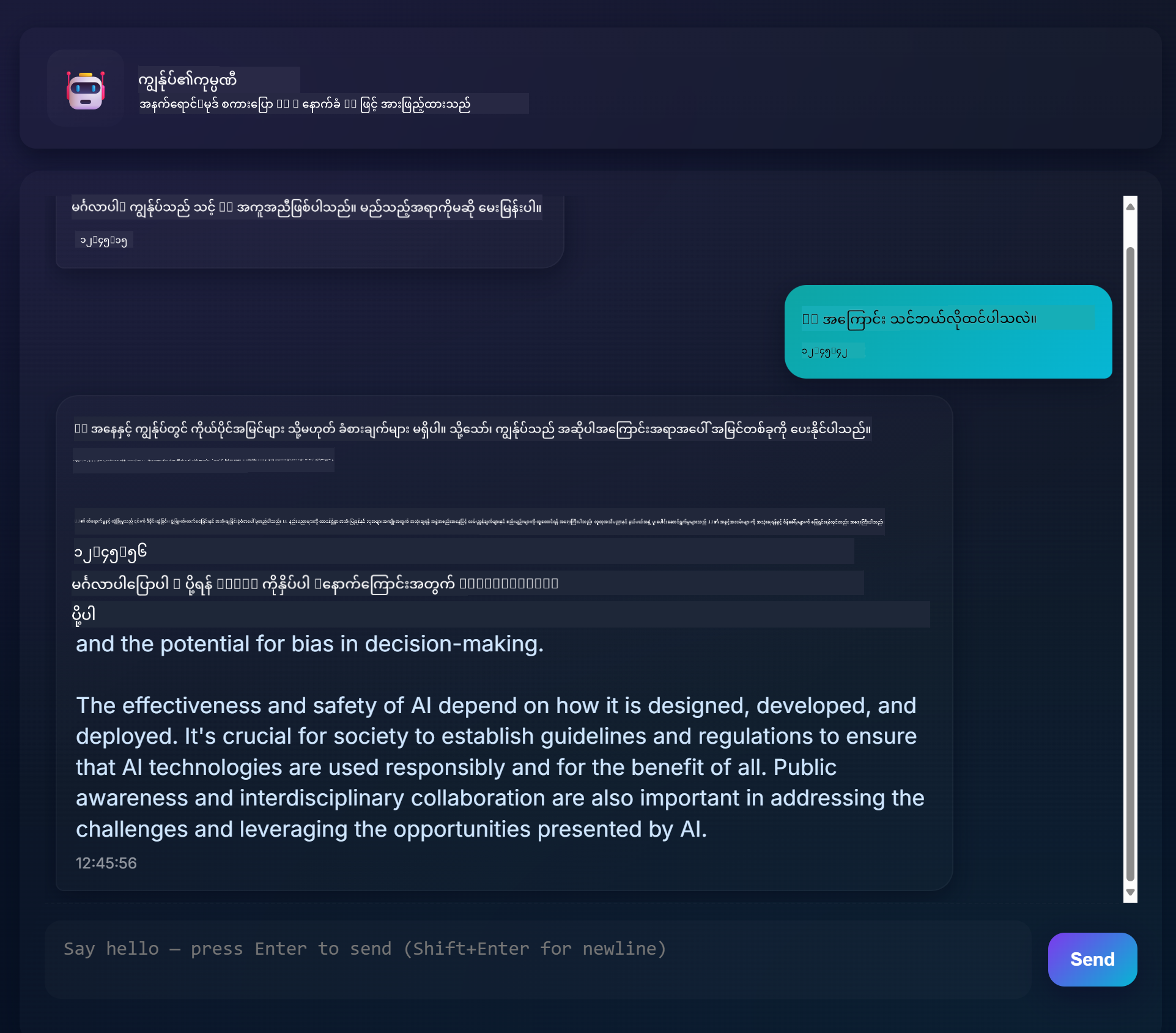
AI ကို နားလည်ခြင်း: လျှို့ဝှက်မှုမှ ကျွမ်းကျင်မှုဆီသို့
Code ကို စတင်မလုပ်ခင်မှာတော့ ကျွန်တော်တို့ လုပ်ဆောင်မယ့်အရာကို နားလည်ရပါမယ်။ API တွေကို အသုံးပြုဖူးတယ်ဆိုရင်တော့ အခြေခံပုံစံကို သိပြီးသားဖြစ်မယ် - request တစ်ခုကို ပို့ပြီး response တစ်ခုကို လက်ခံရရှိခြင်း။
AI API တွေဟာ ဒီပုံစံနဲ့ ဆင်တူပေမယ့် database မှာ pre-stored data ကို ရှာဖွေထုတ်ပေးတာမဟုတ်ဘဲ text အများကြီးမှ pattern တွေကို သင်ယူပြီး အသစ်အဖြေတွေကို ဖန်တီးပေးပါတယ်။ ဒါကို library catalog system နဲ့ knowledgeable librarian တစ်ဦးကို နှိုင်းယှဉ်ကြည့်ပါ။
"Generative AI" ဆိုတာ အမှန်တကယ် ဘာလဲ?
Rosetta Stone က ဘာသာစကားတွေကြား pattern တွေကို ရှာဖွေပြီး Egyptian hieroglyphics ကို နားလည်စေခဲ့သလို AI model တွေဟာ text အများကြီးမှာ pattern တွေကို ရှာဖွေပြီး ဘာသာစကားကို နားလည်စေပါတယ်။ ဒီ pattern တွေကို အသုံးပြုပြီး မေးခွန်းအသစ်တွေကို သက်ဆိုင်တဲ့ အဖြေတွေကို ဖန်တီးပေးပါတယ်။
ရိုးရှင်းတဲ့ နှိုင်းယှဉ်မှုနဲ့ ရှင်းပြပါမယ်:
- ရိုးရိုး database: သင့်မွေးကင်းစကလေးမှတ်ပုံတင်ကို မေးတဲ့အခါ - အတိအကျတူညီတဲ့စာရွက်ကို အမြဲရရှိတယ်
- Search engine: စာကြည့်တိုက်က စာအုပ်တွေကို ရှာဖွေတဲ့ librarian လို - ရနိုင်တဲ့အရာတွေကို ပြပေးတယ်
- Generative AI: ကြွယ်ဝတဲ့သူငယ်ချင်းကို မေးတဲ့အခါ - သူတို့ရဲ့စကားနဲ့ သင်လိုချင်တဲ့အချက်အလက်ကို သက်ဆိုင်အဖြေတွေကို ပြောပြပေးတယ်
graph LR
    A[Your Question] --> B[AI Model]
    B --> C[Pattern Recognition]
    C --> D[Content Generation]
    D --> E[Contextual Response]

    F[Training Data<br/>Books, Articles, Web] --> B
AI Model တွေ ဘယ်လို သင်ယူသလဲ (ရိုးရှင်းတဲ့ဗားရှင်း)
AI model တွေဟာ စာအုပ်တွေ၊ ဆောင်းပါးတွေ၊ စကားပြောဆိုမှုတွေပါဝင်တဲ့ dataset အကြီးကြီးတွေကို ကြည့်ရှုပြီး pattern တွေကို ရှာဖွေသင်ယူပါတယ်။ ဒီ process မှာ သူတို့သင်ယူတဲ့အရာတွေက:
- စာရေးဆွဲမှုမှာ အတွေးအခေါ်တွေ ဘယ်လိုဖွဲ့စည်းထားတယ်ဆိုတာ
- ဘယ်စကားလုံးတွေ အတူတူပေါ်လာတတ်တယ်ဆိုတာ
- စကားပြောဆိုမှုတွေ ဘယ်လိုစီးဆင်းတယ်ဆိုတာ
- တရားဝင်နဲ့ မတရားဝင်ဆက်သွယ်မှုကြားက အကြောင်းအရာကွာခြားမှုတွေ
ဒါဟာ သမိုင်းလေ့လာသူတွေဟာ အတိတ်က ဘာသာစကားတွေကို နားလည်ဖို့ စာရွက်တွေကို လေ့လာတဲ့နည်းနဲ့ ဆင်တူပါတယ်: grammar, vocabulary, cultural context တွေကို နားလည်ပြီး pattern တွေကို အသုံးပြုပြီး အသစ်တွေကို အဓိပ္ပါယ်ဖွင့်ဆိုနိုင်ပါတယ်။
GitHub Models ကို ဘာကြောင့် အသုံးပြုသလဲ?
GitHub Models ကို အသုံးပြုရတဲ့အကြောင်းရင်းက အလွန်ရိုးရှင်းပါတယ် - AI infrastructure ကို ကိုယ်တိုင်တည်ဆောက်ဖို့ မလိုအပ်ဘဲ enterprise-level AI ကို ရရှိစေပါတယ်။ (အခုတော့ ကိုယ်တိုင် weather station တွေတည်ဆောက်ပြီး မိုးလေဝသကို ခန့်မှန်းဖို့ မလိုအပ်ပါဘူးဆိုတာကို သတိထားပါ။)
ဒါဟာ "AI-as-a-Service" လို့ခေါ်ပြီး အကောင်းဆုံးကတော့ စမ်းသပ်ဖို့အတွက် အခမဲ့စတင်နိုင်ပါတယ်။ ဒါကြောင့် အကြီးမားတဲ့ကုန်ကျစရိတ်ကို စိုးရိမ်စရာမလိုပါဘူး။
graph LR
    A[Frontend Chat UI] --> B[Your Backend API]
    B --> C[GitHub Models API]
    C --> D[AI Model Processing]
    D --> C
    C --> B
    B --> A
GitHub Models ကို backend integration အတွက် အသုံးပြုမယ်။ ဒါဟာ developer-friendly interface မှတစ်ဆင့် professional-grade AI စွမ်းရည်တွေကို ရရှိစေပါတယ်။ GitHub Models Playground က AI model တွေကို စမ်းသပ်ပြီး သူတို့ရဲ့စွမ်းရည်တွေကို နားလည်ဖို့ testing environment အဖြစ် အလုပ်လုပ်ပါတယ်။
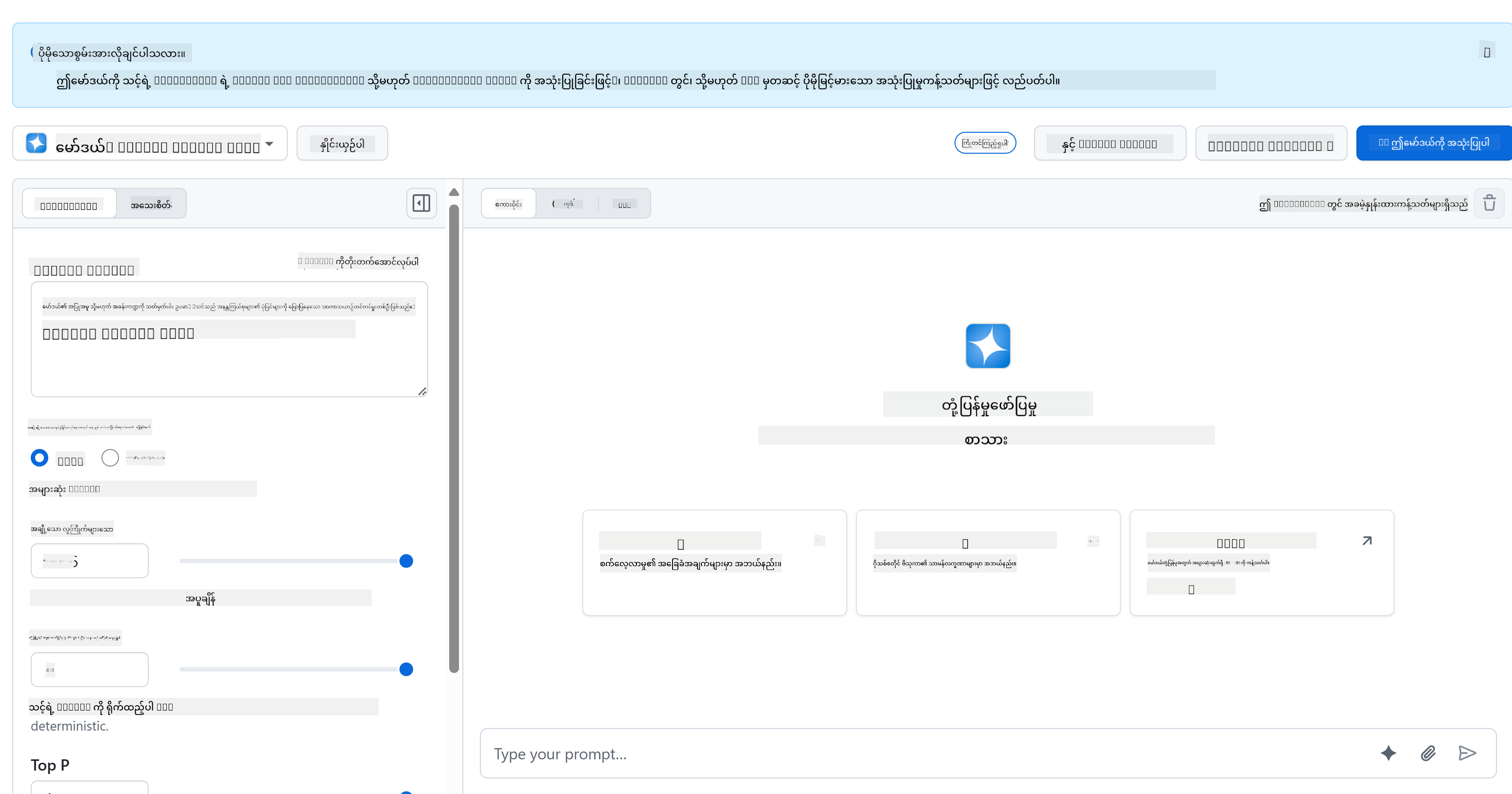
Playground ရဲ့ အသုံးဝင်မှုက:
- AI model တွေကို စမ်းသပ်နိုင်ခြင်း - GPT-4o-mini, Claude နဲ့ အခြား model တွေ (အခမဲ့!)
- Idea နဲ့ prompt တွေကို စမ်းသပ်နိုင်ခြင်း - Code မရေးခင်မှာ
- Programming language အလိုက် code snippet တွေကို ရရှိနိုင်ခြင်း
- Creativity level နဲ့ response length ကို ပြောင်းလဲပြီး output ကို ကြည့်ရှုနိုင်ခြင်း
Playground ကို အသုံးပြုပြီးနောက်မှာ "Code" tab ကို နှိပ်ပြီး သင့်ရဲ့ programming language ကို ရွေးချယ်ပြီး implementation code ကို ရယူနိုင်ပါတယ်။

Python Backend Integration ကို စတင်တည်ဆောက်ခြင်း
အခုတော့ Python ကို အသုံးပြုပြီး AI integration ကို တည်ဆောက်ပါမယ်။ Python ဟာ syntax ရိုးရှင်းပြီး library တွေ အလွန်အစွမ်းထက်တဲ့အတွက် AI application တွေအတွက် အထူးသင့်တော်ပါတယ်။ GitHub Models playground မှ code ကို စတင်ပြီး ပြန်လည်ပြုပြင်ပြီး reusable, production-ready function အဖြစ် ပြောင်းလဲပါမယ်။
Base Implementation ကို နားလည်ခြင်း
Playground မှ Python code ကို ရယူတဲ့အခါ ဒီလိုပုံစံရှိပါတယ်။ အရင်ဆုံးတော့ အများကြီးလိုက်မရင်မပူပါနဲ့ - အပိုင်းစီနဲ့ ရှင်းပြပါမယ်:
"""Run this model in Python

> pip install openai
"""
import os
from openai import OpenAI

# To authenticate with the model you will need to generate a personal access token (PAT) in your GitHub settings.
# Create your PAT token by following instructions here: https://docs.github.com/en/authentication/keeping-your-account-and-data-secure/managing-your-personal-access-tokens
client = OpenAI(
    base_url="https://models.github.ai/inference",
    api_key=os.environ["GITHUB_TOKEN"],
)

```python
response = client.chat.completions.create(
    messages=[
        {
            "role": "system",
            "content": "",
        },
        {
            "role": "user",
            "content": "What is the capital of France?",
        }
    ],
    model="openai/gpt-4o-mini",
    temperature=1,
    max_tokens=4096,
    top_p=1
)

print(response.choices[0].message.content)
ဒီ code မှာ ဖြစ်နေတဲ့အရာတွေက:
- လိုအပ်တဲ့ tools တွေကို import လုပ်ခြင်း:
osကို environment variables ကို ဖတ်ဖို့၊OpenAIကို AI နဲ့ ဆက်သွယ်ဖို့ - OpenAI client ကို GitHub ရဲ့ AI server ကို point လုပ်ခြင်း
- GitHub token ကို အသုံးပြုပြီး authenticate လုပ်ခြင်း (ဒီအကြောင်းကို နောက်ပိုင်းမှာ ရှင်းပြပါမယ်!)
- Conversation ကို "roles" အမျိုးမျိုးနဲ့ structure လုပ်ခြင်း - play တစ်ခုရဲ့ scene ကို ပြင်ဆင်သလိုပဲ
- AI ကို request ပို့ခြင်း - fine-tuning parameters တွေကို ထည့်သွင်းပြီး
- Response text ကို extract လုပ်ခြင်း - ပြန်လာတဲ့ data အများကြီးထဲက
Message Roles ကို နားလည်ခြင်း: AI Conversation Framework
AI conversation တွေဟာ "roles" အမျိုးမျိုးနဲ့ structure လုပ်ထားပြီး အရေးပါတဲ့ အခန်းကဏ္ဍတွေကို ထည့်သွင်းထားပါတယ်:
messages=[
    {
        "role": "system",
        "content": "You are a helpful assistant who explains things simply."
    },
    {
        "role": "user",
        "content": "What is machine learning?"
    }
]
Play တစ်ခုကို ဦးဆောင်နေတဲ့အတိုင်း စဉ်းစားပါ:
- System role: Actor အတွက် stage direction လိုပဲ - AI ကို ဘယ်လိုအပြုအမူနဲ့ အဖြေပြောရမလဲဆိုတာ ပြောပြပေးတယ်
- User role: Application ကို အသုံးပြုသူရဲ့ မေးခွန်း
- Assistant role: AI ရဲ့ အဖြေ (ဒီအပိုင်းကို မပို့ပေမယ့် conversation history မှာ ပါဝင်တယ်)
အမှန်တကယ် analogy: Party မှာ သူငယ်ချင်းတစ်ဦးကို တစ်ဦးနဲ့ မိတ်ဆက်ပေးတဲ့အခါ:
- System message: "ဒီက သူငယ်ချင်း Sarah ပါ၊ သူက ဆေးဘက်ဆိုင်ရာအကြောင်းကို ရှင်းပြနိုင်တဲ့ ဆရာဝန်တစ်ဦးပါ"
- User message: "Vaccine တွေ ဘယ်လိုအလုပ်လုပ်လဲဆိုတာ ရှင်းပြပေးနိုင်မလား?"
- Assistant response: Sarah က ဆေးဘက်ဆိုင်ရာ ဆရာဝန်အဖြစ် ရင်းနှီးပြီး ရှင်းလင်းတဲ့အဖြေကို ပြောပြတယ်
AI Parameters ကို နားလည်ခြင်း: Response Behavior ကို Fine-Tuning လုပ်ခြင်း
AI API call တွေမှာပါဝင်တဲ့ နံပါတ် parameters တွေဟာ model response ကို ဖန်တီးတဲ့နည်းလမ်းကို ထိန်းချုပ်ပေးပါတယ်။ ဒီ settings တွေက response တွေကို အမျိုးမျိုးသော အသုံးပြုမှုအတွက် ပြောင်းလဲနိုင်စေပါတယ်:
Temperature (0.0 မှ 2.0): Creativity Dial
ဘာလုပ်ပေးသလဲ: AI response တွေ creative ဖြစ်မလား၊ predictable ဖြစ်မလားကို ထိန်းချုပ်ပေးတယ်။
Jazz musician ရဲ့ improvisation level လိုပဲ စဉ်းစားပါ:
- Temperature = 0.1: အတိအကျတူညီတဲ့ melody ကို အမြဲတီးတယ် (အလွန် predictable)
- Temperature = 0.7: အနည်းငယ် variation တွေထည့်ပြီး melody ကို သိသာတဲ့အတိုင်း (balanced creativity)
- Temperature = 1.5: အလွန် creative ဖြစ်ပြီး မထင်မှတ်ထားတဲ့ turn တွေပါဝင်တယ် (highly unpredictable)
# Very predictable responses (good for factual questions)
response = client.chat.completions.create(
    messages=[{"role": "user", "content": "What is 2+2?"}],
    temperature=0.1  # Will almost always say "4"
)

# Creative responses (good for brainstorming)
response = client.chat.completions.create(
    messages=[{"role": "user", "content": "Write a creative story opening"}],
    temperature=1.2  # Will generate unique, unexpected stories
)
Max Tokens (1 မှ 4096+): Response Length Controller
ဘာလုပ်ပေးသလဲ: AI response ရဲ့ အရှည်ကို အကန့်အသတ်ထားပေးတယ်။
Token တွေကို စကားလုံးတွေနဲ့ နှိုင်းယှဉ်ကြည့်ပါ (1 token = English စကားလုံး 0.75 လောက်):
- max_tokens=50: တိုတောင်းပြီး ရိုးရှင်းတဲ့ response (text message လို)
- max_tokens=500: အပိုဒ်တစ်ခု သို့မဟုတ် နှစ်ခု
- max_tokens=2000: အကြောင်းအရာပြည့်စုံတဲ့ ရှင်းလင်းချက်
# Short, concise answers
response = client.chat.completions.create(
    messages=[{"role": "user", "content": "Explain JavaScript"}],
    max_tokens=100  # Forces a brief explanation
)

# Detailed, comprehensive answers
response = client.chat.completions.create(
    messages=[{"role": "user", "content": "Explain JavaScript"}],
    max_tokens=1500  # Allows for detailed explanations with examples
)
Top_p (0.0 မှ 1.0): Focus Parameter
ဘာလုပ်ပေးသလဲ: AI response တွေမှာ အလွန်လက်ရှိရှိတဲ့ response တွေကို အာရုံစိုက်မှုကို ထိန်းချုပ်ပေးတယ်။
AI ရဲ့ vocabulary ကြီးကို စဉ်းစားပါ - response တွေကို အလားအလာအများဆုံး စကားလုံးတွေကို ရွေးချယ်ပေးတယ်:
- top_p=0.1: အလားအလာအများဆုံး 10% စကားလုံးတွေကိုသာ ရှေးရှေးရွေးချယ်တယ် (အလွန် focus ဖြစ်တယ်)
- top_p=0.9: 90% စကားလုံးတွေကို ရှေးရှေးရွေးချယ်တယ် (ပို creative ဖြစ်တယ်)
- top_p=1.0: အားလုံးကို ရှေးရှေးရွေးချယ်တယ် (maximum variety)
ဥပမာ: "The sky is usually..."
- Low top_p: "blue" လို့ အလွန်လက်ရှိရှိ ပြောတယ်
- High top_p: "blue", "cloudy", "vast", "changing", "beautiful" စသည်တို့ကို ပြောနိုင်တယ်
အားလုံးကို ပေါင်းစပ်ခြင်း: အသုံးပြုမှုအမျိုးမျိုးအတွက် Parameter Combination
# For factual, consistent answers (like a documentation bot)
factual_params = {
    "temperature": 0.2,
    "max_tokens": 300,
    "top_p": 0.3
}

# For creative writing assistance
creative_params = {
    "temperature": 1.1,
    "max_tokens": 1000,
    "top_p": 0.9
}

# For conversational, helpful responses (balanced)
conversational_params = {
    "temperature": 0.7,
    "max_tokens": 500,
    "top_p": 0.8
}
Parameter တွေ အရေးကြီးတဲ့အကြောင်းကို နားလည်ပါ: Application အမျိုးမျိုးမှာ response အမျိုးမျိုးလိုအပ်ပါတယ်။ Customer service bot တစ်ခုက အတိအကျနဲ့ အချက်အလက်ပေးရမယ် (low temperature)၊ Creative writing assistant တစ်ခုက စိတ်ကူးယဉ်ပြီး variety ရှိရမယ် (high temperature)။ Parameter တွေကို နားလည်ခြင်းက သင့် AI ရဲ့ personality နဲ့ response style ကို ထိန်းချုပ်နိုင်စေပါတယ်။
**Here's what's happening in this code:**
- **We import** the tools we need: `os` for reading environment variables and `OpenAI` for talking to the AI
- **We set up** the OpenAI client to point to GitHub's AI servers instead of OpenAI directly
- **We authenticate** using a special GitHub token (more on that in a minute!)
- **We structure** our conversation with different "roles" – think of it like setting the scene for a play
- **We send** our request to the AI with some fine-tuning parameters
- **We extract** the actual response text from all the data that comes back

> 🔐 **Security Note**: Never hardcode API keys in your source code! Always use environment variables to store sensitive credentials like your `GITHUB_TOKEN`.

### Creating a Reusable AI Function

Let's refactor this code into a clean, reusable function that we can easily integrate into our web application:

```python
import asyncio
from openai import AsyncOpenAI

# Use AsyncOpenAI for better performance
client = AsyncOpenAI(
    base_url="https://models.github.ai/inference",
    api_key=os.environ["GITHUB_TOKEN"],
)

async def call_llm_async(prompt: str, system_message: str = "You are a helpful assistant."):
    """
    Sends a prompt to the AI model asynchronously and returns the response.

    Args:
        prompt: The user's question or message
        system_message: Instructions that define the AI's behavior and personality

    Returns:
        str: The AI's response to the prompt
    """
    try:
        response = await client.chat.completions.create(
            messages=[
                {
                    "role": "system",
                    "content": system_message,
                },
                {
                    "role": "user",
                    "content": prompt,
                }
            ],
            model="openai/gpt-4o-mini",
            temperature=1,
            max_tokens=4096,
            top_p=1
        )
        return response.choices[0].message.content
    except Exception as e:
        logger.error(f"AI API error: {str(e)}")
        return "I'm sorry, I'm having trouble processing your request right now."

# Backward compatibility function for synchronous calls
def call_llm(prompt: str, system_message: str = "You are a helpful assistant."):
    """Synchronous wrapper for async AI calls."""
    return asyncio.run(call_llm_async(prompt, system_message))
ဒီ function ကို နားလည်ပါ:
- User prompt နဲ့ optional system message ကို လက်ခံနိုင်တယ်
- General assistant behavior အတွက် default system message ကို ပေးထားတယ်
- Python type hints ကို အသုံးပြုပြီး code documentation ကို ပိုမိုကောင်းမွန်စေတယ်
- Response content ကိုသာ ပြန်ပေးတယ် - web API မှာ အသုံးပြုရလွယ်ကူစေတယ်
- Model parameters တွေကို တူညီတဲ့ behavior အတွက် ထိန်းသိမ်းထားတယ်
System Prompts ရဲ့ အံ့ဩဖွယ်အကျိုးသက်ရောက်မှု: AI Personality ကို Programming လုပ်ခြင်း
Parameter တွေက AI ရဲ့ response ကို ထိန်းချုပ်ပေမယ့် System prompts တွေက AI ရဲ့ personality ကို ထိန်းချုပ်ပါတယ်။ AI နဲ့ အလုပ်လုပ်တဲ့အခါမှာ အလွန်အမင်း စိတ်လှုပ်ရှားစရာကောင်းတဲ့အရာတစ်ခုပါ - သင့် application အတွက် အထူးပြု AI personality တ FastAPI သည် ကျွန်ုပ်တို့ တည်ဆောက်နေသောအရာအတွက် အကောင်းဆုံးဖြစ်သောအကြောင်းအရင်းများ:
- အဆင့်မြင့် Async: AI တောင်းဆိုမှုများစွာကို တစ်ပြိုင်နက်တည်း စီမံနိုင်ပြီး တုန်လှုပ်မှုမရှိပါ
- အလိုအလျောက်စာရွက်စာတမ်းများ:
/docsကို သွားရောက်ပြီး လှပသော၊ အပြန်အလှန်လုပ်ဆောင်နိုင်သော API စာရွက်စာတမ်းများကို အခမဲ့ရယူနိုင်သည် - တစ်ဆင့်တည်းစစ်ဆေးမှု: ပြဿနာဖြစ်ပေါ်မီ အမှားများကို ဖမ်းဆီးနိုင်သည်
- အလွန်လျင်မြန်သော Framework: Python Framework များအနက် အမြန်ဆုံး Framework တစ်ခုဖြစ်သည်
- ခေတ်မီ Python: Python ၏ နောက်ဆုံးပေါ် အင်္ဂါရပ်များအား အသုံးပြုထားသည်
ကျွန်ုပ်တို့ Backend ကို မဖြစ်မနေလိုအပ်သောအကြောင်းအရင်းများ:
လုံခြုံရေး: သင့် AI API key သည် password တစ်ခုလိုမျှတသည် – သင့် frontend JavaScript တွင် ထည့်ထားပါက သင့် website ၏ source code ကို ကြည့်ရှုသူတိုင်း key ကို ခိုးယူပြီး သင့် AI credits ကို အသုံးပြုနိုင်သည်။ Backend သည် အရေးကြီးသော credentials များကို လုံခြုံစွာ ထိန်းသိမ်းပေးသည်။
Rate Limiting & Control: Backend သည် အသုံးပြုသူများ၏ တောင်းဆိုမှုများကို ထိန်းချုပ်ပေးပြီး၊ အသုံးပြုသူအတည်ပြုမှုများကို အကောင်အထည်ဖော်ပေးကာ အသုံးပြုမှုများကို မှတ်တမ်းတင်နိုင်သည်။
Data Processing: Backend တွင် logic များကို ထည့်သွင်းထားပြီး စကားဝိုင်းများကို သိမ်းဆည်းခြင်း၊ မသင့်တော်သောအကြောင်းအရာများကို စစ်ထုတ်ခြင်း၊ AI ဝန်ဆောင်မှုများစွာကို ပေါင်းစပ်ခြင်း စသည်တို့ကို လုပ်ဆောင်နိုင်သည်။
Architecture သည် client-server model ကို ဆင်တူသည်:
- Frontend: အသုံးပြုသူများနှင့် အပြန်အလှန်ဆက်သွယ်မှုအလွှာ
- Backend API: တောင်းဆိုမှုများကို စီမံခြင်းနှင့် လမ်းကြောင်းသတ်မှတ်ခြင်း
- AI Service: အပြင်ပ computation နှင့် တုံ့ပြန်မှုဖန်တီးခြင်း
- Environment Variables: လုံခြုံသော configuration နှင့် credentials ကို သိမ်းဆည်းခြင်း
တောင်းဆိုမှု-တုံ့ပြန်မှု လမ်းကြောင်းကို နားလည်ခြင်း
အသုံးပြုသူတစ်ဦးက message တစ်ခုကို ပို့သောအခါ ဖြစ်ပျက်သည့်အရာများကို လိုက်လံကြည့်ရှုကြမည်:
sequenceDiagram
    participant User as 👤 User
    participant Frontend as 🌐 Frontend
    participant API as 🔧 FastAPI Server
    participant AI as 🤖 AI Service

    User->>Frontend: Types "Hello AI!"
    Frontend->>API: POST /hello {"message": "Hello AI!"}
    Note over API: Validates request<br/>Adds system prompt
    API->>AI: Sends formatted request
    AI->>API: Returns AI response
    Note over API: Processes response<br/>Logs conversation
    API->>Frontend: {"response": "Hello! How can I help?"}
    Frontend->>User: Displays AI message
အဆင့်တစ်ခုစီကို နားလည်ခြင်း:
- User interaction: အသုံးပြုသူသည် chat interface တွင် ရိုက်ထည့်သည်
- Frontend processing: JavaScript သည် input ကို JSON အဖြစ် format ပြုလုပ်သည်
- API validation: FastAPI သည် Pydantic models ကို အသုံးပြု၍ တောင်းဆိုမှုကို အလိုအလျောက်စစ်ဆေးသည်
- AI integration: Backend သည် context (system prompt) ကို ထည့်သွင်းပြီး AI service ကို ခေါ်သည်
- Response handling: API သည် AI response ကို လက်ခံပြီး လိုအပ်ပါက ပြင်ဆင်နိုင်သည်
- Frontend display: JavaScript သည် chat interface တွင် response ကို ပြသသည်
API Architecture ကို နားလည်ခြင်း
sequenceDiagram
    participant Frontend
    participant FastAPI
    participant AI Function
    participant GitHub Models

    Frontend->>FastAPI: POST /hello {"message": "Hello AI!"}
    FastAPI->>AI Function: call_llm(message, system_prompt)
    AI Function->>GitHub Models: API request
    GitHub Models->>AI Function: AI response
    AI Function->>FastAPI: response text
    FastAPI->>Frontend: {"response": "Hello! How can I help?"}
FastAPI Application တည်ဆောက်ခြင်း
ကျွန်ုပ်တို့၏ API ကို အဆင့်ဆင့် တည်ဆောက်ကြမည်။ api.py ဟုခေါ်သော ဖိုင်တစ်ခုကို ဖန်တီးပြီး အောက်ပါ FastAPI code ကို ထည့်သွင်းပါ:
# api.py
from fastapi import FastAPI, HTTPException
from fastapi.middleware.cors import CORSMiddleware
from pydantic import BaseModel
from llm import call_llm
import logging

# Configure logging
logging.basicConfig(level=logging.INFO)
logger = logging.getLogger(__name__)

# Create FastAPI application
app = FastAPI(
    title="AI Chat API",
    description="A high-performance API for AI-powered chat applications",
    version="1.0.0"
)

# Configure CORS
app.add_middleware(
    CORSMiddleware,
    allow_origins=["*"],  # Configure appropriately for production
    allow_credentials=True,
    allow_methods=["*"],
    allow_headers=["*"],
)

# Pydantic models for request/response validation
class ChatMessage(BaseModel):
    message: str

class ChatResponse(BaseModel):
    response: str

@app.get("/")
async def root():
    """Root endpoint providing API information."""
    return {
        "message": "Welcome to the AI Chat API",
        "docs": "/docs",
        "health": "/health"
    }

@app.get("/health")
async def health_check():
    """Health check endpoint."""
    return {"status": "healthy", "service": "ai-chat-api"}

@app.post("/hello", response_model=ChatResponse)
async def chat_endpoint(chat_message: ChatMessage):
    """Main chat endpoint that processes messages and returns AI responses."""
    try:
        # Extract and validate message
        message = chat_message.message.strip()
        if not message:
            raise HTTPException(status_code=400, detail="Message cannot be empty")

        logger.info(f"Processing message: {message[:50]}...")

        # Call AI service (note: call_llm should be made async for better performance)
        ai_response = await call_llm_async(message, "You are a helpful and friendly assistant.")

        logger.info("AI response generated successfully")
        return ChatResponse(response=ai_response)

    except HTTPException:
        raise
    except Exception as e:
        logger.error(f"Error processing chat message: {str(e)}")
        raise HTTPException(status_code=500, detail="Internal server error")

if __name__ == "__main__":
    import uvicorn
    uvicorn.run(app, host="0.0.0.0", port=5000, reload=True)
FastAPI ကို အကောင်အထည်ဖော်ထားသောအရာများကို နားလည်ခြင်း:
- Imports FastAPI ကို ခေတ်မီ web framework အင်္ဂါရပ်များအတွက် အသုံးပြုခြင်းနှင့် Pydantic ကို data validation အတွက် အသုံးပြုခြင်း
- Creates အလိုအလျောက် API စာရွက်စာတမ်းများ (server run လုပ်သောအခါ
/docsတွင် ရရှိနိုင်သည်) - Enables CORS middleware ကို frontend requests များကို အခြား origin များမှ ခွင့်ပြုရန်
- Defines Pydantic models ကို အလိုအလျောက် request/response validation နှင့် documentation အတွက် အသုံးပြုခြင်း
- Uses async endpoints ကို concurrent requests များနှင့် ပိုမိုကောင်းမွန်သော performance အတွက် အသုံးပြုခြင်း
- Implements HTTP status codes နှင့် HTTPException ဖြင့် error handling ကို သင့်တော်စွာ ပြုလုပ်ခြင်း
- Includes structured logging ကို monitoring နှင့် debugging အတွက် ထည့်သွင်းထားခြင်း
- Provides health check endpoint ကို service status ကို စောင့်ကြည့်ရန်
FastAPI ၏ traditional frameworks များထက် အားသာချက်များ:
- Automatic validation: Pydantic models သည် data integrity ကို process မလုပ်မီ အတည်ပြုပေးသည်
- Interactive docs:
/docsသို့ သွားရောက်ပြီး auto-generated, testable API documentation ကို ရယူနိုင်သည် - Type safety: Python type hints သည် runtime errors မဖြစ်စေရန်နှင့် code quality ကို မြှင့်တင်ပေးသည်
- Async support: AI requests များစွာကို တစ်ပြိုင်နက်တည်း handle ပြုလုပ်နိုင်သည်
- Performance: Real-time applications အတွက် request processing ကို အလွန်မြန်ဆန်စွာ ပြုလုပ်ပေးသည်
CORS ကို နားလည်ခြင်း: Web ၏ လုံခြုံရေးစောင့်
CORS (Cross-Origin Resource Sharing) သည် အဆောက်အဦးတစ်ခု၏ လုံခြုံရေးစောင့်တစ်ဦးလိုမျှတပြီး ဝင်ခွင့်ရှိသူများကို စစ်ဆေးပေးသည်။ CORS ၏ အရေးပါမှုနှင့် သင့် application ကို ဘယ်လို သက်ရောက်မှုရှိနိုင်သည်ကို နားလည်ကြမည်။
CORS သည် အဘယ်ကြောင့် ရှိရသည်နှင့် ၎င်း၏ အဓိပ္ပါယ်
ပြဿနာ: သင်၏ bank website ကို သင့်ခွင့်ပြုချက်မရှိဘဲ တောင်းဆိုမှုများ ပြုလုပ်နိုင်သော website များရှိပါက လုံခြုံရေးပြဿနာဖြစ်နိုင်သည်။ Browser များသည် "Same-Origin Policy" ဖြင့် ၎င်းကို default အနေဖြင့် ကာကွယ်ပေးသည်။
Same-Origin Policy: Browser များသည် တောင်းဆိုမှုများကို တင်ထားသော domain, port, protocol တူညီသောနေရာများမှသာ ခွင့်ပြုသည်။
အမှန်တကယ်နမူနာ: ၎င်းသည် အဆောက်အဦးလုံခြုံရေးလိုမျှတပြီး – တိုက်ခန်းနေထိုင်သူများ (same origin) သာ default အနေဖြင့် ဝင်ခွင့်ရှိသည်။ မိတ်ဆွေ (different origin) ကို လာရောက်ခွင့်ပြုလိုပါက security ကို အတိအကျ ပြောရမည်။
Development Environment တွင် CORS
Development အတွင်း သင့် frontend နှင့် backend သည် port မတူညီသောနေရာများတွင် run လုပ်သည်:
- Frontend:
http://localhost:3000(သို့မဟုတ် file:// HTML ကို တိုက်ရိုက်ဖွင့်ပါက) - Backend:
http://localhost:5000
၎င်းတို့သည် "different origins" အဖြစ် သတ်မှတ်ထားသည်။
from fastapi.middleware.cors import CORSMiddleware

app = FastAPI(__name__)
CORS(app)   # This tells browsers: "It's okay for other origins to make requests to this API"
CORS configuration သည် အကောင်အထည်ဖော်သည့်အရာများ:
- Adds API responses တွင် special HTTP headers ထည့်သွင်းပြီး "cross-origin request is allowed" ဟု browser များကို ပြောသည်
- Handles "preflight" requests (browser များသည် တောင်းဆိုမှုပို့မီ permission ကို sometimes စစ်ဆေးသည်)
- Prevents browser console တွင် "blocked by CORS policy" error ဖြစ်ပေါ်မှု
CORS Security: Development နှင့် Production
# 🚨 Development: Allows ALL origins (convenient but insecure)
CORS(app)

# ✅ Production: Only allow your specific frontend domain
CORS(app, origins=["https://yourdomain.com", "https://www.yourdomain.com"])

# 🔒 Advanced: Different origins for different environments
if app.debug:  # Development mode
    CORS(app, origins=["http://localhost:3000", "http://127.0.0.1:3000"])
else:  # Production mode
    CORS(app, origins=["https://yourdomain.com"])
အရေးပါမှု: Development တွင် CORS(app) သည် သင့်အိမ်တံခါးကို unlock လုပ်ထားသကဲ့သို့ဖြစ်ပြီး – အဆင်ပြေသော်လည်း လုံခြုံမှုမရှိပါ။ Production တွင် သင့် API နှင့် ဆက်သွယ်နိုင်သော website များကို အတိအကျ သတ်မှတ်လိုက်ပါ။
CORS Scenarios နှင့် Solutions
| Scenario | Problem | Solution |
|---|---|---|
| Local Development | Frontend သည် backend ကို မရောက်နိုင် | FastAPI တွင် CORSMiddleware ထည့်သွင်းပါ |
| GitHub Pages + Heroku | Deploy လုပ်ထားသော frontend သည် API ကို မရောက်နိုင် | GitHub Pages URL ကို CORS origins တွင် ထည့်သွင်းပါ |
| Custom Domain | Production တွင် CORS errors | CORS origins ကို သင့် domain နှင့် ကိုက်ညီအောင် update လုပ်ပါ |
| Mobile App | App သည် web API ကို မရောက်နိုင် | App ၏ domain ကို ထည့်သွင်းပါ သို့မဟုတ် * ကို သတိထား၍ အသုံးပြုပါ |
Pro tip: Browser ၏ Developer Tools တွင် Network tab အောက်ရှိ CORS headers ကို စစ်ဆေးနိုင်သည်။ Response တွင် Access-Control-Allow-Origin headers ကို ရှာပါ။
Error Handling နှင့် Validation
API တွင် error handling ကို သင့်တော်စွာ ထည့်သွင်းထားသည်ကို သတိပြုပါ:
# Validate that we received a message
if not message:
    return jsonify({"error": "Message field is required"}), 400
Validation အခြေခံအချက်များ:
- Required fields ကို request မလုပ်မီ စစ်ဆေးသည်
- JSON format ဖြင့် အဓိပ္ပါယ်ရှိသော error messages ကို ပြန်ပေးသည်
- HTTP status codes (400 for bad requests) ကို သုံးသည်
- Frontend developers များအတွက် ပြဿနာများကို debug ပြုလုပ်ရန် feedback ပေးသည်
Backend ကို Set Up နှင့် Run လုပ်ခြင်း
AI integration နှင့် FastAPI server ကို ပြင်ဆင်ပြီးနောက် အားလုံးကို run လုပ်ရန် အဆင့်ဆင့်လုပ်ဆောင်ရမည်။ Python dependencies များကို install လုပ်ခြင်း၊ environment variables များကို configure ပြုလုပ်ခြင်းနှင့် development server ကို စတင်ခြင်းတို့ ပါဝင်သည်။
Python Environment Setup
Python development environment ကို set up ပြုလုပ်ကြမည်။ Virtual environments သည် Manhattan Project ၏ compartmentalized approach လိုမျှတပြီး – project တစ်ခုစီသည် အထူး tools နှင့် dependencies များဖြင့် conflict မဖြစ်စေရန် သီးသန့်နေရာရရှိသည်။
# Navigate to your backend directory
cd backend

# Create a virtual environment (like creating a clean room for your project)
python -m venv venv

# Activate it (Linux/Mac)
source ./venv/bin/activate

# On Windows, use:
# venv\Scripts\activate

# Install the good stuff
pip install openai fastapi uvicorn python-dotenv
ကျွန်ုပ်တို့ ပြုလုပ်ခဲ့သောအရာများ:
- Python bubble ကို ဖန်တီးပြီး packages များကို အခြား project များကို ထိခိုက်စေမည့်အခွင့်အရေးမရှိစေရန် install လုပ်သည်
- Activated terminal ကို သတ်မှတ်ထားသော environment ကို အသုံးပြုရန် ပြောသည်
- Installed အရေးကြီးသော packages: OpenAI, FastAPI, Uvicorn, python-dotenv
Key dependencies ရှင်းလင်းချက်:
- FastAPI: ခေတ်မီ၊ မြန်ဆန်သော web framework
- Uvicorn: FastAPI applications များ run လုပ်ရန် lightning-fast ASGI server
- OpenAI: GitHub Models နှင့် OpenAI API integration အတွက် library
- python-dotenv: .env files မှ secure environment variable loading
Environment Configuration: Secrets ကို လုံခြုံစွာ ထိန်းသိမ်းခြင်း
API ကို စတင်မလုပ်မီ web development ၏ အရေးကြီးသော သင်ခန်းစာတစ်ခုကို ပြောပါမည် – Secrets ကို အမှန်တကယ် လုံခြုံစွာ ထိန်းသိမ်းရန်။
Environment Variables ဆိုတာဘာလဲ?
Environment variables သည် safety deposit box လိုမျှတသည် – သင့်အဖိုးတန်သောအရာများကို ထည့်သွင်းပြီး သင့် application သာ access ရရှိနိုင်သည်။ Sensitive information ကို code တွင် တိုက်ရိုက်ရေးသားခြင်းမပြုဘဲ environment တွင် သိမ်းဆည်းပါ။
အကြောင်းအရာများ၏ ကွာခြားချက်:
- အမှားသောနည်းလမ်း: Password ကို sticky note တွင် ရေးပြီး monitor ပေါ်တွင် ထားသည်
- မှန်ကန်သောနည်းလမ်း: Password ကို secure password manager တွင် သိမ်းဆည်းသည်
Environment Variables အရေးပါမှု
# 🚨 NEVER DO THIS - API key visible to everyone
client = OpenAI(
    api_key="ghp_1234567890abcdef...",  # Anyone can steal this!
    base_url="https://models.github.ai/inference"
)

# ✅ DO THIS - API key stored securely
client = OpenAI(
    api_key=os.environ["GITHUB_TOKEN"],  # Only your app can access this
    base_url="https://models.github.ai/inference"
)
Secrets ကို hardcode လုပ်ပါက ဖြစ်ပေါ်သည့်အရာများ:
- Version control exposure: Git repository ကို access ရရှိသူတိုင်း သင့် API key ကို မြင်နိုင်သည်
- Public repositories: GitHub သို့ push လုပ်ပါက သင့် key ကို အင်တာနက်တစ်ခုလုံး မြင်နိုင်သည်
- Team sharing: Project တွင် အလုပ်လုပ်နေသော developer များသည် သင့် personal API key ကို access ရရှိသည်
- Security breaches: API key ကို ခိုးယူပါက သင့် AI credits ကို အသုံးပြုနိုင်သည်
Environment File ကို Set Up ပြုလုပ်ခြင်း
Backend directory တွင် .env ဖိုင်တစ်ခု ဖန်တီးပါ။ ၎င်းဖိုင်သည် secrets များကို locally သိမ်းဆည်းပေးသည်:
# .env file - This should NEVER be committed to Git
GITHUB_TOKEN=your_github_personal_access_token_here
FASTAPI_DEBUG=True
ENVIRONMENT=development
.env file ကို နားလည်ခြင်း:
- Secrets တစ်ခုစီကို
KEY=valueformat ဖြင့် ရေးသားပါ - Equals sign အနားတွင် space မထည့်ပါနှင့်
- Quotes မလိုအပ်ပါ (အများအားဖြင့်)
- Comments သည်
#ဖြင့် စတင်သည်
GitHub Personal Access Token ဖန်တီးခြင်း
GitHub token သည် GitHub ၏ AI services ကို အသုံးပြုရန် သင့် application ကို ခွင့်ပြုသော special password တစ်ခုဖြစ်သည်:
Token ဖန်တီးခြင်းအဆင့်များ:
- GitHub Settings → Developer settings → Personal access tokens → Tokens (classic)
- "Generate new token (classic)" ကို နှိပ်ပါ
- Expiration ကို သတ်မှတ်ပါ (30 days testing အတွက်၊ production အတွက် ပိုကြာသောအချိန်)
- Scopes ကို ရွေးပါ: "repo" နှင့် လိုအပ်သော permissions များကို ရွေးပါ
- **Token ကို ဖန်တီးပြီး ချက်ချင်း copy လုပ်ပါ (နောက်တစ်ကြိမ် မမြင်နိုင်ပါ!)
- .env file တွင် Paste လုပ်ပါ
# Example of what your token looks like (this is fake!)
GITHUB_TOKEN=ghp_1A2B3C4D5E6F7G8H9I0J1K2L3M4N5O6P7Q8R
Python တွင် Environment Variables ကို Load ပြုလုပ်ခြင်း
import os
from dotenv import load_dotenv

# Load environment variables from .env file
load_dotenv()

# Now you can access them securely
api_key = os.environ.get("GITHUB_TOKEN")
if not api_key:
    raise ValueError("GITHUB_TOKEN not found in environment variables!")

client = OpenAI(
    api_key=api_key,
    base_url="https://models.github.ai/inference"
)
Code ၏လုပ်ဆောင်မှု:
- .env file ကို load ပြုလုပ်ပြီး variables များကို Python တွင် အသုံးပြုနိုင်သည်
- Required token ရှိ/မရှိ စစ်ဆေးသည် (error handling ကောင်းမွန်မှု!)
- Token မရှိပါက error တစ်ခုကို ပြောသည်
- Token ကို လုံခြုံစွာ အသုံးပြုသည် (code တွင် မဖော်ပြပါ)
Git Security: .gitignore File
.gitignore file သည် Git ကို ဘယ်ဖိုင်များကို track မလုပ်ရမည်၊ upload မလုပ်ရမည်ဟု ပြောသည်:
# .gitignore - Add these lines
.env
*.env
.env.local
.env.production
__pycache__/
venv/
.vscode/
အရေးကြီးမှု: .env ကို .gitignore တွင် ထည့်သွင်းပြီး Git သည် environment file ကို ignore လုပ်ပါက သင့် secrets များကို GitHub သို့ မတင်ပါ။
Different Environments, Different Secrets
Professional applications များသည် environment တစ်ခုစီအတွက် API keys များကို သီးသန့်အသုံးပြုသည်:
# .env.development
GITHUB_TOKEN=your_development_token
DEBUG=True

# .env.production
GITHUB_TOKEN=your_production_token
DEBUG=False
အရေးပါမှု: Development experiments များသည် production AI usage quota ကို မထိခိုက်စေရန်နှင့် environment တစ်ခုစီအတွက် security level များကို သတ်မှတ်ရန်လိုအပ်သည်။
Development Server ကို စတင်ခြင်း: FastAPI ကို အသက်သွင်းခြင်း
ယခုအခါ FastAPI development server ကို စတင်ပြီး သင့် AI integration ကို အသက်သွင်းမည့် အချိန်ဖြစ်သည်! FastAPI သည် Uvicorn ကို အသုံးပြုသည်၊ ၎င်းသည် async Python applications အတွက် အထူး designed လုပ်ထားသော lightning-fast ASGI server ဖြစ်သည်။
FastAPI Server Startup Process ကို နားလည်ခြင်း
# Method 1: Direct Python execution (includes auto-reload)
python api.py

# Method 2: Using Uvicorn directly (more control)
uvicorn api:app --host 0.0.0.0 --port 5000 --reload
ဤ command ကို run လုပ်သောအခါ အောက်ပါ
# test_api.py - Create this file to test your API
import requests
import json

# Test the API endpoint
url = "http://localhost:5000/hello"
data = {"message": "Tell me a joke about programming"}

response = requests.post(url, json=data)
if response.status_code == 200:
    result = response.json()
    print("AI Response:", result['response'])
else:
    print("Error:", response.status_code, response.text)
စတင်မှုအခက်အခဲများကို ဖြေရှင်းခြင်း
| အမှားစာသား | အဓိပ္ပါယ် | ဖြေရှင်းနည်း |
|---|---|---|
ModuleNotFoundError: No module named 'fastapi' |
FastAPI မတင်ထားသေးပါ | သင့် virtual environment မှာ pip install fastapi uvicorn ကို run လုပ်ပါ |
ModuleNotFoundError: No module named 'uvicorn' |
ASGI server မတင်ထားသေးပါ | သင့် virtual environment မှာ pip install uvicorn ကို run လုပ်ပါ |
KeyError: 'GITHUB_TOKEN' |
Environment variable မတွေ့ပါ | သင့် .env ဖိုင်နဲ့ load_dotenv() call ကိုစစ်ဆေးပါ |
Address already in use |
Port 5000 အလုပ်လုပ်နေသည် | Port 5000 ကိုအသုံးပြုနေတဲ့ process ကိုပိတ်ပါ၊ ဒါမှမဟုတ် port ကိုပြောင်းပါ |
ValidationError |
Request data က Pydantic model နဲ့မကိုက်ညီပါ | သင့် request format ကိုစစ်ဆေးပြီး schema နဲ့ကိုက်ညီမှုရှိမရှိစစ်ပါ |
HTTPException 422 |
Unprocessable entity | Request validation မအောင်မြင်ပါ၊ /docs မှာ format မှန်ကန်မှုကိုစစ်ပါ |
OpenAI API error |
AI service authentication မအောင်မြင်ပါ | သင့် GitHub token မှန်ကန်မှုနဲ့ permission ရှိမှုကိုစစ်ပါ |
ဖွံ့ဖြိုးတိုးတက်မှုအကောင်းဆုံးအလေ့အကျင့်များ
Hot Reloading: FastAPI နဲ့ Uvicorn က Python ဖိုင်တွေကို save လုပ်တဲ့အခါ auto-reloading ပေးပါတယ်။ ဒါကြောင့် code ကိုပြင်ပြီး manual restart မလုပ်ဘဲ testing လုပ်နိုင်ပါတယ်။
# Enable hot reloading explicitly
if __name__ == "__main__":
    app.run(host="0.0.0.0", port=5000, debug=True)  # debug=True enables hot reload
Development အတွက် Logging: ဘာဖြစ်နေလဲဆိုတာနားလည်ဖို့ logging ထည့်ပါ။
import logging

# Set up logging
logging.basicConfig(level=logging.INFO)
logger = logging.getLogger(__name__)

@app.route("/hello", methods=["POST"])
def hello():
    data = request.get_json()
    message = data.get("message", "")

    logger.info(f"Received message: {message}")

    if not message:
        logger.warning("Empty message received")
        return jsonify({"error": "Message field is required"}), 400

    try:
        response = call_llm(message, "You are a helpful and friendly assistant.")
        logger.info(f"AI response generated successfully")
        return jsonify({"response": response})
    except Exception as e:
        logger.error(f"AI API error: {str(e)}")
        return jsonify({"error": "AI service temporarily unavailable"}), 500
Logging ကအကျိုးရှိတဲ့အကြောင်း: Development အတွင်းမှာ ဘာ request တွေဝင်လာနေလဲ၊ AI ကဘာဖြေထားလဲ၊ အမှားတွေဘယ်မှာဖြစ်နေလဲဆိုတာမြင်နိုင်ပါတယ်။ Debugging ကိုပိုမြန်စေပါတယ်။
GitHub Codespaces အတွက် Configuration: Cloud Development ကိုလွယ်ကူစေခြင်း
GitHub Codespaces က cloud-based development computer တစ်ခုလိုပါပဲ၊ ဘယ် browser မှမဆို access လုပ်နိုင်ပါတယ်။ Codespaces မှာအလုပ်လုပ်တဲ့အခါ backend ကို frontend နဲ့ချိတ်ဆက်ဖို့အပိုအဆင့်တွေလိုအပ်ပါတယ်။
Codespaces Networking ကိုနားလည်ခြင်း
Local development environment မှာ အားလုံးတစ်ခုတည်းသော computer မှာ run လုပ်ပါတယ်:
- Backend:
http://localhost:5000 - Frontend:
http://localhost:3000(သို့မဟုတ် file://)
Codespaces မှာ development environment က GitHub ရဲ့ server တွေမှာ run လုပ်ပါတယ်၊ "localhost" ရဲ့အဓိပ္ပါယ်ကအခြားတစ်ခုဖြစ်ပါတယ်။ GitHub က services အတွက် public URLs ကို auto-create လုပ်ပေမယ့် သင့်အနေနဲ့ configure လုပ်ဖို့လိုပါတယ်။
Codespaces Configuration အဆင့်ဆင့်
1. Backend server ကိုစတင်ပါ:
cd backend
python api.py
FastAPI/Uvicorn startup message ကိုမြင်ရပါမယ်၊ ဒါပေမယ့် Codespace environment အတွင်းမှာ run လုပ်နေပါတယ်။
2. Port visibility ကို configure လုပ်ပါ:
- VS Code ရဲ့ "Ports" tab ကိုအောက် panel မှာရှာပါ
- Port 5000 ကို list မှာရှာပါ
- Port 5000 ကို right-click လုပ်ပါ
- "Port Visibility" → "Public" ကိုရွေးပါ
Public လုပ်ရတဲ့အကြောင်း: Codespace ports တွေက default အနေဖြင့် private (သင့်အတွက်သာ access လုပ်နိုင်) ဖြစ်ပါတယ်။ Public လုပ်ခြင်းက frontend (browser မှာ run) ကို backend နဲ့ချိတ်ဆက်နိုင်စေပါတယ်။
3. Public URL ကိုရယူပါ: Port ကို public လုပ်ပြီးနောက် URL တစ်ခုကိုမြင်ရပါမယ်:
https://your-codespace-name-5000.app.github.dev
4. Frontend configuration ကို update လုပ်ပါ:
// In your frontend app.js, update the BASE_URL:
this.BASE_URL = "https://your-codespace-name-5000.app.github.dev";
Codespace URLs ကိုနားလည်ခြင်း
Codespace URLs တွေက predictable pattern ကိုလိုက်ပါတယ်:
https://[codespace-name]-[port].app.github.dev
ဒီကိုခွဲခြမ်းစိတ်ဖြာခြင်း:
codespace-name: Codespace အတွက် unique identifier (သင့် username ပါဝင်)port: Service run လုပ်နေတဲ့ port number (FastAPI app အတွက် 5000)app.github.dev: GitHub ရဲ့ Codespace applications အတွက် domain
Codespace Setup ကိုစမ်းသပ်ခြင်း
1. Backend ကိုတိုက်ရိုက်စမ်းသပ်ပါ: Public URL ကို browser tab အသစ်မှာဖွင့်ပါ။ သင့်အနေနဲ့မြင်ရမယ့်အရာ:
Welcome to the AI Chat API. Send POST requests to /hello with JSON payload containing 'message' field.
2. Browser developer tools နဲ့စမ်းသပ်ပါ:
// Open browser console and test your API
fetch('https://your-codespace-name-5000.app.github.dev/hello', {
  method: 'POST',
  headers: {'Content-Type': 'application/json'},
  body: JSON.stringify({message: 'Hello from Codespaces!'})
})
.then(response => response.json())
.then(data => console.log(data));
Codespaces နဲ့ Local Development
| Aspect | Local Development | GitHub Codespaces |
|---|---|---|
| Setup Time | ကြာမြင့် (Python, dependencies တင်ရ) | ချက်ချင်း (pre-configured environment) |
| URL Access | http://localhost:5000 |
https://xyz-5000.app.github.dev |
| Port Configuration | Automatic | Manual (ports ကို public လုပ်ရ) |
| File Persistence | Local machine | GitHub repository |
| Collaboration | Environment ကိုမျှဝေဖို့ခက် | Codespace link ကိုလွယ်ကူစွာမျှဝေနိုင် |
| Internet Dependency | AI API calls အတွက်သာလိုအပ် | အားလုံးအတွက်လိုအပ် |
Codespace Development Tips
Codespaces မှာ Environment Variables:
သင့် .env ဖိုင်က Codespaces မှာအတူတူအလုပ်လုပ်ပါတယ်၊ ဒါပေမယ့် environment variables တွေကို Codespace မှာတိုက်ရိုက် set လုပ်နိုင်ပါတယ်:
# Set environment variable for the current session
export GITHUB_TOKEN="your_token_here"

# Or add to your .bashrc for persistence
echo 'export GITHUB_TOKEN="your_token_here"' >> ~/.bashrc
Port Management:
- Codespaces က application က port မှာနားထောင်နေတဲ့အခါ auto-detect လုပ်ပါတယ်
- Database ထည့်မယ်ဆိုရင် multiple ports တွေကိုတစ်ပြိုင်တည်း forward လုပ်နိုင်ပါတယ်
- Codespace run လုပ်နေသ zolang ports တွေ accessible ဖြစ်နေပါတယ်
Development Workflow:
- VS Code မှာ code changes လုပ်ပါ
- FastAPI auto-reloads (Uvicorn ရဲ့ reload mode ကြောင့်)
- Public URL မှာ changes တွေကိုချက်ချင်းစမ်းသပ်ပါ
- Ready ဖြစ်တဲ့အခါ commit နဲ့ push လုပ်ပါ
💡 Pro Tip: Development အတွင်း Codespace backend URL ကို bookmark လုပ်ထားပါ။ Codespace names တွေတည်ငြိမ်နေတဲ့အခါ URL ကမပြောင်းပါဘူး။
Frontend Chat Interface ဖန်တီးခြင်း: လူသားတွေ AI နဲ့တွေ့ဆုံရာနေရာ
အခုတော့ user interface ကိုတည်ဆောက်မယ် – AI assistant နဲ့လူတွေဘယ်လိုအဆက်အသွယ်လုပ်မလဲဆိုတာဆုံးဖြတ်တဲ့အပိုင်း။ Original iPhone ရဲ့ interface design လိုပဲ၊ အဆင့်မြင့်နည်းပညာကိုသဘာဝကျပြီးအသုံးပြုရလွယ်ကူအောင်လုပ်ဖို့အာရုံစိုက်မှာပါ။
Modern Frontend Architecture ကိုနားလည်ခြင်း
Chat interface က "Single Page Application" (SPA) လို့ခေါ်တဲ့အရာဖြစ်ပါမယ်။ Click တစ်ချက်တိုင်းမှာ page အသစ်တစ်ခုကို load လုပ်တဲ့အဟောင်းပုံစံမဟုတ်ဘဲ app က smooth နဲ့ချက်ချင်း update လုပ်ပါမယ်:
ဟောင်းရဲ့ website တွေ: Physical book တစ်အုပ်ဖတ်တာလို – စာမျက်နှာအသစ်ကိုလှိမ့်ရ Chat app: Phone အသုံးပြုတာလို – အားလုံး smooth နဲ့ချက်ချင်း update လုပ်
graph TD
    A[User Types Message] --> B[JavaScript Captures Input]
    B --> C[Validate & Format Data]
    C --> D[Send to Backend API]
    D --> E[Display Loading State]
    E --> F[Receive AI Response]
    F --> G[Update Chat Interface]
    G --> H[Ready for Next Message]
Frontend Development ရဲ့ အခြေခံ Pillars သုံးခု
Frontend application တစ်ခု – ရိုးရှင်းတဲ့ website တွေကနေ Discord, Slack လို complex apps တွေထိ – အခြေခံနည်းပညာသုံးခုပေါ်မှာတည်ဆောက်ထားပါတယ်။ Web မှာမြင်ရတဲ့အရာအားလုံးနဲ့အဆက်အသွယ်လုပ်တဲ့အရာတွေကိုအခြေခံပေးပါတယ်:
HTML (Structure): အခြေခံပုံစံ
- Element တွေ (buttons, text areas, containers) ဘာတွေရှိမလဲဆုံးဖြတ်
- Content ကိုအဓိပ္ပါယ်ပေး (header, form, စသည်)
- အခြေခံပုံစံကိုဖန်တီး
CSS (Presentation): အလှဆင်ပညာရှင်
- အားလုံးကိုလှပစေ (အရောင်, font, layout)
- Screen size အမျိုးမျိုးကိုထိန်းညှိ (phone, laptop, tablet)
- Smooth animations နဲ့ visual feedback ဖန်တီး
JavaScript (Behavior): ဦးနှောက်
- User လုပ်ဆောင်ချက်တွေကိုတုံ့ပြန် (click, typing, scrolling)
- Backend နဲ့ပြောဆိုပြီး page ကို update လုပ်
- Interactive နဲ့ dynamic ဖြစ်စေ
Architectural design လိုစဉ်းစားပါ:
- HTML: Structural blueprint (spaces နဲ့ relationships ကိုသတ်မှတ်)
- CSS: Aesthetic design (visual style နဲ့ user experience)
- JavaScript: Mechanical systems (functionality နဲ့ interactivity)
Modern JavaScript Architecture အရေးပါမှု
Chat application က professional applications တွေမှာတွေ့ရတဲ့ modern JavaScript patterns တွေကိုအသုံးပြုပါမယ်။ ဒီ concept တွေကိုနားလည်ခြင်းက developer အဖြစ်တိုးတက်ဖို့အထောက်အကူဖြစ်စေပါမယ်:
Class-Based Architecture: Code ကို classes အဖြစ်စီမံ Async/Await: API calls လိုအချိန်ယူတဲ့ operations တွေကို handle လုပ်တဲ့နည်းလမ်း Event-Driven Programming: User actions (clicks, key presses) ကိုတုံ့ပြန် DOM Manipulation: User interactions နဲ့ API responses အပေါ်မူတည်ပြီး webpage content ကို dynamic update လုပ်
Project Structure Setup
Frontend directory ကိုအောက်ပါပုံစံနဲ့တည်ဆောက်ပါ:
frontend/
├── index.html      # Main HTML structure
├── app.js          # JavaScript functionality
└── styles.css      # Visual styling
Architecture ကိုနားလည်ခြင်း:
- Structure (HTML), behavior (JavaScript), presentation (CSS) ကိုခွဲခြားထား
- File structure ရိုးရှင်းပြီး navigation နဲ့ modification လုပ်ရလွယ်
- Web development best practices ကိုလိုက်နာ
HTML Foundation တည်ဆောက်ခြင်း: Accessibility အတွက် Semantic Structure
HTML structure ကိုစတင်လုပ်ဆောင်ပါ။ Modern web development က "semantic HTML" ကိုအာရုံစိုက်ပါတယ် – HTML elements တွေကိုရည်ရွယ်ချက်ကိုရှင်းလင်းစွာဖော်ပြတဲ့အရာတွေကိုအသုံးပြုခြင်း။ Screen readers, search engines နဲ့အခြား tools တွေအတွက် application ကို accessible ဖြစ်စေပါတယ်။
Semantic HTML အရေးပါမှု: Chat app ကိုတစ်ယောက်ယောက်ကိုဖုန်းနဲ့ရှင်းပြရမယ်ဆိုပါက "header ရှိတယ်၊ title နဲ့ description ရှိတယ်၊ main area မှာစကားပြောတာတွေပြနေတယ်၊ အောက်မှာ message ရိုက်ဖို့ form ရှိတယ်" လို့ပြောပါမယ်။ Semantic HTML ကဒီ natural description နဲ့ကိုက်ညီတဲ့ elements တွေကိုအသုံးပြုပါတယ်။
index.html ကိုအောက်ပါ markup နဲ့ဖန်တီးပါ:
<!DOCTYPE html>
<html lang="en">
<head>
    <meta charset="UTF-8">
    <meta name="viewport" content="width=device-width, initial-scale=1.0">
    <title>AI Chat Assistant</title>
    <link rel="stylesheet" href="styles.css">
</head>
<body>
    <div class="chat-container">
        <header class="chat-header">
            <h1>AI Chat Assistant</h1>
            <p>Ask me anything!</p>
        </header>

        <main class="chat-messages" id="messages" role="log" aria-live="polite">
            <!-- Messages will be dynamically added here -->
        </main>

        <form class="chat-form" id="chatForm">
            <div class="input-group">
                <input
                    type="text"
                    id="messageInput"
                    placeholder="Type your message here..."
                    required
                    aria-label="Chat message input"
                >
                <button type="submit" id="sendBtn" aria-label="Send message">
                    Send
                </button>
            </div>
        </form>
    </div>
    <script src="app.js"></script>
</body>
</html>
HTML element တစ်ခုချင်းစီရဲ့ရည်ရွယ်ချက်ကိုနားလည်ခြင်း:
Document Structure
<!DOCTYPE html>: Browser ကို modern HTML5 ဖြစ်ကြောင်းပြော<html lang="en">: Page language ကို screen readers နဲ့ translation tools အတွက်သတ်မှတ်<meta charset="UTF-8">: International text အတွက် character encoding မှန်ကန်စေ<meta name="viewport"...>: Mobile-responsive ဖြစ်စေဖို့ zoom နဲ့ scale ကိုထိန်းညှိ
Semantic Elements
<header>: Title နဲ့ description ရှိတဲ့အပေါ်ပိုင်းကိုသတ်မှတ်<main>: Main content area (conversation တွေဖြစ်ပျက်ရာ)<form>: User input အတွက်သင့်တော်တဲ့ element
Accessibility Features
role="log": Screen readers ကို message log ဖြစ်ကြောင်းပြောaria-live="polite": Screen readers ကို message အသစ်တွေကို interrupt မဖြစ်အောင်ပြောaria-label: Form controls အတွက် descriptive labels ပေးrequired: Browser က user message ရိုက်မရင် validate လုပ်
CSS နဲ့ JavaScript Integration
classattributes: CSS styling hooks ပေး (e.g.,chat-container,input-group)idattributes: JavaScript က specific elements တွေကို manipulate လုပ်နိုင်- Script placement: HTML load ပြီးမှ JavaScript file ကို load
ဒီ structure ရဲ့အကျိုးကျေးဇူး:
- Logical flow: Header → Main content → Input form က natural reading order နဲ့ကိုက်ညီ
- Keyboard accessible: Interactive elements တွေကို tab နဲ့ navigate လုပ်နိုင်
- Screen reader friendly: Visually impaired users အတွက် landmarks နဲ့ descriptions ရှင်းလင်း
- Mobile responsive: Viewport meta tag ကြောင့် responsive design ရရှိ
- Progressive enhancement: CSS ဒါမှမဟုတ် JavaScript fail ဖြစ်ရင်တောင်အလုပ်လုပ်နိုင်
Interactive JavaScript ထည့်သွင်းခြင်း: Modern Web Application Logic
Chat interface ကိုအသက်သွင်းမယ့် JavaScript ကိုတည်ဆောက်ပါမယ်။ ES6 classes, async/await, event-driven programming စတဲ့ professional web development မှာတွေ့ရတဲ့ modern JavaScript patterns တွေကိုအသုံးပြုပါမယ်။
Modern JavaScript Architecture ကိုနားလည်ခြင်း
Procedural code (functions တွေကိုအဆက်မပြတ် run လုပ်) ရေးသားတာမဟုတ်ဘဲ class-based architecture ကိုတည်ဆောက်ပါမယ်။ Class ကို object တွေဖန်တီးဖို့ blueprint အဖြစ်ယူဆပါ။
Web applications အတွက် classes အသုံးပြုရတဲ့အကြောင်း:
- Organization: ဆက်စပ်တဲ့ functionality တွေကိုစုစည်းထား
- Reusability: Page တစ်ခုမှာ chat instances များစွာဖန်တီးနိုင်
- Maintainability: Specific features တွေကို debug နဲ့ modify လုပ်ရလွယ်
- Professional standard: React, Vue, Angular လို frameworks တွေမှာအသုံးပြုတဲ့ pattern
app.js ကို modern, well-structured JavaScript နဲ့ဖန်တီးပါ:
// app.js - Modern chat application logic

class ChatApp {
    constructor() {
        // Get references to DOM elements we'll need to manipulate
        this.messages = document.getElementById("messages");
        this.form = document.getElementById("chatForm");
        this.input = document.getElementById("messageInput");
        this.sendButton = document.getElementById("sendBtn");

        // Configure your backend URL here
        this.BASE_URL = "http://localhost:5000"; // Update this for your environment
        this.API_ENDPOINT = `${this.BASE_URL}/hello`;

        // Set up event listeners when the chat app is created
        this.initializeEventListeners();
    }

    initializeEventListeners() {
        // Listen for form submission (when user clicks Send or presses Enter)
        this.form.addEventListener("submit", (e) => this.handleSubmit(e));

        // Also listen for Enter key in the input field (better UX)
        this.input.addEventListener("keypress", (e) => {
            if (e.key === "Enter" && !e.shiftKey) {
                e.preventDefault();
                this.handleSubmit(e);
            }
        });
    }

    async handleSubmit(event) {
        event.preventDefault(); // Prevent form from refreshing the page

        const messageText = this.input.value.trim();
        if (!messageText) return; // Don't send empty messages

        // Provide user feedback that something is happening
        this.setLoading(true);

        // Add user message to chat immediately (optimistic UI)
        this.appendMessage(messageText, "user");

        // Clear input field so user can type next message
        this.input.value = '';

        try {
            // Call the AI API and wait for response
            const reply = await this.callAPI(messageText);

            // Add AI response to chat
            this.appendMessage(reply, "assistant");
        } catch (error) {
            console.error('API Error:', error);
            this.appendMessage("Sorry, I'm having trouble connecting right now. Please try again.", "error");
        } finally {
            // Re-enable the interface regardless of success or failure
            this.setLoading(false);
        }
    }

    async callAPI(message) {
        const response = await fetch(this.API_ENDPOINT, {
            method: "POST",
            headers: {
                "Content-Type": "application/json"
            },
            body: JSON.stringify({ message })
        });

        if (!response.ok) {
            throw new Error(`HTTP error! status: ${response.status}`);
        }

        const data = await response.json();
        return data.response;
    }

    appendMessage(text, role) {
        const messageElement = document.createElement("div");
        messageElement.className = `message ${role}`;
        messageElement.innerHTML = `
            <div class="message-content">
                <span class="message-text">${this.escapeHtml(text)}</span>
                <span class="message-time">${new Date().toLocaleTimeString()}</span>
            </div>
        `;

        this.messages.appendChild(messageElement);
        this.scrollToBottom();
    }

    escapeHtml(text) {
        const div = document.createElement('div');
        div.textContent = text;
        return div.innerHTML;
    }

    scrollToBottom() {
        this.messages.scrollTop = this.messages.scrollHeight;
    }

    setLoading(isLoading) {
        this.sendButton.disabled = isLoading;
        this.input.disabled = isLoading;
        this.sendButton.textContent = isLoading ? "Sending..." : "Send";
    }
}

// Initialize the chat application when the page loads
document.addEventListener("DOMContentLoaded", () => {
    new ChatApp();
});
JavaScript Concept တစ်ခုချင်းစီကိုနားလည်ခြင်း
ES6 Class Structure:
class ChatApp {
    constructor() {
        // This runs when you create a new ChatApp instance
        // It's like the "setup" function for your chat
    }

    methodName() {
        // Methods are functions that belong to the class
        // They can access class properties using "this"
    }
}
Async/Await Pattern:
// Old way (callback hell):
fetch(url)
  .then(response => response.json())
  .then(data => console.log(data))
  .catch(error => console.error(error));

// Modern way (async/await):
try {
    const response = await fetch(url);
    const data = await response.json();
    console.log(data);
} catch (error) {
    console.error(error);
}
Event-Driven Programming: Constantly checking မလုပ်ဘဲ events တွေကို "listen" လုပ်:
// When form is submitted, run handleSubmit
this.form.addEventListener("submit", (e) => this.handleSubmit(e));

// When Enter key is pressed, also run handleSubmit
this.input.addEventListener("keypress", (e) => { /* ... */ });
DOM Manipulation:
// Create new elements
const messageElement = document.createElement("div");

// Modify their properties
messageElement.className = "message user";
messageElement.innerHTML = "Hello world!";

// Add to the page
this.messages.appendChild(messageElement);
Security နဲ့ Best Practices
XSS Prevention:
escapeHtml(text) {
    const div = document.createElement('div');
    div.textContent = text;  // This automatically escapes HTML
    return div.innerHTML;
}
အရေးပါမှု: User က <script>alert('hack')</script> လို့ရိုက်ရင် code အဖြစ်မ run ဖြစ်အောင် text အဖြစ်ပြသစေပါတယ်။
Error Handling:
try {
    const reply = await this.callAPI(messageText);
    this.appendMessage(reply, "assistant");
} catch (error) {
    // Show user-friendly error instead of breaking the app
    this.appendMessage("Sorry, I'm having trouble...", "error");
}
User Experience Considerations:
- Optimistic UI: User message ကိုချက်ချင်းထည့်၊ server response ကိုမစောင့်
- Loading states: Buttons ကို disable လုပ်ပြီး "Sending..." ပြ
- Auto-scroll: Messages အသစ်တွေကိုမြင်နိုင်အောင်ထား
- Input validation: Message မရိုက်ဘဲမပို့
- Keyboard shortcuts: Enter key နဲ့ message ပို့ (chat apps လို)
Application Flow ကိုနားလည်ခြင်း
- Page loads →
DOMContentLoadedevent →new ChatApp()ဖန်တီး - Constructor run → DOM element references ရယူ → Event listeners set up
- User message ရိုက် → Enter key ဒါမှမဟုတ် Send button →
handleSubmitrun - handleSubmit → Input validate → Loading state ပြ → API ကို call
- API response → AI message ကို chat မှာထည့် → Interface ကိုပြန် enable
- Message နောက်တစ်ခုအတွက်အဆင်သင့် → User ကဆက်လက် chat လုပ်နိုင် ဒီ architecture က scalable ဖြစ်ပါတယ် – message editing, file uploads, ဒါမှမဟုတ် multiple conversation threads စတဲ့ features တွေကို core structure ကို ပြန်ရေးစရာမလိုဘဲ အလွယ်တကူ ထည့်သွင်းနိုင်ပါတယ်။
Chat Interface ကို အလှဆင်ခြင်း
အခု CSS နဲ့ modern, visually appealing chat interface တစ်ခုကို ဖန်တီးကြမယ်။ Styling က application ကို professional ဖြစ်စေပြီး user experience ကို တိုးတက်စေပါတယ်။ Flexbox, CSS Grid, custom properties စတဲ့ modern CSS features တွေကို အသုံးပြုပြီး responsive, accessible design တစ်ခုကို ဖန်တီးပါမယ်။
styles.css ကို ဖန်တီးပြီး comprehensive styles တွေကို ထည့်ပါ:
/* styles.css - Modern chat interface styling */

:root {
    --primary-color: #2563eb;
    --secondary-color: #f1f5f9;
    --user-color: #3b82f6;
    --assistant-color: #6b7280;
    --error-color: #ef4444;
    --text-primary: #1e293b;
    --text-secondary: #64748b;
    --border-radius: 12px;
    --shadow: 0 4px 6px -1px rgba(0, 0, 0, 0.1);
}

* {
    margin: 0;
    padding: 0;
    box-sizing: border-box;
}

body {
    font-family: -apple-system, BlinkMacSystemFont, 'Segoe UI', Roboto, sans-serif;
    background: linear-gradient(135deg, #667eea 0%, #764ba2 100%);
    min-height: 100vh;
    display: flex;
    align-items: center;
    justify-content: center;
    padding: 20px;
}

.chat-container {
    width: 100%;
    max-width: 800px;
    height: 600px;
    background: white;
    border-radius: var(--border-radius);
    box-shadow: var(--shadow);
    display: flex;
    flex-direction: column;
    overflow: hidden;
}

.chat-header {
    background: var(--primary-color);
    color: white;
    padding: 20px;
    text-align: center;
}

.chat-header h1 {
    font-size: 1.5rem;
    margin-bottom: 5px;
}

.chat-header p {
    opacity: 0.9;
    font-size: 0.9rem;
}

.chat-messages {
    flex: 1;
    padding: 20px;
    overflow-y: auto;
    display: flex;
    flex-direction: column;
    gap: 15px;
    background: var(--secondary-color);
}

.message {
    display: flex;
    max-width: 80%;
    animation: slideIn 0.3s ease-out;
}

.message.user {
    align-self: flex-end;
}

.message.user .message-content {
    background: var(--user-color);
    color: white;
    border-radius: var(--border-radius) var(--border-radius) 4px var(--border-radius);
}

.message.assistant {
    align-self: flex-start;
}

.message.assistant .message-content {
    background: white;
    color: var(--text-primary);
    border-radius: var(--border-radius) var(--border-radius) var(--border-radius) 4px;
    border: 1px solid #e2e8f0;
}

.message.error .message-content {
    background: var(--error-color);
    color: white;
    border-radius: var(--border-radius);
}

.message-content {
    padding: 12px 16px;
    box-shadow: var(--shadow);
    position: relative;
}

.message-text {
    display: block;
    line-height: 1.5;
    word-wrap: break-word;
}

.message-time {
    display: block;
    font-size: 0.75rem;
    opacity: 0.7;
    margin-top: 5px;
}

.chat-form {
    padding: 20px;
    border-top: 1px solid #e2e8f0;
    background: white;
}

.input-group {
    display: flex;
    gap: 10px;
    align-items: center;
}

#messageInput {
    flex: 1;
    padding: 12px 16px;
    border: 2px solid #e2e8f0;
    border-radius: var(--border-radius);
    font-size: 1rem;
    outline: none;
    transition: border-color 0.2s ease;
}

#messageInput:focus {
    border-color: var(--primary-color);
}

#messageInput:disabled {
    background: #f8fafc;
    opacity: 0.6;
    cursor: not-allowed;
}

#sendBtn {
    padding: 12px 24px;
    background: var(--primary-color);
    color: white;
    border: none;
    border-radius: var(--border-radius);
    font-size: 1rem;
    font-weight: 600;
    cursor: pointer;
    transition: background-color 0.2s ease;
    min-width: 80px;
}

#sendBtn:hover:not(:disabled) {
    background: #1d4ed8;
}

#sendBtn:disabled {
    background: #94a3b8;
    cursor: not-allowed;
}

@keyframes slideIn {
    from {
        opacity: 0;
        transform: translateY(10px);
    }
    to {
        opacity: 1;
        transform: translateY(0);
    }
}

/* Responsive design for mobile devices */
@media (max-width: 768px) {
    body {
        padding: 10px;
    }

    .chat-container {
        height: calc(100vh - 20px);
        border-radius: 8px;
    }

    .message {
        max-width: 90%;
    }

    .input-group {
        flex-direction: column;
        gap: 10px;
    }

    #messageInput {
        width: 100%;
    }

    #sendBtn {
        width: 100%;
    }
}

/* Accessibility improvements */
@media (prefers-reduced-motion: reduce) {
    .message {
        animation: none;
    }

    * {
        transition: none !important;
    }
}

/* Dark mode support */
@media (prefers-color-scheme: dark) {
    .chat-container {
        background: #1e293b;
        color: #f1f5f9;
    }

    .chat-messages {
        background: #0f172a;
    }

    .message.assistant .message-content {
        background: #334155;
        color: #f1f5f9;
        border-color: #475569;
    }

    .chat-form {
        background: #1e293b;
        border-color: #475569;
    }

    #messageInput {
        background: #334155;
        color: #f1f5f9;
        border-color: #475569;
    }
}
CSS architecture ကို နားလည်ခြင်း:
- Uses CSS custom properties (variables) ကို consistent theming နဲ့ maintenance လွယ်ကူစေဖို့ အသုံးပြုထားသည်။
- Implements Flexbox layout ကို responsive design နဲ့ alignment မှန်ကန်စေဖို့ အသုံးပြုထားသည်။
- Includes smooth animations ကို message တွေ ပေါ်လာတဲ့အခါ distraction မဖြစ်စေဘဲ ထည့်သွင်းထားသည်။
- Provides user messages, AI responses, error states တွေကို visual distinction ဖြင့် ခွဲခြားထားသည်။
- Supports desktop နဲ့ mobile devices နှစ်ခုလုံးမှာ အလုပ်လုပ်နိုင်တဲ့ responsive design ကို ထည့်သွင်းထားသည်။
- Considers accessibility ကို reduced motion preferences နဲ့ proper contrast ratios ဖြင့် ထည့်သွင်းထားသည်။
- Offers user's system preferences အပေါ်မူတည်ပြီး dark mode support ကို ထည့်သွင်းထားသည်။
Backend URL ကို Configure လုပ်ခြင်း
နောက်ဆုံးအဆင့်မှာ BASE_URL ကို JavaScript မှာ update လုပ်ပြီး backend server နဲ့ match ဖြစ်အောင်လုပ်ပါ:
// For local development
this.BASE_URL = "http://localhost:5000";

// For GitHub Codespaces (replace with your actual URL)
this.BASE_URL = "https://your-codespace-name-5000.app.github.dev";
Backend URL ကို သတ်မှတ်ခြင်း:
- Local development: Frontend နဲ့ backend ကို locally run လုပ်နေပါက
http://localhost:5000ကို အသုံးပြုပါ။ - Codespaces: Port 5000 ကို public လုပ်ပြီးနောက် Ports tab မှာ backend URL ကို ရှာပါ။
- Production: Hosting service မှာ deploy လုပ်တဲ့အခါ သင့် actual domain ကို အစားထိုးပါ။
💡 Testing Tip: Backend ကို browser မှာ root URL ကို သွားရောက်ကြည့်ခြင်းဖြင့် တိုက်ရိုက်စမ်းသပ်နိုင်ပါတယ်။ FastAPI server မှာ welcome message ကို တွေ့ရပါမယ်။
Testing နဲ့ Deployment
Frontend နဲ့ backend components နှစ်ခုလုံးကို တည်ဆောက်ပြီးပြီဆိုရင် အားလုံးအလုပ်လုပ်နေမနေ စမ်းသပ်ပြီး chat assistant ကို အခြားသူများနဲ့ မျှဝေဖို့ deployment options တွေကို လေ့လာကြမယ်။
Local Testing Workflow
Complete application ကို စမ်းသပ်ဖို့ အောက်ပါအဆင့်တွေကို လိုက်နာပါ:
graph TD
    A[Start Backend Server] --> B[Configure Environment Variables]
    B --> C[Test API Endpoints]
    C --> D[Open Frontend in Browser]
    D --> E[Test Chat Functionality]
    E --> F[Debug Any Issues]
Step-by-step testing process:
-
Backend server ကို စတင်ပါ:
cd backend source venv/bin/activate # or venv\Scripts\activate on Windows python api.py -
API အလုပ်လုပ်နေမနေ စစ်ဆေးပါ:
- Browser မှာ
http://localhost:5000ကို ဖွင့်ပါ - FastAPI server မှာ welcome message ကို တွေ့ရပါမယ်
- Browser မှာ
-
Frontend ကို ဖွင့်ပါ:
- Frontend directory ကို သွားပါ
- Browser မှာ
index.htmlကို ဖွင့်ပါ - ဒါမှမဟုတ် VS Code ရဲ့ Live Server extension ကို အသုံးပြုပါ
-
Chat functionality ကို စမ်းသပ်ပါ:
- Input field မှာ message တစ်ခု ရိုက်ပါ
- "Send" ကို click လုပ်ပါ ဒါမှမဟုတ် Enter ကို နှိပ်ပါ
- AI က သင့် message ကို အဆင်ပြေစွာ reply ပြန်ပေးမလား စစ်ဆေးပါ
- Browser console မှာ JavaScript errors ရှိမရှိ စစ်ဆေးပါ
Common Issues တွေကို Troubleshoot လုပ်ခြင်း
| Problem | Symptoms | Solution |
|---|---|---|
| CORS Error | Frontend က backend ကို မရောက်နိုင် | FastAPI CORSMiddleware ကို မှန်ကန်စွာ configure လုပ်ထားမရှိမရှိ စစ်ဆေးပါ |
| API Key Error | 401 Unauthorized responses | GITHUB_TOKEN environment variable ကို စစ်ဆေးပါ |
| Connection Refused | Frontend မှာ network errors | Backend URL နဲ့ Flask server အလုပ်လုပ်နေမရှိမရှိ စစ်ဆေးပါ |
| No AI Response | Empty ဒါမှမဟုတ် error responses | Backend logs မှာ API quota ဒါမှမဟုတ် authentication issues ကို စစ်ဆေးပါ |
Common debugging steps:
- Browser Developer Tools Console မှာ JavaScript errors ရှိမရှိ စစ်ဆေးပါ
- Network tab မှာ successful API requests နဲ့ responses ရှိမရှိ စစ်ဆေးပါ
- Backend terminal output မှာ Python errors ဒါမှမဟုတ် API issues ရှိမရှိ စစ်ဆေးပါ
- Environment variables ကို မှန်ကန်စွာ load လုပ်ထားမရှိမရှိ စစ်ဆေးပါ
GitHub Copilot Agent Challenge 🚀
Agent mode ကို အသုံးပြုပြီး အောက်ပါ challenge ကို ပြီးမြောက်အောင်လုပ်ပါ:
Description: Conversation history နဲ့ message persistence ကို ထည့်သွင်းပြီး chat assistant ကို တိုးတက်အောင်လုပ်ပါ။ Chat applications မှာ state ကို စီမံခြင်းနဲ့ data storage ကို အသုံးပြုခြင်းကို နားလည်စေဖို့ ဒီ challenge က အထောက်အကူဖြစ်စေပါမယ်။
Prompt: Chat application ကို ပြင်ဆင်ပြီး session တွေကြားမှာ conversation history ကို သိမ်းဆည်းထားနိုင်အောင်လုပ်ပါ။ Chat messages တွေကို local storage မှာ save လုပ်နိုင်အောင်လုပ်ပြီး page load လုပ်တဲ့အခါ conversation history ကို ပြသပါ။ "Clear History" button ကို ထည့်သွင်းပါ။ Chat experience ကို ပိုမိုလက်တွေ့ကျစေဖို့ typing indicators နဲ့ message timestamps ကိုလည်း ထည့်သွင်းပါ။
agent mode အကြောင်းပိုမိုလေ့လာရန် ဒီမှာ click လုပ်ပါ။
Assignment: ကိုယ်ပိုင် AI Assistant တစ်ခုကို တည်ဆောက်ပါ
အခု သင့်ရဲ့ ကိုယ်ပိုင် AI assistant ကို တည်ဆောက်ပါမယ်။ Tutorial code ကို simple အတိုင်းမကူးယူဘဲ သင့်ရဲ့ စိတ်ဝင်စားမှုနဲ့ အသုံးချမှုအပေါ်မူတည်ပြီး တည်ဆောက်ပါ။
Project Requirements
Project ကို သန့်ရှင်းပြီး အစီအစဉ်ရှိတဲ့ structure နဲ့ စတင်ပါ:
my-ai-assistant/
├── backend/
│   ├── api.py          # Your FastAPI server
│   ├── llm.py          # AI integration functions
│   ├── .env            # Your secrets (keep this safe!)
│   └── requirements.txt # Python dependencies
├── frontend/
│   ├── index.html      # Your chat interface
│   ├── app.js          # The JavaScript magic
│   └── styles.css      # Make it look amazing
└── README.md           # Tell the world about your creation
Core Implementation Tasks
Backend Development:
- Take FastAPI code ကို ကိုယ်ပိုင်အတိုင်း ပြင်ဆင်ပါ
- Create AI personality တစ်ခုကို ဖန်တီးပါ – helpful cooking assistant, creative writing partner, study buddy စတဲ့ အမျိုးအစားတွေ ဖြစ်နိုင်ပါတယ်။
- Add error handling ကို ထည့်သွင်းပြီး app က အလုပ်မလုပ်တဲ့အခါမှာလည်း crash မဖြစ်အောင်လုပ်ပါ။
- Write API ကို နားလည်ချင်သူများအတွက် ရှင်းလင်းတဲ့ documentation ကို ရေးပါ။
Frontend Development:
- Build intuitive နဲ့ welcoming ဖြစ်တဲ့ chat interface ကို ဖန်တီးပါ။
- Write clean, modern JavaScript ကို ရေးပါ။
- Design AI ရဲ့ personality ကို ဖော်ပြတဲ့ custom styling ကို ဖန်တီးပါ – ပျော်ရွှင်ပြီး အရောင်စုံ? သန့်ရှင်းပြီး ရိုးရှင်း? သင့်စိတ်ကြိုက်!
- Make sure desktop နဲ့ mobile devices နှစ်ခုလုံးမှာ အလုပ်လုပ်နိုင်အောင်လုပ်ပါ။
Personalization Requirements:
- Choose AI assistant ရဲ့ unique name နဲ့ personality ကို ရွေးပါ – သင့်စိတ်ဝင်စားမှု ဒါမှမဟုတ် သင်ဖြေရှင်းချင်တဲ့ပြဿနာတွေကို ဖော်ပြနိုင်တဲ့အရာဖြစ်ပါစေ။
- Customize visual design ကို assistant ရဲ့ vibe နဲ့ match ဖြစ်အောင်လုပ်ပါ။
- Write စိတ်ဝင်စားဖွယ် welcome message ကို ရေးပါ။
- Test assistant ကို မေးခွန်းအမျိုးမျိုးနဲ့ စမ်းသပ်ပြီး ဘယ်လို reply ပြန်လဲ စစ်ဆေးပါ။
Enhancement Ideas (Optional)
Project ကို ပိုမိုတိုးတက်အောင်လုပ်ချင်ပါက အောက်ပါအကြံဉာဏ်တွေကို စမ်းသပ်ပါ:
| Feature | Description | Skills You'll Practice |
|---|---|---|
| Message History | Page refresh ပြုလုပ်ပြီးနောက် conversations ကို မှတ်မိထားနိုင် | localStorage, JSON handling |
| Typing Indicators | AI response မပေးခင် "AI is typing..." ကို ပြသ | CSS animations, async programming |
| Message Timestamps | Message တစ်ခုစီရဲ့ အချိန်ကို ပြသ | Date/time formatting, UX design |
| Export Chat | Users တွေ conversation ကို download လုပ်နိုင် | File handling, data export |
| Theme Switching | Light/dark mode toggle | CSS variables, user preferences |
| Voice Input | Speech-to-text functionality ကို ထည့်သွင်း | Web APIs, accessibility |
Testing နဲ့ Documentation
Quality Assurance:
- Test application ကို input အမျိုးမျိုးနဲ့ edge cases တွေကို စမ်းသပ်ပါ။
- Verify responsive design ကို screen sizes အမျိုးမျိုးမှာ စမ်းသပ်ပါ။
- Check accessibility ကို keyboard navigation နဲ့ screen readers တွေကို အသုံးပြုပြီး စမ်းသပ်ပါ။
- Validate HTML နဲ့ CSS ကို standards compliance အတွက် စစ်ဆေးပါ။
Documentation Requirements:
- Write README.md ကို project ရဲ့ အကြောင်းနဲ့ run လုပ်ပုံကို ရေးပါ။
- Include chat interface အလုပ်လုပ်ပုံကို ပြသတဲ့ screenshots တွေကို ထည့်ပါ။
- Document သင်ထည့်သွင်းထားတဲ့ unique features ဒါမှမဟုတ် customizations တွေကို ရေးပါ။
- Provide အခြား developers တွေ setup လုပ်နိုင်အောင် ရှင်းလင်းတဲ့ setup instructions ကို ထည့်ပါ။
Submission Guidelines
Project Deliverables:
- Source code အားလုံးပါဝင်တဲ့ complete project folder
- README.md နဲ့ project description နဲ့ setup instructions
- Chat assistant အလုပ်လုပ်ပုံကို ပြသတဲ့ screenshots
- သင်လေ့လာခဲ့တာနဲ့ ရင်ဆိုင်ခဲ့ရတဲ့ အခက်အခဲတွေကို ရေးထားတဲ့ reflection
Evaluation Criteria:
- Functionality: Chat assistant က အလုပ်လုပ်နေပါသလား?
- Code Quality: Code က အစီအစဉ်ရှိပြီး maintainable ဖြစ်ပါသလား?
- Design: Interface က visually appealing နဲ့ user-friendly ဖြစ်ပါသလား?
- Creativity: Implementation က unique နဲ့ personalized ဖြစ်ပါသလား?
- Documentation: Setup instructions က ရှင်းလင်းပြီး ပြည့်စုံပါသလား?
💡 Success Tip: အခြေခံ requirements တွေကို အရင်လုပ်ပြီး အားလုံးအလုပ်လုပ်တဲ့အခါမှာ enhancements တွေကို ထည့်သွင်းပါ။ Core experience ကို polished ဖြစ်အောင်လုပ်ပြီးနောက်မှ advanced features တွေကို ထည့်ပါ။
Solution
Bonus Challenges
AI assistant ကို ပိုမိုတိုးတက်အောင်လုပ်ချင်ပါက အောက်ပါ advanced challenges တွေကို စမ်းသပ်ပါ။
Personality Customization
AI assistant ကို unique personality ရှိအောင်လုပ်တဲ့အခါ magic ဖြစ်ပါတယ်။ Specialized assistants ဖန်တီးဖို့ system prompts အမျိုးမျိုးကို စမ်းသပ်ပါ:
Professional Assistant Example:
call_llm(message, "You are a professional business consultant with 20 years of experience. Provide structured, actionable advice with specific steps and considerations.")
Creative Writing Helper Example:
call_llm(message, "You are an enthusiastic creative writing coach. Help users develop their storytelling skills with imaginative prompts and constructive feedback.")
Technical Mentor Example:
call_llm(message, "You are a patient senior developer who explains complex programming concepts using simple analogies and practical examples.")
Frontend Enhancements
Chat interface ကို visual နဲ့ functional အပိုင်းမှာ ပြောင်းလဲမှုတွေ ထည့်သွင်းပါ:
Advanced CSS Features:
- Implement smooth message animations နဲ့ transitions
- Add custom chat bubble designs ကို CSS shapes နဲ့ gradients ဖြင့် ဖန်တီးပါ
- Create AI "thinking" အတွက် typing indicator animation
- Design emoji reactions ဒါမှမဟုတ် message rating system
JavaScript Enhancements:
- Add keyboard shortcuts (Ctrl+Enter ကို send, Escape ကို input clear)
- Implement message search နဲ့ filtering functionality
- Create conversation export feature (text ဒါမှမဟုတ် JSON အနေနဲ့ download)
- Add auto-save ကို localStorage မှာ ထည့်သွင်းပြီး message တွေ မပျောက်အောင်လုပ်ပါ
Advanced AI Integration
Multiple AI Personalities:
- Create dropdown ကို အသုံးပြုပြီး AI personalities အမျိုးမျိုးကို switch လုပ်နိုင်
- Save user's preferred personality ကို localStorage မှာ သိမ်းဆည်း
- Implement context switching ကို ထည့်သွင်းပြီး conversation flow ကို ထိန်းသိမ်း
Smart Response Features:
- Add conversation context awareness (AI က အရင် messages တွေကို မှတ်မိ)
- Implement conversation topic အပေါ်မူတည်ပြီး smart suggestions
- Create quick reply buttons ကို common questions အတွက် ထည့်သွင်း
🎯 Learning Goal: ဒီ bonus challenges တွေက production applications မှာ အသုံးပြုတဲ့ advanced web development patterns နဲ့ AI integration techniques တွေကို နားလည်စေပါမယ်။
Summary နဲ့ Next Steps
ဂုဏ်ယူပါတယ်! AI-powered chat assistant တစ်ခုကို အစမှစပြီး တည်ဆောက်ပြီးပြီ။ ဒီ project က modern web development technologies နဲ့ AI integration ကို လက်တွေ့ကျကျ လေ့လာစေပြီး ယနေ့ tech landscape မှာ တန်ဖိုးရှိတဲ့ ကျွမ်းကျင်မှုတွေကို ရရှိစေပါတယ်။
သင့်ရဲ့ အောင်မြင်မှု
ဒီ lesson အတွင်းမှာ သင် key technologies နဲ့ concepts အများကြီးကို ကျွမ်းကျင်ခဲ့ပါတယ်:
Backend Development:
- GitHub Models API နဲ့ AI functionality ကို integrate လုပ်ခြင်း
- RESTful API ကို Flask နဲ့ error handling အပြည့်အစုံနဲ့ တည်ဆောက်ခြင်း
- Secure authentication ကို environment variables အသုံးပြုပြီး implement လုပ်ခြင်း
- CORS configuration ကို frontend နဲ့ backend အကြား cross-origin requests အတွက် ပြုလုပ်ခြင်း
Frontend Development:
- Responsive chat interface ကို semantic HTML အသုံးပြုပြီး ဖန်တီးခြင်း
- Modern JavaScript ကို async/await နဲ့ class-based architecture ဖြင့် implement လုပ်ခြင်း
- Engaging user interface ကို CSS Grid, Flexbox, animations အသုံးပြုပြီး design လုပ်ခြင်း
- Accessibility features နဲ့ responsive design principles ကို ထည့်သွင်းခြင်း
Full-Stack Integration:
- Frontend နဲ့ backend ကို HTTP API calls ဖြင့် ချိတ်ဆက်ခြင်း
- Real-time user interactions နဲ့ asynchronous data flow ကို handle လုပ်ခြင်း
- Error handling နဲ့ user feedback ကို application တစ်ခုလုံးမှာ implement လုပ်ခြင်း
- Complete application workflow ကို user input မှ AI response အထိ စမ်းသပ်ခြင်း
Key Learning Outcomes
mindmap
  root((AI Chat App Skills))
    API Integration
      Authentication
      Error Handling
      Async Programming
    Web Development
      HTML5 Semantics
      Modern CSS
      ES6+ JavaScript
    User Experience
      Responsive Design
      Accessibility
      Real-time Interaction
    AI Understanding
      Prompt Engineering
      Model Parameters
      Conversation Flow
AI-powered applications တည်ဆောက်ခြင်းရဲ့ အခြေခံကို ဒီ project မှာ လေ့လာခဲ့ပြီး web development ရဲ့ အနာဂတ်ကို ကိုယ်တိုင်နားလည်နိုင်ခဲ့ပါပြီ။ Traditional web applications တွေမှာ AI capabilities ကို integrate လုပ်ပြီး intelligent နဲ့ responsive ဖြစ်တဲ့ user experiences တွေကို ဖန်တီးနိုင်တဲ့ ကျွမ်းကျင်မှုကို ရရှိခဲ့ပါပြီ။
Professional Applications
ဒီ lesson မှာ သင်တိုးတက်လာတဲ့ ကျွမ်းကျင်မှုတွေက modern software development career တွေမှာ တိုက်ရိုက်အသုံးချနိုင်ပါတယ်:
- Full-stack web development ကို modern frameworks နဲ့ APIs အသုံးပြုခြင်း
- AI integration ကို web applications နဲ့ mobile apps တွေမှာ ထည့်သွင်းခြင်း
- API design နဲ့ development ကို microservices architectures အတွက် ပြုလုပ်ခြင်း
- User interface development ကို accessibility နဲ့ responsive design အပေါ် အာရုံစိုက်ပြီး တည်ဆောက်ခြင်း
- DevOps practices ကို environment configuration နဲ့ deployment အတွက် အသုံးပြုခြင်း
AI Development Journey ကို ဆက်လက်တိုးတက်အောင်လုပ်ခြင်း
Next Learning Steps:
- Explore AI models နဲ့ APIs (GPT-4, Claude, Gemini) အပိုမို advanced ဖြစ်တဲ့အရာတွေကို လေ့လာပါ
- Learn prompt engineering techniques ကို AI responses ပိုမိုကောင်းမွန်အောင်လုပ်ဖို့ လေ့လာပါ
- Study conversation design နဲ့ chatbot user experience principles
- Investigate AI safety, ethics, responsible AI development practices
- Build conversation memory နဲ့ context awareness ပါဝင်တဲ့ applications တွေကို တည်ဆောက်ပါ
Advanced Project Ideas:
- Multi-user chat rooms နဲ့ AI moderation
- AI-powered customer service chatbots
- Educational tutoring assistants နဲ့ personalized learning
- Creative writing collaborators နဲ့ AI personalities အမျိုးမျိုး
- Technical documentation assistants for developers
GitHub Codespaces ကို အသုံးပြုပြီး စတင်ခြင်း
ဒီ project ကို cloud development environment မှာ စမ်းသပ်ချင်ပါသလား? GitHub Codespaces က local setup မ
- Port forwarding သင့်အက်ပလီကေးရှင်းများကို စမ်းသပ်ရန်
Codespaces ပေးဆောင်သောအရာများ:
- ဖယ်ရှားပေးသည် ဒေသခံပတ်ဝန်းကျင်ကို စနစ်တကျတပ်ဆင်ခြင်းနှင့် ဖွဲ့စည်းမှုဆိုင်ရာ ပြဿနာများ
- ပေးဆောင်သည် ကိရိယာများကွဲပြားသည့် စက်များအတွက် တူညီသော ဖွံ့ဖြိုးရေးပတ်ဝန်းကျင်
- ပါဝင်သည် ဝဘ်ဖွံ့ဖြိုးရေးအတွက် ကြိုတင်ဖွဲ့စည်းထားသော ကိရိယာများနှင့် အပိုဆောင်းများ
- ပေးသည် GitHub နှင့် ဗားရှင်းထိန်းချုပ်မှုနှင့် ပူးပေါင်းဆောင်ရွက်မှုအတွက် ချောမွေ့သော ပေါင်းစည်းမှု
🚀 Pro Tip: Codespaces သည် AI အက်ပလီကေးရှင်းများကို သင်ယူခြင်းနှင့် ပုံစံဖော်ဆောင်ရန်အတွက် အလွန်သင့်လျော်သည်။ အကြမ်းဖျင်းပတ်ဝန်းကျင်တပ်ဆင်မှုများကို အလိုအလျောက်ကိုင်တွယ်ပေးသဖြင့် ဖွဲ့စည်းမှုဆိုင်ရာ ပြဿနာများကို ဖြေရှင်းရန်မလိုဘဲ တည်ဆောက်ခြင်းနှင့် သင်ယူခြင်းကို အာရုံစိုက်နိုင်ပါသည်။
အကြောင်းကြားချက်:
ဤစာရွက်စာတမ်းကို AI ဘာသာပြန်ဝန်ဆောင်မှု Co-op Translator ကို အသုံးပြု၍ ဘာသာပြန်ထားပါသည်။ ကျွန်ုပ်တို့သည် တိကျမှုအတွက် ကြိုးစားနေသော်လည်း အလိုအလျောက် ဘာသာပြန်မှုများတွင် အမှားများ သို့မဟုတ် မမှန်ကန်မှုများ ပါဝင်နိုင်သည်ကို သတိပြုပါ။ မူရင်းဘာသာစကားဖြင့် ရေးသားထားသော စာရွက်စာတမ်းကို အာဏာတရ အရင်းအမြစ်အဖြစ် သတ်မှတ်သင့်ပါသည်။ အရေးကြီးသော အချက်အလက်များအတွက် လူသားပညာရှင်များမှ ဘာသာပြန်မှုကို အကြံပြုပါသည်။ ဤဘာသာပြန်မှုကို အသုံးပြုခြင်းမှ ဖြစ်ပေါ်လာသော အလွဲအမှားများ သို့မဟုတ် အနားလွဲမှုများအတွက် ကျွန်ုပ်တို့သည် တာဝန်မယူပါ။