
 leestott
88264e8bfd
leestott
88264e8bfd
|
1 year ago | |
|---|---|---|
| .. | ||
| README.md | 1 year ago | |
| assignment.md | 1 year ago | |
README.md
Using a Code Editor: Mastering VSCode.dev
Welcome!
This lesson will guide you from the basics to advanced usage of VSCode.dev—a powerful, web-based code editor. You'll learn how to confidently edit code, manage projects, track changes, install extensions, and collaborate like a professional—all directly from your browser, with no installation required.
Learning Objectives
By the end of this lesson, you’ll be able to:
- Use a code editor efficiently for any project, anywhere
- Track your work seamlessly with built-in version control
- Customize and enhance your development workflow with editor settings and extensions
Prerequisites
To get started, sign up for a free GitHub account, which allows you to manage code repositories and collaborate globally. If you don’t have an account yet, create one here.
Why Use a Web-based Code Editor?
A code editor like VSCode.dev serves as your command center for writing, editing, and managing code. With its intuitive interface, extensive features, and instant browser access, you can:
- Work on projects from any device
- Skip the hassle of installations
- Collaborate and contribute instantly
Once you’re comfortable with VSCode.dev, you’ll be ready to tackle coding tasks anytime, anywhere.
Getting Started with VSCode.dev
Visit VSCode.dev—no installation or downloads required. Signing in with GitHub unlocks full functionality, including syncing your settings, extensions, and repositories. If prompted, connect your GitHub account.
After loading, your workspace will look like this:
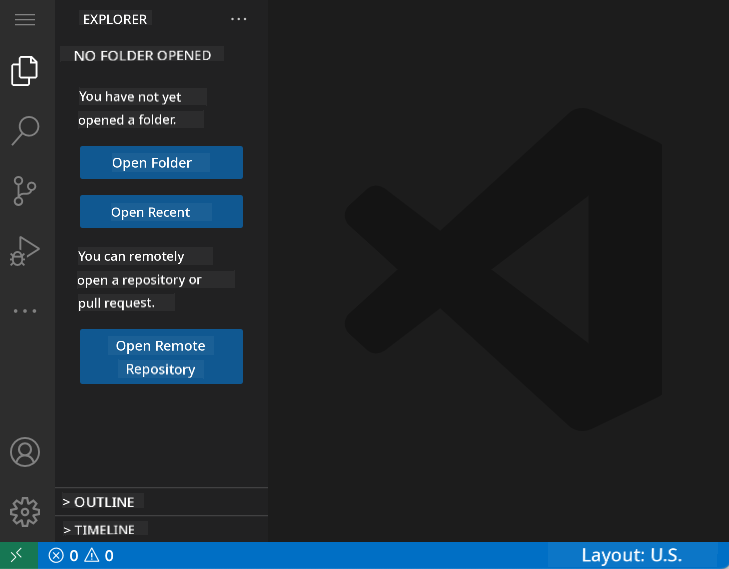
It has three main sections from left to right:
- Activity bar: Icons like 🔎 (Search), ⚙️ (Settings), files, source control, etc.
- Sidebar: Changes context based on the selected activity bar icon (defaults to Explorer to display files).
- Editor/code area: The largest section on the right—where you’ll edit and view code.
Click through the icons to explore features, but return to the Explorer to stay organized.
Opening a GitHub Repository
Method 1: From the Editor
-
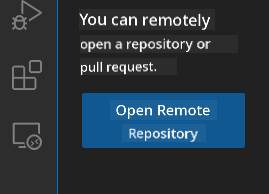
Go to VSCode.dev. Click "Open Remote Repository."
-
Use the Command Palette (Ctrl-Shift-P, or Cmd-Shift-P on Mac).

- Select "Open remote repository."
- Paste your GitHub repo URL (e.g.,
https://github.com/microsoft/Web-Dev-For-Beginners) and press Enter.
If successful, the entire project will load and be ready for editing!
Method 2: Instantly via URL
Transform any GitHub repo URL to open directly in VSCode.dev by replacing github.com with vscode.dev/github.
For example:
- GitHub:
https://github.com/microsoft/Web-Dev-For-Beginners - VSCode.dev:
https://vscode.dev/github/microsoft/Web-Dev-For-Beginners
This feature makes accessing any project quick and easy.
Editing Files in Your Project
Once your repository is open, you can:
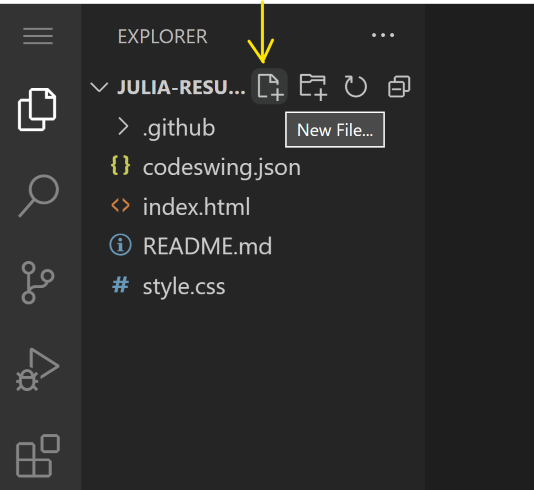
1. Create a New File
- In the Explorer sidebar, navigate to your desired folder or use the root.
- Click the ‘New file ...’ icon.
- Name your file, press Enter, and it will appear instantly.
2. Edit and Save Files
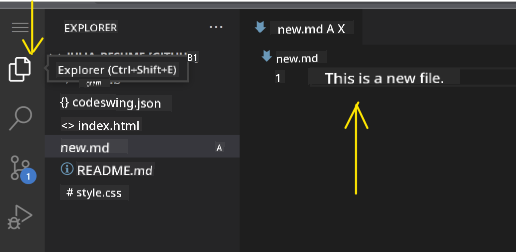
- Click on a file in the Explorer to open it in the code area.
- Make your changes as needed.
- VSCode.dev automatically saves your changes, but you can press Ctrl+S to save manually.
3. Track & Commit Changes with Version Control
VSCode.dev includes integrated Git version control!
-
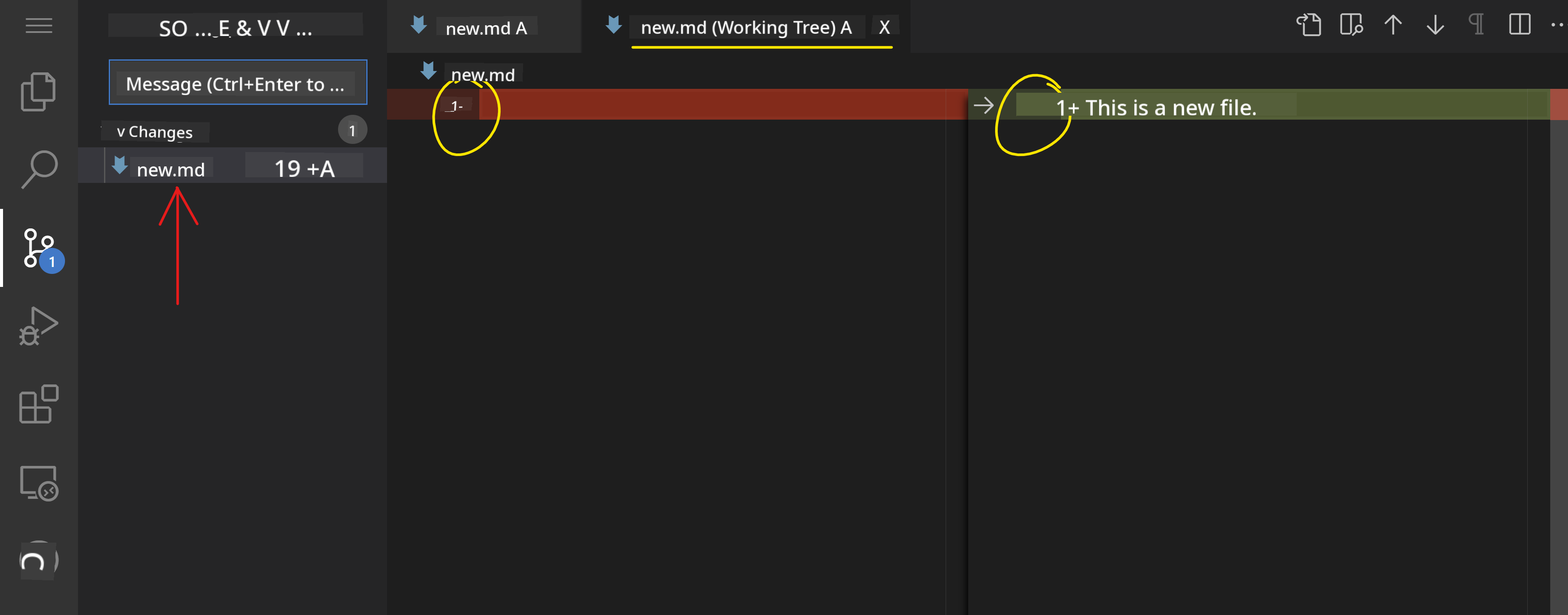
Click the 'Source Control' icon to view all changes made.
-
Files in the
Changesfolder show additions (green) and deletions (red).
-
Stage changes by clicking the
+next to files to prepare for commit. -
Discard unwanted changes by clicking the undo icon.
-
Type a clear commit message, then click the checkmark to commit and push.
To return to your repository on GitHub, select the hamburger menu at the top left.

Leveling Up with Extensions
Extensions allow you to add languages, themes, debuggers, and productivity tools to VSCode.dev—making coding easier and more enjoyable.
Browsing and Managing Extensions
-
Click the Extensions icon on the activity bar.
-
Search for an extension in the 'Search Extensions in Marketplace' box.
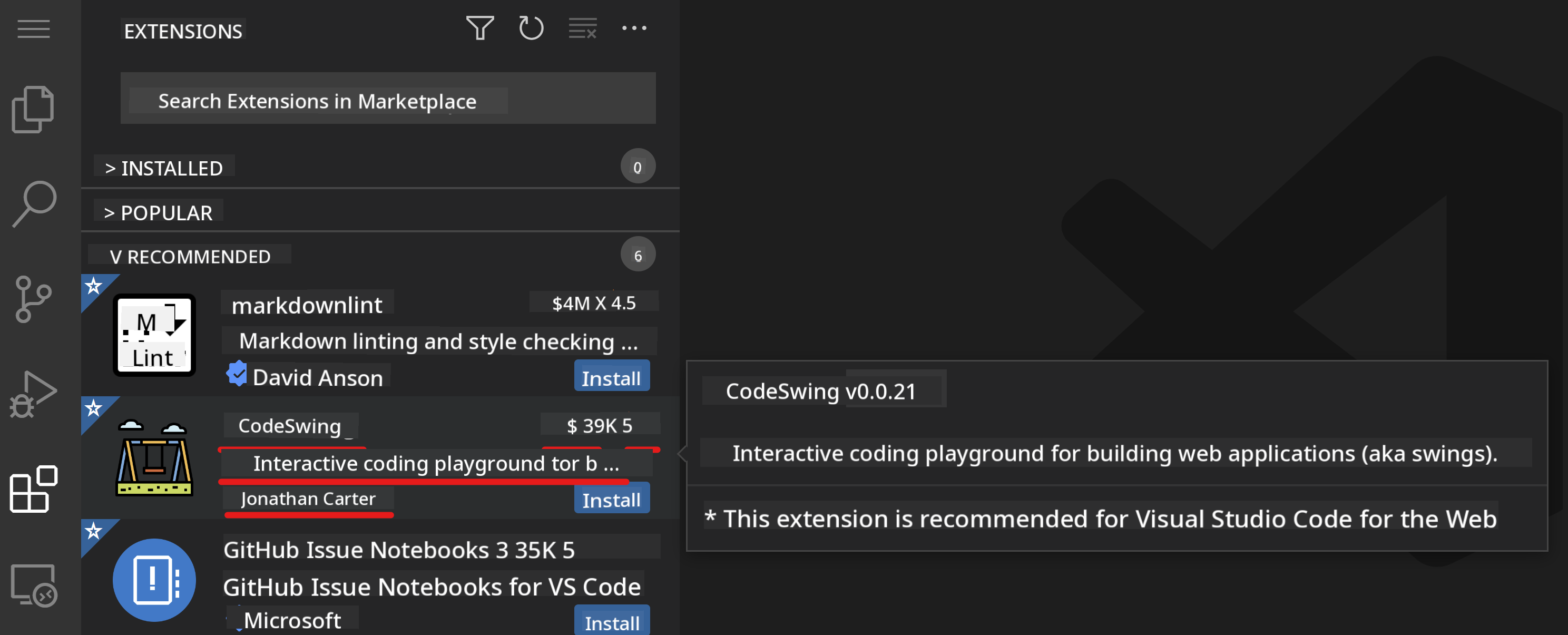
- Installed: All extensions you’ve added
- Popular: Industry favorites
- Recommended: Tailored to your workflow

1. Install Extensions
-
Enter the extension’s name in the search bar, click it, and review details in the editor.
-
Hit the blue Install button in the sidebar or in the main code area.

2. Customize Extensions
-
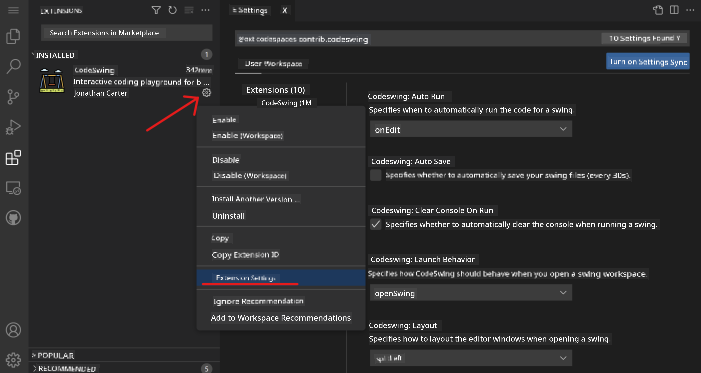
Find your installed extension.
-
Click the Gear icon → select Extension Settings to adjust behaviors to your preferences.
3. Manage Extensions
You can:
-
Disable: Temporarily turn off an extension while keeping it installed
-
Uninstall: Permanently remove it if no longer needed
Find the extension, hit the Gear icon, and select ‘Disable’ or ‘Uninstall,’ or use the blue buttons in the code area.
Assignment
Test your skills: Create a resume website using vscode.dev
Further Exploration and Self-Study
- Dive deeper with the official VSCode Web Docs.
- Explore advanced workspace features, keyboard shortcuts, and settings.
Now you’re ready to code, create, and collaborate—from anywhere, on any device, using VSCode.dev!
Disclaimer:
This document has been translated using the AI translation service Co-op Translator. While we aim for accuracy, please note that automated translations may contain errors or inaccuracies. The original document in its native language should be regarded as the authoritative source. For critical information, professional human translation is recommended. We are not responsible for any misunderstandings or misinterpretations resulting from the use of this translation.