
16 KiB
Introduction to GitHub
This lesson introduces the basics of GitHub, a platform for hosting and managing changes to your code.

Sketchnote by Tomomi Imura
Pre-Lecture Quiz
Introduction
In this lesson, we'll explore:
- Tracking your work on your computer
- Collaborating on projects with others
- Contributing to open-source software
Prerequisites
Before starting, check if Git is installed. In the terminal, type:
git --version
If Git isn't installed, download Git. Then, set up your local Git profile in the terminal:
git config --global user.name "your-name"git config --global user.email "your-email"
To verify if Git is already configured, type:
git config --list
You'll also need a GitHub account, a code editor (like Visual Studio Code), and access to your terminal (or command prompt).
Visit github.com to create an account if you don't have one, or log in and complete your profile.
✅ GitHub isn't the only code repository platform out there, but it's the most widely known.
Preparation
You'll need a folder containing a code project on your local machine (laptop or PC) and a public repository on GitHub to practice contributing to others' projects.
Code Management
Imagine you have a folder on your computer with a code project, and you want to start tracking your progress using Git, a version control system. Some people liken using Git to writing a love letter to your future self. By reading your commit messages days, weeks, or months later, you'll recall why you made certain decisions or "roll back" changes—provided you write good commit messages.
Task: Create a Repository and Commit Code
Watch the video
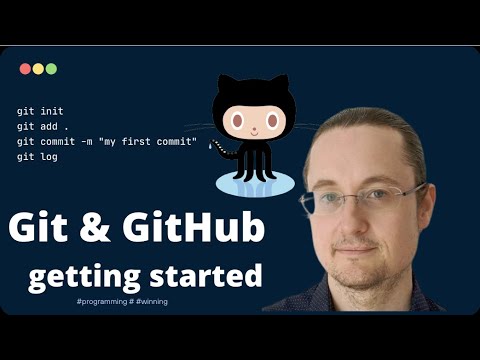
-
Create a repository on GitHub. On GitHub.com, go to the repositories tab or use the navigation bar in the top-right corner to find the new repo button.
- Name your repository (folder).
- Click create repository.
-
Navigate to your working folder. In your terminal, switch to the folder (directory) you want to start tracking. Type:
cd [name of your folder] -
Initialize a Git repository. In your project folder, type:
git init -
Check the status. To check the status of your repository, type:
git statusThe output might look like this:
Changes not staged for commit:
(use "git add <file>..." to update what will be committed)
(use "git checkout -- <file>..." to discard changes in working directory)

     modified:   file.txt
     modified:   file2.txt
The
git statuscommand typically shows information like which files are ready to be saved to the repository or have changes you might want to preserve. -
Add all files for tracking
This is also known as staging files or adding files to the staging area.git add .The
git addcommand with the.argument stages all your files and changes for tracking. -
Add selected files for tracking
git add [file or folder name]This allows you to stage only specific files when you don't want to commit everything at once.
-
Unstage all files
git resetThis command unstages all files at once.
-
Unstage a specific file
git reset [file or folder name]This command unstages only a particular file that you don't want to include in the next commit.
-
Save your work. At this point, you've added files to the staging area, where Git tracks your files. To make the changes permanent, you need to commit the files. A commit represents a save point in your repository's history. Type the following to create a commit:
git commit -m "first commit"This commits all your files with the message "first commit." For future commit messages, aim to be more descriptive to convey the type of change you've made.
-
Connect your local Git repository to GitHub. While a Git repository is useful on your computer, you'll eventually want to back up your files and collaborate with others. GitHub is a great platform for this. Since we've already created a repository on GitHub, we just need to connect it to our local Git repository. Use the
git remote addcommand. Type:Before typing the command, go to your GitHub repository page to find the repository URL. Replace
https://github.com/username/repository_name.gitwith your GitHub URL.git remote add origin https://github.com/username/repository_name.gitThis creates a remote connection named "origin" pointing to the GitHub repository you created earlier.
-
Push local files to GitHub. Now that you've established a connection between your local repository and the GitHub repository, send your files to GitHub using the
git pushcommand:Note: Your branch name might differ from
main.git push -u origin mainThis pushes your commits from the "main" branch to GitHub. Including
-uin the command sets the upstream branch, allowing you to usegit pushorgit pullwithout specifying the branch name in future commands. -
Add more changes. To continue making changes and pushing them to GitHub, use the following three commands:
git add .
git commit -m "type your commit message here"
git push
Tip: Consider adopting a
.gitignorefile to exclude files you don't want to track, such as personal notes stored in the same folder. You can find templates for.gitignorefiles at .gitignore templates.
Commit Messages
A great Git commit subject line completes the sentence:
"If applied, this commit will ."
For the subject, use the imperative, present tense: "change" instead of "changed" or "changes."
Similarly, in the optional body, use the imperative, present tense. The body should explain the motivation for the change and contrast it with previous behavior. Focus on the why, not the how.
✅ Spend a few minutes exploring GitHub. Can you find an excellent commit message? How about a very minimal one? What information do you think is most important to include in a commit message?
Task: Collaborate
The primary reason for uploading projects to GitHub is to enable collaboration with other developers.
Working on Projects with Others
Watch the video
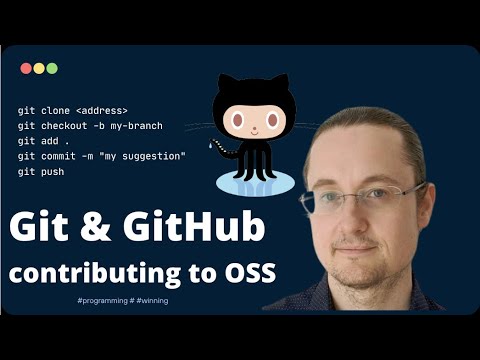
In your repository, navigate to Insights > Community to see how your project aligns with recommended community standards.
Here are some ways to improve your GitHub repository:
- Description: Have you added a description for your project?
- README: Have you included a README? GitHub offers guidance for writing a README.
- Contributing Guidelines: Does your project have contributing guidelines?
- Code of Conduct: Have you added a Code of Conduct?
- License: Perhaps most importantly, have you added a license?
These resources help onboard new team members. They're often the first things new contributors review before even looking at your code to determine if your project is worth their time.
✅ README files, while time-consuming to prepare, are often overlooked by busy maintainers. Can you find an example of a particularly detailed README? Note: There are tools to help create good READMEs that you might want to try.
Task: Merge Code
Contributing documentation helps people contribute to your project. It explains the types of contributions you're looking for and outlines the process. Contributors will need to follow several steps to contribute to your GitHub repository:
- Fork your repository: Contributors will likely need to fork your project, creating a copy of your repository on their GitHub profile.
- Clone: From there, they will clone the project to their local machine.
- Create a branch: Ask contributors to create a branch for their work.
- Focus on one area: Encourage contributors to focus their changes on one specific area at a time. This increases the likelihood of successfully merging their work. For example, if they fix a bug, add a new feature, and update tests, you might only want to implement 1 or 2 of those changes.
✅ Think of situations where branches are particularly important for writing and shipping good code. What use cases come to mind?
Note: Be the change you want to see in the world—create branches for your own work too. Any commits you make will apply to the branch you're currently "checked out" to. Use
git statusto see which branch you're on.
Let's walk through a contributor workflow. Assume the contributor has already forked and cloned the repository, so they have a Git repository ready to work on locally:
-
Create a branch: Use the
git branchcommand to create a branch for the changes they plan to contribute:git branch [branch-name] -
Switch to the working branch: Switch to the specified branch and update the working directory using
git switch:git switch [branch-name] -
Make changes: Add your changes and inform Git using the following commands:
git add .
git commit -m "my changes"
Ensure your commit message is clear and descriptive for both yourself and the repository maintainer.
-
Merge your work with the
mainbranch: Once you're done working, you'll want to merge your changes with themainbranch. Since themainbranch might have changed in the meantime, update it first using the following commands:git switch main git pullTo ensure any conflicts (situations where Git can't automatically merge changes) occur in your working branch, run the following commands:
git switch [branch_name]
git merge main
The
git merge maincommand incorporates all changes frommaininto your branch. Ideally, you can proceed without issues. If conflicts arise, VS Code will highlight where Git is "confused," allowing you to resolve the affected files.To switch to a different branch, use the modern
git switchcommand:git switch [branch_name] -
Push your work to GitHub: Sending your work to GitHub involves two steps: pushing your branch to your repository and opening a Pull Request (PR).
git push --set-upstream origin [branch-name]The above command creates the branch on your forked repository.
-
Open a PR. Next, you’ll want to open a PR. To do this, navigate to the forked repository on GitHub. GitHub will show an option asking if you want to create a new PR. Click on it, and you’ll be taken to an interface where you can edit the commit message title and provide a more suitable description. Now, the maintainer of the repository you forked will see this PR and, fingers crossed, they’ll appreciate it and merge your PR. Congratulations, you’re now a contributor, yay! :)
-
Clean up. It’s considered good practice to clean up after successfully merging a PR. You should clean up both your local branch and the branch you pushed to GitHub. First, delete it locally using the following command:
git branch -d [branch-name]Next, go to the GitHub page for the forked repository and remove the remote branch you just pushed.
The term Pull request might sound a bit odd because you’re essentially pushing your changes to the project. However, the maintainer (project owner) or core team needs to review your changes before merging them into the project’s "main" branch. So, in reality, you’re requesting a decision from the maintainer to accept your changes.
A pull request is a space where you can compare and discuss the differences introduced in a branch, with reviews, comments, integrated tests, and more. A good pull request follows similar rules to a commit message. You can also reference an issue in the issue tracker, especially if your work fixes a specific issue. To do this, use a # followed by the issue number, for example, #97.
🤞Fingers crossed that all checks pass and the project owner(s) merge your changes into the project 🤞
Update your current local working branch with all new commits from the corresponding remote branch on GitHub:
git pull
How to contribute to open source
First, find a repository (or repo) on GitHub that interests you and to which you’d like to contribute. You’ll need to copy its contents to your machine.
✅ A great way to find 'beginner-friendly' repositories is to search by the tag 'good-first-issue'.
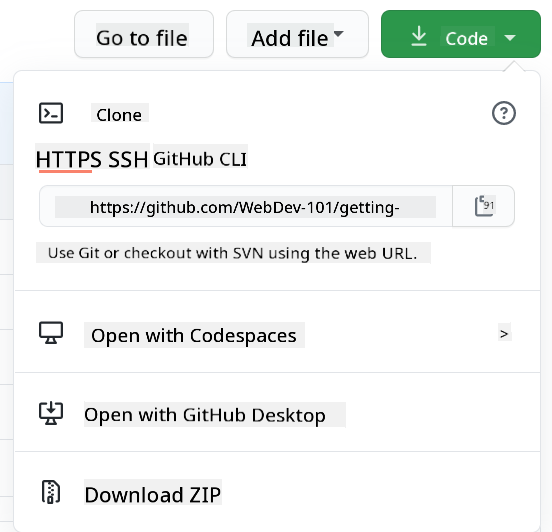
There are several ways to copy code. One way is to "clone" the repository’s contents using HTTPS, SSH, or the GitHub CLI (Command Line Interface).
Open your terminal and clone the repository like this:
git clone https://github.com/ProjectURL
To start working on the project, navigate to the correct folder:
cd ProjectURL
You can also open the entire project using Codespaces, GitHub’s built-in code editor/cloud development environment, or GitHub Desktop.
Alternatively, you can download the code as a zipped folder.
A few more interesting things about GitHub
You can star, watch, and/or "fork" any public repository on GitHub. Your starred repositories can be found in the drop-down menu at the top-right corner. It’s like bookmarking, but for code.
Projects typically have an issue tracker, usually found in the "Issues" tab on GitHub unless stated otherwise. This is where people discuss project-related issues. The Pull Requests tab is where people discuss and review ongoing changes.
Projects may also have discussions in forums, mailing lists, or chat channels like Slack, Discord, or IRC.
✅ Explore your new GitHub repository and try out a few features, like editing settings, adding information to your repo, and creating a project (like a Kanban board). There’s a lot to discover!
🚀 Challenge
Pair up with a friend to work on each other’s code. Collaboratively create a project, fork code, create branches, and merge changes.
Post-Lecture Quiz
Review & Self Study
Read more about contributing to open source software.
Practice, practice, practice. GitHub offers excellent learning paths via skills.github.com:
You’ll also find more advanced courses.
Assignment
Complete the First Week on GitHub course
Disclaimer:
This document has been translated using the AI translation service Co-op Translator. While we aim for accuracy, please note that automated translations may contain errors or inaccuracies. The original document in its native language should be regarded as the authoritative source. For critical information, professional human translation is recommended. We are not responsible for any misunderstandings or misinterpretations resulting from the use of this translation.