
 chris
fe82727158
chris
fe82727158
|
11 months ago | |
|---|---|---|
| .. | ||
| assets | 1 year ago | |
| solution | 12 months ago | |
| README.md | 11 months ago | |
README.md
Build a Chat Assistant with AI
Remember in Star Trek when the crew would casually chat with the ship's computer, asking it complex questions and getting thoughtful responses? What seemed like pure science fiction in the 1960s is now something you can build using web technologies you already know.
In this lesson, we'll create an AI chat assistant using HTML, CSS, JavaScript, and some backend integration. You'll discover how the same skills you've been learning can connect to powerful AI services that can understand context and generate meaningful responses.
Think of AI like having access to a vast library that can not only find information but also synthesize it into coherent answers tailored to your specific questions. Instead of searching through thousands of pages, you get direct, contextual responses.
The integration happens through familiar web technologies working together. HTML creates the chat interface, CSS handles the visual design, JavaScript manages user interactions, and a backend API connects everything to AI services. It's similar to how different sections of an orchestra work together to create a symphony.
We're essentially building a bridge between natural human communication and machine processing. You'll learn both the technical implementation of AI service integration and the design patterns that make interactions feel intuitive.
By the end of this lesson, AI integration will feel less like a mysterious process and more like another API you can work with. You'll understand the foundational patterns that power applications like ChatGPT and Claude, using the same web development principles you've been learning.
Here's what your finished project will look like:
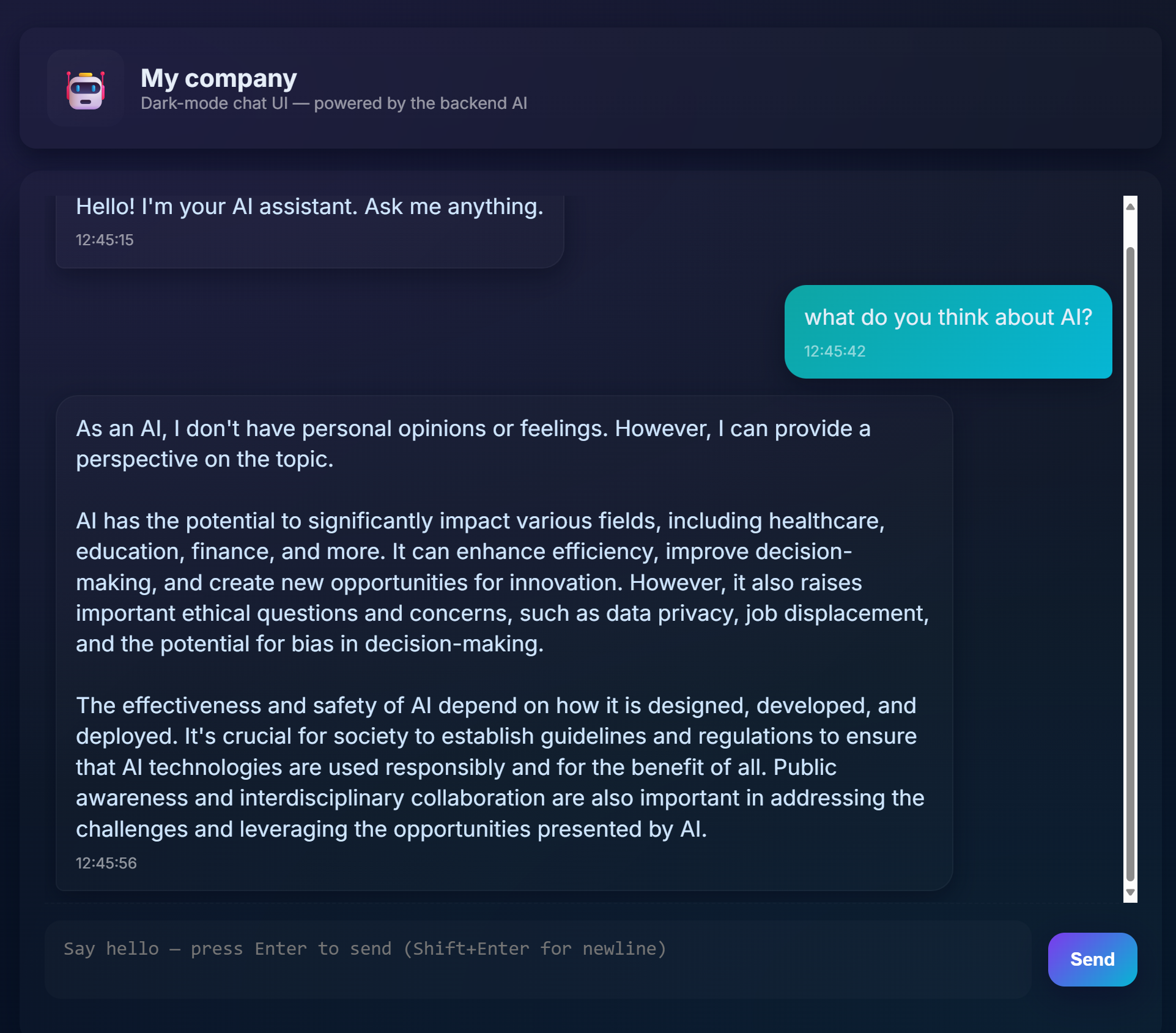
Understanding AI: From Mystery to Mastery
Before diving into the code, let's understand what we're working with. If you've used APIs before, you know the basic pattern: send a request, receive a response.
AI APIs follow a similar structure, but instead of retrieving pre-stored data from a database, they generate new responses based on patterns learned from vast amounts of text. Think of it like the difference between a library catalog system and a knowledgeable librarian who can synthesize information from multiple sources.
What is "Generative AI" Really?
Consider how the Rosetta Stone allowed scholars to understand Egyptian hieroglyphics by finding patterns between known and unknown languages. AI models work similarly – they find patterns in vast amounts of text to understand how language works, then use those patterns to generate appropriate responses to new questions.
Let me break this down with a simple comparison:
- Traditional database: Like asking for your birth certificate – you get the exact same document every time
- Search engine: Like asking a librarian to find books about cats – they show you what's available
- Generative AI: Like asking a knowledgeable friend about cats – they tell you interesting things in their own words, tailored to what you want to know
graph LR
    A[Your Question] --> B[AI Model]
    B --> C[Pattern Recognition]
    C --> D[Content Generation]
    D --> E[Contextual Response]

    F[Training Data<br/>Books, Articles, Web] --> B
How AI Models Learn (The Simple Version)
AI models learn through exposure to enormous datasets containing text from books, articles, and conversations. Through this process, they identify patterns in:
- How thoughts are structured in written communication
- Which words commonly appear together
- How conversations typically flow
- Contextual differences between formal and informal communication
It's similar to how archaeologists decode ancient languages: they analyze thousands of examples to understand grammar, vocabulary, and cultural context, eventually becoming able to interpret new texts using those learned patterns.
Why GitHub Models?
We're using GitHub Models for a pretty practical reason – it gives us access to enterprise-level AI without having to set up our own AI infrastructure (which, trust me, you don't want to do right now!). Think of it like using a weather API instead of trying to predict the weather yourself by setting up weather stations everywhere.
It's basically "AI-as-a-Service," and the best part? It's free to get started, so you can experiment without worrying about running up a huge bill.
graph LR
    A[Frontend Chat UI] --> B[Your Backend API]
    B --> C[GitHub Models API]
    C --> D[AI Model Processing]
    D --> C
    C --> B
    B --> A
We'll use GitHub Models for our backend integration, which provides access to professional-grade AI capabilities through a developer-friendly interface. The GitHub Models Playground serves as a testing environment where you can experiment with different AI models and understand their capabilities before implementing them in code.
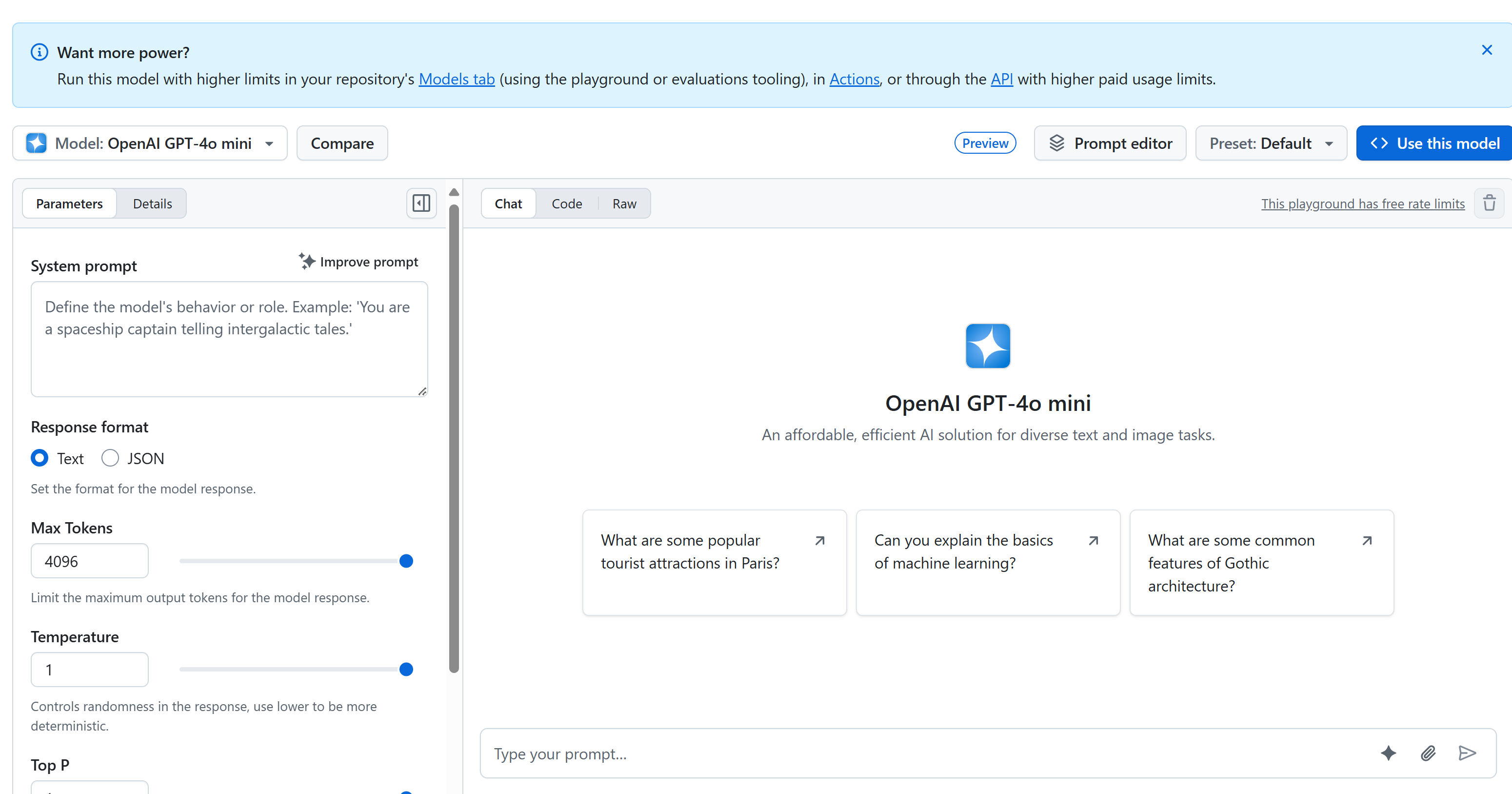
Here's what makes the playground so useful:
- Try out different AI models like GPT-4o-mini, Claude, and others (all free!)
- Test your ideas and prompts before you write any code
- Get ready-to-use code snippets in your favorite programming language
- Tweak settings like creativity level and response length to see how they affect the output
Once you've played around a bit, just click the "Code" tab and pick your programming language to get the implementation code you'll need.

Setting Up the Python Backend Integration
Now let's implement the AI integration using Python. Python is excellent for AI applications because of its simple syntax and powerful libraries. We'll start with the code from GitHub Models playground and then refactor it into a reusable, production-ready function.
Understanding the Base Implementation
When you grab the Python code from the playground, you'll get something that looks like this. Don't worry if it seems like a lot at first – let's walk through it piece by piece:
"""Run this model in Python

> pip install openai
"""
import os
from openai import OpenAI

# To authenticate with the model you will need to generate a personal access token (PAT) in your GitHub settings.
# Create your PAT token by following instructions here: https://docs.github.com/en/authentication/keeping-your-account-and-data-secure/managing-your-personal-access-tokens
client = OpenAI(
    base_url="https://models.github.ai/inference",
    api_key=os.environ["GITHUB_TOKEN"],
)

```python
response = client.chat.completions.create(
    messages=[
        {
            "role": "system",
            "content": "",
        },
        {
            "role": "user",
            "content": "What is the capital of France?",
        }
    ],
    model="openai/gpt-4o-mini",
    temperature=1,
    max_tokens=4096,
    top_p=1
)

print(response.choices[0].message.content)
Here's what's happening in this code:
- We import the tools we need:
osfor reading environment variables andOpenAIfor talking to the AI - We set up the OpenAI client to point to GitHub's AI servers instead of OpenAI directly
- We authenticate using a special GitHub token (more on that in a minute!)
- We structure our conversation with different "roles" – think of it like setting the scene for a play
- We send our request to the AI with some fine-tuning parameters
- We extract the actual response text from all the data that comes back
Understanding Message Roles: The AI Conversation Framework
AI conversations use a specific structure with different "roles" that serve distinct purposes:
messages=[
    {
        "role": "system",
        "content": "You are a helpful assistant who explains things simply."
    },
    {
        "role": "user",
        "content": "What is machine learning?"
    }
]
Think of it like directing a play:
- System role: Like stage directions for an actor – it tells the AI how to behave, what personality to have, and how to respond
- User role: The actual question or message from the person using your application
- Assistant role: The AI's response (you don't send this, but it appears in conversation history)
Real-world analogy: Imagine you're introducing a friend to someone at a party:
- System message: "This is my friend Sarah, she's a doctor who's great at explaining medical concepts in simple terms"
- User message: "Can you explain how vaccines work?"
- Assistant response: Sarah responds as a friendly doctor, not as a lawyer or a chef
Understanding AI Parameters: Fine-Tuning Response Behavior
The numerical parameters in AI API calls control how the model generates responses. These settings allow you to adjust the AI's behavior for different use cases:
Temperature (0.0 to 2.0): The Creativity Dial
What it does: Controls how creative or predictable the AI's responses will be.
Think of it like a jazz musician's improvisation level:
- Temperature = 0.1: Playing the exact same melody every time (highly predictable)
- Temperature = 0.7: Adding some tasteful variations while staying recognizable (balanced creativity)
- Temperature = 1.5: Full experimental jazz with unexpected turns (highly unpredictable)
# Very predictable responses (good for factual questions)
response = client.chat.completions.create(
    messages=[{"role": "user", "content": "What is 2+2?"}],
    temperature=0.1  # Will almost always say "4"
)

# Creative responses (good for brainstorming)
response = client.chat.completions.create(
    messages=[{"role": "user", "content": "Write a creative story opening"}],
    temperature=1.2  # Will generate unique, unexpected stories
)
Max Tokens (1 to 4096+): The Response Length Controller
What it does: Sets a limit on how long the AI's response can be.
Think of tokens as roughly equivalent to words (about 1 token = 0.75 words in English):
- max_tokens=50: Short and sweet (like a text message)
- max_tokens=500: A nice paragraph or two
- max_tokens=2000: A detailed explanation with examples
# Short, concise answers
response = client.chat.completions.create(
    messages=[{"role": "user", "content": "Explain JavaScript"}],
    max_tokens=100  # Forces a brief explanation
)

# Detailed, comprehensive answers
response = client.chat.completions.create(
    messages=[{"role": "user", "content": "Explain JavaScript"}],
    max_tokens=1500  # Allows for detailed explanations with examples
)
Top_p (0.0 to 1.0): The Focus Parameter
What it does: Controls how focused the AI stays on the most likely responses.
Picture the AI having a huge vocabulary, ranked by how likely each word is:
- top_p=0.1: Only considers the top 10% most likely words (very focused)
- top_p=0.9: Considers 90% of possible words (more creative)
- top_p=1.0: Considers everything (maximum variety)
For example: If you ask "The sky is usually..."
- Low top_p: Almost definitely says "blue"
- High top_p: Might say "blue", "cloudy", "vast", "changing", "beautiful", etc.
Putting It All Together: Parameter Combinations for Different Use Cases
# For factual, consistent answers (like a documentation bot)
factual_params = {
    "temperature": 0.2,
    "max_tokens": 300,
    "top_p": 0.3
}

# For creative writing assistance
creative_params = {
    "temperature": 1.1,
    "max_tokens": 1000,
    "top_p": 0.9
}

# For conversational, helpful responses (balanced)
conversational_params = {
    "temperature": 0.7,
    "max_tokens": 500,
    "top_p": 0.8
}
Understanding why these parameters matter: Different applications need different types of responses. A customer service bot should be consistent and factual (low temperature), while a creative writing assistant should be imaginative and varied (high temperature). Understanding these parameters gives you control over your AI's personality and response style.
**Here's what's happening in this code:**
- **We import** the tools we need: `os` for reading environment variables and `OpenAI` for talking to the AI
- **We set up** the OpenAI client to point to GitHub's AI servers instead of OpenAI directly
- **We authenticate** using a special GitHub token (more on that in a minute!)
- **We structure** our conversation with different "roles" – think of it like setting the scene for a play
- **We send** our request to the AI with some fine-tuning parameters
- **We extract** the actual response text from all the data that comes back

> 🔐 **Security Note**: Never hardcode API keys in your source code! Always use environment variables to store sensitive credentials like your `GITHUB_TOKEN`.

### Creating a Reusable AI Function

Let's refactor this code into a clean, reusable function that we can easily integrate into our web application:

```python
import asyncio
from openai import AsyncOpenAI

# Use AsyncOpenAI for better performance
client = AsyncOpenAI(
    base_url="https://models.github.ai/inference",
    api_key=os.environ["GITHUB_TOKEN"],
)

async def call_llm_async(prompt: str, system_message: str = "You are a helpful assistant."):
    """
    Sends a prompt to the AI model asynchronously and returns the response.

    Args:
        prompt: The user's question or message
        system_message: Instructions that define the AI's behavior and personality

    Returns:
        str: The AI's response to the prompt
    """
    try:
        response = await client.chat.completions.create(
            messages=[
                {
                    "role": "system",
                    "content": system_message,
                },
                {
                    "role": "user",
                    "content": prompt,
                }
            ],
            model="openai/gpt-4o-mini",
            temperature=1,
            max_tokens=4096,
            top_p=1
        )
        return response.choices[0].message.content
    except Exception as e:
        logger.error(f"AI API error: {str(e)}")
        return "I'm sorry, I'm having trouble processing your request right now."

# Backward compatibility function for synchronous calls
def call_llm(prompt: str, system_message: str = "You are a helpful assistant."):
    """Synchronous wrapper for async AI calls."""
    return asyncio.run(call_llm_async(prompt, system_message))
Understanding this improved function:
- Accepts two parameters: the user's prompt and an optional system message
- Provides a default system message for general assistant behavior
- Uses proper Python type hints for better code documentation
- Includes a detailed docstring explaining the function's purpose and parameters
- Returns only the response content, making it easy to use in our web API
- Maintains the same model parameters for consistent AI behavior
The Magic of System Prompts: Programming AI Personality
If parameters control how the AI thinks, system prompts control who the AI thinks it is. This is honestly one of the coolest parts of working with AI – you're essentially giving the AI a complete personality, expertise level, and communication style.
Think of system prompts like casting different actors for different roles: Instead of having one generic assistant, you can create specialized experts for different situations. Need a patient teacher? A creative brainstorming partner? A no-nonsense business advisor? Just change the system prompt!
Why System Prompts Are So Powerful
Here's the fascinating part: AI models have been trained on countless conversations where people adopt different roles and expertise levels. When you give the AI a specific role, it's like flipping a switch that activates all those learned patterns.
It's like method acting for AI: Tell an actor "you're a wise old professor" and watch how they automatically adjust their posture, vocabulary, and mannerisms. AI does something remarkably similar with language patterns.
Crafting Effective System Prompts: The Art and Science
The anatomy of a great system prompt:
- Role/Identity: Who is the AI?
- Expertise: What do they know?
- Communication style: How do they speak?
- Specific instructions: What should they focus on?
# ❌ Vague system prompt
"You are helpful."

# ✅ Detailed, effective system prompt
"You are Dr. Sarah Chen, a senior software engineer with 15 years of experience at major tech companies. You explain programming concepts using real-world analogies and always provide practical examples. You're patient with beginners and enthusiastic about helping them understand complex topics."
System Prompt Examples with Context
Let's see how different system prompts create completely different AI personalities:
# Example 1: The Patient Teacher
teacher_prompt = """
You are an experienced programming instructor who has taught thousands of students.
You break down complex concepts into simple steps, use analogies from everyday life,
and always check if the student understands before moving on. You're encouraging
and never make students feel bad for not knowing something.
"""

# Example 2: The Creative Collaborator
creative_prompt = """
You are a creative writing partner who loves brainstorming wild ideas. You're
enthusiastic, imaginative, and always build on the user's ideas rather than
replacing them. You ask thought-provoking questions to spark creativity and
offer unexpected perspectives that make stories more interesting.
"""

# Example 3: The Strategic Business Advisor
business_prompt = """
You are a strategic business consultant with an MBA and 20 years of experience
helping startups scale. You think in frameworks, provide structured advice,
and always consider both short-term tactics and long-term strategy. You ask
probing questions to understand the full business context before giving advice.
"""
Seeing System Prompts in Action
Let's test the same question with different system prompts to see the dramatic differences:
Question: "How do I handle user authentication in my web app?"
# With teacher prompt:
teacher_response = call_llm(
    "How do I handle user authentication in my web app?",
    teacher_prompt
)
# Typical response: "Great question! Let's break authentication down into simple steps.
# Think of it like a nightclub bouncer checking IDs..."

# With business prompt:
business_response = call_llm(
    "How do I handle user authentication in my web app?",
    business_prompt
)
# Typical response: "From a strategic perspective, authentication is crucial for user
# trust and regulatory compliance. Let me outline a framework considering security,
# user experience, and scalability..."
Advanced System Prompt Techniques
1. Context Setting: Give the AI background information
system_prompt = """
You are helping a junior developer who just started their first job at a startup.
They know basic HTML/CSS/JavaScript but are new to backend development and databases.
Be encouraging and explain things step-by-step without being condescending.
"""
2. Output Formatting: Tell the AI how to structure responses
system_prompt = """
You are a technical mentor. Always structure your responses as:
1. Quick Answer (1-2 sentences)
2. Detailed Explanation
3. Code Example
4. Common Pitfalls to Avoid
5. Next Steps for Learning
"""
3. Constraint Setting: Define what the AI should NOT do
system_prompt = """
You are a coding tutor focused on teaching best practices. Never write complete
solutions for the user - instead, guide them with hints and questions so they
learn by doing. Always explain the 'why' behind coding decisions.
"""
Why This Matters for Your Chat Assistant
Understanding system prompts gives you incredible power to create specialized AI assistants:
- Customer service bot: Helpful, patient, policy-aware
- Learning tutor: Encouraging, step-by-step, checks understanding
- Creative partner: Imaginative, builds on ideas, asks "what if?"
- Technical expert: Precise, detailed, security-conscious
The key insight: You're not just calling an AI API – you're creating a custom AI personality that serves your specific use case. This is what makes modern AI applications feel tailored and useful rather than generic.
Building the Web API with FastAPI: Your High-Performance AI Communication Hub
Now let's build the backend that connects your frontend to AI services. We'll use FastAPI, a modern Python framework that excels at building APIs for AI applications.
FastAPI offers several advantages for this type of project: built-in async support for handling concurrent requests, automatic API documentation generation, and excellent performance. Your FastAPI server acts as an intermediary that receives requests from the frontend, communicates with AI services, and returns formatted responses.
Why FastAPI for AI Applications?
You might be wondering: "Can't I just call the AI directly from my frontend JavaScript?" or "Why FastAPI instead of Flask or Django?" Great questions!
Here's why FastAPI is perfect for what we're building:
- Async by default: Can juggle multiple AI requests at once without getting stuck
- Automatic docs: Visit
/docsand get a beautiful, interactive API documentation page for free - Built-in validation: Catches errors before they cause problems
- Lightning fast: One of the speediest Python frameworks out there
- Modern Python: Uses all the latest and greatest Python features
And here's why we need a backend at all:
Security: Your AI API key is like a password – if you put it in frontend JavaScript, anyone who views your website's source code could steal it and use your AI credits. The backend keeps sensitive credentials secure.
Rate Limiting & Control: The backend lets you control how often users can make requests, implement user authentication, and add logging to track usage.
Data Processing: You might want to save conversations, filter inappropriate content, or combine multiple AI services. The backend is where this logic lives.
The architecture resembles a client-server model:
- Frontend: User interface layer for interaction
- Backend API: Request processing and routing layer
- AI Service: External computation and response generation
- Environment Variables: Secure configuration and credentials storage
Understanding the Request-Response Flow
Let's trace what happens when a user sends a message:
sequenceDiagram
    participant User as 👤 User
    participant Frontend as 🌐 Frontend
    participant API as 🔧 FastAPI Server
    participant AI as 🤖 AI Service

    User->>Frontend: Types "Hello AI!"
    Frontend->>API: POST /hello {"message": "Hello AI!"}
    Note over API: Validates request<br/>Adds system prompt
    API->>AI: Sends formatted request
    AI->>API: Returns AI response
    Note over API: Processes response<br/>Logs conversation
    API->>Frontend: {"response": "Hello! How can I help?"}
    Frontend->>User: Displays AI message
Understanding each step:
- User interaction: Person types in the chat interface
- Frontend processing: JavaScript captures the input and formats it as JSON
- API validation: FastAPI automatically validates the request using Pydantic models
- AI integration: Backend adds context (system prompt) and calls the AI service
- Response handling: API receives AI response and can modify it if needed
- Frontend display: JavaScript shows the response in the chat interface
Understanding API Architecture
sequenceDiagram
    participant Frontend
    participant FastAPI
    participant AI Function
    participant GitHub Models

    Frontend->>FastAPI: POST /hello {"message": "Hello AI!"}
    FastAPI->>AI Function: call_llm(message, system_prompt)
    AI Function->>GitHub Models: API request
    GitHub Models->>AI Function: AI response
    AI Function->>FastAPI: response text
    FastAPI->>Frontend: {"response": "Hello! How can I help?"}
Creating the FastAPI Application
Let's build our API step by step. Create a file called api.py with the following FastAPI code:
# api.py
from fastapi import FastAPI, HTTPException
from fastapi.middleware.cors import CORSMiddleware
from pydantic import BaseModel
from llm import call_llm
import logging

# Configure logging
logging.basicConfig(level=logging.INFO)
logger = logging.getLogger(__name__)

# Create FastAPI application
app = FastAPI(
    title="AI Chat API",
    description="A high-performance API for AI-powered chat applications",
    version="1.0.0"
)

# Configure CORS
app.add_middleware(
    CORSMiddleware,
    allow_origins=["*"],  # Configure appropriately for production
    allow_credentials=True,
    allow_methods=["*"],
    allow_headers=["*"],
)

# Pydantic models for request/response validation
class ChatMessage(BaseModel):
    message: str

class ChatResponse(BaseModel):
    response: str

@app.get("/")
async def root():
    """Root endpoint providing API information."""
    return {
        "message": "Welcome to the AI Chat API",
        "docs": "/docs",
        "health": "/health"
    }

@app.get("/health")
async def health_check():
    """Health check endpoint."""
    return {"status": "healthy", "service": "ai-chat-api"}

@app.post("/hello", response_model=ChatResponse)
async def chat_endpoint(chat_message: ChatMessage):
    """Main chat endpoint that processes messages and returns AI responses."""
    try:
        # Extract and validate message
        message = chat_message.message.strip()
        if not message:
            raise HTTPException(status_code=400, detail="Message cannot be empty")

        logger.info(f"Processing message: {message[:50]}...")

        # Call AI service (note: call_llm should be made async for better performance)
        ai_response = await call_llm_async(message, "You are a helpful and friendly assistant.")

        logger.info("AI response generated successfully")
        return ChatResponse(response=ai_response)

    except HTTPException:
        raise
    except Exception as e:
        logger.error(f"Error processing chat message: {str(e)}")
        raise HTTPException(status_code=500, detail="Internal server error")

if __name__ == "__main__":
    import uvicorn
    uvicorn.run(app, host="0.0.0.0", port=5000, reload=True)
Understanding the FastAPI implementation:
- Imports FastAPI for modern web framework functionality and Pydantic for data validation
- Creates automatic API documentation (available at
/docswhen server runs) - Enables CORS middleware to allow frontend requests from different origins
- Defines Pydantic models for automatic request/response validation and documentation
- Uses async endpoints for better performance with concurrent requests
- Implements proper HTTP status codes and error handling with HTTPException
- Includes structured logging for monitoring and debugging
- Provides health check endpoint for monitoring service status
Key FastAPI advantages over traditional frameworks:
- Automatic validation: Pydantic models ensure data integrity before processing
- Interactive docs: Visit
/docsfor auto-generated, testable API documentation - Type safety: Python type hints prevent runtime errors and improve code quality
- Async support: Handle multiple AI requests simultaneously without blocking
- Performance: Significantly faster request processing for real-time applications
Understanding CORS: The Web's Security Guard
CORS (Cross-Origin Resource Sharing) is like a security guard at a building who checks if visitors are allowed to enter. Let's understand why this matters and how it affects your application.
What is CORS and Why Does It Exist?
The Problem: Imagine if any website could make requests to your bank's website on your behalf without your permission. That would be a security nightmare! Browsers prevent this by default through the "Same-Origin Policy."
Same-Origin Policy: Browsers only allow web pages to make requests to the same domain, port, and protocol they were loaded from.
Real-world analogy: It's like apartment building security – only residents (same origin) can access the building by default. If you want to let a friend (different origin) visit, you need to explicitly tell security it's okay.
CORS in Your Development Environment
During development, your frontend and backend run on different ports:
- Frontend:
http://localhost:3000(or file:// if opening HTML directly) - Backend:
http://localhost:5000
These are considered "different origins" even though they're on the same computer!
from fastapi.middleware.cors import CORSMiddleware

app = FastAPI(__name__)
CORS(app)   # This tells browsers: "It's okay for other origins to make requests to this API"
What CORS configuration does in practice:
- Adds special HTTP headers to API responses that tell browsers "this cross-origin request is allowed"
- Handles "preflight" requests (browsers sometimes check permissions before sending the actual request)
- Prevents the dreaded "blocked by CORS policy" error in your browser console
CORS Security: Development vs Production
# 🚨 Development: Allows ALL origins (convenient but insecure)
CORS(app)

# ✅ Production: Only allow your specific frontend domain
CORS(app, origins=["https://yourdomain.com", "https://www.yourdomain.com"])

# 🔒 Advanced: Different origins for different environments
if app.debug:  # Development mode
    CORS(app, origins=["http://localhost:3000", "http://127.0.0.1:3000"])
else:  # Production mode
    CORS(app, origins=["https://yourdomain.com"])
Why this matters: In development, CORS(app) is like leaving your front door unlocked – convenient but not secure. In production, you want to specify exactly which websites can talk to your API.
Common CORS Scenarios and Solutions
| Scenario | Problem | Solution |
|---|---|---|
| Local Development | Frontend can't reach backend | Add CORSMiddleware to FastAPI |
| GitHub Pages + Heroku | Deployed frontend can't reach API | Add your GitHub Pages URL to CORS origins |
| Custom Domain | CORS errors in production | Update CORS origins to match your domain |
| Mobile App | App can't reach web API | Add your app's domain or use * carefully |
Pro tip: You can check CORS headers in your browser's Developer Tools under the Network tab. Look for headers like Access-Control-Allow-Origin in the response.
Error Handling and Validation
Notice how our API includes proper error handling:
# Validate that we received a message
if not message:
    return jsonify({"error": "Message field is required"}), 400
Key validation principles:
- Checks for required fields before processing requests
- Returns meaningful error messages in JSON format
- Uses appropriate HTTP status codes (400 for bad requests)
- Provides clear feedback to help frontend developers debug issues
Setting Up and Running Your Backend
Now that we have our AI integration and FastAPI server ready, let's get everything running. The setup process involves installing Python dependencies, configuring environment variables, and starting your development server.
Python Environment Setup
Let's set up your Python development environment. Virtual environments are like the Manhattan Project's compartmentalized approach – each project gets its own isolated space with specific tools and dependencies, preventing conflicts between different projects.
# Navigate to your backend directory
cd backend

# Create a virtual environment (like creating a clean room for your project)
python -m venv venv

# Activate it (Linux/Mac)
source ./venv/bin/activate

# On Windows, use:
# venv\Scripts\activate

# Install the good stuff
pip install openai fastapi uvicorn python-dotenv
What we just did:
- Created our own little Python bubble where we can install packages without affecting anything else
- Activated it so our terminal knows to use this specific environment
- Installed the essentials: OpenAI for AI magic, FastAPI for our web API, Uvicorn to actually run it, and python-dotenv for secure secrets management
Key dependencies explained:
- FastAPI: Modern, fast web framework with automatic API documentation
- Uvicorn: Lightning-fast ASGI server that runs FastAPI applications
- OpenAI: Official library for GitHub Models and OpenAI API integration
- python-dotenv: Secure environment variable loading from .env files
Environment Configuration: Keeping Secrets Safe
Before we start our API, we need to talk about one of the most important lessons in web development: how to keep your secrets actually secret. Environment variables are like a secure vault that only your application can access.
What Are Environment Variables?
Think of environment variables like a safety deposit box – you put your valuable stuff in there, and only you (and your app) have the key to get it out. Instead of writing sensitive information directly in your code (where literally anyone can see it), you store it safely in the environment.
Here's the difference:
- The wrong way: Writing your password on a sticky note and putting it on your monitor
- The right way: Keeping your password in a secure password manager that only you can access
Why Environment Variables Matter
# 🚨 NEVER DO THIS - API key visible to everyone
client = OpenAI(
    api_key="ghp_1234567890abcdef...",  # Anyone can steal this!
    base_url="https://models.github.ai/inference"
)

# ✅ DO THIS - API key stored securely
client = OpenAI(
    api_key=os.environ["GITHUB_TOKEN"],  # Only your app can access this
    base_url="https://models.github.ai/inference"
)
What happens when you hardcode secrets:
- Version control exposure: Anyone with access to your Git repository sees your API key
- Public repositories: If you push to GitHub, your key is visible to the entire internet
- Team sharing: Other developers working on your project get access to your personal API key
- Security breaches: If someone steals your API key, they can use your AI credits
Setting Up Your Environment File
Create a .env file in your backend directory. This file stores your secrets locally:
# .env file - This should NEVER be committed to Git
GITHUB_TOKEN=your_github_personal_access_token_here
FASTAPI_DEBUG=True
ENVIRONMENT=development
Understanding the .env file:
- One secret per line in
KEY=valueformat - No spaces around the equals sign
- No quotes needed around values (usually)
- Comments start with
#
Creating Your GitHub Personal Access Token
Your GitHub token is like a special password that gives your application permission to use GitHub's AI services:
Step-by-step token creation:
- Go to GitHub Settings → Developer settings → Personal access tokens → Tokens (classic)
- Click "Generate new token (classic)"
- Set expiration (30 days for testing, longer for production)
- Select scopes: Check "repo" and any other permissions you need
- Generate token and copy it immediately (you can't see it again!)
- Paste into your .env file
# Example of what your token looks like (this is fake!)
GITHUB_TOKEN=ghp_1A2B3C4D5E6F7G8H9I0J1K2L3M4N5O6P7Q8R
Loading Environment Variables in Python
import os
from dotenv import load_dotenv

# Load environment variables from .env file
load_dotenv()

# Now you can access them securely
api_key = os.environ.get("GITHUB_TOKEN")
if not api_key:
    raise ValueError("GITHUB_TOKEN not found in environment variables!")

client = OpenAI(
    api_key=api_key,
    base_url="https://models.github.ai/inference"
)
What this code does:
- Loads your .env file and makes variables available to Python
- Checks if the required token exists (good error handling!)
- Raises a clear error if the token is missing
- Uses the token securely without exposing it in code
Git Security: The .gitignore File
Your .gitignore file tells Git which files to never track or upload:
# .gitignore - Add these lines
.env
*.env
.env.local
.env.production
__pycache__/
venv/
.vscode/
Why this is crucial: Once you add .env to .gitignore, Git will ignore your environment file, preventing you from accidentally uploading your secrets to GitHub.
Different Environments, Different Secrets
Professional applications use different API keys for different environments:
# .env.development
GITHUB_TOKEN=your_development_token
DEBUG=True

# .env.production
GITHUB_TOKEN=your_production_token
DEBUG=False
Why this matters: You don't want your development experiments to affect your production AI usage quota, and you want different security levels for different environments.
Starting Your Development Server: Bringing Your FastAPI to Life
Now comes the exciting moment – starting your FastAPI development server and seeing your AI integration come alive! FastAPI uses Uvicorn, a lightning-fast ASGI server that's specifically designed for async Python applications.
Understanding the FastAPI Server Startup Process
# Method 1: Direct Python execution (includes auto-reload)
python api.py

# Method 2: Using Uvicorn directly (more control)
uvicorn api:app --host 0.0.0.0 --port 5000 --reload
When you run this command, here's what happens behind the scenes:
1. Python loads your FastAPI application:
- Imports all required libraries (FastAPI, Pydantic, OpenAI, etc.)
- Loads environment variables from your
.envfile - Creates the FastAPI application instance with automatic documentation
2. Uvicorn configures the ASGI server:
- Binds to port 5000 with async request handling capabilities
- Sets up request routing with automatic validation
- Enables hot reload for development (restarts on file changes)
- Generates interactive API documentation
3. Server starts listening:
- Your terminal shows:
INFO: Uvicorn running on http://0.0.0.0:5000 - The server can handle multiple concurrent AI requests
- Your API is ready with automatic docs at
http://localhost:5000/docs
What You Should See When Everything Works
$ python api.py
INFO:     Will watch for changes in these directories: ['/your/project/path']
INFO:     Uvicorn running on http://0.0.0.0:5000 (Press CTRL+C to quit)
INFO:     Started reloader process [12345] using WatchFiles
INFO:     Started server process [12346]
INFO:     Waiting for application startup.
INFO:     Application startup complete.
Understanding the FastAPI output:
- Will watch for changes: Auto-reload enabled for development
- Uvicorn running: High-performance ASGI server is active
- Started reloader process: File watcher for automatic restarts
- Application startup complete: FastAPI app initialized successfully
- Interactive docs available: Visit
/docsfor automatic API documentation
Testing Your FastAPI: Multiple Powerful Approaches
FastAPI provides several convenient ways to test your API, including automatic interactive documentation:
Method 1: Interactive API Documentation (Recommended)
- Open your browser and go to
http://localhost:5000/docs - You'll see Swagger UI with all your endpoints documented
- Click on
/hello→ "Try it out" → Enter a test message → "Execute" - See the response directly in the browser with proper formatting
Method 2: Basic Browser Test
- Go to
http://localhost:5000for the root endpoint - Go to
http://localhost:5000/healthto check server health - This confirms your FastAPI server is running properly
Method 2: Command Line Test (Advanced)
# Test with curl (if available)
curl -X POST http://localhost:5000/hello \
  -H "Content-Type: application/json" \
  -d '{"message": "Hello AI!"}'

# Expected response:
# {"response": "Hello! I'm your AI assistant. How can I help you today?"}
Method 3: Python Test Script
# test_api.py - Create this file to test your API
import requests
import json

# Test the API endpoint
url = "http://localhost:5000/hello"
data = {"message": "Tell me a joke about programming"}

response = requests.post(url, json=data)
if response.status_code == 200:
    result = response.json()
    print("AI Response:", result['response'])
else:
    print("Error:", response.status_code, response.text)
Troubleshooting Common Startup Issues
| Error Message | What It Means | How to Fix |
|---|---|---|
ModuleNotFoundError: No module named 'fastapi' |
FastAPI not installed | Run pip install fastapi uvicorn in your virtual environment |
ModuleNotFoundError: No module named 'uvicorn' |
ASGI server not installed | Run pip install uvicorn in your virtual environment |
KeyError: 'GITHUB_TOKEN' |
Environment variable not found | Check your .env file and load_dotenv() call |
Address already in use |
Port 5000 is busy | Kill other processes using port 5000 or change the port |
ValidationError |
Request data doesn't match Pydantic model | Check your request format matches the expected schema |
HTTPException 422 |
Unprocessable entity | Request validation failed, check /docs for correct format |
OpenAI API error |
AI service authentication failed | Verify your GitHub token is correct and has proper permissions |
Development Best Practices
Hot Reloading: FastAPI with Uvicorn provides automatic reloading when you save changes to your Python files. This means you can modify your code and test immediately without manually restarting.
# Enable hot reloading explicitly
if __name__ == "__main__":
    app.run(host="0.0.0.0", port=5000, debug=True)  # debug=True enables hot reload
Logging for Development: Add logging to understand what's happening:
import logging

# Set up logging
logging.basicConfig(level=logging.INFO)
logger = logging.getLogger(__name__)

@app.route("/hello", methods=["POST"])
def hello():
    data = request.get_json()
    message = data.get("message", "")

    logger.info(f"Received message: {message}")

    if not message:
        logger.warning("Empty message received")
        return jsonify({"error": "Message field is required"}), 400

    try:
        response = call_llm(message, "You are a helpful and friendly assistant.")
        logger.info(f"AI response generated successfully")
        return jsonify({"response": response})
    except Exception as e:
        logger.error(f"AI API error: {str(e)}")
        return jsonify({"error": "AI service temporarily unavailable"}), 500
Why logging helps: During development, you can see exactly what requests are coming in, what the AI is responding with, and where errors occur. This makes debugging much faster.
Configuring for GitHub Codespaces: Cloud Development Made Easy
GitHub Codespaces is like having a powerful development computer in the cloud that you can access from any browser. If you're working in Codespaces, there are a few additional steps to make your backend accessible to your frontend.
Understanding Codespaces Networking
In a local development environment, everything runs on the same computer:
- Backend:
http://localhost:5000 - Frontend:
http://localhost:3000(or file://)
In Codespaces, your development environment runs on GitHub's servers, so "localhost" has a different meaning. GitHub automatically creates public URLs for your services, but you need to configure them properly.
Step-by-Step Codespaces Configuration
1. Start your backend server:
cd backend
python api.py
You'll see the familiar FastAPI/Uvicorn startup message, but notice it's running inside the Codespace environment.
2. Configure port visibility:
- Look for the "Ports" tab in the bottom panel of VS Code
- Find port 5000 in the list
- Right-click on port 5000
- Select "Port Visibility" → "Public"
Why make it public? By default, Codespace ports are private (only accessible to you). Making it public allows your frontend (which runs in the browser) to communicate with your backend.
3. Get your public URL: After making the port public, you'll see a URL like:
https://your-codespace-name-5000.app.github.dev
4. Update your frontend configuration:
// In your frontend app.js, update the BASE_URL:
this.BASE_URL = "https://your-codespace-name-5000.app.github.dev";
Understanding Codespace URLs
Codespace URLs follow a predictable pattern:
https://[codespace-name]-[port].app.github.dev
Breaking this down:
codespace-name: A unique identifier for your Codespace (usually includes your username)port: The port number your service is running on (5000 for our FastAPI app)app.github.dev: GitHub's domain for Codespace applications
Testing Your Codespace Setup
1. Test the backend directly: Open your public URL in a new browser tab. You should see:
Welcome to the AI Chat API. Send POST requests to /hello with JSON payload containing 'message' field.
2. Test with browser developer tools:
// Open browser console and test your API
fetch('https://your-codespace-name-5000.app.github.dev/hello', {
  method: 'POST',
  headers: {'Content-Type': 'application/json'},
  body: JSON.stringify({message: 'Hello from Codespaces!'})
})
.then(response => response.json())
.then(data => console.log(data));
Codespaces vs Local Development
| Aspect | Local Development | GitHub Codespaces |
|---|---|---|
| Setup Time | Longer (install Python, dependencies) | Instant (pre-configured environment) |
| URL Access | http://localhost:5000 |
https://xyz-5000.app.github.dev |
| Port Configuration | Automatic | Manual (make ports public) |
| File Persistence | Local machine | GitHub repository |
| Collaboration | Difficult to share environment | Easy to share Codespace link |
| Internet Dependency | Only for AI API calls | Required for everything |
Codespace Development Tips
Environment Variables in Codespaces:
Your .env file works the same way in Codespaces, but you can also set environment variables directly in the Codespace:
# Set environment variable for the current session
export GITHUB_TOKEN="your_token_here"

# Or add to your .bashrc for persistence
echo 'export GITHUB_TOKEN="your_token_here"' >> ~/.bashrc
Port Management:
- Codespaces automatically detects when your application starts listening on a port
- You can forward multiple ports simultaneously (useful if you add a database later)
- Ports remain accessible as long as your Codespace is running
Development Workflow:
- Make code changes in VS Code
- FastAPI auto-reloads (thanks to Uvicorn's reload mode)
- Test changes immediately through the public URL
- Commit and push when ready
💡 Pro Tip: Bookmark your Codespace backend URL during development. Since Codespace names are stable, the URL won't change as long as you're using the same Codespace.
Creating the Frontend Chat Interface: Where Humans Meet AI
Now we'll build the user interface – the part that determines how people interact with your AI assistant. Like the design of the original iPhone's interface, we're focusing on making complex technology feel intuitive and natural to use.
Understanding Modern Frontend Architecture
Our chat interface will be what we call a "Single Page Application" or SPA. Instead of the old-school approach where every click loads a new page, our app updates smoothly and instantly:
Old websites: Like reading a physical book – you flip to completely new pages Our chat app: Like using your phone – everything flows and updates seamlessly
graph TD
    A[User Types Message] --> B[JavaScript Captures Input]
    B --> C[Validate & Format Data]
    C --> D[Send to Backend API]
    D --> E[Display Loading State]
    E --> F[Receive AI Response]
    F --> G[Update Chat Interface]
    G --> H[Ready for Next Message]
The Three Pillars of Frontend Development
Every frontend application – from simple websites to complex apps like Discord or Slack – is built on three core technologies. Think of them as the foundation of everything you see and interact with on the web:
HTML (Structure): This is your foundation
- Decides what elements exist (buttons, text areas, containers)
- Gives meaning to content (this is a header, this is a form, etc.)
- Creates the basic structure that everything else builds on
CSS (Presentation): This is your interior designer
- Makes everything look beautiful (colors, fonts, layouts)
- Handles different screen sizes (phone vs laptop vs tablet)
- Creates smooth animations and visual feedback
JavaScript (Behavior): This is your brain
- Responds to what users do (clicks, typing, scrolling)
- Talks to your backend and updates the page
- Makes everything interactive and dynamic
Think of it like architectural design:
- HTML: The structural blueprint (defining spaces and relationships)
- CSS: The aesthetic and environmental design (visual style and user experience)
- JavaScript: The mechanical systems (functionality and interactivity)
Why Modern JavaScript Architecture Matters
Our chat application will use modern JavaScript patterns that you'll see in professional applications. Understanding these concepts will help you as you grow as a developer:
Class-Based Architecture: We'll organize our code into classes, which is like creating blueprints for objects Async/Await: Modern way to handle operations that take time (like API calls) Event-Driven Programming: Our app responds to user actions (clicks, key presses) rather than running in a loop DOM Manipulation: Dynamically updating the webpage content based on user interactions and API responses
Project Structure Setup
Create a frontend directory with this organized structure:
frontend/
├── index.html      # Main HTML structure
├── app.js          # JavaScript functionality
└── styles.css      # Visual styling
Understanding the architecture:
- Separates concerns between structure (HTML), behavior (JavaScript), and presentation (CSS)
- Maintains a simple file structure that's easy to navigate and modify
- Follows web development best practices for organization and maintainability
Building the HTML Foundation: Semantic Structure for Accessibility
Let's start with the HTML structure. Modern web development emphasizes "semantic HTML" – using HTML elements that clearly describe their purpose, not just their appearance. This makes your application accessible to screen readers, search engines, and other tools.
Why semantic HTML matters: Imagine describing your chat app to someone over the phone. You'd say "there's a header with the title, a main area where conversations appear, and a form at the bottom for typing messages." Semantic HTML uses elements that match this natural description.
Create index.html with this thoughtfully structured markup:
<!DOCTYPE html>
<html lang="en">
<head>
    <meta charset="UTF-8">
    <meta name="viewport" content="width=device-width, initial-scale=1.0">
    <title>AI Chat Assistant</title>
    <link rel="stylesheet" href="styles.css">
</head>
<body>
    <div class="chat-container">
        <header class="chat-header">
            <h1>AI Chat Assistant</h1>
            <p>Ask me anything!</p>
        </header>

        <main class="chat-messages" id="messages" role="log" aria-live="polite">
            <!-- Messages will be dynamically added here -->
        </main>

        <form class="chat-form" id="chatForm">
            <div class="input-group">
                <input
                    type="text"
                    id="messageInput"
                    placeholder="Type your message here..."
                    required
                    aria-label="Chat message input"
                >
                <button type="submit" id="sendBtn" aria-label="Send message">
                    Send
                </button>
            </div>
        </form>
    </div>
    <script src="app.js"></script>
</body>
</html>
Understanding each HTML element and its purpose:
Document Structure
<!DOCTYPE html>: Tells the browser this is modern HTML5<html lang="en">: Specifies the page language for screen readers and translation tools<meta charset="UTF-8">: Ensures proper character encoding for international text<meta name="viewport"...>: Makes the page mobile-responsive by controlling zoom and scale
Semantic Elements
<header>: Clearly identifies the top section with title and description<main>: Designates the primary content area (where conversations happen)<form>: Semantically correct for user input, enables proper keyboard navigation
Accessibility Features
role="log": Tells screen readers this area contains a chronological log of messagesaria-live="polite": Announces new messages to screen readers without interruptingaria-label: Provides descriptive labels for form controlsrequired: Browser validates that users enter a message before sending
CSS and JavaScript Integration
classattributes: Provide styling hooks for CSS (e.g.,chat-container,input-group)idattributes: Allow JavaScript to find and manipulate specific elements- Script placement: JavaScript file loaded at the end so HTML loads first
Why this structure works:
- Logical flow: Header → Main content → Input form matches natural reading order
- Keyboard accessible: Users can tab through all interactive elements
- Screen reader friendly: Clear landmarks and descriptions for visually impaired users
- Mobile responsive: Viewport meta tag enables responsive design
- Progressive enhancement: Works even if CSS or JavaScript fails to load
Adding Interactive JavaScript: Modern Web Application Logic
Now let's build the JavaScript that brings our chat interface to life. We'll use modern JavaScript patterns that you'll encounter in professional web development, including ES6 classes, async/await, and event-driven programming.
Understanding Modern JavaScript Architecture
Instead of writing procedural code (a series of functions that run in order), we'll create a class-based architecture. Think of a class as a blueprint for creating objects – like how an architect's blueprint can be used to build multiple houses.
Why use classes for web applications?
- Organization: All related functionality is grouped together
- Reusability: You could create multiple chat instances on the same page
- Maintainability: Easier to debug and modify specific features
- Professional standard: This pattern is used in frameworks like React, Vue, and Angular
Create app.js with this modern, well-structured JavaScript:
// app.js - Modern chat application logic

class ChatApp {
    constructor() {
        // Get references to DOM elements we'll need to manipulate
        this.messages = document.getElementById("messages");
        this.form = document.getElementById("chatForm");
        this.input = document.getElementById("messageInput");
        this.sendButton = document.getElementById("sendBtn");

        // Configure your backend URL here
        this.BASE_URL = "http://localhost:5000"; // Update this for your environment
        this.API_ENDPOINT = `${this.BASE_URL}/hello`;

        // Set up event listeners when the chat app is created
        this.initializeEventListeners();
    }

    initializeEventListeners() {
        // Listen for form submission (when user clicks Send or presses Enter)
        this.form.addEventListener("submit", (e) => this.handleSubmit(e));

        // Also listen for Enter key in the input field (better UX)
        this.input.addEventListener("keypress", (e) => {
            if (e.key === "Enter" && !e.shiftKey) {
                e.preventDefault();
                this.handleSubmit(e);
            }
        });
    }

    async handleSubmit(event) {
        event.preventDefault(); // Prevent form from refreshing the page

        const messageText = this.input.value.trim();
        if (!messageText) return; // Don't send empty messages

        // Provide user feedback that something is happening
        this.setLoading(true);

        // Add user message to chat immediately (optimistic UI)
        this.appendMessage(messageText, "user");

        // Clear input field so user can type next message
        this.input.value = '';

        try {
            // Call the AI API and wait for response
            const reply = await this.callAPI(messageText);

            // Add AI response to chat
            this.appendMessage(reply, "assistant");
        } catch (error) {
            console.error('API Error:', error);
            this.appendMessage("Sorry, I'm having trouble connecting right now. Please try again.", "error");
        } finally {
            // Re-enable the interface regardless of success or failure
            this.setLoading(false);
        }
    }

    async callAPI(message) {
        const response = await fetch(this.API_ENDPOINT, {
            method: "POST",
            headers: {
                "Content-Type": "application/json"
            },
            body: JSON.stringify({ message })
        });

        if (!response.ok) {
            throw new Error(`HTTP error! status: ${response.status}`);
        }

        const data = await response.json();
        return data.response;
    }

    appendMessage(text, role) {
        const messageElement = document.createElement("div");
        messageElement.className = `message ${role}`;
        messageElement.innerHTML = `
            <div class="message-content">
                <span class="message-text">${this.escapeHtml(text)}</span>
                <span class="message-time">${new Date().toLocaleTimeString()}</span>
            </div>
        `;

        this.messages.appendChild(messageElement);
        this.scrollToBottom();
    }

    escapeHtml(text) {
        const div = document.createElement('div');
        div.textContent = text;
        return div.innerHTML;
    }

    scrollToBottom() {
        this.messages.scrollTop = this.messages.scrollHeight;
    }

    setLoading(isLoading) {
        this.sendButton.disabled = isLoading;
        this.input.disabled = isLoading;
        this.sendButton.textContent = isLoading ? "Sending..." : "Send";
    }
}

// Initialize the chat application when the page loads
document.addEventListener("DOMContentLoaded", () => {
    new ChatApp();
});
Understanding Each JavaScript Concept
ES6 Class Structure:
class ChatApp {
    constructor() {
        // This runs when you create a new ChatApp instance
        // It's like the "setup" function for your chat
    }

    methodName() {
        // Methods are functions that belong to the class
        // They can access class properties using "this"
    }
}
Async/Await Pattern:
// Old way (callback hell):
fetch(url)
  .then(response => response.json())
  .then(data => console.log(data))
  .catch(error => console.error(error));

// Modern way (async/await):
try {
    const response = await fetch(url);
    const data = await response.json();
    console.log(data);
} catch (error) {
    console.error(error);
}
Event-Driven Programming: Instead of constantly checking if something happened, we "listen" for events:
// When form is submitted, run handleSubmit
this.form.addEventListener("submit", (e) => this.handleSubmit(e));

// When Enter key is pressed, also run handleSubmit
this.input.addEventListener("keypress", (e) => { /* ... */ });
DOM Manipulation:
// Create new elements
const messageElement = document.createElement("div");

// Modify their properties
messageElement.className = "message user";
messageElement.innerHTML = "Hello world!";

// Add to the page
this.messages.appendChild(messageElement);
Security and Best Practices
XSS Prevention:
escapeHtml(text) {
    const div = document.createElement('div');
    div.textContent = text;  // This automatically escapes HTML
    return div.innerHTML;
}
Why this matters: If a user types <script>alert('hack')</script>, this function ensures it displays as text rather than executing as code.
Error Handling:
try {
    const reply = await this.callAPI(messageText);
    this.appendMessage(reply, "assistant");
} catch (error) {
    // Show user-friendly error instead of breaking the app
    this.appendMessage("Sorry, I'm having trouble...", "error");
}
User Experience Considerations:
- Optimistic UI: Add user message immediately, don't wait for server response
- Loading states: Disable buttons and show "Sending..." while waiting
- Auto-scroll: Keep newest messages visible
- Input validation: Don't send empty messages
- Keyboard shortcuts: Enter key sends messages (like real chat apps)
Understanding the Application Flow
- Page loads →
DOMContentLoadedevent fires →new ChatApp()created - Constructor runs → Gets DOM element references → Sets up event listeners
- User types message → Presses Enter or clicks Send →
handleSubmitruns - handleSubmit → Validates input → Shows loading state → Calls API
- API responds → Add AI message to chat → Re-enable interface
- Ready for next message → User can continue chatting
This architecture is scalable – you could easily add features like message editing, file uploads, or multiple conversation threads without rewriting the core structure.
Styling Your Chat Interface
Now let's create a modern, visually appealing chat interface with CSS. Good styling makes your application feel professional and improves the overall user experience. We'll use modern CSS features like Flexbox, CSS Grid, and custom properties for a responsive, accessible design.
Create styles.css with these comprehensive styles:
/* styles.css - Modern chat interface styling */

:root {
    --primary-color: #2563eb;
    --secondary-color: #f1f5f9;
    --user-color: #3b82f6;
    --assistant-color: #6b7280;
    --error-color: #ef4444;
    --text-primary: #1e293b;
    --text-secondary: #64748b;
    --border-radius: 12px;
    --shadow: 0 4px 6px -1px rgba(0, 0, 0, 0.1);
}

* {
    margin: 0;
    padding: 0;
    box-sizing: border-box;
}

body {
    font-family: -apple-system, BlinkMacSystemFont, 'Segoe UI', Roboto, sans-serif;
    background: linear-gradient(135deg, #667eea 0%, #764ba2 100%);
    min-height: 100vh;
    display: flex;
    align-items: center;
    justify-content: center;
    padding: 20px;
}

.chat-container {
    width: 100%;
    max-width: 800px;
    height: 600px;
    background: white;
    border-radius: var(--border-radius);
    box-shadow: var(--shadow);
    display: flex;
    flex-direction: column;
    overflow: hidden;
}

.chat-header {
    background: var(--primary-color);
    color: white;
    padding: 20px;
    text-align: center;
}

.chat-header h1 {
    font-size: 1.5rem;
    margin-bottom: 5px;
}

.chat-header p {
    opacity: 0.9;
    font-size: 0.9rem;
}

.chat-messages {
    flex: 1;
    padding: 20px;
    overflow-y: auto;
    display: flex;
    flex-direction: column;
    gap: 15px;
    background: var(--secondary-color);
}

.message {
    display: flex;
    max-width: 80%;
    animation: slideIn 0.3s ease-out;
}

.message.user {
    align-self: flex-end;
}

.message.user .message-content {
    background: var(--user-color);
    color: white;
    border-radius: var(--border-radius) var(--border-radius) 4px var(--border-radius);
}

.message.assistant {
    align-self: flex-start;
}

.message.assistant .message-content {
    background: white;
    color: var(--text-primary);
    border-radius: var(--border-radius) var(--border-radius) var(--border-radius) 4px;
    border: 1px solid #e2e8f0;
}

.message.error .message-content {
    background: var(--error-color);
    color: white;
    border-radius: var(--border-radius);
}

.message-content {
    padding: 12px 16px;
    box-shadow: var(--shadow);
    position: relative;
}

.message-text {
    display: block;
    line-height: 1.5;
    word-wrap: break-word;
}

.message-time {
    display: block;
    font-size: 0.75rem;
    opacity: 0.7;
    margin-top: 5px;
}

.chat-form {
    padding: 20px;
    border-top: 1px solid #e2e8f0;
    background: white;
}

.input-group {
    display: flex;
    gap: 10px;
    align-items: center;
}

#messageInput {
    flex: 1;
    padding: 12px 16px;
    border: 2px solid #e2e8f0;
    border-radius: var(--border-radius);
    font-size: 1rem;
    outline: none;
    transition: border-color 0.2s ease;
}

#messageInput:focus {
    border-color: var(--primary-color);
}

#messageInput:disabled {
    background: #f8fafc;
    opacity: 0.6;
    cursor: not-allowed;
}

#sendBtn {
    padding: 12px 24px;
    background: var(--primary-color);
    color: white;
    border: none;
    border-radius: var(--border-radius);
    font-size: 1rem;
    font-weight: 600;
    cursor: pointer;
    transition: background-color 0.2s ease;
    min-width: 80px;
}

#sendBtn:hover:not(:disabled) {
    background: #1d4ed8;
}

#sendBtn:disabled {
    background: #94a3b8;
    cursor: not-allowed;
}

@keyframes slideIn {
    from {
        opacity: 0;
        transform: translateY(10px);
    }
    to {
        opacity: 1;
        transform: translateY(0);
    }
}

/* Responsive design for mobile devices */
@media (max-width: 768px) {
    body {
        padding: 10px;
    }

    .chat-container {
        height: calc(100vh - 20px);
        border-radius: 8px;
    }

    .message {
        max-width: 90%;
    }

    .input-group {
        flex-direction: column;
        gap: 10px;
    }

    #messageInput {
        width: 100%;
    }

    #sendBtn {
        width: 100%;
    }
}

/* Accessibility improvements */
@media (prefers-reduced-motion: reduce) {
    .message {
        animation: none;
    }

    * {
        transition: none !important;
    }
}

/* Dark mode support */
@media (prefers-color-scheme: dark) {
    .chat-container {
        background: #1e293b;
        color: #f1f5f9;
    }

    .chat-messages {
        background: #0f172a;
    }

    .message.assistant .message-content {
        background: #334155;
        color: #f1f5f9;
        border-color: #475569;
    }

    .chat-form {
        background: #1e293b;
        border-color: #475569;
    }

    #messageInput {
        background: #334155;
        color: #f1f5f9;
        border-color: #475569;
    }
}
Understanding the CSS architecture:
- Uses CSS custom properties (variables) for consistent theming and easy maintenance
- Implements Flexbox layout for responsive design and proper alignment
- Includes smooth animations for message appearance without being distracting
- Provides visual distinction between user messages, AI responses, and error states
- Supports responsive design that works on both desktop and mobile devices
- Considers accessibility with reduced motion preferences and proper contrast ratios
- Offers dark mode support based on user's system preferences
Configuring Your Backend URL
The final step is updating the BASE_URL in your JavaScript to match your backend server:
// For local development
this.BASE_URL = "http://localhost:5000";

// For GitHub Codespaces (replace with your actual URL)
this.BASE_URL = "https://your-codespace-name-5000.app.github.dev";
Determining your backend URL:
- Local development: Use
http://localhost:5000if running both frontend and backend locally - Codespaces: Find your backend URL in the Ports tab after making port 5000 public
- Production: Replace with your actual domain when deploying to a hosting service
💡 Testing Tip: You can test your backend directly by visiting the root URL in your browser. You should see the welcome message from your FastAPI server.
Testing and Deployment
Now that you have both frontend and backend components built, let's test everything works together and explore deployment options for sharing your chat assistant with others.
Local Testing Workflow
Follow these steps to test your complete application:
graph TD
    A[Start Backend Server] --> B[Configure Environment Variables]
    B --> C[Test API Endpoints]
    C --> D[Open Frontend in Browser]
    D --> E[Test Chat Functionality]
    E --> F[Debug Any Issues]
Step-by-step testing process:
-
Start your backend server:
cd backend source venv/bin/activate # or venv\Scripts\activate on Windows python api.py -
Verify the API is working:
- Open
http://localhost:5000in your browser - You should see the welcome message from your FastAPI server
- Open
-
Open your frontend:
- Navigate to your frontend directory
- Open
index.htmlin your web browser - Or use VS Code's Live Server extension for better development experience
-
Test the chat functionality:
- Type a message in the input field
- Click "Send" or press Enter
- Verify the AI responds appropriately
- Check browser console for any JavaScript errors
Troubleshooting Common Issues
| Problem | Symptoms | Solution |
|---|---|---|
| CORS Error | Frontend can't reach backend | Ensure FastAPI CORSMiddleware is properly configured |
| API Key Error | 401 Unauthorized responses | Check your GITHUB_TOKEN environment variable |
| Connection Refused | Network errors in frontend | Verify backend URL and that Flask server is running |
| No AI Response | Empty or error responses | Check backend logs for API quota or authentication issues |
Common debugging steps:
- Checks browser Developer Tools Console for JavaScript errors
- Verifies Network tab shows successful API requests and responses
- Reviews backend terminal output for Python errors or API issues
- Confirms environment variables are properly loaded and accessible
GitHub Copilot Agent Challenge 🚀
Use the Agent mode to complete the following challenge:
Description: Enhance the chat assistant by adding conversation history and message persistence. This challenge will help you understand how to manage state in chat applications and implement data storage for better user experience.
Prompt: Modify the chat application to include conversation history that persists between sessions. Add functionality to save chat messages to local storage, display conversation history when the page loads, and include a "Clear History" button. Also implement typing indicators and message timestamps to make the chat experience more realistic.
Learn more about agent mode here.
Assignment: Build Your Personal AI Assistant
Now you'll create your own AI assistant implementation. Rather than simply replicating the tutorial code, this is an opportunity to apply the concepts while building something that reflects your own interests and use cases.
Project Requirements
Let's set up your project with a clean, organized structure:
my-ai-assistant/
├── backend/
│   ├── api.py          # Your FastAPI server
│   ├── llm.py          # AI integration functions
│   ├── .env            # Your secrets (keep this safe!)
│   └── requirements.txt # Python dependencies
├── frontend/
│   ├── index.html      # Your chat interface
│   ├── app.js          # The JavaScript magic
│   └── styles.css      # Make it look amazing
└── README.md           # Tell the world about your creation
Core Implementation Tasks
Backend Development:
- Take our FastAPI code and make it your own
- Create a unique AI personality – maybe a helpful cooking assistant, a creative writing partner, or a study buddy?
- Add solid error handling so your app doesn't break when things go wrong
- Write clear documentation for anyone who wants to understand how your API works
Frontend Development:
- Build a chat interface that feels intuitive and welcoming
- Write clean, modern JavaScript that you'd be proud to show other developers
- Design custom styling that reflects your AI's personality – fun and colorful? Clean and minimal? Totally up to you!
- Make sure it works great on both phones and computers
Personalization Requirements:
- Choose a unique name and personality for your AI assistant – maybe something that reflects your interests or the problems you want to solve
- Customize the visual design to match your assistant's vibe
- Write a compelling welcome message that makes people want to start chatting
- Test your assistant with different types of questions to see how it responds
Enhancement Ideas (Optional)
Want to take your project to the next level? Here are some fun ideas to explore:
| Feature | Description | Skills You'll Practice |
|---|---|---|
| Message History | Remember conversations even after page refresh | Working with localStorage, JSON handling |
| Typing Indicators | Show "AI is typing..." while waiting for responses | CSS animations, async programming |
| Message Timestamps | Show when each message was sent | Date/time formatting, UX design |
| Export Chat | Let users download their conversation | File handling, data export |
| Theme Switching | Light/dark mode toggle | CSS variables, user preferences |
| Voice Input | Add speech-to-text functionality | Web APIs, accessibility |
Testing and Documentation
Quality Assurance:
- Test your application with various input types and edge cases
- Verify responsive design works on different screen sizes
- Check accessibility with keyboard navigation and screen readers
- Validate HTML and CSS for standards compliance
Documentation Requirements:
- Write a README.md explaining your project and how to run it
- Include screenshots of your chat interface in action
- Document any unique features or customizations you added
- Provide clear setup instructions for other developers
Submission Guidelines
Project Deliverables:
- Complete project folder with all source code
- README.md with project description and setup instructions
- Screenshots demonstrating your chat assistant in action
- Brief reflection on what you learned and what challenges you faced
Evaluation Criteria:
- Functionality: Does the chat assistant work as expected?
- Code Quality: Is the code well-organized, commented, and maintainable?
- Design: Is the interface visually appealing and user-friendly?
- Creativity: How unique and personalized is your implementation?
- Documentation: Are setup instructions clear and complete?
💡 Success Tip: Start with the basic requirements first, then add enhancements once everything is working. Focus on creating a polished core experience before adding advanced features.
Solution
Bonus Challenges
Ready to take your AI assistant to the next level? Try these advanced challenges that will deepen your understanding of AI integration and web development.
Personality Customization
The real magic happens when you give your AI assistant a unique personality. Experiment with different system prompts to create specialized assistants:
Professional Assistant Example:
call_llm(message, "You are a professional business consultant with 20 years of experience. Provide structured, actionable advice with specific steps and considerations.")
Creative Writing Helper Example:
call_llm(message, "You are an enthusiastic creative writing coach. Help users develop their storytelling skills with imaginative prompts and constructive feedback.")
Technical Mentor Example:
call_llm(message, "You are a patient senior developer who explains complex programming concepts using simple analogies and practical examples.")
Frontend Enhancements
Transform your chat interface with these visual and functional improvements:
Advanced CSS Features:
- Implement smooth message animations and transitions
- Add custom chat bubble designs with CSS shapes and gradients
- Create a typing indicator animation for when the AI is "thinking"
- Design emoji reactions or message rating system
JavaScript Enhancements:
- Add keyboard shortcuts (Ctrl+Enter for send, Escape to clear input)
- Implement message search and filtering functionality
- Create conversation export feature (download as text or JSON)
- Add auto-save to localStorage to prevent message loss
Advanced AI Integration
Multiple AI Personalities:
- Create a dropdown to switch between different AI personalities
- Save user's preferred personality in localStorage
- Implement context switching that maintains conversation flow
Smart Response Features:
- Add conversation context awareness (AI remembers previous messages)
- Implement smart suggestions based on conversation topic
- Create quick reply buttons for common questions
🎯 Learning Goal: These bonus challenges help you understand advanced web development patterns and AI integration techniques that are used in production applications.
Summary and Next Steps
Congratulations! You've successfully built a complete AI-powered chat assistant from scratch. This project has given you hands-on experience with modern web development technologies and AI integration – skills that are increasingly valuable in today's tech landscape.
What You've Accomplished
Throughout this lesson, you've mastered several key technologies and concepts:
Backend Development:
- Integrated with GitHub Models API for AI functionality
- Built a RESTful API using Flask with proper error handling
- Implemented secure authentication using environment variables
- Configured CORS for cross-origin requests between frontend and backend
Frontend Development:
- Created a responsive chat interface using semantic HTML
- Implemented modern JavaScript with async/await and class-based architecture
- Designed an engaging user interface with CSS Grid, Flexbox, and animations
- Added accessibility features and responsive design principles
Full-Stack Integration:
- Connected frontend and backend through HTTP API calls
- Handled real-time user interactions and asynchronous data flow
- Implemented error handling and user feedback throughout the application
- Tested the complete application workflow from user input to AI response
Key Learning Outcomes
mindmap
  root((AI Chat App Skills))
    API Integration
      Authentication
      Error Handling
      Async Programming
    Web Development
      HTML5 Semantics
      Modern CSS
      ES6+ JavaScript
    User Experience
      Responsive Design
      Accessibility
      Real-time Interaction
    AI Understanding
      Prompt Engineering
      Model Parameters
      Conversation Flow
This project has introduced you to the fundamentals of building AI-powered applications, which represents the future of web development. You now understand how to integrate AI capabilities into traditional web applications, creating engaging user experiences that feel intelligent and responsive.
Professional Applications
The skills you've developed in this lesson are directly applicable to modern software development careers:
- Full-stack web development using modern frameworks and APIs
- AI integration in web applications and mobile apps
- API design and development for microservices architectures
- User interface development with focus on accessibility and responsive design
- DevOps practices including environment configuration and deployment
Continuing Your AI Development Journey
Next Learning Steps:
- Explore more advanced AI models and APIs (GPT-4, Claude, Gemini)
- Learn about prompt engineering techniques for better AI responses
- Study conversation design and chatbot user experience principles
- Investigate AI safety, ethics, and responsible AI development practices
- Build more complex applications with conversation memory and context awareness
Advanced Project Ideas:
- Multi-user chat rooms with AI moderation
- AI-powered customer service chatbots
- Educational tutoring assistants with personalized learning
- Creative writing collaborators with different AI personalities
- Technical documentation assistants for developers
Getting Started with GitHub Codespaces
Want to try this project in a cloud development environment? GitHub Codespaces provides a complete development setup in your browser, perfect for experimenting with AI applications without local setup requirements.
Setting Up Your Development Environment
Step 1: Create from Template
- Navigate to the Web Dev For Beginners repository
- Click "Use this template" in the top-right corner (ensure you're logged into GitHub)
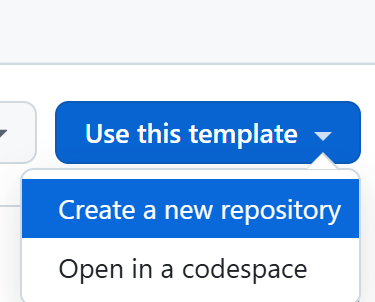
Step 2: Launch Codespaces
- Open your newly created repository
- Click the green "Code" button and select "Codespaces"
- Choose "Create codespace on main" to start your development environment
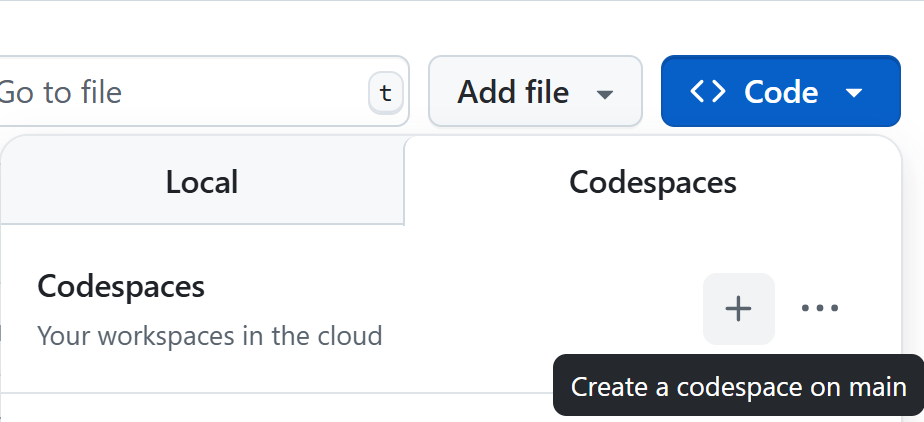
Step 3: Environment Configuration Once your Codespace loads, you'll have access to:
- Pre-installed Python, Node.js, and all necessary development tools
- VS Code interface with extensions for web development
- Terminal access for running backend and frontend servers
- Port forwarding for testing your applications
What Codespaces provides:
- Eliminates local environment setup and configuration issues
- Provides consistent development environment across different devices
- Includes pre-configured tools and extensions for web development
- Offers seamless integration with GitHub for version control and collaboration
🚀 Pro Tip: Codespaces is perfect for learning and prototyping AI applications since it handles all the complex environment setup automatically, letting you focus on building and learning rather than configuration troubleshooting.