CONTACT
SKILLS
- HTML5 & CSS3
- JavaScript (ES6+)
- Responsive Web Design
- Version Control (Git)
- Problem Solving
EDUCATION
Your Degree or Certification
Institution Name
Start Date - End Date
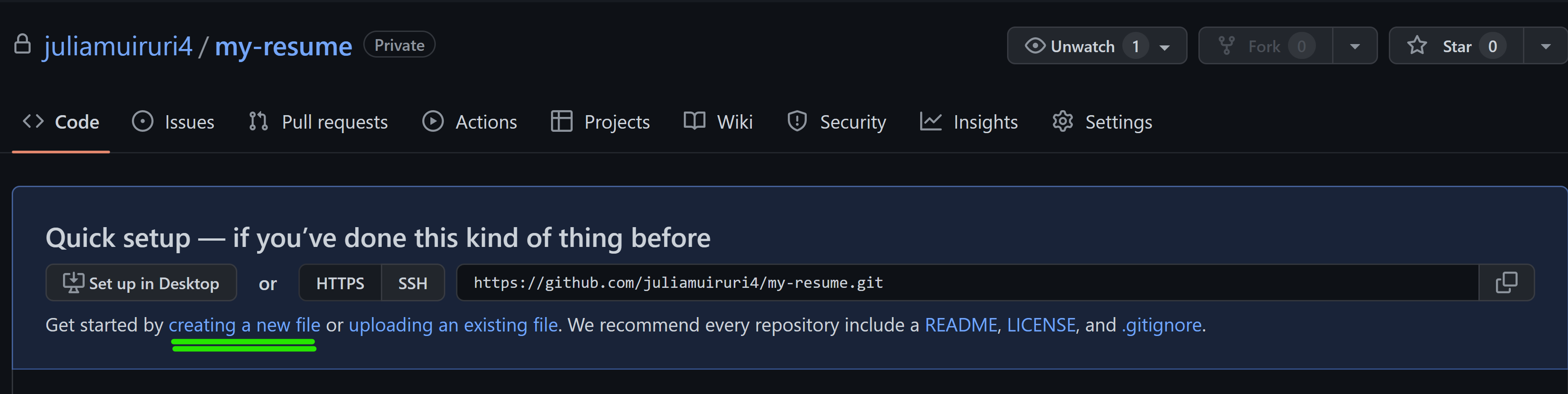
# Create a Resume Website Using VSCode.dev Transform your career prospects by building a professional resume website that showcases your skills and experience in an interactive, modern format. Instead of sending traditional PDFs, imagine providing recruiters with a sleek, responsive website that demonstrates both your qualifications and your web development capabilities. This hands-on assignment puts all your VSCode.dev skills into practice while creating something genuinely useful for your career. You'll experience the complete web development workflow – from repository creation to deployment – all within your browser. By completing this project, you'll have a professional online presence that can be easily shared with potential employers, updated as your skills grow, and customized to match your personal brand. This is exactly the kind of practical project that demonstrates real-world web development skills. ## Learning Objectives After completing this assignment, you'll be able to: - **Create** and manage a complete web development project using VSCode.dev - **Structure** a professional website using semantic HTML elements - **Style** responsive layouts with modern CSS techniques - **Implement** interactive features using basic web technologies - **Deploy** a live website accessible via a shareable URL - **Demonstrate** version control best practices throughout the development process ## Prerequisites Before starting this assignment, ensure you have: - A GitHub account (create one at [github.com](https://github.com/) if needed) - Completion of the VSCode.dev lesson covering interface navigation and basic operations - Basic understanding of HTML structure and CSS styling concepts ## Project Setup and Repository Creation Let's start by setting up your project foundation. This process mirrors real-world development workflows where projects begin with proper repository initialization and structure planning. ### Step 1: Create Your GitHub Repository Setting up a dedicated repository ensures your project is properly organized and version-controlled from the beginning. 1. **Navigate** to [GitHub.com](https://github.com) and sign in to your account 2. **Click** the green "New" button or the "+" icon in the top-right corner 3. **Name** your repository `my-resume` (or choose a personalized name like `john-smith-resume`) 4. **Add** a brief description: "Professional resume website built with HTML and CSS" 5. **Select** "Public" to make your resume accessible to potential employers 6. **Check** "Add a README file" to create an initial project description 7. **Click** "Create repository" to finalize setup > 💡 **Repository Naming Tip**: Use descriptive, professional names that clearly indicate the project's purpose. This helps when sharing with employers or during portfolio reviews. ### Step 2: Initialize Project Structure Since VSCode.dev requires at least one file to open a repository, we'll create our main HTML file directly on GitHub before switching to the web editor. 1. **Click** "creating a new file" link in your new repository 2. **Type** `index.html` as the filename 3. **Add** this initial HTML structure: ```html
Professional Resume Website
``` 4. **Write** a commit message: "Add initial HTML structure" 5. **Click** "Commit new file" to save your changes  **Here's what this initial setup accomplishes:** - **Establishes** proper HTML5 document structure with semantic elements - **Includes** viewport meta tag for responsive design compatibility - **Sets** a descriptive page title that appears in browser tabs - **Creates** the foundation for professional content organization ## Working in VSCode.dev Now that your repository foundation is established, let's transition to VSCode.dev for the main development work. This web-based editor provides all the tools needed for professional web development. ### Step 3: Open Your Project in VSCode.dev 1. **Navigate** to [vscode.dev](https://vscode.dev) in a new browser tab 2. **Click** "Open Remote Repository" on the welcome screen 3. **Copy** your repository URL from GitHub and paste it into the input field Format: `https://github.com/your-username/my-resume` *Replace `your-username` with your actual GitHub username* 4. **Press** Enter to load your project ✅ **Success indicator**: You should see your project files in the Explorer sidebar and `index.html` available for editing in the main editor area.  **What you'll see in the interface:** - **Explorer sidebar**: **Displays** your repository files and folder structure - **Editor area**: **Shows** the content of selected files for editing - **Activity bar**: **Provides** access to features like Source Control and Extensions - **Status bar**: **Indicates** connection status and current branch information ### Step 4: Build Your Resume Content Replace the placeholder content in `index.html` with a comprehensive resume structure. This HTML provides the foundation for a professional presentation of your qualifications.Your Professional Title
Institution Name
Start Date - End Date
Write a compelling summary that highlights your passion for web development, key achievements, and career goals. This section should give employers insight into your personality and professional approach.
Company Name | Start Date – End Date
Previous Company | Start Date – End Date