# Creating Accessible Webpages
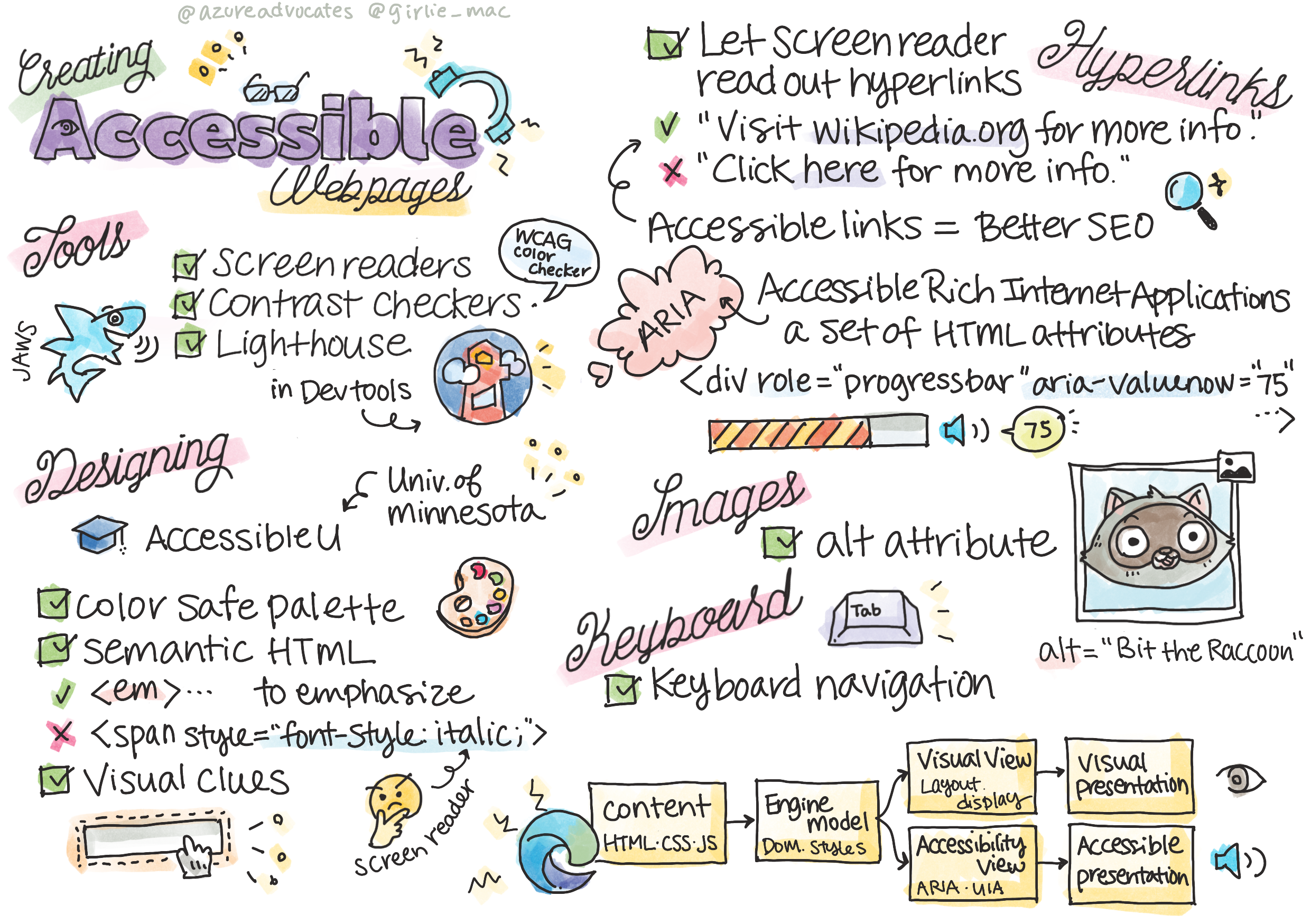
> Sketchnote by [Tomomi Imura](https://twitter.com/girlie_mac)
```mermaid
journey
title Your Accessibility Learning Adventure
section Foundation
Understanding Users: 5: You
Testing Tools: 4: You
POUR Principles: 5: You
section Build Skills
Semantic HTML: 4: You
Visual Design: 5: You
ARIA Techniques: 4: You
section Master Practice
Keyboard Navigation: 5: You
Form Accessibility: 4: You
Real-world Testing: 5: You
```
## Pre-Lecture Quiz
[Pre-lecture quiz](https://ff-quizzes.netlify.app/web/)
> The power of the Web is in its universality. Access by everyone regardless of disability is an essential aspect.
>
> \- Sir Timothy Berners-Lee, W3C Director and inventor of the World Wide Web
Here's something that might surprise you: when you build accessible websites, you're not just helping people with disabilities—you're actually making the web better for everyone!
Ever notice those curb cuts at street corners? They were originally designed for wheelchairs, but now they help people with strollers, delivery workers with dollies, travelers with rolling luggage, and cyclists too. That's exactly how accessible web design works—solutions that help one group often end up benefiting everyone. Pretty cool, right?
In this lesson, we're going to explore how to create websites that truly work for everyone, no matter how they browse the web. You'll discover practical techniques that are already built into web standards, get hands-on with testing tools, and see how accessibility makes your sites more usable for all users.
By the end of this lesson, you'll have the confidence to make accessibility a natural part of your development workflow. Ready to explore how thoughtful design choices can open up the web to billions of users? Let's dive in!
```mermaid
mindmap
root((Web Accessibility))
Users
Screen readers
Keyboard navigation
Voice control
Magnification
Technologies
HTML semantics
ARIA attributes
CSS focus indicators
Keyboard events
Benefits
Wider audience
Better SEO
Legal compliance
Universal design
Testing
Automated tools
Manual testing
User feedback
Real assistive tech
```
> You can take this lesson on [Microsoft Learn](https://docs.microsoft.com/learn/modules/web-development-101/accessibility/?WT.mc_id=academic-77807-sagibbon)!
## Understanding Assistive Technologies
Before we jump into coding, let's take a moment to understand how people with different abilities actually experience the web. This isn't just theory—understanding these real-world navigation patterns will make you a much better developer!
Assistive technologies are pretty amazing tools that help people with disabilities interact with websites in ways that might surprise you. Once you get the hang of how these technologies work, creating accessible web experiences becomes way more intuitive. It's like learning to see your code through someone else's eyes.
### Screen readers
[Screen readers](https://en.wikipedia.org/wiki/Screen_reader) are pretty sophisticated pieces of technology that convert digital text into speech or braille output. While they're primarily used by people with visual impairments, they're also super helpful for users with learning disabilities like dyslexia.
I like to think of a screen reader as having a really smart narrator reading a book to you. It reads content aloud in a logical order, announces interactive elements like "button" or "link," and provides keyboard shortcuts for jumping around a page. But here's the thing—screen readers can only work their magic if we build websites with proper structure and meaningful content. That's where you come in as a developer!
**Popular screen readers across platforms:**
- **Windows**: [NVDA](https://www.nvaccess.org/about-nvda/) (free and most popular), [JAWS](https://webaim.org/articles/jaws/), [Narrator](https://support.microsoft.com/windows/complete-guide-to-narrator-e4397a0d-ef4f-b386-d8ae-c172f109bdb1/?WT.mc_id=academic-77807-sagibbon) (built-in)
- **macOS/iOS**: [VoiceOver](https://support.apple.com/guide/voiceover/welcome/10) (built-in and very capable)
- **Android**: [TalkBack](https://support.google.com/accessibility/android/answer/6283677) (built-in)
- **Linux**: [Orca](https://wiki.gnome.org/Projects/Orca) (free and open-source)
**How screen readers navigate web content:**
Screen readers provide multiple navigation methods that make browsing efficient for experienced users:
- **Sequential reading**: Reads content from top to bottom, like following a book
- **Landmark navigation**: Jump between page sections (header, nav, main, footer)
- **Heading navigation**: Skip between headings to understand page structure
- **Link lists**: Generate a list of all links for quick access
- **Form controls**: Navigate directly between input fields and buttons
> 💡 **Here's something that blew my mind**: 68% of screen reader users navigate primarily by headings ([WebAIM Survey](https://webaim.org/projects/screenreadersurvey9/#finding)). This means your heading structure is like a roadmap for users—when you get it right, you're literally helping people find their way around your content faster!
### Building your testing workflow
Here's some good news—effective accessibility testing doesn't have to be overwhelming! You'll want to combine automated tools (they're fantastic at catching obvious issues) with some hands-on testing. Here's a systematic approach that I've found catches the most issues without eating up your entire day:
**Essential manual testing workflow:**
```mermaid
flowchart TD
A[🚀 Start Testing] --> B{⌨️ Keyboard Navigation}
B --> C[Tab through all interactive elements]
C --> D{🎧 Screen Reader Testing}
D --> E[Test with NVDA/VoiceOver]
E --> F{🔍 Zoom Testing}
F --> G[Zoom to 200% and test functionality]
G --> H{🎨 Color/Contrast Check}
H --> I[Verify all text meets contrast ratios]
I --> J{👁️ Focus Management}
J --> K[Ensure focus indicators are visible]
K --> L[✅ Testing Complete]
style A fill:#e3f2fd
style L fill:#e8f5e8
style B fill:#fff3e0
style D fill:#f3e5f5
style F fill:#e0f2f1
style H fill:#fce4ec
style J fill:#e8eaf6
```
**Step-by-step testing checklist:**
1. **Keyboard navigation**: Use only Tab, Shift+Tab, Enter, Space, and Arrow keys
2. **Screen reader testing**: Enable NVDA, VoiceOver, or Narrator and navigate with eyes closed
3. **Zoom testing**: Test at 200% and 400% zoom levels
4. **Color contrast verification**: Check all text and UI components
5. **Focus indicator testing**: Ensure all interactive elements have visible focus states
✅ **Start with Lighthouse**: Open your browser's DevTools, run a Lighthouse accessibility audit, then use the results to guide your manual testing focus areas.
### Zoom and magnification tools
You know how you sometimes pinch to zoom on your phone when text is too small, or squint at your laptop screen in bright sunlight? Many users rely on magnification tools to make content readable every single day. This includes people with low vision, older adults, and anyone who's ever tried to read a website outdoors.
Modern zoom technologies have evolved beyond just making things bigger. Understanding how these tools work will help you create responsive designs that remain functional and attractive at any magnification level.
**Modern browser zoom capabilities:**
- **Page zoom**: Scales all content proportionally (text, images, layout) - this is the preferred method
- **Text-only zoom**: Increases font size while maintaining original layout
- **Pinch-to-zoom**: Mobile gesture support for temporary magnification
- **Browser support**: All modern browsers support zoom up to 500% without breaking functionality
**Specialized magnification software:**
- **Windows**: [Magnifier](https://support.microsoft.com/windows/use-magnifier-to-make-things-on-the-screen-easier-to-see-414948ba-8b1c-d3bd-8615-0e5e32204198) (built-in), [ZoomText](https://www.freedomscientific.com/training/zoomtext/getting-started/)
- **macOS/iOS**: [Zoom](https://www.apple.com/accessibility/mac/vision/) (built-in with advanced features)
> ⚠️ **Design Consideration**: WCAG requires that content remain functional when zoomed to 200%. At this level, horizontal scrolling should be minimal, and all interactive elements should remain accessible.
✅ **Test your responsive design**: Zoom your browser to 200% and 400%. Does your layout adapt gracefully? Can you still access all functionality without excessive scrolling?
## Modern Accessibility Testing Tools
Now that you understand how people navigate the web with assistive technologies, let's explore the tools that help you build and test accessible websites.
Think of it like this: automated tools are great at catching obvious issues (like missing alt text), while hands-on testing helps you ensure your site feels good to use in the real world. Together, they give you confidence that your sites work for everyone.
### Color contrast testing
Here's some good news: color contrast is one of the most common accessibility issues, but it's also one of the easiest to fix. Good contrast benefits everyone—from users with visual impairments to people trying to read their phones at the beach.
**WCAG contrast requirements:**
| Text Type | WCAG AA (Minimum) | WCAG AAA (Enhanced) |
|-----------|-------------------|---------------------|
| **Normal text** (under 18pt) | 4.5:1 contrast ratio | 7:1 contrast ratio |
| **Large text** (18pt+ or 14pt+ bold) | 3:1 contrast ratio | 4.5:1 contrast ratio |
| **UI components** (buttons, form borders) | 3:1 contrast ratio | 3:1 contrast ratio |
**Essential testing tools:**
- [Colour Contrast Analyser](https://www.tpgi.com/color-contrast-checker/) - Desktop app with color picker
- [WebAIM Contrast Checker](https://webaim.org/resources/contrastchecker/) - Web-based with instant feedback
- [Stark](https://www.getstark.co/) - Design tool plugin for Figma, Sketch, Adobe XD
- [Accessible Colors](https://accessible-colors.com/) - Find accessible color palettes
✅ **Build better color palettes**: Start with your brand colors and use contrast checkers to create accessible variations. Document these as your design system's accessible color tokens.
### Comprehensive accessibility auditing
The most effective accessibility testing combines multiple approaches. No single tool catches everything, so building a testing routine with various methods ensures thorough coverage.
**Browser-based testing (built into DevTools):**
- **Chrome/Edge**: Lighthouse accessibility audit + Accessibility panel
- **Firefox**: Accessibility Inspector with detailed tree view
- **Safari**: Audit tab in Web Inspector with VoiceOver simulation
**Professional testing extensions:**
- [axe DevTools](https://www.deque.com/axe/devtools/) - Industry-standard automated testing
- [WAVE](https://wave.webaim.org/extension/) - Visual feedback with error highlighting
- [Accessibility Insights](https://accessibilityinsights.io/) - Microsoft's comprehensive testing suite
**Command-line and CI/CD integration:**
- [axe-core](https://github.com/dequelabs/axe-core) - JavaScript library for automated testing
- [Pa11y](https://pa11y.org/) - Command-line accessibility testing tool
- [Lighthouse CI](https://github.com/GoogleChrome/lighthouse-ci) - Automated accessibility scoring
> 🎯 **Testing Goal**: Aim for a Lighthouse accessibility score of 95+ as your baseline. Remember, automated tools only catch about 30-40% of accessibility issues—manual testing is still essential!
### 🧠 **Testing Skills Check: Ready to Find Issues?**
**Let's see how you're feeling about accessibility testing:**
- Which testing method seems most approachable to you right now?
- Can you imagine using keyboard-only navigation for a full day?
- What's one accessibility barrier you've personally experienced online?
```mermaid
pie title "Accessibility Issues Caught by Different Methods"
"Automated Tools" : 35
"Manual Testing" : 40
"User Feedback" : 25
```
> **Confidence booster**: Professional accessibility testers use this exact combination of methods. You're learning industry-standard practices!
## Building Accessibility from the Ground Up
The key to accessibility success is building it into your foundation from day one. I know it's tempting to think "I'll add accessibility later," but that's like trying to add a ramp to a house after it's already built. Possible? Yes. Easy? Not really.
Think of accessibility like planning a house—it's much easier to include wheelchair accessibility in your initial architectural plans than to retrofit everything later.
### The POUR principles: Your accessibility foundation
The Web Content Accessibility Guidelines (WCAG) are built around four fundamental principles that spell out POUR. Don't worry—these aren't stuffy academic concepts! They're actually practical guidelines for making content that works for everyone.
Once you get the hang of POUR, making accessibility decisions becomes way more intuitive. It's like having a mental checklist that guides your design choices. Let's break it down:
```mermaid
flowchart LR
A[🔍 PERCEIVABLE Can users sense it?] --> B[🎮 OPERABLE Can users use it?]
B --> C[📖 UNDERSTANDABLE Can users get it?]
C --> D[💪 ROBUST Does it work everywhere?]
A1[Alt text Captions Contrast] --> A
B1[Keyboard access No seizures Time limits] --> B
C1[Clear language Predictable Error help] --> C
D1[Valid code Compatible Future-proof] --> D
style A fill:#e1f5fe
style B fill:#e8f5e8
style C fill:#fff3e0
style D fill:#f3e5f5
```
**🔍 Perceivable**: Information must be presentable in ways users can perceive through their available senses
- Provide text alternatives for non-text content (images, videos, audio)
- Ensure sufficient color contrast for all text and UI components
- Offer captions and transcripts for multimedia content
- Design content that remains functional when resized up to 200%
- Use multiple sensory characteristics (not just color) to convey information
**🎮 Operable**: All interface components must be operable through available input methods
- Make all functionality accessible via keyboard navigation
- Provide users sufficient time to read and interact with content
- Avoid content that causes seizures or vestibular disorders
- Help users navigate efficiently with clear structure and landmarks
- Ensure interactive elements have adequate target sizes (44px minimum)
**📖 Understandable**: Information and UI operation must be clear and comprehensible
- Use clear, simple language appropriate for your audience
- Ensure content appears and operates in predictable, consistent ways
- Provide clear instructions and error messages for user input
- Help users understand and correct mistakes in forms
- Organize content with logical reading order and information hierarchy
**💪 Robust**: Content must work reliably across different technologies and assistive devices
- **Use valid, semantic HTML as your foundation**
- **Ensure compatibility with current and future assistive technologies**
- **Follow web standards and best practices for markup**
- **Test across different browsers, devices, and assistive tools**
- **Structure content so it degrades gracefully when advanced features aren't supported**
### 🎯 **POUR Principles Check: Making It Stick**
**Quick reflection on the foundations:**
- Can you think of a website feature that fails each POUR principle?
- Which principle feels most natural to you as a developer?
- How might these principles improve design for everyone, not just disabled users?
```mermaid
quadrantChart
title POUR Principles Impact Matrix
x-axis Low Effort --> High Effort
y-axis Low Impact --> High Impact
quadrant-1 Quick Wins
quadrant-2 Major Projects
quadrant-3 Consider Later
quadrant-4 Strategic Focus
Alt Text: [0.2, 0.9]
Color Contrast: [0.3, 0.8]
Semantic HTML: [0.4, 0.9]
Keyboard Nav: [0.6, 0.8]
ARIA Complex: [0.8, 0.7]
Screen Reader Testing: [0.7, 0.6]
```
> **Remember**: Start with high-impact, low-effort improvements. Semantic HTML and alt text give you the biggest accessibility boost for the least effort!
## Creating Accessible Visual Design
Good visual design and accessibility go hand in hand. When you design with accessibility in mind, you often discover that these constraints lead to cleaner, more elegant solutions that benefit all users.
Let's explore how to create visually appealing designs that work for everyone, regardless of their visual abilities or the conditions under which they're viewing your content.
### Color and visual accessibility strategies
Color is powerful for communication, but it should never be the only way you convey important information. Designing beyond color creates more robust, inclusive experiences that work in more situations.
**Design for color vision differences:**
Approximately 8% of men and 0.5% of women have some form of color vision difference (often called "color blindness"). The most common types are:
- **Deuteranopia**: Difficulty distinguishing red and green
- **Protanopia**: Red appears more dim
- **Tritanopia**: Difficulty with blue and yellow (rare)
**Inclusive color strategies:**
```css
/* ❌ Bad: Using only color to indicate status */
.error { color: red; }
.success { color: green; }
/* ✅ Good: Color plus icons and context */
.error {
color: #d32f2f;
border-left: 4px solid #d32f2f;
}
.error::before {
content: "⚠️";
margin-right: 8px;
}
.success {
color: #2e7d32;
border-left: 4px solid #2e7d32;
}
.success::before {
content: "✅";
margin-right: 8px;
}
```
**Beyond basic contrast requirements:**
- Test your color choices with color blind simulators
- Use patterns, textures, or shapes alongside color coding
- Ensure interactive states remain distinguishable without color
- Consider how your design looks in high contrast mode
✅ **Test your color accessibility**: Use tools like [Coblis](https://www.color-blindness.com/coblis-color-blindness-simulator/) to see how your site appears to users with different types of color vision.
### Focus indicators and interaction design
Focus indicators are the digital equivalent of a cursor—they show keyboard users where they are on the page. Well-designed focus indicators enhance the experience for everyone by making interactions clear and predictable.
**Modern focus indicator best practices:**
```css
/* Enhanced focus styles that work across browsers */
button:focus-visible {
outline: 2px solid #0066cc;
outline-offset: 2px;
box-shadow: 0 0 0 4px rgba(0, 102, 204, 0.25);
}
/* Remove focus outline for mouse users, preserve for keyboard users */
button:focus:not(:focus-visible) {
outline: none;
}
/* Focus-within for complex components */
.card:focus-within {
box-shadow: 0 0 0 3px rgba(74, 144, 164, 0.5);
border-color: #4A90A4;
}
/* Ensure focus indicators meet contrast requirements */
.custom-focus:focus-visible {
outline: 3px solid #ffffff;
outline-offset: 2px;
box-shadow: 0 0 0 6px #000000;
}
```
**Focus indicator requirements:**
- **Visibility**: Must have at least 3:1 contrast ratio with surrounding elements
- **Width**: Minimum 2px thickness around the entire element
- **Persistence**: Should remain visible until focus moves elsewhere
- **Distinction**: Must be visually different from other UI states
> 💡 **Design Tip**: Great focus indicators often use a combination of outline, box-shadow, and color changes to ensure visibility across different backgrounds and contexts.
✅ **Audit focus indicators**: Tab through your website and note which elements have clear focus indicators. Are any difficult to see or missing entirely?
### Semantic HTML: The foundation of accessibility
Semantic HTML is like giving assistive technologies a GPS system for your website. When you use the right HTML elements for their intended purpose, you're basically providing screen readers, keyboards, and other tools with a detailed roadmap to help users navigate effectively.
Here's an analogy that really clicked for me: semantic HTML is the difference between a well-organized library with clear categories and helpful signs versus a warehouse where books are scattered randomly. Both places have the same books, but which one would you rather try to find something in? Exactly!
```mermaid
flowchart TD
A[🏠 HTML Document] --> B[📰 header]
A --> C[🧭 nav]
A --> D[📄 main]
A --> E[📋 footer]
B --> B1[h1: Site Name Logo & branding]
C --> C1[ul: Navigation Primary links]
D --> D1[article: Content section: Subsections]
D --> D2[aside: Sidebar Related content]
E --> E1[nav: Footer links Copyright info]
D1 --> D1a[h1: Page title h2: Major sections h3: Subsections]
style A fill:#e3f2fd
style B fill:#e8f5e8
style C fill:#fff3e0
style D fill:#f3e5f5
style E fill:#e0f2f1
```
**Building blocks of accessible page structure:**
```html
Your Site Name
Article Title
Published on
First Section
Content that relates to this section...
Second Section
More related content...
```
**Why semantic HTML transforms accessibility:**
| Semantic Element | Purpose | Screen Reader Benefit |
|------------------|---------|----------------------|
| `` | Page or section header | "Banner landmark" - quick navigation to top |
| `