
 leestott
c7a68c1882
leestott
c7a68c1882
|
6 months ago | |
|---|---|---|
| .. | ||
| solution | 6 months ago | |
| README.md | 6 months ago | |
| assignment.md | 6 months ago | |
| notebook.ipynb | 6 months ago | |
README.md
建立一個美食推薦網頁應用程式
在本課程中,您將使用之前課程中學到的一些技術,並結合本系列中使用的美食數據集,建立一個分類模型。此外,您還將建立一個小型網頁應用程式,使用已保存的模型,並利用 Onnx 的網頁運行時進行推論。
機器學習最實用的應用之一就是建立推薦系統,而今天您可以邁出這個方向的第一步!

🎥 點擊上方圖片觀看影片:Jen Looper 使用分類的美食數據建立了一個網頁應用程式
課前測驗
在本課程中,您將學到:
- 如何建立模型並將其保存為 Onnx 模型
- 如何使用 Netron 檢視模型
- 如何在網頁應用程式中使用您的模型進行推論
建立您的模型
建立應用型機器學習系統是將這些技術應用於業務系統的重要部分。通過使用 Onnx,您可以在網頁應用程式中使用模型(因此在需要時也可以在離線環境中使用)。
在之前的課程中,您建立了一個關於 UFO 目擊事件的回歸模型,將其“pickle”保存,並在 Flask 應用程式中使用。雖然這種架構非常有用,但它是一個全棧的 Python 應用程式,而您的需求可能包括使用 JavaScript 應用程式。
在本課程中,您可以建立一個基於 JavaScript 的基本推論系統。不過,首先您需要訓練一個模型並將其轉換為 Onnx 格式。
練習 - 訓練分類模型
首先,使用我們之前使用的清理過的美食數據集訓練一個分類模型。
-
首先匯入有用的函式庫:
!pip install skl2onnx
import pandas as pd
您需要使用 'skl2onnx' 來幫助將 Scikit-learn 模型轉換為 Onnx 格式。
-
然後,像之前課程中一樣,使用
read_csv()讀取 CSV 文件來處理數據:data = pd.read_csv('../data/cleaned_cuisines.csv') data.head() -
移除前兩列不必要的欄位,並將剩餘數據保存為 'X':
X = data.iloc[:,2:] X.head() -
將標籤保存為 'y':
y = data[['cuisine']]
y.head()
開始訓練流程
我們將使用具有良好準確性的 'SVC' 函式庫。
-
從 Scikit-learn 匯入適當的函式庫:
from sklearn.model_selection import train_test_split from sklearn.svm import SVC from sklearn.model_selection import cross_val_score from sklearn.metrics import accuracy_score,precision_score,confusion_matrix,classification_report -
分離訓練集和測試集:
X_train, X_test, y_train, y_test = train_test_split(X,y,test_size=0.3) -
像之前課程中一樣,建立一個 SVC 分類模型:
model = SVC(kernel='linear', C=10, probability=True,random_state=0) model.fit(X_train,y_train.values.ravel()) -
現在,測試您的模型,調用
predict():y_pred = model.predict(X_test) -
輸出分類報告以檢查模型的質量:
print(classification_report(y_test,y_pred))如我們之前所見,準確性良好:
                precision    recall  f1-score   support

     chinese       0.72      0.69      0.70       257
      indian       0.91      0.87      0.89       243
    japanese       0.79      0.77      0.78       239
      korean       0.83      0.79      0.81       236
        thai       0.72      0.84      0.78       224

    accuracy                           0.79      1199
   macro avg       0.79      0.79      0.79      1199
weighted avg       0.79      0.79      0.79      1199
將模型轉換為 Onnx
確保使用正確的 Tensor 數進行轉換。此數據集中列出了 380 種食材,因此您需要在 FloatTensorType 中標註該數字:
-
使用 380 的 Tensor 數進行轉換。
from skl2onnx import convert_sklearn from skl2onnx.common.data_types import FloatTensorType initial_type = [('float_input', FloatTensorType([None, 380]))] options = {id(model): {'nocl': True, 'zipmap': False}} -
創建 onx 並保存為文件 model.onnx:
onx = convert_sklearn(model, initial_types=initial_type, options=options) with open("./model.onnx", "wb") as f: f.write(onx.SerializeToString())注意,您可以在轉換腳本中傳遞選項。在本例中,我們將 'nocl' 設為 True,'zipmap' 設為 False。由於這是一個分類模型,您可以選擇移除 ZipMap,它會生成一個字典列表(不必要)。
nocl指的是是否在模型中包含類別資訊。通過將nocl設為 'True',可以減小模型的大小。
執行整個 notebook 現在將建立一個 Onnx 模型並將其保存到此文件夾中。
檢視您的模型
Onnx 模型在 Visual Studio Code 中不太容易檢視,但有一個非常好的免費軟體,許多研究人員用來可視化模型以確保其正確構建。下載 Netron 並打開您的 model.onnx 文件。您可以看到您的簡單模型被可視化,包含其 380 個輸入和分類器:
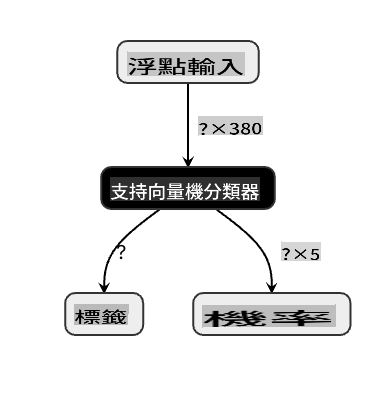
Netron 是一個檢視模型的有用工具。
現在,您已準備好在網頁應用程式中使用這個有趣的模型。讓我們建立一個應用程式,當您查看冰箱並試圖弄清楚可以用哪些剩餘食材來烹飪某種美食時,這個應用程式將派上用場。
建立推薦網頁應用程式
您可以直接在網頁應用程式中使用您的模型。這種架構還允許您在本地甚至離線運行它。首先,在您存儲 model.onnx 文件的同一文件夾中創建一個 index.html 文件。
-
在此文件 index.html 中,添加以下標記:
<!DOCTYPE html> <html> <header> <title>Cuisine Matcher</title> </header> <body> ... </body> </html> -
現在,在
body標籤內,添加一些標記以顯示反映某些食材的複選框列表:<h1>Check your refrigerator. What can you create?</h1> <div id="wrapper"> <div class="boxCont"> <input type="checkbox" value="4" class="checkbox"> <label>apple</label> </div> <div class="boxCont"> <input type="checkbox" value="247" class="checkbox"> <label>pear</label> </div> <div class="boxCont"> <input type="checkbox" value="77" class="checkbox"> <label>cherry</label> </div> <div class="boxCont"> <input type="checkbox" value="126" class="checkbox"> <label>fenugreek</label> </div> <div class="boxCont"> <input type="checkbox" value="302" class="checkbox"> <label>sake</label> </div> <div class="boxCont"> <input type="checkbox" value="327" class="checkbox"> <label>soy sauce</label> </div> <div class="boxCont"> <input type="checkbox" value="112" class="checkbox"> <label>cumin</label> </div> </div> <div style="padding-top:10px"> <button onClick="startInference()">What kind of cuisine can you make?</button> </div>注意,每個複選框都有一個值。這反映了根據數據集中食材的位置索引。例如,蘋果在這個按字母順序排列的列表中佔據第五列,因此其值為 '4'(因為我們從 0 開始計數)。您可以查閱 ingredients spreadsheet 來查找某個食材的索引。
繼續在 index.html 文件中工作,在最後的
</div>標籤後添加一個腳本區塊,調用模型。 -
首先,匯入 Onnx Runtime:
<script src="https://cdn.jsdelivr.net/npm/onnxruntime-web@1.9.0/dist/ort.min.js"></script>Onnx Runtime 用於在廣泛的硬體平台上運行您的 Onnx 模型,包括優化和使用的 API。
-
一旦 Runtime 就位,您可以調用它:
<script>
    const ingredients = Array(380).fill(0);

    const checks = [...document.querySelectorAll('.checkbox')];

    checks.forEach(check => {
        check.addEventListener('change', function() {
            // toggle the state of the ingredient
            // based on the checkbox's value (1 or 0)
            ingredients[check.value] = check.checked ? 1 : 0;
        });
    });

    function testCheckboxes() {
        // validate if at least one checkbox is checked
        return checks.some(check => check.checked);
    }

    async function startInference() {

        let atLeastOneChecked = testCheckboxes()

        if (!atLeastOneChecked) {
            alert('Please select at least one ingredient.');
            return;
        }
        try {
            // create a new session and load the model.

            const session = await ort.InferenceSession.create('./model.onnx');

            const input = new ort.Tensor(new Float32Array(ingredients), [1, 380]);
            const feeds = { float_input: input };

            // feed inputs and run
            const results = await session.run(feeds);

            // read from results
            alert('You can enjoy ' + results.label.data[0] + ' cuisine today!')

        } catch (e) {
            console.log(`failed to inference ONNX model`);
            console.error(e);
        }
    }

</script>
在此代碼中,發生了以下幾件事:
- 您創建了一個包含 380 個可能值(1 或 0)的陣列,根據是否選中某個食材複選框來設置並發送到模型進行推論。
- 您創建了一個複選框陣列以及一種在應用程式啟動時檢查它們是否被選中的
init函式。當選中某個複選框時,ingredients陣列會被更改以反映所選食材。 - 您創建了一個
testCheckboxes函式,用於檢查是否有任何複選框被選中。 - 當按下按鈕時,您使用
startInference函式,如果有任何複選框被選中,則開始推論。 - 推論流程包括:
- 設置模型的異步加載
- 創建一個要發送到模型的 Tensor 結構
- 創建反映您在訓練模型時創建的
float_input輸入的 'feeds'(您可以使用 Netron 驗證該名稱) - 將這些 'feeds' 發送到模型並等待回應
測試您的應用程式
在 Visual Studio Code 中的終端會話中,進入您的 index.html 文件所在的文件夾。確保您已全域安裝 http-server,然後在提示符下輸入 http-server。應該會打開一個本地主機,您可以檢視您的網頁應用程式。檢查基於各種食材推薦的美食:
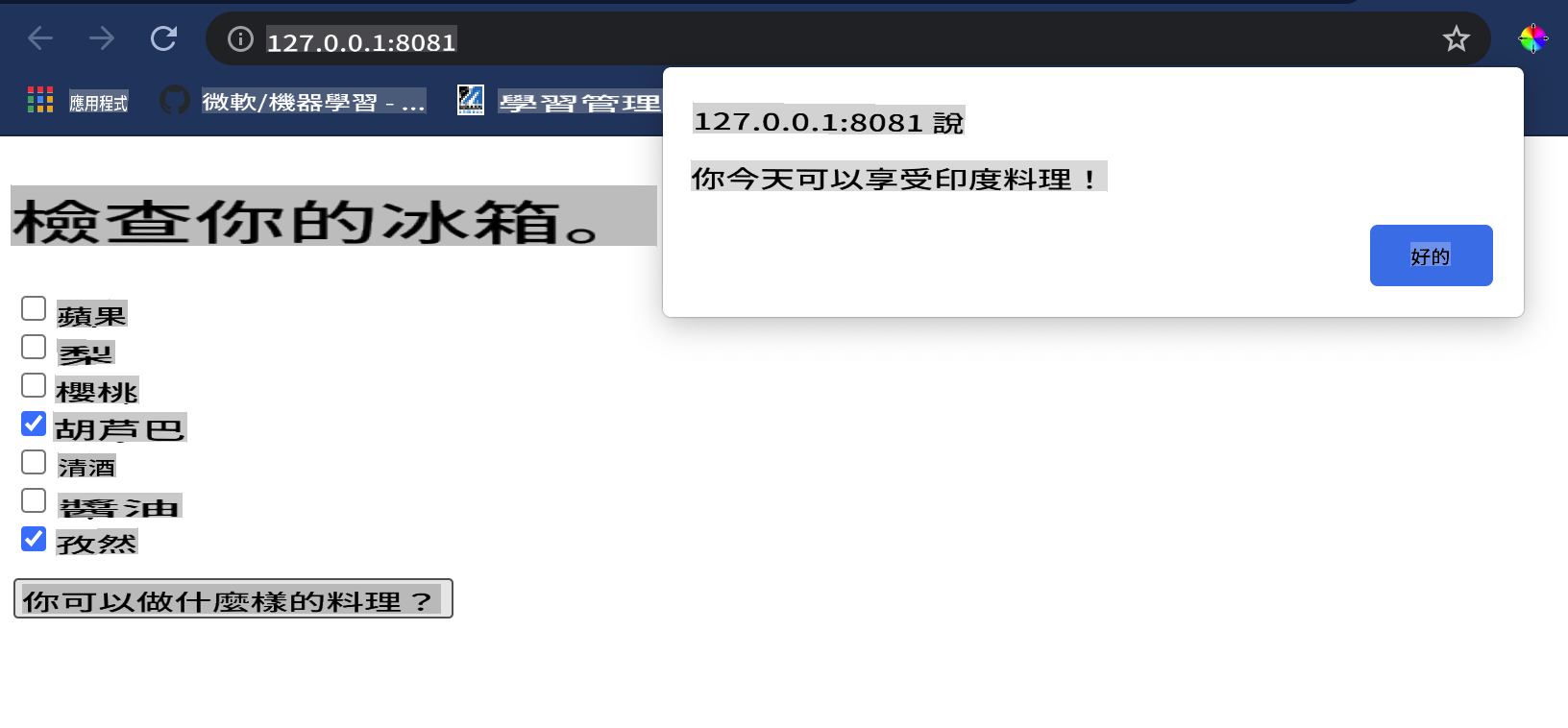
恭喜,您已經建立了一個帶有幾個欄位的“推薦”網頁應用程式。花些時間來擴展這個系統吧!
🚀挑戰
您的網頁應用程式非常簡單,因此請繼續使用 ingredient_indexes 數據中的食材及其索引來擴展它。哪些口味組合可以創造出某個國家的特色菜?
課後測驗
回顧與自學
雖然本課程僅簡單介紹了為食材建立推薦系統的實用性,但這個機器學習應用領域有非常豐富的例子。閱讀更多關於這些系統如何構建的內容:
- https://www.sciencedirect.com/topics/computer-science/recommendation-engine
- https://www.technologyreview.com/2014/08/25/171547/the-ultimate-challenge-for-recommendation-engines/
- https://www.technologyreview.com/2015/03/23/168831/everything-is-a-recommendation/
作業
免責聲明:
本文件已使用 AI 翻譯服務 Co-op Translator 進行翻譯。雖然我們致力於提供準確的翻譯,但請注意,自動翻譯可能包含錯誤或不準確之處。原始文件的母語版本應被視為權威來源。對於關鍵資訊,建議使用專業人工翻譯。我們對因使用此翻譯而引起的任何誤解或誤釋不承擔責任。