
 Amagash
01cf72b074
Amagash
01cf72b074
|
5 years ago | |
|---|---|---|
| .. | ||
| img | 5 years ago | |
| solution | 5 years ago | |
| translations | 5 years ago | |
| README.md | 5 years ago | |
| assignment.md | 5 years ago | |
| notebook.ipynb | 5 years ago | |
README.md
Low code/No code Data Science in the Cloud
Table of contents:
- Low code/No code Data Science in the Cloud
Pre-Lecture Quiz
Pre-lecture quiz
1. Introduction
1.1 What is Azure Machine Learning?
Data scientists expend a lot of effort exploring and pre-processing data, and trying various types of model-training algorithms to produce accurate models, which is time consuming, and often makes inefficient use of expensive compute hardware.
Azure ML is a cloud-based platform for building and operating machine learning solutions in Azure. It includes a wide range of features and capabilities that help data scientists prepare data, train models, publish predictive services, and monitor their usage. Most importantly, it helps data scientists increase their efficiency by automating many of the time-consuming tasks associated with training models; and it enables them to use cloud-based compute resources that scale effectively to handle large volumes of data while incurring costs only when actually used.
Azure ML provides all the tools developers and data scientists need for their machine learning workflows, including:
- Azure Machine Learning Studio is a web portal in Azure Machine Learning for low-code and no-code options for model training, deployment, automation, tracking and asset management. The studio integrates with the Azure Machine Learning SDK for a seamless experience.
- Jupyter Notebooks to quickly prototype and test ML models
- Azure Machine Learning Designer allows to drag-n-drop modules to build experiments and then deploy pipelines in a low-code environment.
- Automated machine learning UI (AutoML) automates iterative tasks of machine learning model development allowing to build ML models with high scale, efficiency, and productivity all while sustaining model quality.
- Data labeling: an assisted ML tool to automatically label data.
- Machine learning extension for Visual Studio Code provides a full-featured development environment for building and managing ML projects.
- Machine learning CLI provides commands for managing Azure ML resources from the command line.
- Integration with open-source frameworks such as PyTorch, TensorFlow, and scikit-learn and many more for training, deploying, and managing the end-to-end machine learning process.
- MLflow is an open-source library for managing the life cycle of your machine learning experiments. MLFlow Tracking is a component of MLflow that logs and tracks your training run metrics and model artifacts, no matter your experiment's environment.
1.2 The Heart Failure Prediction Project
What better way to learn than actually doing a project! In this lesson, we are going to explore two different ways of building a data science project for the prediction of heart failure attacks in Azure ML Studio, through Low code/No code and through the Azure ML SDK as shown in the following schema.
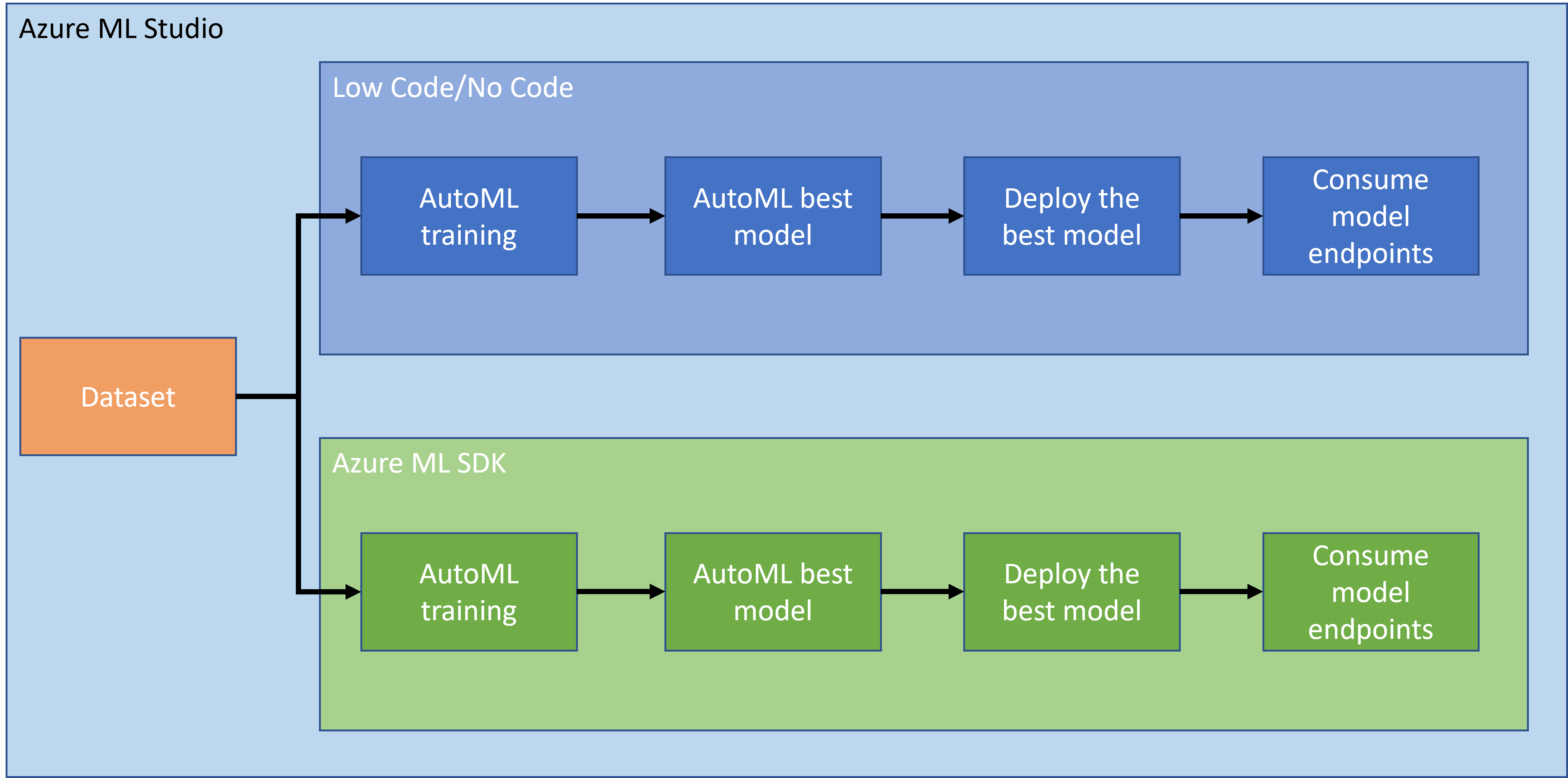
Both ways has its pro and cons. The Low code/No code way is easier to start with because it is mostly interacting with a GUI (Graphical User Interface) without knowledge of code required. This method is great at the beginning of a project to quickly test if a project is viable and to create POC (Proof Of Concept). However, once a project grows and things need to be production ready, it is not maintainable to create resources by hand through the GUI. We need to programmatically automate everything, from the creation of resources, to the deployment of a model. This is where knowing how to use the Azure ML SDK is critical.
| Low code/No code | Azure ML SDK | |
|---|---|---|
| Expertise in code | Not required | Required |
| Time to develop | Fast and easy | Depends on code expertise |
| Production ready | No | Yes |
1.3 The Heart Failure Dataset
Cardiovascular diseases (CVDs) are the number 1 cause of death globally, accounting for 31% of all deaths worlwide. Environmental and behavioural risk factors such as tobacco use, unhealthy diet and obesity, physical inactivity and harmful use of alcohol could be used as features for estimation models. Being able to estimate the probability of developping a CVD could be of great to prevent attacks for high risk people.
Kaggle has made publically available a Heart Failure dataset that we are going to use for this project. You can download the dataset now. This is a tabular dataset with 13 columns (12 features and 1 target variable) and contains 299 rows.
| Variable name | Type | Description | Example | |
|---|---|---|---|---|
| 1 | age | numerical | age of the patient | 25 |
| 2 | anaemia | boolean | Decrease of red blood cells or hemoglobin | 0 or 1 |
| 3 | creatinine_phosphokinase | numerical | Level of the CPK enzyme in the blood | 542 |
| 4 | diabetes | boolean | If the patient has diabetes | university.degree |
| 5 | ejection_fraction | numerical | Percentage of blood leaving the heart at each contraction | 45 |
| 6 | high_blood_pressure | boolean | If the patient has hypertension | 0 or 1 |
| 7 | platelets | numerical | Platelets in the blood | 149000 |
| 8 | serum_creatinine | numerical | Level of serum creatinine in the blood | 0.5 |
| 9 | serum_sodium | numerical | Level of serum sodium in the blood | jun |
| 10 | sex | boolean | Woman or man | 0 or 1 |
| 11 | smoking | boolean | If the patient smokes | 285 |
| 12 | time | numerical | follow-up period (days) | 4 |
| ---- | --------------------------- | ----------------- | ----------------------------------------------------------- | ------------------- |
| 21 | DEATH_EVENT [Target] | boolean | if the patient deceased during the follow-up period | 0 or 1 |
Once you have the dataset, we can start the project in Azure.
2. Low code/No code training of a model in Azure ML Studio
2.1 Create an Azure ML workspace
To train a model in Azure ML you first need to create an Azure ML workspace. The workspace is the top-level resource for Azure Machine Learning, providing a centralized place to work with all the artifacts you create when you use Azure Machine Learning. The workspace keeps a history of all training runs, including logs, metrics, output, and a snapshot of your scripts. You use this information to determine which training run produces the best model. Learn more
It is recommended to use the most up-to-date browser that's compatible with your operating system. The following browsers are supported:
- Microsoft Edge (The new Microsoft Edge, latest version. Not Microsoft Edge legacy)
- Safari (latest version, Mac only)
- Chrome (latest version)
- Firefox (latest version)
To use Azure Machine Learning, create a workspace in your Azure subscription. You can then use this workspace to manage data, compute resources, code, models, and other artifacts related to your machine learning workloads.
NOTE: Your Azure subscription will be charged a small amount for data storage as long as the Azure Machine Learning workspace exists in your subscription, so we recommend you delete the Azure Machine Learning workspace when you are no longer using it.
-
Sign into the Azure portal using the Microsoft credentials associated with your Azure subscription.
-
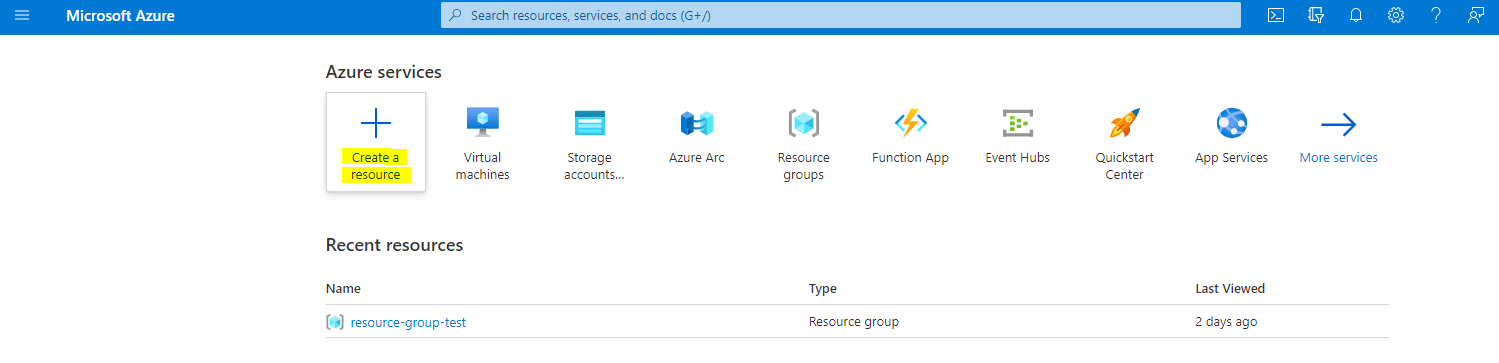
Select +Create a resource
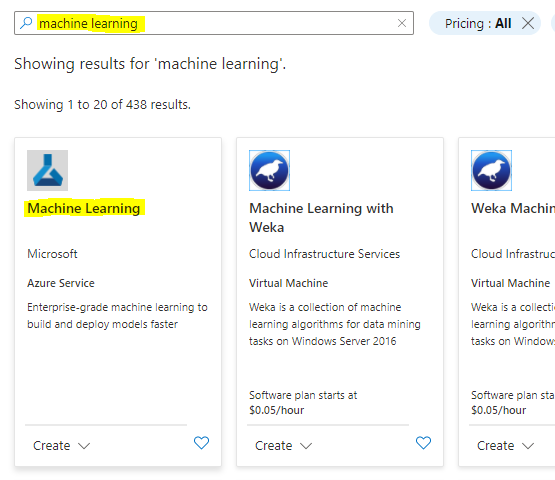
Search for Machine Learning and select the Machine Learning tile
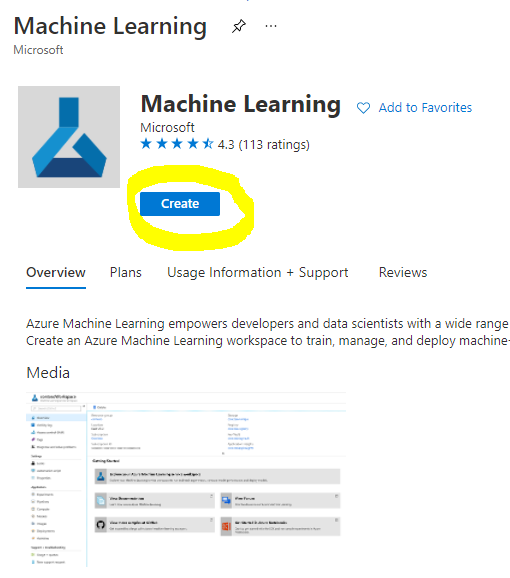
Click the create button
Fill in the settings:
- Subscription: Your Azure subscription
- Resource group: Create or select a resource group
- Workspace name: Enter a unique name for your workspace
- Region: Select the geographical region closest to you
- Storage account: Note the default new storage account that will be created for your workspace
- Key vault: Note the default new key vault that will be created for your workspace
- Application insights: Note the default new application insights resource that will be created for your workspace
- Container registry: None (one will be created automatically the first time you deploy a model to a container)
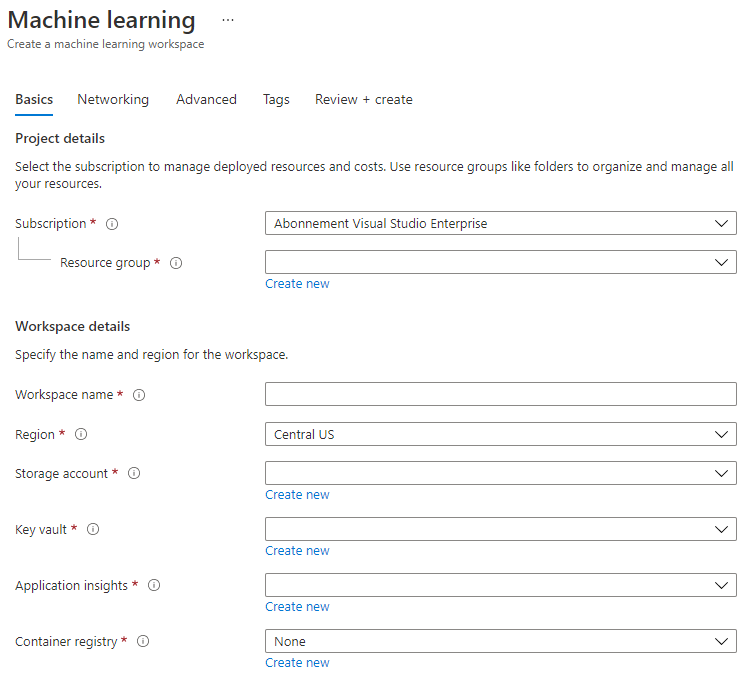
- Click the create + review and then on the create button
-
Wait for your workspace to be created (it can take a few minutes). Then go to it in the portal. You can find it through the Machine Learning Azure service.
-
On the Overview page for your workspace, launch Azure Machine Learning studio (or open a new browser tab and navigate to https://ml.azure.com), and sign into Azure Machine Learning studio using your Microsoft account. If prompted, select your Azure directory and subscription, and your Azure Machine Learning workspace.
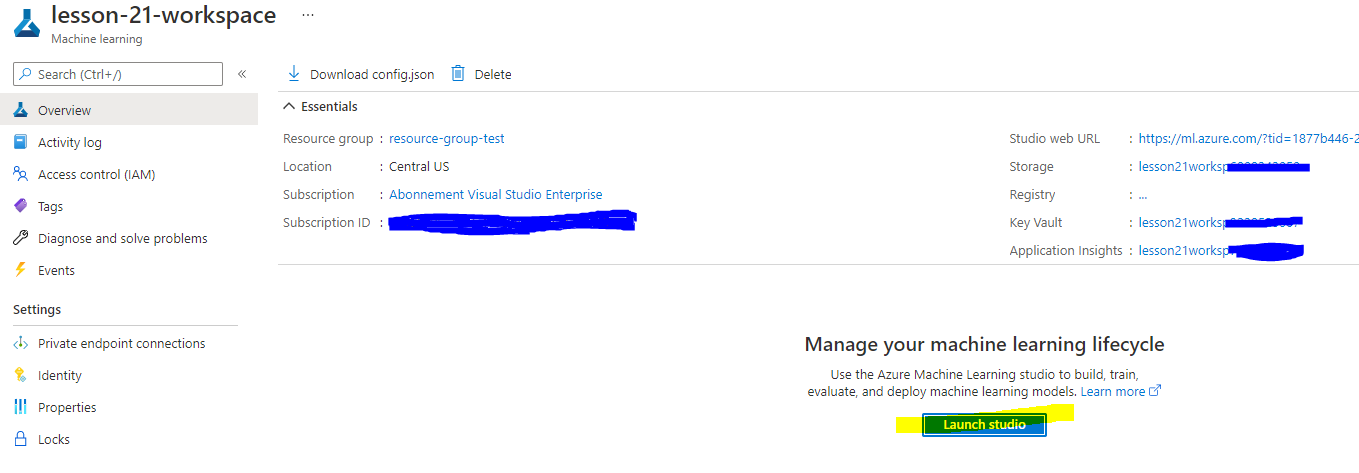
- In Azure Machine Learning studio, toggle the ☰ icon at the top left to view the various pages in the interface. You can use these pages to manage the resources in your workspace.
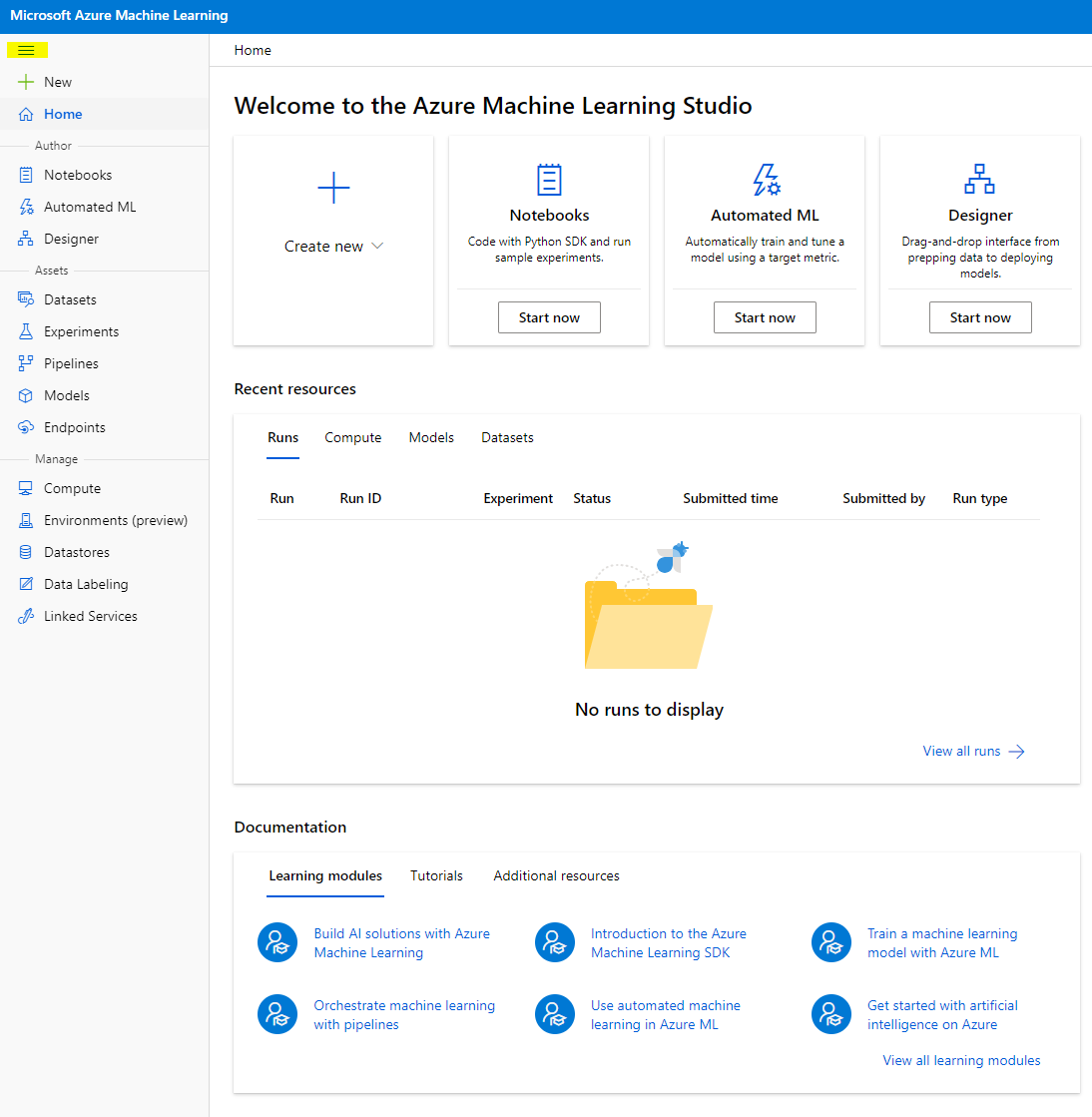
You can manage your workspace using the Azure portal, but for data scientists and Machine Learning operations engineers, Azure Machine Learning studio provides a more focused user interface for managing workspace resources.
2.2 Compute Resources
2.2.1 Choosing the right options for your compute resources
2.2.2 Creating a compute cluster
2.3 Loading the Dataset
2.4 Low code/No Code training with AutoML
3. Low code/No Code model deployment and endpoint consumption
3.1 Model deployment
3.2 Endpoint consumption
🚀 Challenge
Post-Lecture Quiz
Post-lecture quiz